Quick answer: When an ITF-14 carton barcode will not scan, check three things before reprinting: the reader’s support for Interleaved 2 of 5 / ITF, the correct 14-digit GTIN and check digit, and the physical symbol quality—especially its required clear left/right margins, bar widths, bearer bars and contrast on corrugated packaging. A normal retail UPC scanner workflow may not accept the carton identifier even when the symbol is correctly printed.
This independent guide covers warehouse cartons, outer cases and distribution scanning, not the retail label on an individual item. Use an authorized specimen and a controlled test record; do not invent product identifiers or modify shipping records as a troubleshooting shortcut.
What is an ITF-14 barcode?
ITF-14 is a GS1 barcode symbology used to encode a 14-digit Global Trade Item Number (GTIN), commonly on cartons and other trade-item packaging handled in distribution. Its underlying bar pattern is based on Interleaved 2 of 5, using pairs of digits encoded across bars and spaces. GS1 describes the symbol’s left quiet zone, start pattern, seven pairs of symbol characters, stop pattern and right quiet zone.
ITF-14 should not be confused with a carrier’s tracking barcode, a GS1-128 logistics label with application identifiers, or an individual retail UPC-A. The GS1 ITF-14 overview explains its use on corrugated packaging. If you are troubleshooting richer GS1 AI data, read our GS1-128 troubleshooting guide; that is a different symbol and encoding workflow.
Start with this symptom-to-cause table
| Observed problem | Likely cause | Best first check |
|---|---|---|
| UPC-A scans, but carton ITF-14 does not | Unsupported or disabled Interleaved 2 of 5 | Check scanner symbologies and length settings |
| Barcode never reads on a rough carton | Ink spread, weak contrast or crushed substrate | Compare approved label stock with direct carton print |
| One side of the code is against a box edge | Quiet zone clipped by design or placement | Measure required clear margins |
| Symbol scans but warehouse app rejects the carton | Wrong GTIN, item level or product mapping | Compare raw 14 digits with authorized case record |
| Sometimes scans extra or partial digits | Scanner ITF length controls or bad symbol quality | Check permitted data lengths and verify symbol |
| Reads a sample but not a production run | Artwork scaling, press variation or package damage | Check print proof across actual production samples |
1. Verify the scanner supports Interleaved 2 of 5
Some scanners require Interleaved 2 of 5 (often labeled I 2 of 5, ITF or ITF-14) to be enabled. A reader that scans Code 128 or UPC-A does not prove the needed decoder is active. Refer to the device’s own programming manual or vendor utility, and preserve its current configuration before making a change.
A standard ITF-14 encodes 14 data digits. For safety and correct decoding, scanner profiles may restrict Interleaved 2 of 5 to configured lengths. Investigate that length filter if a qualified reference symbol fails; do not indiscriminately enable short lengths or turn off validation across every workstation. Changes to decoding can affect unrelated barcodes, so retest your authorized warehouse workflow after adjustment.
2. Confirm you are testing the case GTIN, not an each-level UPC
A carton or case can have its own GTIN that differs from the GTIN of the consumer unit inside. The warehouse system may need the case-level identifier to receive, count or move the package correctly. If a scan returns a valid 14-digit number but the application reports “unknown item,” the problem may be catalog configuration or package hierarchy rather than print quality.
Compare the digits obtained from a known-good scan with the authorized case-level product master. Do not add or remove an indicator digit by guesswork and do not substitute a retail GTIN-12 simply because a POS lookup recognizes it. Our scanner shows the wrong inventory item article covers the downstream mapping layer.
3. Check all 14 digits and the GS1 check digit
The 14th digit of a GTIN-14 is a calculated check digit. Use the approved GS1 record or calculator to compare the full value; a string having exactly fourteen digits is not enough to establish that it is a valid, assigned identifier. The printed human-readable value helps diagnosis but does not replace scanning or verification.
If a test application receives 13 digits, determine whether the scanner suppressed a check digit, the source artwork omitted a character, or the host modified the data. If it receives 15 or more characters, look for scanner prefixes, symbology identifiers or suffixes. Only change settings after a controlled raw-output test. See extra scanner characters after a read.
4. Restore the required quiet zones at both ends
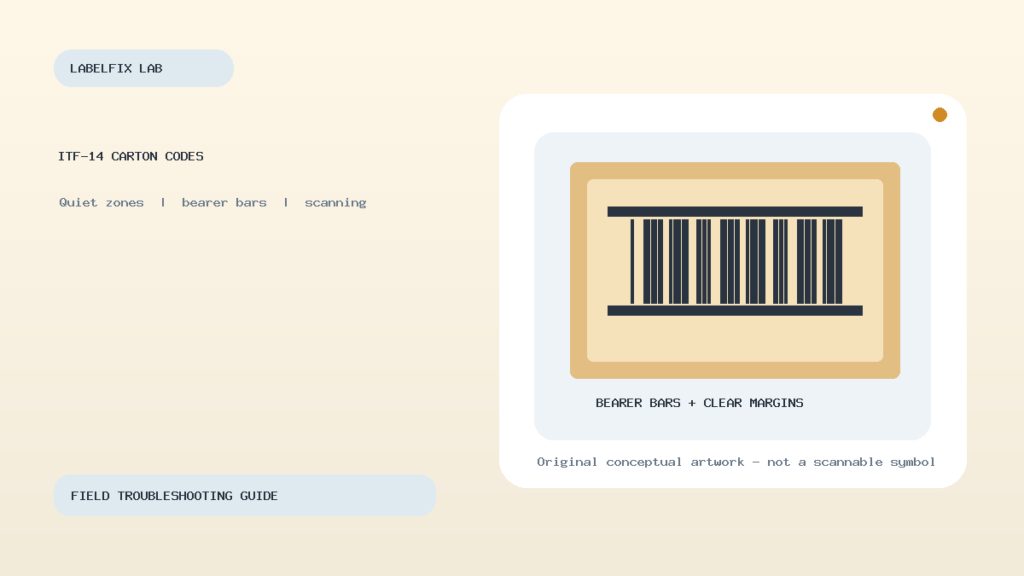
ITF-14 requires clear margins to the left and right of its bar pattern. GS1 explicitly states that these quiet zones are compulsory. A carton seam, printed border, advertising artwork, packing tape or a cropped label edge can invade those spaces even when the bars themselves look dark and sharp.
Check the applicable GS1 General Specifications for the precise size required by your application and print method. Do not use a generic “add a little white space” rule as a compliance measurement. If the symbol has been reduced, its entire specification—including quiet zones and bar dimensions—must still be satisfied. Our barcode quiet-zone cut-off guide illustrates why cropped margins cause trouble.
5. Understand bearer bars and why they matter
ITF-14 artwork commonly includes heavy bearer bars around or beside the barcode. Their design is not simply decorative. They can support reliable printing and reduce errors associated with printing-process pressure and edge variation. The correct arrangement depends on the applicable specification and print method, especially when printing directly onto corrugated stock.
Do not crop bearer bars away to squeeze a barcode into a smaller panel or treat a thick surrounding line as equivalent to a verified specification. For production artwork, obtain the official construction requirements from the GS1 General Specifications or a qualified barcode-print provider. If a symbol is supplied by a manufacturer, ask for the approved vector artwork rather than redrawing the bars.
6. Direct printing on corrugated cartons is a separate challenge
Corrugated board introduces texture, absorbency, uneven surfaces and ink-spread variation. On rough packaging, narrow spaces may fill in, edges may become ragged and contrast may change across a print run. A barcode that looks acceptable on a smooth office sheet may perform differently when printed directly on a carton at production speed.
GS1 identifies direct printing on corrugated boxes and applying preprinted labels as different packaging processes in its scanner-environment and printing-method fact sheet. Test on the actual substrate and package placement, not only on a laser-print proof. Where permitted, a suitable adhesive label can avoid some direct-print defects, but any replacement method still needs compliant symbol dimensions and durable adhesion.
7. Keep the proper bar widths, height and magnification
ITF-14 is not a generic black-and-white graphic that can be squeezed horizontally to any size. Bar-width relationships, symbol height, required margins and application-specific sizing matter. Artwork rescaled by a PDF viewer, desktop publishing program or print driver can distort those relationships. A tall-looking barcode with cramped narrow spaces may be difficult to decode.
Work from approved vector or high-quality source artwork and check its final physical measurements after all print transforms. If a thermal printer is used to produce carton labels, confirm its resolution and label preset; compare 203 vs 300 DPI and barcode quality. Do not confuse image sharpness on a screen with verified print dimensions.
8. Inspect ink contrast, damaged labels and carton placement
GS1’s general symbol-quality checklist calls out correct check digits, contrast, quiet zones, height, physical damage and packaging obstructions. On real cartons, also inspect whether tape crosses the bars, the code wraps over a corner, a crushed edge distorts the pattern, or a shiny overwrap creates reflections.
Consider the scanner’s expected viewing angle and distance in the actual warehouse. A handheld reader used close to a clean flat carton and a conveyor-mounted reader that sees moving packages may have different practical tolerances. If you need to evaluate formal compliance or repeated machine failures, request verification using the applicable standard rather than relying on an occasional successful handheld scan.
9. Printer darkness can help or hurt
For labels produced on a thermal printer, low heat or an unsuitable print method can make bars faint, but excess darkness can thicken bars and erase narrow white spaces. A vertical missing-line pattern may indicate debris or damage to a printhead. A ribbon/media mismatch can introduce holes or faded bands. Change one printer parameter at a time and compare the same known-good source.
Use darkness and merged barcode fixes, thermal printer streak diagnosis and direct thermal vs thermal transfer to identify which print layer is involved. Never compensate for unsuitable artwork solely by increasing darkness.
10. A clean scan can still fail application validation
If the scanner beeps and returns fourteen digits in an approved plain-text test, the next question is whether the warehouse app expects the correct packaging-level GTIN. The application may map only consumer-unit identifiers, enforce specific barcode types or look for a separate logistics label carrying additional information. That is a system configuration issue, not proof that ITF-14 is malformed.
Capture the raw decoded value without modifying live product records. Compare it with the case-level master data, expected length, any GS1 check-digit validation and scanner formatting rules. Do not strip legitimate digits or turn off all validation to force an acceptance message. Consult the application’s inventory administrator for the proper case/each mapping.
11. Use a controlled acceptance test for production cartons
- Identify the intended trade item and its authorized GTIN-14, including its check digit.
- Confirm the scanner’s Interleaved 2 of 5 support, enablement and configured length rules.
- Check approved artwork dimensions, bearer-bar arrangement and both quiet zones.
- Compare a qualified reference symbol with a representative production carton.
- Inspect the actual substrate, contrast, ink spread, folds, tape, damage and viewing angle.
- Capture raw decoded digits and compare them with the warehouse product master.
- Document which variable changed the result and recheck multiple cartons before approving the run.
For high-volume receiving or regulated traceability workflows, use a formal barcode verifier and the relevant GS1 specifications. One successful scan is a functional test, not a guaranteed grade of print quality.
FAQ
Does any scanner that reads UPC-A also read ITF-14?
No. Check the device’s supported symbologies and Interleaved 2 of 5 configuration. UPC-A success alone does not prove ITF support or correct length filters.
Can ITF-14 be used on individual retail products?
It is intended primarily for trade items in distribution, such as cartons, not as the normal barcode for retail point-of-sale checkout. Use the identification and symbology specified for the destination workflow.
Can I remove the bearer bars to make the code fit?
Do not remove them without checking the relevant GS1 symbol-construction and printing-method requirements. Rework the package layout using approved artwork and dimensions instead.
Why does a carton scan successfully but show the wrong stock item?
The decoded data may be a valid case GTIN but the inventory system may map it to a different packaging level or an outdated product record. Check the case/each hierarchy and catalog mapping before touching the printer.
Bottom line
ITF-14 failures belong to one of three layers: scanner decoding, symbol/print quality, or warehouse GTIN mapping. Identify the layer with a known-good reference and trusted case record, preserve required construction features, and verify the actual production packaging. Those checks are more reliable than repeatedly shrinking the barcode or guessing digits.
Independent general troubleshooting information for shipping labels and thermal printers. Model-specific button sequences, cleaning supplies and service instructions can differ; consult your manufacturer's official documentation. Never alter a carrier-generated barcode.