Quick answer: A UPC-A product barcode ordinarily carries a 12-digit GTIN-12. In some scanner and database workflows, the same identifier is displayed with an additional leading zero as a 13-digit representation, or with two leading zeros in a 14-digit GTIN field. That can be legitimate normalization; it is not automatically a different product. Before editing any labels, check whether the extra zero comes from the scanner’s UPC/EAN output configuration, the software’s GTIN storage format, or a separate data-entry problem.
This independent guide is for authorized retail, warehouse, and inventory systems. Use a synthetic or company-approved test code, and verify real product assignments through your authorized GS1 and inventory records. Do not create new retail identifiers by guessing, altering a check digit or dropping zeros until the value looks right.
UPC-A, EAN-13 and GTIN-14: the important difference
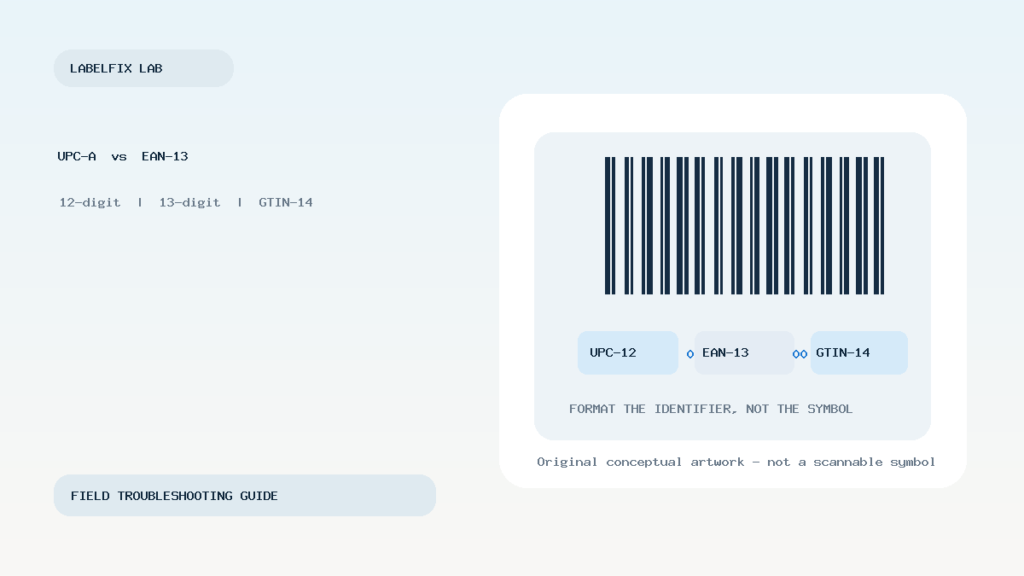
A GTIN is a product identifier; a barcode symbology is how a particular identifier is encoded in bars and spaces. UPC-A normally represents GTIN-12, while EAN-13 represents GTIN-13. A 14-digit GTIN field is commonly used in databases and some other GS1 data structures to hold shorter GTINs with leading zero padding. GS1 documents this distinction in its EAN versus UPC explanation and GTIN creation workflow.
There are two separate questions: What barcode is printed? and what string does the host receive or store? A 12-digit code reported as a 13-digit zero-padded string may describe the same trade item, but it does not mean the physical UPC-A bars magically became an EAN-13 symbol. Scanner decoding, configured preambles and software normalization can change the displayed text.
The three formats at a glance
| Representation | Typical purpose | For a 12-digit GTIN shown as XXXXXXXXXXXX |
|---|---|---|
| GTIN-12 / UPC-A output | Retail item identifier | XXXXXXXXXXXX |
| 13-digit zero-padded representation | Some EAN-compatible or scanner-output workflows | 0XXXXXXXXXXXX |
| 14-digit normalized GTIN field | Databases or systems requiring a uniform GTIN width | 00XXXXXXXXXXXX |
The X characters are placeholders, not an actual scannable number. Leading zeros used as padding are a representation convention; do not take a random 12-digit number and assume it is an assigned GS1 GTIN. GS1 US explicitly shows its GTIN-12s in a database-oriented 14-digit display with two leading zeros.
Quick symptom table
| Observed result | Potential explanation | What to check |
|---|---|---|
| 12 printed digits, 13 scanned with one extra leading zero | Country-code/preamble or EAN-compatible output configuration | Scanner model’s UPC-A preamble and convert-to-EAN settings |
| 12 digits from scanner, 14 in database | GTIN-14 normalization | Documented product-master field width |
| One leading zero disappears in Excel | Spreadsheet numeric conversion | Text-formatted destination, then fresh test scan |
| Check digit is missing at end | Scanner transmission setting or source issue | UPC/EAN check-digit transmit options |
| Scanner reports 11 digits only | Suppressed system character or check digit | Actual scanner output configuration |
| Correct digits scan, but POS says item not found | Catalog key mismatch or unmapped product | Product-master record and accepted GTIN formats |
1. Verify what the printed UPC-A actually represents
Read the human-readable digits underneath the barcode where legible, then confirm the trade item and its registered GTIN in your product catalog. Many retail UPC-A symbols display 12 digits, including their check digit. Some render the leading number-system character separately from the central digits; that typographic layout can make people count the printed characters incorrectly.
Do not invent the missing digit from a damaged label. Compare the authorized original artwork or GS1 record. If you are diagnosing a product that is not yours, request the approved supplier value rather than issuing a fresh identifier. Our wrong SKU after scanning guide covers inventory mapping mistakes unrelated to the symbology itself.
2. Test raw scanner output before opening a POS application
Use a permitted neutral text input on the host computer, scan the same verified test label once, and copy the exact received characters into a comparison log. Count the digits and check whether the extra digit is at the front or back. Scan a second known-good UPC-A only if the testing procedure permits it, so you can spot a consistent output rule rather than a one-off defective label.
If the raw text has 13 digits but the POS shows 12, the application may be normalizing. If the raw text has 12 but the product database stores 14, the system may pad it on import. If the raw text differs from the printed identifier in the middle, neither standard GTIN padding nor the usual UPC preamble explains that result; investigate scan data and label generation.
3. Inspect the scanner’s UPC-A preamble settings
Depending on model, a scanner may transmit a UPC-A number-system character, a country-code prefix, or neither. Zebra’s UPC-A preamble configuration article describes controls for a country code and system character on supported DataWedge devices; its UPC-A leading-zero note gives another model-specific example.
Those features demonstrate why a leading zero can appear or disappear without changing the printed bars. The exact menu names differ by scanner. Before changing a warehouse-wide configuration, export or record the current profile and confirm the receiving application’s expected output format. An added country-code prefix is not automatically part of the original GTIN-12.
4. Check UPC-A versus EAN-13 conversion options
Some scanners support reporting UPC-A data in an EAN-13-compatible form, typically by adding a leading zero. This can help a downstream system that handles retail identifiers using a particular width, but it should be an explicit, documented rule. An EAN-13 barcode encoding an assigned GTIN-13 is not simply “a UPC-A with an extra random number.”
Check the exact reader’s programming guide for UPC-A, EAN-13/JAN-13 and any related conversion option. Do not scan generic setup codes found on forums. After a change, compare the same approved test barcode in a plain-text program and the intended POS field, and record the result. Our USB scanner setup guide explains why keyboard-emulation configuration matters.
5. Understand 14-digit GTIN storage without changing the product
Many business systems use a single GTIN-14 field for identifiers originally assigned with 8, 12, 13 or 14 digits. A 12-digit GTIN can be right-justified with two leading zeros for such a field; a 13-digit GTIN receives one leading zero. That is normalization, not a new allocation of GTINs. GS1’s retail implementation guidance describes leading-zero padding in relevant GS1 representations.
Do not blindly remove all leading zeros from stored identifiers. The leading number-system digit in an actual GTIN-12 and padding zeros introduced for a fixed-width representation are different concepts. Build the conversion from a known original length or an explicit symbology/format field, so the application can reconstruct the intended identifier exactly.
6. A check digit is not the same thing as an added leading zero
GS1 GTINs have a calculated check digit as their final digit. If your scanner sends 11 digits for what should be a 12-digit UPC-A, the missing digit might be a suppressed number-system character or a check-digit transmission option, depending on the configuration. If it sends 13 digits, an added leading prefix can be a separate output setting.
Use an official GS1 check-digit calculator or the authorized product record to validate the entire identifier, rather than appending a guessed last digit. A correct check digit establishes a structural check; it does not prove that an identifier belongs to the product on the shelf. Also, some scanner models let admins configure whether to transmit UPC-A check digits; inspect that setting only if the symptom calls for it.
7. Why Excel strips the zero even when the scanner is correct
A scanner acting as a USB HID keyboard may send the intended digit string perfectly into a plain-text field. Excel can then interpret the same input as an integer, dropping leading zeros. A visible change from 0XXXXXXXXXXXX to the corresponding string without the zero is a formatting issue if raw scanner output was correct.
Format the target cells as Text before scanning, or import identifiers through a text-preserving field type. Re-scan a synthetic value and inspect it as text. Changing cell number formatting after a long identifier has already been converted may not recover lost precision. See Excel leading-zero and scientific-notation fixes for a dedicated workflow.
8. Separate symbol decoding from POS product lookup
A beep or a successful raw text scan does not guarantee that a POS system has a matching product record. One program might key products by 12-digit GTIN-12; another might store all identifiers as 14-digit normalized strings; a third might use internal SKUs. If the barcode value is sound but lookup fails, inspect the catalog’s accepted identifier type and conversion rules.
Before editing a product master, compare the scanned value, its known original GTIN length and the stored catalog value. If the values are equivalent under the system’s documented padding rule, the fix belongs in the application mapping rather than in reprinting every label. Never let POS software silently treat arbitrary leading-zero removal as a universal matching algorithm.
9. Watch for prefix, suffix and keyboard-layout effects
Scanner output can include a symbology identifier, an AIM ID, Enter/Tab suffix, or other configured characters. Those may look like an unexpected extra digit, especially if a receiving app hides control characters or formats text. In a plain-text field, inspect the full transmitted sequence as far as the tool allows and review approved scanner formatting settings.
A keyboard-country mismatch usually affects letters or punctuation, not the GS1 digit structure itself, but a configured prefix could still break a product lookup. If the input arrives in the wrong cells or gains trailing content, see scanner extra characters and suffixes and scanner keyboard-layout fixes.
10. A reliable three-point test before making changes
- Source: Record the trusted original trade-item identifier and whether it is GTIN-12, GTIN-13 or another valid GS1 type.
- Scanner: Scan an approved, known-good test symbol into a neutral text field, noting exact digits and any prefixes.
- Destination: Compare what the POS, warehouse software and product master accept and store; document any width conversion.
Change only the layer that disagrees. For example, if source GTIN-12 is correct and scanner data is correct but Excel discards a zero, adjust the spreadsheet input type. If the scanner adds a prefix that the host explicitly rejects, use its official configuration tools. If the product is missing from the catalog, work with the authorized inventory owner; scanner settings cannot create an absent product record.
FAQ
Is a 13-digit scan of a UPC-A always wrong?
No. It may be an intentional zero-padded or prefixed representation. You must verify whether that output matches the receiving system’s expected identifier format.
Does an extra leading zero mean a different product?
Not automatically. Padding a known GTIN-12 into a 13- or 14-character field can preserve the same identifier, but careless padding or arbitrary digit removal can also create mismatches. Preserve the known original type and official assignment.
Should I reprint the UPC-A as an EAN-13?
Not as a first troubleshooting step. Check the printer source, scanner output and POS data format first. Rebuilding production artwork without understanding the assigned GTIN and retailer requirements can introduce errors.
Why is the last digit missing rather than the first?
That points to a different issue, potentially the scanner’s check-digit transmission setting or malformed source data. Compare against the original approved GTIN and the device manual.
Bottom line
Treat UPC-A, EAN-13 and GTIN-14 as related but distinct concepts: barcode type, retail identifier and standardized field representation. Identify which layer introduces the extra zero, preserve the assigned GTIN and document a deterministic mapping. A consistent output rule is safer than changing labels or suppressing digits until one software screen appears correct.
Independent general troubleshooting information for shipping labels and thermal printers. Model-specific button sequences, cleaning supplies and service instructions can differ; consult your manufacturer's official documentation. Never alter a carrier-generated barcode.