Quick answer: If your TSC TTP-244 Pro reports Ribbon Out even though a ribbon is inside the printer, start with the selected printing method, the ribbon’s actual routing and movement, and whether the installed supplies match the intended job. A ribbon can be present but incorrectly installed, fail to advance on the take-up side or be unsuitable for the current workflow. On the other hand, when printing on properly supported direct-thermal media, a ribbon-related setting may be inappropriate. Determine which situation applies before touching sensors or replacing parts.
TSC TTP-244 Pro is a thermal-label-printer model used in barcode and inventory workflows. The exact compatible ribbon, print modes, firmware controls and diagnostic procedures must come from the documentation for your unit. This independent guide does not claim hands-on testing or provide invented button-hold sequences. Refer to TSC’s official product and support resources for detailed model instructions.
Find the actual failure pattern
| What happens? | Likely area | First controlled comparison |
|---|---|---|
| Ribbon Out appears immediately after installing a new ribbon | Ribbon routing, approved supply or detection | Compare the exact loading path and roll specifications |
| Printer runs briefly, then reports Ribbon Out | Ribbon movement, take-up or intermittent tracking | Observe safe documented feed behavior and print length |
| Ribbon is installed but direct-thermal stock is selected | Print-method mismatch | Confirm actual stock and desired supported print mode |
| Printer feeds one white label without an error | Coating orientation, ribbon transfer or source data | Use a known-compatible supported diagnostic |
| Error appears after a different ribbon width was loaded | Supply compatibility or path change | Check ribbon width and supported winding arrangement |
| Internal test works but Windows application fails | Driver, queue or application print-method setting | Compare actual device status and host job |
| Stock moves, but ribbon seems stationary | Ribbon take-up or mechanism path | Follow manufacturer-approved loading and safe observation |
1. Confirm that you are troubleshooting the correct TSC model
Identify the full model printed on the printer and check whether any accessories or unusual supply arrangements have been installed. The TTP-244 Pro should not be treated as identical to a DA210 direct-thermal desktop model or to a TE210 variant. The interface, ribbon route and supported stock arrangements can differ, so a video or programming code for another printer may not apply.
Our TSC DA210 direct-thermal troubleshooting explains a no-ribbon printing workflow, while TSC TE210 ribbon and media diagnosis discusses a different device. Always return to your own unit’s supported loading and configuration instructions.
2. Check whether the job requires thermal transfer
Thermal transfer uses a compatible inked ribbon, which moves with media through the print path, while direct thermal uses coated labels that darken with heat and generally do not require a ribbon. The material, selected print method and hardware capabilities must agree.
A ribbon-out condition in a thermal-transfer workflow can be meaningful even when the ribbon is visibly installed, because its movement or presence may not be detected correctly. But for a supported direct-thermal workflow, a printer or driver configured to expect ribbon movement might produce an unnecessary supply warning. Check the proper method for the actual stock rather than disabling detection indiscriminately. For background, read direct thermal versus thermal transfer labels.
3. Identify the ribbon you loaded
Confirm the supplied ribbon’s width, core, winding direction, material grade and manufacturer-supported compatibility with the exact TTP-244 Pro configuration. A ribbon that fits on a spindle is not necessarily the correct one. Changing to a wider or narrower ribbon can affect image coverage and handling, while a different winding arrangement may put its transferable coating on the wrong side.
Keep the ribbon package or part number available. If an older ribbon worked and the replacement did not, compare the two side by side through their specifications, not by forcing the new supply into the mechanism. Avoid cutting or modifying a roll to fit an incompatible holder.
4. Follow the correct supply path and spool positions
Thermal-transfer mechanisms commonly have a supply and take-up arrangement, but exact routing varies. Use the official TSC TTP-244 Pro loading diagram to verify where the ribbon should pass relative to the media and printhead. A ribbon threaded around the wrong side of a guide or attached incorrectly to the take-up spindle can remain present while failing to advance as designed.
Stop printing before inspection, follow manufacturer safe-access steps and allow the printhead to cool. Do not reach into the mechanism during operation. Never pull ribbon forcibly while the printhead is closed, because that can damage the printhead surface, ribbon and feed path.
5. Make sure the take-up side is prepared as documented
A ribbon needs to be collected in the supported manner after passing through the print path. If it does not move with the printing cycle, the device may fail to detect expected ribbon behavior, or output may smear or remain blank. Check the manufacturer’s instructions for properly securing and tensioning the leading section without improvising drive mechanisms.
Do not assume the solution is to add maximum tension. Excessive or uneven ribbon tension can introduce wrinkles and alignment defects. If the take-up spindle will not behave correctly under a safe, documented diagnostic, record the exact symptom and consider qualified service rather than forcing a motor or gear.
6. Ribbon presence versus Ribbon Out are not the same test
A user may see a complete roll inside the unit and conclude that “Ribbon Out” must be a software glitch. But the printer’s readiness state may depend on something more specific than the visible roll: the configured print mode, expected ribbon travel and the device’s own detection mechanism. The precise method is model-specific.
Look for a locally displayed or officially documented status and compare it with the print application. A host application can also display a stale error that differs from the printer’s current Ready state. Do not bypass a ribbon sensor or insert artificial material into a sensor path to trick the machine into printing.
7. Check whether the warning follows a stock change
The same printer may be used for several kinds of labels. A station that previously printed thermal-transfer product stickers might switch to supported direct-thermal stock, or vice versa. If the driver or label editor retains the previous mode, it may not match the supplies now loaded.
Record the label stock’s exact specifications and the last successful print configuration. Confirm the printer’s supported method and the application’s own print-method preset if relevant. This is a more controlled process than performing a factory reset, which can erase working integration settings.
8. Test printing independently of the computer
If supported by the device, use the manufacturer-documented configuration/test-print procedure with known-compatible supplies. Do not invent a universal feed-button hold time. A successful internal image demonstrates that the device can print under those conditions, while a failure that occurs locally points toward supply setup or the printer’s readiness system.
If the printer’s own sample prints correctly but a Windows program reports Ribbon Out, look at the actual host queue, installed driver and whether the application overrides the printer’s print method. Our label printer driver versus editor guide helps identify where settings originate.
9. Printing blank labels is a separate symptom
If the printer is Ready and feeds one sticker with no visible image, that is different from a ribbon-out warning that prevents a print. Check the original document contents and whether the ribbon’s coated side and stock are compatible. On a thermal-transfer print path, an incorrect coating side can prevent ink transfer even though the ribbon moves.
If a vendor-supported internal sample is visible while only a shipping PDF is white, investigate source content and rendering. See TSC printing blank labels and PDF printing blank from Chrome before replacing parts.
10. A ribbon wrinkle may cause partial images
Ribbon wrinkles can cause diagonal pale bands, interrupted bars or areas of inconsistent darkness. These are imaging-quality problems and may not produce exactly the same error as a ribbon that stops moving. Check ribbon width, correct loading, compatible stock and manufacturer-supported tensioning before adjusting thermal darkness.
Repeated defects in the same position across several safe samples may suggest a more persistent contact or printhead condition. Our thermal transfer ribbon wrinkling guide and one side of thermal label faded cover that branch.
11. Why a Ribbon Out error can appear after a long batch
If a printer handles several labels and then stops, note whether the ribbon approaches the end of its supply, whether its take-up behavior changes, or whether the loaded roll and job length are unusual. A ribbon can travel correctly for a while and then become misaligned or fail to collect smoothly. Keep the observation tied to the same source file and compatible stock.
A batch-specific failure may also arise from a repeated application print setting, but don’t assume the operating system caused it if the printer itself reports a supply error. Record the local status, page count, print mode and ribbon model for official support.
12. Check the label media independently of ribbon
A ribbon warning can coexist with a label boundary problem. Die-cut gap labels, black-mark stock and continuous media use different registration methods. If the printer feeds several blank stickers looking for a boundary, address the media tracking after the ribbon path is understood. Do not confuse a media sensor error with ribbon supply detection.
Measure the actual sticker height and pitch and compare them with the selected media profile. Calibration may be appropriate for boundary detection but is not a cure for wrong ribbon coating or a disconnected take-up. See thermal label calibration for when this helps.
13. Confirm the correct printer language and driver
Some applications print through the normal OS driver, while others send printer commands directly. If a supported internal sample works but application output is rejected or missing, ensure the software integration is configured for the actual TTP-244 Pro and its supported print method. A driver for another model family or an old printer queue can produce confusing status messages.
Don’t install unsigned generic “universal” drivers from unknown sites. Check the official TSC support materials, document the previous working software and compare one harmless test under a supported path. Our Windows stuck print queue and printer printing random characters are separate application-path diagnostics.
14. Why increasing darkness may not help
Printhead heat can influence how a compatible ribbon transfers material onto a label, but maximum darkness is not a universal repair. It cannot make an incorrectly routed ribbon advance, fix missing sensor signals or change a wrong print method. Excessive heat can cause barcode bars to spread and reduce scanning reliability.
Use the manufacturer’s recommended baseline for your ribbon and stock. Make one documented adjustment at a time and test a harmless barcode sample. Check thermal printer printing too dark and barcode printing blurry when an image is present but poor.
15. Example: ribbon installed backward
A new operator replaces the ribbon and receives an unexpected supply warning or white output. The team compares the actual path with the official diagram and finds the ribbon does not travel through the intended route. They stop safely and reload it as documented, using the same known-compatible label stock and a short approved test. Changing the Windows queue would not repair the physical setup.
16. Example: direct-thermal labels after a thermal-transfer job
A warehouse changes to an approved direct-thermal roll, but the previous print job used a ribbon-required workflow. The device or application continues expecting the old method. The operator checks stock specifications and the selected print mode instead of automatically adding an unnecessary ribbon. This example only applies if the exact installed model and workflow officially support the chosen method.
17. Example: the take-up spool stops during a batch
The printer initially produces readable labels, then stops with a ribbon-related status. A safe inspection finds that the ribbon has not collected smoothly and its path differs from the approved setup. The operator checks the compatible supply and documented take-up arrangement. If the mechanism itself does not function correctly, it is escalated for qualified service rather than forced.
18. Example: test label works but the WMS does not
A vendor-supported sample prints normally, while a warehouse application reports a ribbon-related print failure. The device remains Ready locally. The team compares the app’s saved print-method setting and queue with the actual printer and stock. That distinguishes a host status/configuration issue from a locally detected supply fault.
TTP-244 Pro Ribbon Out troubleshooting checklist
- Identify the exact printer and officially supported ribbon and media.
- Confirm whether the job uses thermal transfer or a supported direct-thermal method.
- Inspect the ribbon’s supply and take-up route using the official manual.
- Check width, winding direction, coating and compatible stock.
- Observe documented status and safe ribbon movement without reaching inside during printing.
- Separate Ribbon Out, blank imaging and label-feed registration failures.
- Use a manufacturer-supported sample before changing host drivers.
- Change one compatible setting at a time, preserving the working configuration.
- Do not bypass sensors or force a stalled ribbon mechanism.
Frequently asked questions
Why does my TSC TTP-244 Pro say Ribbon Out with a ribbon installed?
The selected print method, ribbon routing, movement, supply compatibility or detection may not match what the device expects. A visible roll alone does not establish correct loading or function.
Does the TTP-244 Pro always need ribbon?
It depends on the supported print method and label stock used. Follow official TSC guidance for the exact configuration. Thermal-transfer printing needs an appropriate ribbon; supported direct-thermal printing uses heat-sensitive media.
Can I bypass the ribbon sensor?
Do not bypass or alter supply-detection components. Use supported configuration, loading and diagnostic procedures or qualified service if the mechanism remains faulty.
Why does the printer print a white label instead of reporting Ribbon Out?
A blank print can be caused by ribbon coating orientation, incompatible media, missing document artwork or application rendering. Compare a safe internal image with the failing job.
Will recalibrating the gap sensor fix Ribbon Out?
Media calibration addresses detecting label boundaries. It does not necessarily fix ribbon travel, supply compatibility or an incorrect print method.
Related LabelFix Lab guides
- Thermal-transfer Ribbon Out general troubleshooting
- TSC TE210 ribbon and media problems
- TSC DA210 direct thermal blank labels
- Thermal-transfer ribbon wrinkles
- Blank thermal label output
- Direct thermal versus thermal transfer stock
- Thermal label printing too dark
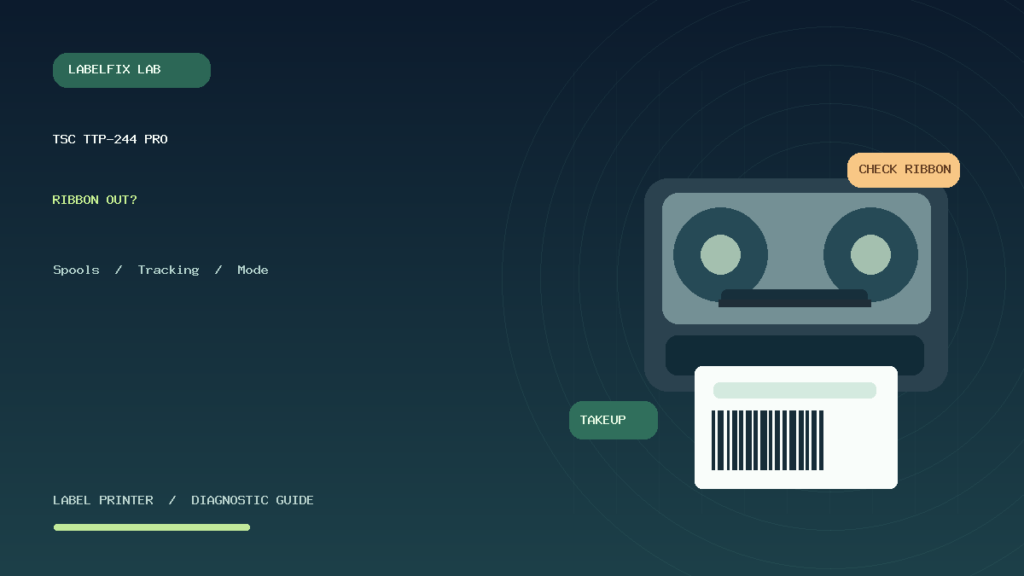
Editorial limitations: This independent article does not certify specific supply or firmware compatibility or document a hands-on repair. Follow official TSC TTP-244 Pro instructions for ribbon path and operating controls. The image is an original generic printer illustration, not an official product photo.
Independent general troubleshooting information for shipping labels and thermal printers. Model-specific button sequences, cleaning supplies and service instructions can differ; consult your manufacturer's official documentation. Never alter a carrier-generated barcode.