Quick diagnosis: When a product-unit barcode intended for Amazon FBA will not scan, separate the label file, the physical print, the scanner, and the product-identification requirements for that shipment. A label can be clearly readable to a person while its bars are blurred, reduced, clipped, or linked to the wrong item. Likewise, a perfectly printed barcode may not be accepted by a particular inventory workflow if the expected identifier differs from the one being scanned.
This guide covers FNSKU product-unit labels, not just the 4 × 6 shipping label placed on the outside of a carton. The required barcode type, preparation method, labeling responsibility, and exceptions vary by program, marketplace, inventory setup, and current Amazon requirements. Always check the instructions displayed in Amazon Seller Central for your shipment and the relevant official product-label guidance before applying labels to sellable stock.
First check: Which barcode are you scanning?
| Barcode or label | Typical purpose | Why the distinction matters |
|---|---|---|
| Product-unit identifier / FNSKU label | Identifying an individual sellable product unit in a relevant Amazon inventory workflow | It is not the same as a parcel carrier shipping label |
| Manufacturer barcode, such as UPC/EAN | Identifying the retail product under its registered code system | Some inventory workflows use manufacturer barcodes; others require a different unit-label arrangement |
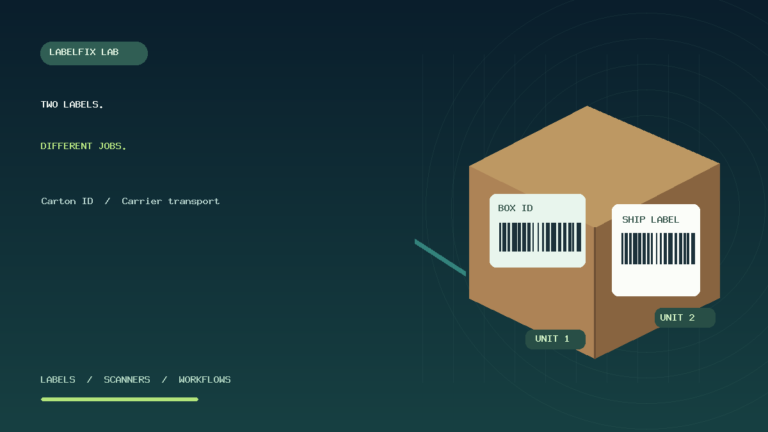
| Amazon shipment or box label | Identifying a shipment carton in a fulfillment workflow | It belongs on the appropriate outer shipping box, not over an unrelated item code |
| Carrier shipping label | Carrier transport, routing, and parcel handling | Its symbols, size, and acceptance rules may differ from FBA unit barcodes |
Before troubleshooting the thermal printer, establish which document the shipment preparation process asked for. Our FBA box ID versus carrier label guide explains the distinction between carton identification and transport paperwork. If you accidentally printed a 4 × 6 carrier label when a unit-level product identifier was required, no amount of barcode darkness adjustment will fix the mismatch.
1. Verify the label came from the correct product or shipment workflow
Use an authorized product-label source and confirm that its identifier belongs to the correct SKU, variant, and preparation workflow. Avoid rebuilding a label from an old spreadsheet, an image captured from a previous shipment, or a barcode generator that guesses the data structure. The human-readable text, encoded barcode, and inventory record need to refer to the correct item.
For testing, make a harmless sample copy without real customer or shipment data. If your workflow produces labels for many SKUs at once, print a small controlled selection and compare each one with the intended product. A systematic identifier mismatch is a data-mapping issue, not necessarily a printing failure.
2. Inspect the original PDF before checking the printer
Open the authorized label file at a readable zoom and look for bars that already appear low-resolution, missing, distorted, or outside their intended label cell. Check whether the file contains an entire sheet of multiple small unit labels rather than one 4 × 6 shipping document. Do not send a multi-label Letter sheet through a 4 × 6 printer and assume it will generate individual unit stickers automatically.
Our PDF Size Checker can report the overall page dimensions, but that is not the same as measuring every label cell on a sheet. A Letter PDF can contain dozens of small product labels; a 4 × 6 shipping PDF usually represents a different type of document. Read our FBA product-label PDF size guide for the layout distinction.
3. Identify print defects that can interfere with scanning
| Visible problem | Potential cause | Useful next test |
|---|---|---|
| Bars merge into thick blocks | Excess darkness, unsuitable media, low-resolution source, or too much scaling | Print the same unmodified authorized document with a supported quality setting |
| Bars are faint or uneven | Incompatible thermal stock, low print energy, printhead contact, or damaged supply | Compare a clean harmless printer diagnostic with the problem label |
| Left or right bars are cut off | Wrong label width, margins, page origin, or printable area | Inspect the physical stock and the full code’s quiet space |
| Printed code is visibly tiny | Whole-page scaling or wrong sheet-to-roll conversion | Compare native source format with actual output dimensions |
| One barcode works; another never scans | Different symbology, identifier, label damage, or source artwork | Compare the failed symbol with a known-good compatible sample |
A barcode needs more than a sequence of dark bars. Sufficient contrast, intact geometry, and clear space around its edges are necessary for reliable decoding. Higher heat does not universally improve thermal output: excessive energy can widen bars, cause bleeding, or degrade media. Use the printer manufacturer’s documented baseline and compatible labels.
4. Check barcode quiet zones and sticker placement
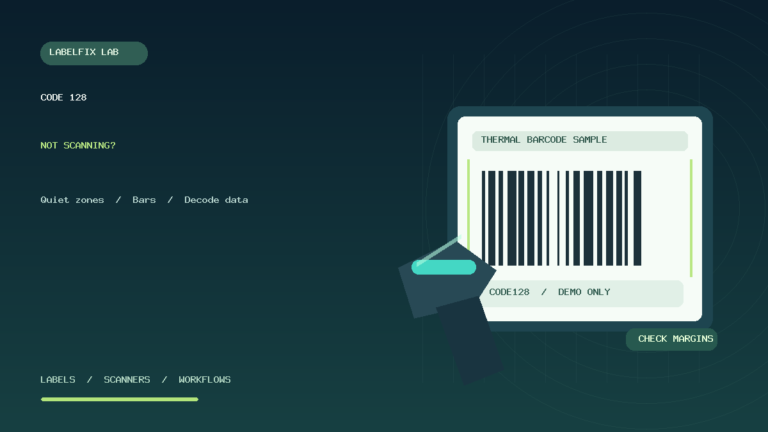
The blank space immediately around a barcode—the quiet zone—helps the scanner distinguish the start and end of the symbol. If the barcode is placed hard against a label border, package seam, folded edge, glossy tape, or neighboring print, it may scan inconsistently even when its center appears sharp.
Check the current Amazon preparation instructions for where the required product barcode must be visible and whether other scannable product identifiers need to be covered or made non-scannable in your particular workflow. Do not obscure required warnings, expiry information, or other mandatory packaging details. Our quiet-zone troubleshooting guide explains why a damaged clear margin matters.
5. Make sure the scanner can decode the symbol you need
A handheld reader can be working properly while failing a poorly printed or unsupported symbol. First test the reader with an intact non-sensitive barcode of a supported type. Verify whether it is a 1D-only scanner or a 2D imager, and compare the printed label’s actual barcode family with the scanner’s supported list.
If a known-good code scans correctly but the FNSKU label does not, focus on the label’s print or data. If all supported linear codes fail, investigate scanner optics, host mode, or cable connection instead. Our Zebra DS2208 scanning guide explains separating decoding from USB output; our Zebra LS2208 article covers 1D-only laser limitations.
6. A beep does not prove that Seller Central received the code
Some barcode scanners indicate a successful decode with a sound or light, but the receiving device may still be waiting for input. In a supported USB HID keyboard configuration, test a harmless code in a plain text editor, paying attention to the exact characters and any Enter or Tab suffix. An integration that expects serial data or a managed scan event may not type into that editor.
If the scanner decodes the label and types the exact value into a neutral field, an app’s refusal to match the item may point to record mapping, incompatible barcode data, or that app’s input rules. Do not modify the barcode to make an unexpected product record match. Check the authorized product identifier and the platform’s current requirements. See why a scanner beeps but does not type for host-input testing.
7. Confirm that the product and label actually match
In a multi-SKU preparation session, label rolls, printed sheets, and picking bins can get mixed. Compare the full human-readable identifier and intended SKU with the correct product variant. Items that differ only in color, pack size, or quantity should not be assumed to share the same identifier.
Do not rely on a thumbnail of the product title alone. A variation-level difference may be critical. If an item has been relabeled, keep the original authorized document and records until the mismatch is resolved through the appropriate inventory workflow.
8. Diagnose a failure affecting every label versus one batch
Every new label fails: inspect printer supplies, PDF export settings, stock size, software scaling, and whether the scanner is configured for the expected barcode family. Only one roll or batch fails: compare media surface, thermal coating, print darkness, label positioning, and whether the source file was generated differently.
Only one SKU fails: compare its actual printed code, identifier mapping, barcode cell size, and product record. Only one workstation fails: test host connection and application data handling before reprinting everything. This segmentation prevents unnecessary device replacement or bulk relabeling.
9. Why the barcode looks crisp on screen but blurry on paper
A PDF can contain vector barcode artwork that remains sharp at any zoom, but a print driver may rasterize or resample it at a different resolution. Fitting an entire Letter page onto a small label can reduce the physical widths of bars and spaces. A screenshot or low-resolution image conversion can add fuzzy edges before the printer receives the data.
Preserve the original authorized file and print through a supported workflow at its intended physical size. Check 203 vs 300 DPI printer considerations to understand why changing DPI does not repair a malformed or clipped original symbol.
10. Example: unit barcode prints but cannot be decoded
A seller prints a page of small product labels onto compatible adhesive sheets. The labels look legible, but a known-good handheld scanner fails one label. The seller compares that label with another successful print and notices that the failed code’s left edge is very close to the cut line. The correct investigation is the label’s physical quiet space, source positioning, and printing alignment—not immediately resetting the scanner.
11. Example: correct print, wrong item identifier
A barcode reads cleanly into a text editor, but inventory software does not associate it with the intended product. The seller checks which authorized identifier belongs to that SKU and discovers the printed file was selected from a different variation. This is a data-selection issue: increasing printer contrast would not solve it. Corrections should follow the platform’s legitimate label and listing workflow.
12. Example: a 4 × 6 shipping label was confused with an FNSKU label
A packing desk has two different PDFs: one for product units and another for shipping a box. Staff select the box’s carrier document when preparing unit stickers. It prints cleanly on the shipping printer but is not the required unit identifier. The fix is to identify the correct document and product-label stock, not to alter the carrier barcode or cut the carton label into smaller pieces.
Pre-shipment FNSKU printing checklist
- Confirm the shipment’s current official barcode and preparation requirements.
- Use the authorized label for the correct product variation and inventory workflow.
- Choose stock and page formatting that match the original unit-label sheet or label roll.
- Verify the entire barcode and its clear margins are intact and high-contrast.
- Check packaging position and any other scannable symbols against current requirements.
- Test a harmless representative label before printing the full batch.
- Keep misprinted labels and product identifiers out of public photos or shared files.
Frequently asked questions
Why does my FNSKU barcode look fine but fail to scan?
Check physical print geometry, quiet zones, label contrast, suitable reader symbology, and whether the receiving system expects that particular product identifier. Visual readability alone does not certify a machine-readable code.
Is an FNSKU label the same as an Amazon shipping box label?
No. Product-unit identification and outbound shipping-carton identification serve different purposes. The correct document and labeling requirement must be confirmed for the actual fulfillment workflow.
Can I print FNSKU labels on a thermal printer?
Potentially, if the printer, stock, source format, and current Amazon requirements support the intended product label. A generic 4 × 6 shipping printer preset is not automatically correct for small product-unit stickers.
Will a darker print always make FNSKU codes easier to scan?
No. Excess print darkness can widen bars and merge gaps; insufficient darkness can cause broken bars. Compare compatible material and vendor-recommended imaging settings with a known-good original.
Should I regenerate the barcode with a free generator?
Do not reconstruct or guess the barcode content. Obtain the correct authorized label through your shipping or inventory workflow and preserve its original identifier and format.
Related LabelFix Lab guides
- FBA product-label PDF size and sheet printing
- Shipping label barcode not scanning
- Barcode quiet zone cut off
- Thermal printer barcode printing blurry
- Check the original PDF page dimensions
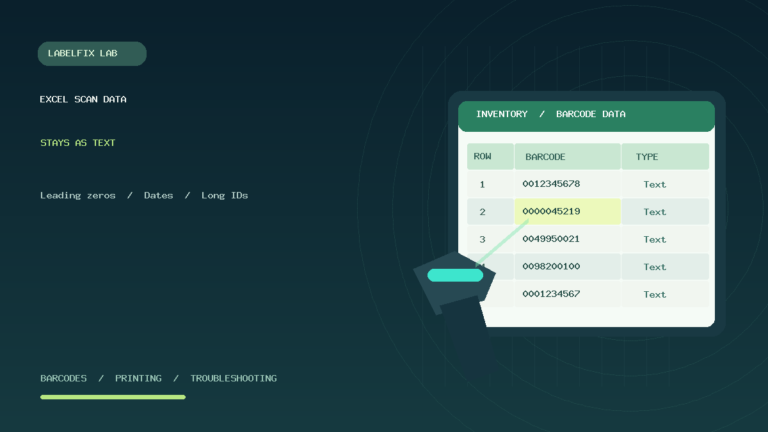
- Preserve inventory barcode values in Excel
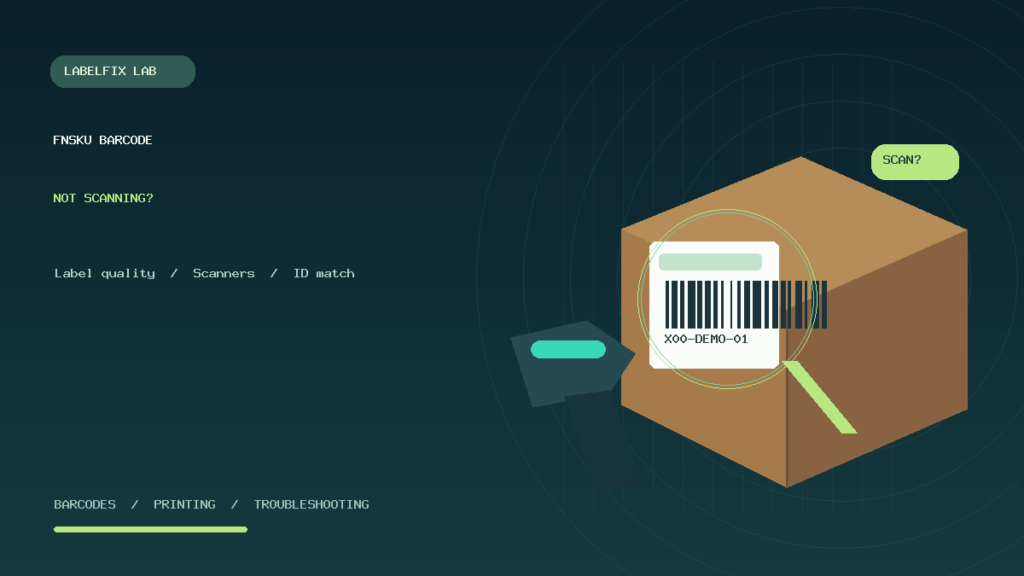
Editorial limitations: This is independent diagnostic guidance and not an inspection of an actual Amazon shipment or certification of current Amazon labeling requirements. The featured graphic is a new, generic illustration, not an Amazon-approved specimen label or a genuine seller barcode. Refer to the live official program rules for your account and marketplace.
Independent general troubleshooting information for shipping labels and thermal printers. Model-specific button sequences, cleaning supplies and service instructions can differ; consult your manufacturer's official documentation. Never alter a carrier-generated barcode.