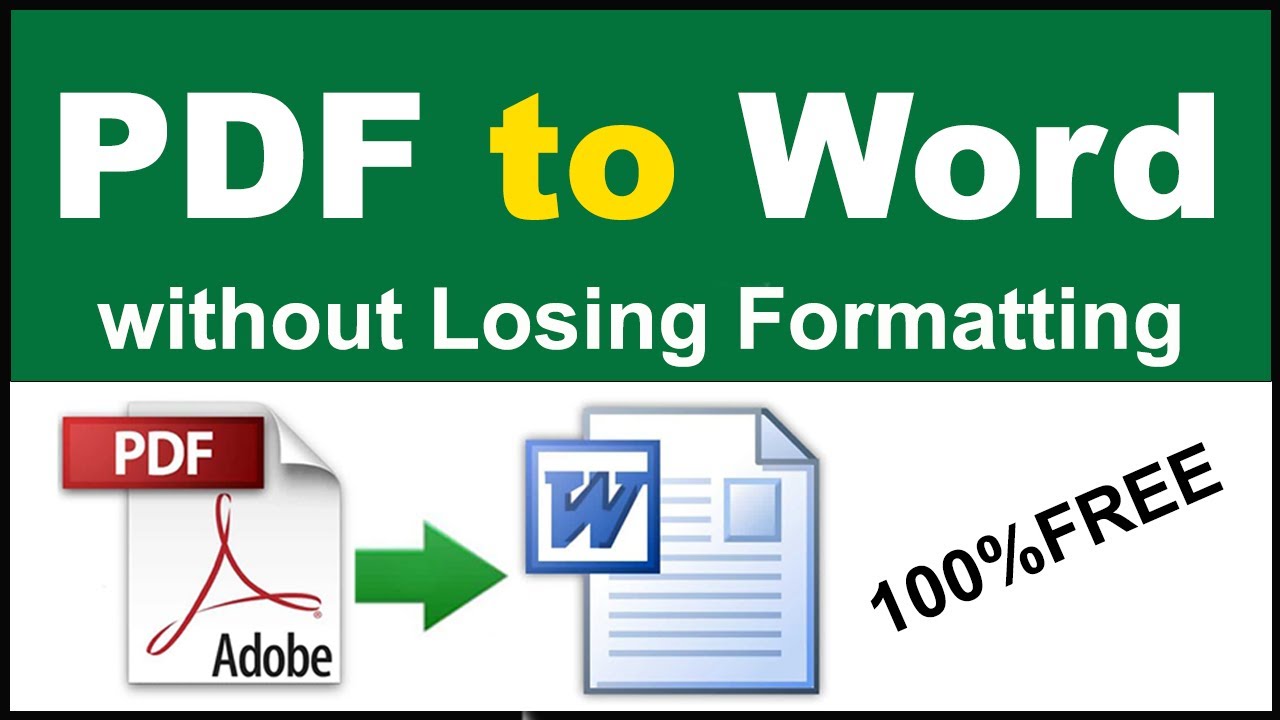
How to Convert PDF to Word and Keep Formatting
PDF files are perfect for sharing, but not so great when you need to make edits.
Maybe you want to update a contract, correct a report, or modify a document you no longer have in Word format. The problem? Most converters mess up the layout — text shifts, images move, and everything looks broken.
In this article, you’ll learn exactly how to convert a PDF to Word and keep the formatting intact using a free online PDF to Word converter that delivers professional results in seconds.
👉 Try it now with our PDF to Word Converter — fast, accurate, and completely free.
Why Convert PDF to Word?
PDFs are made for reading, not editing.
But when you convert them to Word, you can:
-
✏️ Edit text freely — fix typos or add new content.
-
🖼️ Adjust images and tables easily.
-
🧾 Reuse documents for templates or contracts.
-
💡 Translate or repurpose content in another format.
This is especially useful for businesses, students, and freelancers who regularly handle reports, invoices, or proposals.
How to Convert PDF to Word (Step-by-Step)
Step 1: Open the Converter
Go to our PDF to Word Converter from any device.
No software needed — it’s 100% web-based.
Step 2: Upload Your PDF File
Click “Choose File” and select the PDF you want to edit.
You can also drag and drop it directly into the upload box.
💡 Tip: Our converter supports both native PDFs and scanned PDFs using OCR technology.
Step 3: Choose Conversion Mode
Select between:
-
Standard Mode: For text-based PDFs.
-
OCR Mode: For scanned or image-based PDFs (extracts editable text automatically).
Step 4: Click “Convert to Word”
Press the convert button and wait a few seconds.
The system will process the file and convert it into a fully editable .docx format while keeping the same layout.
Step 5: Download Your Editable Word File
Once conversion is done, click “Download Word”.
Your new document will look identical to the original — all paragraphs, tables, and images preserved perfectly.
How to Keep Formatting Perfect During Conversion
Here’s how our advanced algorithm keeps your formatting consistent:
-
🧩 Font preservation: Retains all original fonts and text sizes.
-
🖼️ Image placement: Keeps pictures, logos, and backgrounds in the same position.
-
📄 Table accuracy: Maintains cell structure and alignment.
-
📏 Page layout: Keeps margins, headers, and footers identical.
-
🔤 Text flow optimization: Prevents overlapping or misplaced text.
💡 Pro Tip: Use our OCR feature for scanned PDFs — it recreates editable Word text automatically.
Common Issues and How to Avoid Them
-
Problem: Fonts change after conversion.
Solution: Use built-in fonts (Arial, Times New Roman, Calibri). -
Problem: Images disappear.
Solution: Avoid using secured or flattened PDFs — unlock them first with Unlock PDF. -
Problem: Document looks different in Word.
Solution: Always download the.docxformat, not.rtfor.odt. -
Problem: File too large to upload.
Solution: Compress it first using Compress PDF.
Comparison: Online Converter vs Desktop Software
| Feature | Online Converter | Desktop Software |
|---|---|---|
| Accessibility | ✅ Any device | ❌ PC only |
| Speed | ⚡ Instant | 🕓 Slower |
| Formatting Accuracy | ✅ 100% | 85–90% |
| Cost | 💰 Free | 💵 Paid |
| OCR Support | ✅ Yes | ⚙️ Sometimes |
| Security | 🔒 Encrypted | Depends on app |
As you can see, online conversion gives you speed, accuracy, and convenience — all for free.
Frequently Asked Questions (FAQ)
Q1: Can I convert scanned PDFs to Word?
Yes, use the OCR mode — it reads the scanned text and turns it into editable content automatically.
Q2: Will the layout change after conversion?
No. Our converter uses smart formatting technology to maintain the exact layout of your original PDF.
Q3: Is it safe to upload my documents?
File handling and retention depend on the specific tool and any integrated service. Review the Privacy Policy before using sensitive documents.
Q4: Does it work on mobile devices?
Yes, it’s fully responsive — works on Android, iPhone, Windows, and Mac.
Conclusion
Converting PDFs to Word doesn’t have to be a headache.
With our free online PDF to Word converter, you can turn any file into an editable document in seconds — without losing fonts, images, or layout.
It’s fast, secure, and completely free.
No installations, no registrations — just smooth, accurate conversion every time.
👉 Convert Your PDF to Word Now — and start editing instantly.