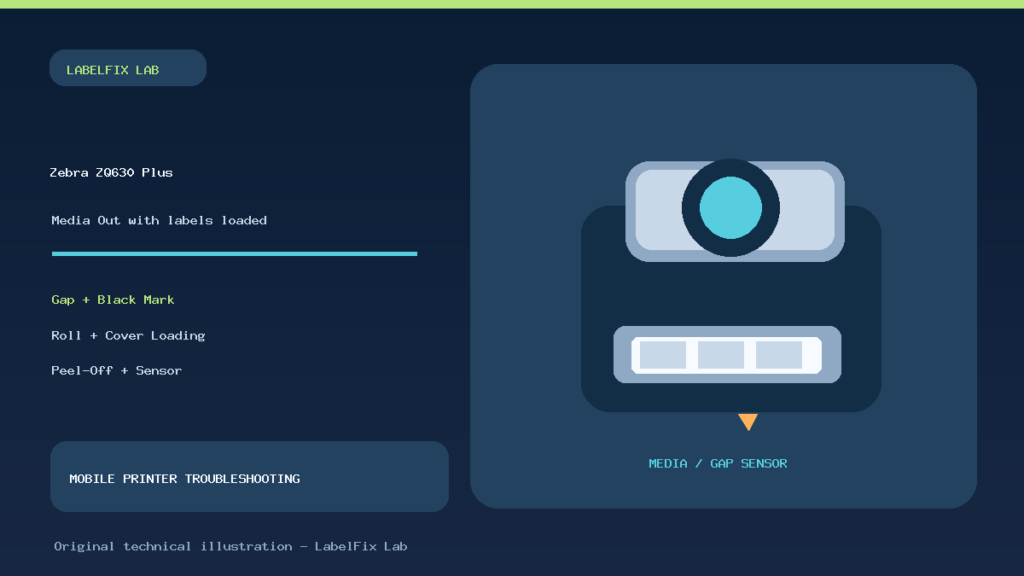
Quick answer: When a Zebra ZQ630 Plus displays Media Out although labels remain in the roll, check the loaded media path, the securely latched cover, and whether the printer is detecting the correct gap or black-mark registration feature. Zebra’s ZQ600 Plus manual distinguishes Media Out from other status alerts and identifies gaps, top-of-form marks, sensing obstructions and incorrect print field size as common branches of mobile label feeding problems. Do not assume that a visible roll proves the sensor can locate the next label.
This guide targets the ZQ630 Plus portable printer, not the ZQ620 Plus Bluetooth connection problem or desktop ZD models. Some ZQ630 Plus units have different accessories or RFID capabilities, so check your installed configuration before applying media procedures.
Diagnose the displayed symptom first
| Observed result | Likely branch | First safe test |
|---|---|---|
| Media Out immediately after a roll change | Stock loading, size or registration difference | Compare new liner and marks with known-good roll |
| Printer advances several blanks, then stops | Sensor not detecting gaps or black marks | Inspect sensing path and media type |
| Labels skip or printed image drifts | Pitch, print format length or sensing | Measure actual label and compare configuration |
| Only peel-off mode has a problem | Peeler routing or take-label behavior | Check documented peeler-bail position |
| Printer says media-cover open | Cover latch, not a roll-empty condition | Close and latch correctly |
| Prints locally, fails from handheld app | Application size, interface or job format | Compare internal and host-controlled tests |
1. Verify the exact portable model and media configuration
The ZQ630 Plus is a mobile printer designed for portable receipts and labels. Its supported media can include gap-sensed die-cut labels, black-mark sensing, continuous journal material and certain linerless configurations. These media types are not interchangeable settings. A shipping label roll that fits between the supports might still have the wrong mark location or label width for the selected profile.
Read the model identifier and media packaging. The actual label face length and the pitch to the next start can differ when a gap separates die-cut labels. Zebra’s ZQ600 Plus media specifications explain sensor arrangements and supported material characteristics. Compare the roll with those requirements before changing firmware or drivers.
2. Reload the roll following the ZQ630 Plus media path
Use the side latch to open the media compartment and inspect the material. Zebra’s official ZQ630 Plus loading procedure shows separating the adjustable media supports, positioning the roll in the documented orientation and closing the cover before feeding. Do not pull tightly wound stock through a closed mechanism or force the media over a jammed roller.
Make sure the media cover closes and latches. A cover-open alert is a separate condition from Media Out. Remove a torn strip or detached label from the path using manufacturer-approved safety steps. If the roll is off-center or guides are pressing unevenly against the liner, the media can drift away from the intended sensing point during repeated printing.
3. Recognize black marks, gaps and journal stock
Zebra documents sensing for labels separated by gaps as well as reflective black marks on media backing. The ZQ630 Plus media specifications note the location requirement for black marks; they need to align with the intended reflective sensing area. A white liner with no marks is not automatically treated the same way as black-mark receipt stock. Continuous journal stock does not have the repeated gaps of die-cut labels.
Turn a spare segment of the roll over and inspect the back. A new vendor’s stock can have different mark dimensions, liner transparency or die-cut pitch even with the same nominal face size. If the printer’s mode expects black marks while the roll presents gaps, the device may feed until an error appears.
4. Inspect the media sensor without damaging it
Zebra’s troubleshooting guide explicitly says to check whether the gap or black-bar sensor is blocked or malfunctioning when labels skip. Adhesive residue, dust and small liner scraps can obscure the sensor window. Use the current ZQ630 Plus maintenance instructions to clean the specified sensor and feed areas safely. The manufacturer’s maintenance schedule calls for keeping bar and gap sensor windows free of dust.
Do not probe into the sensor with a blade, spray liquid inside the housing, or force the printhead while the device is hot. If the sensing window is cracked or persistently unable to detect known-good stock after correct cleaning and loading, gather evidence for service rather than trying random optical-sensitivity changes.
5. Choose tear-off versus peel-off mode intentionally
The ZQ630 Plus can be loaded in tear-off or peel-off workflows where supported. Zebra’s ZQ630 Plus peel-off instructions include removing a few labels from the backing, loading the roll, closing the cover, then raising the peeler lever until it locks. The peeler mechanism changes how the backing and individual labels travel through the printer.
If the issue appears only when peel-off mode is enabled, inspect the peeler bail and whether the last printed label has been removed as required. Do not treat an intentional take-label pause as Media Out, and do not apply the separate ZQ620 Plus peeler diagram to a ZQ630 Plus without verifying hardware differences. For the basic mode, follow the official tear-off loading guide.
6. Check label length and the maximum print field
The image submitted by a mobile app or warehouse system must fit the physical stock. Zebra’s ZQ600 Plus troubleshooting table lists exceeding the maximum print field as another consideration when labels skip. Measure the actual label and compare the selected print width and length to the source document. A Letter-page PDF shrunk or clipped into narrow mobile stock can create a very different fault from a true media-sensor failure.
If the printer’s local test feeds correctly but the issue begins only with a specific application, focus on document format, media presets and host data. Our Zebra label-size guide explains the broader comparison between actual roll dimensions, driver settings and source PDF.
7. Separate an empty roll from an undetected roll
A genuinely empty spool, a missing sticker on the liner, or a roll with no detectable mark can all result in a loss of expected registration. Zebra’s display alerts and user menu help narrow down whether media is present or the cover is open. Do not bypass that status by repeatedly sending the same queued jobs: a mobile printer may consume more blank material before stopping again.
Swap in one known-good, manufacturer-compatible roll if available. If that media feeds correctly, compare material characteristics and configuration. If even known-good stock is not seen in the same loaded path, a dirty sensor, incorrect settings or hardware failure deserves further investigation.
8. When to recalibrate after switching media types
Changing from gap labels to black-mark or continuous stock is more significant than replacing an empty roll with the same media type. Use the documented ZQ600 Plus calibration workflow for the exact device and loaded material, and record existing settings. Never assume the desktop ZD410 SmartCal button combination applies to a ZQ630 Plus.
For RFID-capable configurations, Zebra specifies an additional RFID calibration only after appropriate label length and gap setup; it is not a substitute for ordinary media detection. This branch is relevant only when the device actually has RFID hardware and the job requires tag encoding.
9. Verify battery and cover status separately
A portable printer may show other alerts, including a low battery or an open media cover. These need to be resolved on their own terms. If the printer loses power or pauses during a batch, note whether a media error actually appears or the device is shutting down for another reason. Charge according to the supported battery procedure and avoid confusing a data icon that flashes during reception with an error.
Take a photo of the displayed wording and status color if allowed. The manual’s error-indicator table differentiates messages and helps prevent the wrong repair. A stable printer-side label test after a recharge is a useful comparison to an unchanged roll and print format.
10. Use a controlled test before changing applications
Start with a known-compatible roll in the correct mode. Feed one label through the printer’s supported controls, then print a harmless test from the intended mobile system. If it fails, change one variable at a time: load position, media mode, source format or the exact printer selection in the app. Keep all other factors fixed. This approach is especially useful in delivery and field-service work, where several devices and applications may share the same workflow.
If all feeding tests succeed locally but a mobile scanner or app appears disconnected, refer to our ZQ620 Plus Bluetooth guide only for the general distinction between wireless delivery and media errors; follow ZQ630 Plus-specific connectivity instructions for your own model.
ZQ630 Plus Media Out checklist
- Record exact model and displayed alert.
- Check cover latch and roll position.
- Identify gap, black-mark or continuous media.
- Ensure marks and liner align with the sensing path.
- Use the correct tear-off or peeler loading route.
- Inspect sensor windows for dust or adhesive.
- Compare physical label pitch and job print field.
- Use documented calibration only when material changes justify it.
- Test one known-good roll and one harmless print.
Frequently asked questions
Why does my ZQ630 Plus say Media Out with a roll installed?
Visible stock does not prove its boundary can be detected. Check media orientation, gaps or black marks, sensor obstruction, cover status and the selected media profile.
Should I recalibrate every time I replace a roll?
Not necessarily. Swapping the same compatible material differs from changing media type, pitch or sensing marks. Follow the exact Zebra guide for your configuration.
Can the peeler cause a label feed problem?
Yes. An incorrect peeler-bail path or a take-label wait can change feeding behavior. Inspect the correct ZQ630 Plus peel-off procedure.
Does a flashing data icon mean Media Out?
Not by itself. Zebra documents a blinking green Data icon during data reception; use the actual alert message and status table.
Official Zebra sources
- Zebra ZQ600 Plus troubleshooting issues
- Zebra ZQ600 Plus error messages
- Zebra ZQ630 Plus peel-off media loading
- Zebra ZQ600 Plus media specifications
Editorial scope: Manufacturer-based diagnostic steps, not a claim of hands-on testing across firmware versions or optional accessories. Refer to the current guide for the actual printer.
Independent general troubleshooting information for shipping labels and thermal printers. Model-specific button sequences, cleaning supplies and service instructions can differ; consult your manufacturer's official documentation. Never alter a carrier-generated barcode.