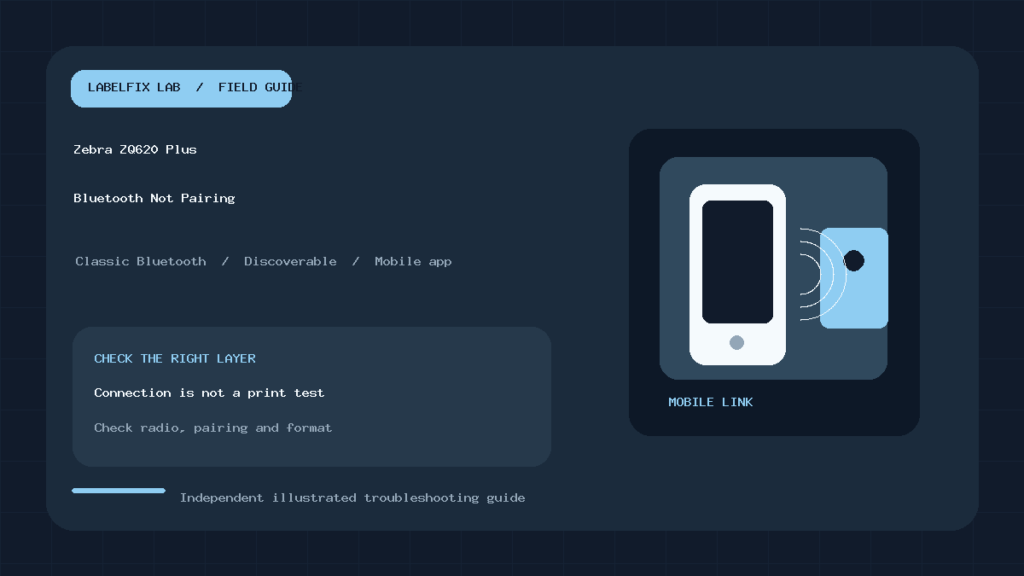
Quick answer: When a Zebra ZQ620 Plus Bluetooth printer won’t pair or pairs but won’t print, separate three stages: the printer’s Bluetooth radio must be enabled and discoverable, the Android or iPhone must establish a supported connection, and the business app must send a compatible print job. A phone showing the printer in its Bluetooth list is not proof that the application can print.
The ZQ620 Plus is a mobile label/receipt printer. Its wireless options and firmware can vary by configuration. Zebra’s documentation covers both Bluetooth Classic and Bluetooth Low Energy (BLE), and some dual-radio configurations require Bluetooth to be enabled. This article explains safe triage without assuming every ZQ620 Plus has identical radio hardware or app support.
Identify which part has failed
| Symptom | Most likely layer | Best first comparison |
|---|---|---|
| ZQ620 Plus never appears during a phone scan | Radio enabled/discoverable, range or permissions | Verify printer Bluetooth status and discovery settings |
| Phone finds printer but pairing fails | Bluetooth mode, security, bond or stale association | Use the supported Zebra pairing workflow |
| Phone shows paired, app says printer unavailable | App connection profile, transport or permissions | Test with Zebra’s supported setup utility |
| Job transfers but printer produces no label | Print format, media, battery or device error | Compare printer self-test and diagnostic indicators |
| Pairing works near printer but drops farther away | Radio interference or range | Test at short range without obstructions |
1. Confirm the model and wireless configuration
Read the printer’s actual product label and configuration, especially if your fleet also contains ZQ620, ZQ610 Plus or ZQ630 Plus devices. Hardware options and provisioning may differ. Zebra’s ZQ6x0 Plus status-icon reference explains how the display indicates Bluetooth and WLAN states. A wireless icon’s absence or an error light should be investigated before repeatedly resetting the phone.
Check battery level, paper/media cover and current device status. A printer with a latched-cover or out-of-media error may establish a Bluetooth connection but still refuse to produce a label. Zebra’s troubleshooting guide lists battery, media and communication faults separately; do not assume all no-print results are pairing problems.
2. Understand Bluetooth Classic versus BLE
Bluetooth Low Energy often supports discovery, provisioning or low-bandwidth operations. Zebra’s Bluetooth documentation distinguishes it from Bluetooth Classic for normal production printing, although supported methods can vary by firmware and app. The company’s setup guidance recommends Bluetooth Classic for better printing throughput when available, rather than relying on BLE for high-volume jobs.
Check the printer’s configured Bluetooth controller mode and the application requirements. Zebra lists Classic, Low Energy and combined modes in setup utilities for supported printer families. If your phone can discover a BLE advertisement but the print app expects a Classic connection, it may look like “paired but not connected.” Do not change the controller mode on a managed fleet without confirming how existing handhelds work.
3. Enable Bluetooth and make the printer discoverable
Use a manufacturer-supported interface to confirm that Bluetooth is Enabled and Discoverable, and check the Friendly Name if several similar printers are nearby. Zebra’s Bluetooth setup instructions for Zebra Setup Utilities outline radio configuration and bonding options. Depending on installation, Windows Zebra Setup Utilities or the Android Zebra Printer Setup Utility may be the appropriate path.
Some Zebra devices equipped with both Wi-Fi and Bluetooth have Bluetooth disabled until configured. The exact default varies, so confirm instead of assuming the radio is defective. Avoid assigning identical friendly names to many units: use the printer’s actual MAC address or approved asset identifier to select the right target, without publishing that identifier publicly.
4. Pair with Android using a controlled sequence
- Charge the printer sufficiently and confirm there is no media or cover alert.
- Verify Bluetooth is enabled and discoverable on the printer through the supported setup method.
- Enable phone Bluetooth and the permissions required by your Zebra utility and Android version.
- Use the official Zebra Printer Setup Utility or the managed business app’s documented pairing workflow.
- Match the selected printer name or hardware identifier with the physical ZQ620 Plus.
- Complete any legitimate PIN or confirmation step and test a small authorized label.
If the printer was previously paired to another handheld or profile, record the current association and follow the fleet administrator’s approved unpair-and-repair procedure. Deleting every saved printer from every device is unnecessary and can disrupt active workstations. A Bluetooth connection that succeeds in a Zebra utility but not in a warehouse app strongly suggests an app profile, integration or output-format problem.
5. iPhone and iPad pairing considerations
Zebra’s Bluetooth-enabled mobile printer guide lists iOS support for the ZQ620 Plus family, but actual printing depends on the supported radio configuration, the printer’s firmware and the iOS application. Do not assume a printer must appear as a normal AirPrint destination merely because Bluetooth is paired. Zebra mobile printing is frequently controlled through an application or fleet integration designed for these printers.
Use the business application’s supported iOS workflow and review permissions. Check whether your organization requires Bluetooth Classic, a certified accessory path or a managed profile. If the iPhone sees the printer but cannot start a label, reproduce a simple test within an officially supported application before replacing the printer or blaming the iPhone’s Bluetooth radio.
6. Read the ZQ620 Plus status icons correctly
According to Zebra’s guide, a solid blue Bluetooth status indicates an established Bluetooth link, while a blinking blue indication can occur during connection or data transfer. The absence of that status indicates no active Bluetooth link. A separate WLAN icon reports wireless-network state, not a Bluetooth connection. A blinking red media indicator, for example, calls for media diagnosis even when Bluetooth is working.
Watch the printer’s display while pairing and then while submitting a job. If there is never a radio link, focus on discovery or security. If a link appears but no data is received, inspect the app’s configured printer and transport. If the data indicator responds but printing fails, investigate format, media or device state.
7. NFC and barcode-assisted setup are not the print transport
Some Zebra workflows use NFC Print Touch or Zebra’s Scan & Pair app to identify a printer, making setup easier. An NFC tap or a scanned Bluetooth MAC address can assist pairing, but it is not the same as printing a full label over NFC. Zebra’s user guide directs placing the phone sufficiently close to the Print Touch icon when using NFC-based functions.
Where a fleet uses Zebra Scan & Pair, confirm the scanned identifier matches the selected physical printer and follow any required PIN challenge. Avoid pairing with an unfamiliar nearby unit merely because its name looks similar. Security and host application policies may intentionally restrict which printers a device can use.
8. Paired successfully, still no label?
Check a few independent variables. Is the printer’s battery healthy? Is approved media installed? Is the cover latched? Is there an error indication? Does the intended app actually select the ZQ620 Plus, and does its label format match the printer’s supported language and dimensions? Zebra’s official troubleshooting reference mentions invalid commands or label formats as a separate cause of no print even with communication established.
For print-data problems, an administrator may use the manufacturer’s communication diagnostic mode with an approved test. Do not send raw, unverified ZPL/CPCL commands to a production printer. For generic phone pairing patterns, consult our Bluetooth label printer phone checklist; this article adds ZQ620 Plus-specific statuses and manufacturer utilities.
9. What to do when connection keeps dropping
Move the phone and printer closer together and temporarily reduce nearby interference. Compare the same test at a short distance, keeping the application and device fixed. Check power management, battery state, handheld roaming, installed app updates and managed Bluetooth profiles. If dropouts follow a specific device rather than the printer, the phone’s app or management settings deserve attention. If all managed phones lose the link near the same location, assess the RF environment with the appropriate team.
Do not assume a firmware update is risk-free. Back up current configuration where the manufacturer supports it and follow Zebra’s approved firmware process only when a version-specific issue or official guidance warrants it.
10. Worked example: paired in Settings, not available in WMS
A warehouse handheld displays the ZQ620 Plus as paired, yet the WMS refuses to print picking labels. First confirm the printer has an active Bluetooth link during the attempted job. Test through Zebra’s approved utility. If the utility works, compare the WMS printer choice, controller/transport expectation, label format and permissions. If the utility cannot establish a link either, review discoverability, bonding and radio settings. This approach preserves a meaningful test instead of reinstalling an unrelated PDF driver.
Frequently asked questions
Does pairing guarantee the ZQ620 Plus can print?
No. Pairing is a connection step; the application must also choose the right transport, submit a valid label and use a printer with media and power ready.
Should I use Bluetooth Low Energy for printing?
Check your supported app and firmware. Zebra’s current setup guidance favors Bluetooth Classic for ordinary, higher-throughput print workflows when it is available.
Why does the iPhone not show my printer under AirPrint?
Bluetooth compatibility does not necessarily mean AirPrint support. Use the Zebra-supported application and connection workflow for the exact printer configuration.
What if the printer has a solid blue Bluetooth indicator but prints nothing?
That indicates an established link, not necessarily valid print data. Check the selected business app, printer state, supply loading and authorized test label.
Official Zebra references
- Zebra ZQ6x0 Plus: status icons
- Zebra ZQ6x0 Plus: troubleshooting
- Zebra: configure Bluetooth with Setup Utilities
- Zebra: Bluetooth-enabled mobile printer guide
Editorial scope: This guide synthesizes manufacturer documentation. It is not a claim of hands-on testing with a particular ZQ620 Plus. For production fleets, follow current Zebra model documentation and the administrator’s change-control policies.
Independent general troubleshooting information for shipping labels and thermal printers. Model-specific button sequences, cleaning supplies and service instructions can differ; consult your manufacturer's official documentation. Never alter a carrier-generated barcode.