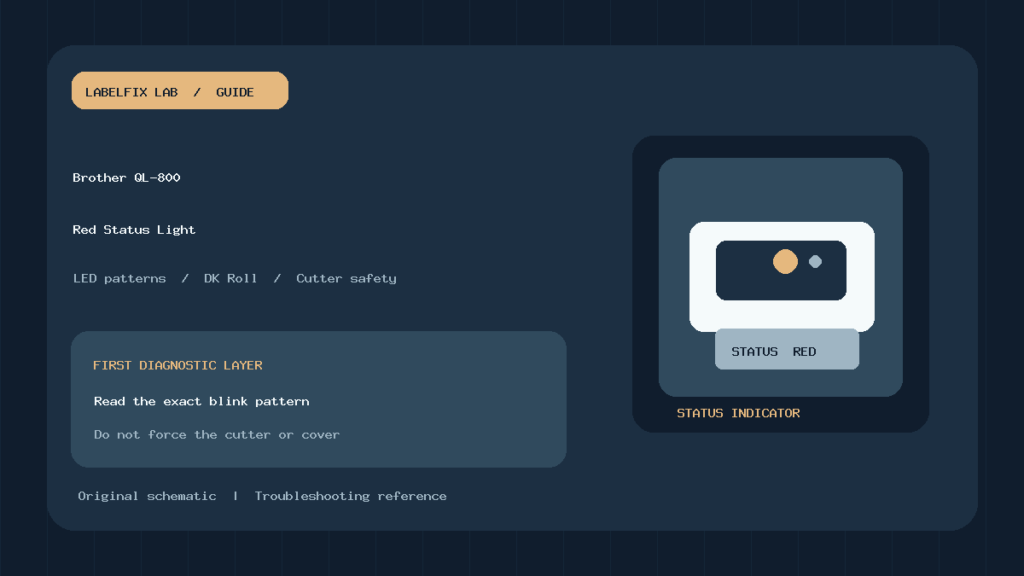
Quick answer: A Brother QL-800 blinking red status light does not indicate one universal fault. The exact blink timing matters. Brother’s official QL-800 indicator guide distinguishes roughly once-per-second red blinking associated with media, feed, cover or communication problems; a repeated double-flash pattern associated with a cutter error; and rapid red flashing associated with a system error. Record the pattern before unplugging or resetting anything.
The QL-800 is a direct-thermal label printer that uses Brother DK rolls, including a special two-color workflow with the appropriate media. Its Status LED and separate Editor Lite LED provide different information. A blinking light should be read together with whether labels are loaded, whether the cover is closed and what the printer was doing when the fault appeared.
Brother QL-800 status light: symptom table
| Indicator pattern | Brother’s documented state | First safe action |
|---|---|---|
| Steady green | Normal power, feeding or printing operation | Check whether an actual print job fails |
| Green blinking | Preparing, receiving data, transferring data or canceling | Allow the normal operation to finish |
| Steady orange | DK roll compartment cover open | Close and latch the cover properly |
| Orange blinking about every 0.5 second | Cooling mode | Allow the device to cool |
| Red blinking about every 1 second | Possible media end, feeding, wrong media, cover, communication or memory error | Inspect media and job context |
| Red: long off period followed by two short flashes | Cutter error | Stop, do not interfere with the moving cutter |
| Rapid red blinking about every 0.3 second | System error | Follow Brother’s restart and support guidance |
Timing descriptions are taken from Brother’s QL-800 indicator reference. The guide includes other states and firmware-dependent details; use the manufacturer’s full table for the exact sequence seen on your unit.
1. Identify the status LED and Editor Lite LED separately
The status lamp can be green, orange or red, while the Editor Lite indicator reflects whether its editor mode is on. A green Editor Lite light next to a red Status light is not the same as a healthy green Status LED. Look at the labels next to the physical indicators rather than describing the whole printer as “flashing green and red.”
Note whether the error occurs at power-on, after the printer receives a label, during roll feeding or at the instant of cutting. Those moments separate a software handoff failure from a mechanical or paper path issue. Keep the printer model in mind: QL-800 light patterns should not be substituted with a QL-700 or QL-1110NWB table.
2. Once-per-second red blinking: start with DK media
Brother’s table groups several possible failures under a regular red blink, including an exhausted roll, feed error, absent media, wrong media, cover state and communication error. The appropriate next step depends on what happened immediately before the alert. If no roll is loaded, use a compatible DK roll. If there are labels left, confirm the spool is correctly seated and the leading edge follows Brother’s loading diagram.
A roll can look full but feed incorrectly if the edge is not inserted into the proper path or the cover is not fully latched. Do not pull labels backwards against the cutter or force the spool. For stock-size problems that occur without an error light, our Brother QL-800 wrong label size guide covers the application and DK preset instead.
3. Verify the exact DK roll identification
The QL-800 doesn’t accept every roll sold as a “thermal label.” Check the manufacturer-defined DK part number and whether it matches the template selected in your software. Continuous and die-cut labels differ in layout, and the two-color red-and-black feature requires suitable media. Selecting an incompatible label layout can produce a wrong-media or feeding problem before the content of the PDF matters.
If the roll is physically compatible and correctly installed, compare one Brother-supported label-editor test to the failing software job. A known-good local sample that prints correctly tells you more than repeated changes to the stock label design.
4. Red double-flash pattern: treat it as a cutter alert
Brother documents a pattern with a long off interval and two quick red flashes as a cutter error. This is not permission to reach into the device during cutting. The manufacturer specifically warns against opening the DK compartment while the cutter is operating and explains a button-based method for clearing the error state in its model FAQ.
Stop sending jobs, keep hands clear of the cutter mechanism and follow the model’s exact safe recovery instructions. Once the mechanism is stationary and the printer is powered down as directed, inspect for visible torn labels or obstructions without forcing the blade. If the pattern recurs, qualified service is more appropriate than repeated manual manipulation. For a broader distinction between cutter and feed issues, see thermal label cutter troubleshooting.
5. Rapid red flashing: system error is a different branch
Brother’s QL-800 guide associates rapid red flashes at about 0.3-second intervals with a system error. Follow the manufacturer’s off/on recovery instruction. If the error returns, record the exact light pattern and contact Brother support. Do not try random firmware files or factory resets from a different QL model.
A device that displays a fault before any software is opened may not benefit from reinstalling a Windows print driver. Conversely, if it starts normally but errors only on one transferred template, compare that template and the host connection before diagnosing a persistent hardware fault.
6. Orange doesn’t mean the same thing as red
A steady orange status indicator is associated with the DK compartment cover being open. Ensure the cover closes correctly without pinching stock or forcing the latch. Orange blinking can indicate cooling mode; Brother advises waiting before printing again. Do not defeat a cover interlock or continue printing if the printer is unusually hot.
If cooling occurs after a long batch, let the machine rest in a safe ventilated location and use Brother’s expected operating conditions. Our thermal label printer heat and pause checks explains generic thermal effects; it does not replace the model-specific QL-800 LED table.
7. Communication errors can share the regular red blink
Brother’s guide notes that a failed template transfer can produce an error. For example, a transferred .blf template intended for a different printer model may not match the actual QL-800. If a safe internal test works but a job from one application triggers a red blink, inspect the software’s selected model, driver and file format rather than changing the cutter.
Try a short original label from a supported Brother workflow. If the device reacts correctly, then troubleshoot the specific job’s format and connection. Our USB disconnection checks can help isolate intermittent transport faults without modifying the DK media.
8. Two-color printing is a separate setting
The QL-800 supports a red-and-black two-color mode on compatible stock. Brother documents a Windows P-touch Editor scenario in which selecting a high-resolution output option conflicts with two-color printing, and instructs choosing the appropriate standard output. This is an application/rendering distinction, not evidence that the printhead is damaged.
Check the correct DK roll and the print dialog before assuming a color failure is a media end or cutter error. Our Brother QL-810W red-and-black guide discusses a related model, but use the QL-800’s own support documentation for exact controls.
9. Separate printer status from wrong-size output
If the status light is green and the printer produces a label, but its dimensions are wrong, you likely have a PDF, driver or stock-selection problem rather than an LED fault. Compare the real roll designation, document page size and print settings. Do not use a factory reset to turn a Letter PDF into a correctly sized die-cut label.
Also check that the correct printer queue is selected. Applications can retain another Brother model or a duplicate queue after a driver update, and the wrong destination may fail without implying the physical QL-800 cannot feed stock.
10. Worked example: printer blinks red after a new roll
A shipping desk replaces a DK roll and the QL-800 starts blinking red once per second before printing. First check the roll designation, spool seating, label leading edge and cover. If the same printer prints an approved small test after the correct roll is loaded, evaluate the shipping application separately. If the pattern changes to two rapid flashes after a cutting event, use Brother’s cutter-error branch, not the media branch.
Only one change at a time produces useful evidence. Replacing the roll, changing USB ports and resetting the device together obscures which cause was responsible.
11. When to stop and ask Brother for service
Stop if the cutter jams repeatedly, the unit overheats, there is visible physical damage or the system-error blink returns after the manufacturer-approved recovery. Collect the model, LED pattern timing, DK roll identification and a description of when the fault occurs. That information gives support a much better starting point than “red light flashing.”
Frequently asked questions
Why is my Brother QL-800 blinking red with labels still inside?
The red one-second blink can indicate feed, wrong-media, cover, communication or other errors, not just an empty roll. Check the context and Brother’s LED table.
Does a fast double red flash mean the same as a system error?
No. Brother documents a particular two-short-flash repeating pattern for cutter errors and a separate rapid continuous red flash for system errors.
Can I open the cover during a cutter error?
Do not open the compartment while the cutter is operating. Follow Brother’s safe clearing and service guidance.
Why is the QL-800 orange instead of red?
Steady orange can indicate an open DK cover; orange blinking can indicate cooling. Read the exact pattern and current state.
Manufacturer references
Editorial scope: This is a source-based troubleshooting article, not a claim of hands-on testing. Check the current QL-800 manual and your precise firmware before resetting or servicing the machine.
Independent general troubleshooting information for shipping labels and thermal printers. Model-specific button sequences, cleaning supplies and service instructions can differ; consult your manufacturer's official documentation. Never alter a carrier-generated barcode.