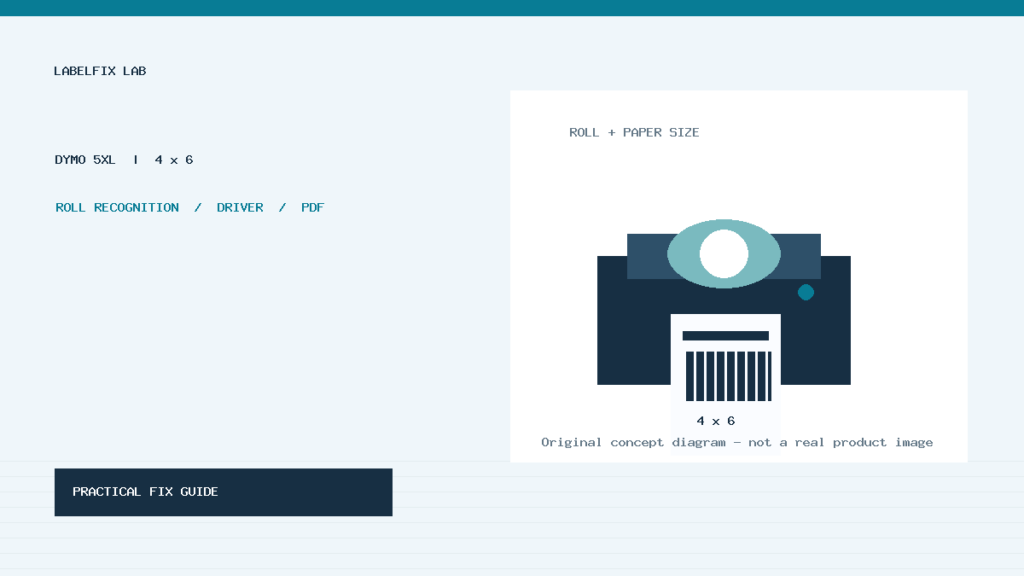
Quick answer: If a DYMO LabelWriter 5XL will not print a 4×6 shipping label, diagnose the failure in this order: genuine DYMO label recognition, the actual 4×6 paper size, the USB or Ethernet connection, the correct printer/driver, and finally the shipping platform or PDF print settings. A 5XL that can print a label from DYMO Connect but fails from a browser is a different problem from a printer that cannot identify its label roll at all.
This guide covers the LabelWriter 5XL, not the older LabelWriter 4XL or the smaller 550 models. These families share some printing concepts but differ in roll recognition, connectivity and supported supplies. Use the current DYMO documentation for your operating-system version and official printer model; avoid forcing incompatible drivers or unofficial label firmware changes.
Understand what is specific to the 5XL
DYMO positions the LabelWriter 5XL as a 4×6 shipping-label printer that connects by USB or wired LAN. It uses Automatic Label Recognition, and the manufacturer states that the LabelWriter 5 series works with DYMO-branded label rolls designed for that recognition system. These are not minor details: a physically fitting third-party roll may not be recognized or behave as the printer expects.
The manufacturer describes these points in its LabelWriter 5XL product information and label-recognition support article. The 5XL is direct thermal, so adding ink, toner or a thermal-transfer ribbon is not a valid fix for a blank output. For the print-method difference, see our direct thermal vs thermal transfer guide.
Fast symptom map: find the failing stage
| What you see | Most useful hypothesis | First check |
|---|---|---|
| DYMO software cannot identify the roll | Supply recognition or roll issue | Verify supported genuine DYMO roll and seating |
| Printer absent from the computer | USB/Ethernet, operating-system queue or driver | Check actual connection and correct printer entry |
| DYMO Connect prints, shipping site does not | Browser, PDF or third-party application output | Compare the platform print path with a 4×6 test |
| 4×6 PDF shrinks or splits over pages | Wrong page size, scaling or crop area | Confirm 4×6 preset and 100% size when appropriate |
| Label feeds but prints blank | Wrong stock side, source data or print process | Test the intended thermal side with safe sample |
| Only networked workstation fails | LAN addressing, discovery or remote queue | Test local/direct access and device reachability |
1. Begin with a recognized 4×6 DYMO label roll
Look at the roll packaging and the supplies guidance for your 5XL. Because this series uses automatic recognition, a mechanically similar roll is not enough to establish compatibility. Use supplies listed as compatible by DYMO and inspect the roll for damage, torn backing, adhesive buildup or loading that prevents normal sensing.
Remove the roll only as described by the 5XL user guide, check the spool and guides, and reload a fresh approved roll. Observe whether DYMO Connect reports the expected label size. Do not attempt to bypass label identification through undocumented configuration, adhesive modifications or a different model’s sensor procedure. For a related but different device, our LabelWriter 550 recognition troubleshooting explains the broader symptoms without implying that every step is identical.
2. Distinguish a roll recognition failure from a paper-size mismatch
A roll may be recognized correctly but a shipping platform may still create a Letter-size PDF or a layout with more than one label per page. A 4×6 printer expects the content to be prepared for the actual physical roll. A mismatched PDF can produce shrinking, blank extra paper, misalignment or clipping that looks like a printer hardware fault.
Inspect the downloaded PDF in a viewer that reveals the page dimensions. Confirm whether the document itself is approximately 4×6 inches or contains a 4×6 label placed somewhere on a larger sheet. Select the platform’s 4×6 thermal-label output when available. Do not assume switching the printer’s paper size can crop a Letter page automatically. Our 4×6 label crop guide and PDF page-box explanation help diagnose the source dimensions.
3. Test from DYMO Connect before testing the marketplace
Open a supported DYMO Connect version and choose the actual LabelWriter 5XL queue and recognized label size. Create a harmless one-line test label with a short identifier such as TEST-5XL. If the manufacturer application prints correctly, the printer, current supplies and connection have passed a useful basic test.
Now print a properly sized 4×6 PDF from the shipping workflow. If that fails while DYMO Connect succeeds, focus on the third-party print path, driver-selected paper size, Windows/macOS print dialog and application permissions. DYMO’s third-party software alignment support recommends comparing output against its own application. Do not immediately replace the printhead because one browser preview looks wrong.
4. Check that the computer is printing to the correct 5XL queue
On a computer with several label printers, the OS may choose an old LabelWriter 4XL, an offline duplicate, a generic PDF printer or a Letter printer as default. Check the actual destination selected in the application—not just the last printer shown in the system’s general list. Cancel or resolve only your own stuck jobs before retrying; avoid deleting other users’ queued shipping labels.
If the 5XL is connected by USB, test the cable and a direct supported computer port. Avoid changing several hubs and adapters at once; compare one known-good connection. For an Ethernet-connected 5XL, confirm the printer is on the intended LAN and the computer reaches the correct device. An Ethernet port does not imply that the printer has built-in Wi-Fi or Bluetooth. See our connected-but-not-printing checklist for the broader queue diagnosis.
5. Use DYMO’s supported current software and driver path
Installing a driver for a different LabelWriter generation can create misleading printer entries or paper-size menus. Use the manufacturer’s support and software resources for the 5XL and your exact operating system. After installation, confirm the recognized model name and whether the appropriate 4×6 labels appear in the software’s size list.
On Windows, inspect the printer properties and Printing Preferences for the intended model, then check the paper size in the app’s own print dialog. On macOS, check which printer driver and paper preset are selected; the correct menus vary with OS release. Do not conclude that a driver update solved the problem until the same synthetic label and a real-size test PDF both print with the expected margins.
6. Set the 4×6 physical size without scaling the barcode
A shipping label designed for 4×6 inches is not the same thing as a Letter page scaled down to 4×6. Shrinking can make 1D and 2D barcode elements narrower and may reduce scan reliability. In supported PDF viewers, start with 100% / Actual Size when the source already has the right page size, and disable unnecessary fit or shrink settings.
Some marketplaces present their own label presets; select the actual 4×6 thermal format upstream when possible. If a page includes two labels, download or regenerate a single-label thermal file rather than printing an arbitrary image crop. Our shipping label prints too small and multiple labels on one PDF page explain these document-level errors.
7. Compare USB and wired LAN without mixing troubleshooting paths
The 5XL and 550 Turbo both have wired-LAN capabilities, but their labels and print widths differ. For the smaller Ethernet-capable model, our 550 Turbo network discovery and DYMO Connect checklist explains LAN status, addresses and duplicate USB/LAN entries.
The 5XL may be installed locally by USB or reached through its built-in LAN connection. If one connection works and another does not, the print engine and label roll may be healthy. Focus on whichever queue, address or network discovery method differs. Record each connection method and avoid sending the same label through two queues at the same time.
Network printers may appear offline after router changes or workstation sleep because the host points to an outdated address or stale printer entry. Test a permitted print to the same printer using one known route. If the device is reachable but the shipping app sends to an unrelated queue, correcting the destination is more useful than changing label darkness. See our network printer offline after router restart guide.
8. If the label feeds but nothing is printed
The LabelWriter 5XL uses direct thermal media. Confirm you loaded the compatible roll the intended way, and follow DYMO’s documented feed or test procedure. A safe thermal-paper scratch test may help identify the reactive side of suitable stock, but do not scratch a printer component or use an unknown roll as proof of compatibility with this automatic-recognition series.
If the paper advances yet the output is blank, test with a short DYMO Connect label before blaming the downloaded shipping PDF. If that succeeds, the blank may be caused by an empty print source, the wrong selected region or a third-party app issue. If both fail, inspect loading, roll identification, the printhead area and the genuine manufacturer cleaning instructions. Never use a ribbon workaround on this direct-thermal model. Our blank thermal label diagnostic covers generic print-engine causes.
9. If labels stop, jam or feed unexpectedly
Check whether the installed roll is correctly seated and its guides permit smooth feeding. Look for labels separated from their backing, adhesive debris or a deformed roll. Disconnect power and follow the manufacturer’s safe clearing procedure before touching the media path. Do not pull a jammed label through a closed print mechanism or insert objects into the sensing area.
After clearing a jam, run a small controlled test before restarting a batch. If the roll is not recognized, resolve that first; a paper-size change will not fix a mechanical feed obstruction. If the roll is recognized but the print shifts progressively, inspect source dimensions, feed behavior and the manufacturer’s alignment procedure instead of changing arbitrary offsets.
10. Test the shipping platform separately
Marketplace pages may offer multiple print workflows: browser printing, downloadable PDFs, integrated label apps or carrier-specific output. For a clean comparison, obtain one authorized sample label from the same platform and note the source page dimensions. Try the intended 5XL queue and the correct 4×6 preset.
When a browser fails but a downloaded PDF succeeds, investigate the browser print dialog and its scaling options. When both fail but a DYMO Connect test works, compare the PDF media boxes and driver selection. If the platform sends an already low-resolution image, changing the printer DPI setting cannot restore lost details. Avoid test-printing paid carrier labels repeatedly when the system could create duplicate operational documents.
11. A one-variable-at-a-time 5XL checklist
- Record the exact 5XL model, OS, connection type and visible error.
- Verify a compatible genuine DYMO roll and successful automatic recognition.
- Print a harmless 4×6 sample from supported DYMO Connect software.
- Check the actual print queue, driver and USB/LAN connection.
- Inspect the shipping source file’s page dimensions and select a true 4×6 output.
- Print at the appropriate unscaled size and examine barcode clarity.
- Return to the marketplace only after the basic printer path works.
Record each successful test so a later operator can distinguish “roll not recognized,” “printer offline,” and “PDF printing wrong size” without resetting every workstation.
FAQ
Can a LabelWriter 5XL use any 4×6 roll?
No. DYMO says the LabelWriter 5 series uses genuine DYMO-branded labels that support its automatic-recognition technology. Check current supported roll references for the 5XL.
Does the 5XL need ink or a ribbon?
No. It is a direct-thermal label printer; proper thermal media and correct loading are required.
Is a 5XL a Wi-Fi printer?
It provides USB and wired LAN connectivity according to DYMO’s specifications. Do not assume built-in Wi-Fi solely because it is network-capable.
Why does DYMO Connect print while eBay or Amazon does not?
That comparison points toward the source platform, browser/PDF workflow, paper preset or application print destination. Confirm 4×6 output and the actual selected 5XL queue.
Bottom line
The DYMO LabelWriter 5XL has two particularly important requirements: compatible recognized label rolls and a 4×6 source-to-printer workflow. Establish that DYMO Connect can print, then test the shipping app and PDF settings. This isolates supply, connection and software faults without using fixes intended for different LabelWriter generations.
Independent general troubleshooting information for shipping labels and thermal printers. Model-specific button sequences, cleaning supplies and service instructions can differ; consult your manufacturer's official documentation. Never alter a carrier-generated barcode.