Quick answer: If a BIXOLON SLP-DX420 advances extra empty labels, prints the first sticker correctly but drifts farther out of position, or fails to stop at the next label, diagnose physical media registration before changing print darkness. The actual roll may use gaps, black marks or another supported stock format, while the printer or software expects a different boundary method. A two-page document or an incorrect logical page length can also look like skipped stock. The first goal is to find out whether the extra feed happens during a supported printer-side test or only when a particular app sends a job.
The SLP-DX420 is a direct-thermal desktop label printer in BIXOLON’s label-printer range. Specific sensor controls, supported paper types, driver settings, firmware and setup commands can differ. This independent article does not claim a hands-on test of your hardware. Use the exact model’s current official BIXOLON documentation for safe loading and calibration procedures rather than assuming button combinations from another device.
Which kind of label skipping are you seeing?
| Symptom | Possible failure layer | First controlled check |
|---|---|---|
| Several blank labels feed after changing rolls | Gap/black-mark detection, unsupported stock | Compare actual roll with the selected sensing method |
| Exactly one blank sticker follows each correct label | Extra PDF page, page length or feed handling | Count source pages and physical feed cycles |
| First printed label aligns, later ones drift | Physical pitch and configured logical label length differ | Measure start-to-start distances |
| Every image is consistently too low | Top offset, page origin or fixed layout | Check print position before calibrating |
| Stock is correctly fed, but barcode is tiny | Letter PDF or unexpected scaling | Measure PDF canvas separately from roll |
| Media Out appears with labels still installed | Incorrect path, sensor detection or media selection | Inspect supported loading and stock boundaries |
| Only one workstation skips labels | Host driver, app output or duplicate queue | Compare supported test using unchanged stock |
1. Identify the roll before changing calibration
Look at the actual liner and sticker pattern. Gap labels are die-cut stickers separated by spaces. Black-mark media has a registration mark in a defined position, and continuous stock does not have normal individual sticker gaps. These media types are not interchangeable from the printer’s point of view even if their widths match.
Record the label body’s width and height, liner width, gap or mark arrangement, and the manufacturer’s product specifications. Avoid inferring stock type solely from the phrase “4 x 6” in a marketplace listing. A new roll that differs from the old one is a strong clue when the symptom started immediately after the replacement.
2. Why the sensor can miss a label boundary
The device needs to recognize when one sticker ends and the next begins. If it is configured to expect a transparent gap while the loaded stock uses black marks, it may keep feeding to search for an expected boundary. Similarly, the wrong media path or a liner drifting sideways may cause the sensing system to miss the relevant feature.
Inspect the accessible media path using the official model illustration. Check for a twisted liner, a badly centered roll or visible debris, but do not insert tools into a sensor or bypass it. If the printer lacks the appropriate supported stock format or the required sensing mode is not available, use compatible supplies instead of forcing an unsupported roll.
3. Check the physical label pitch, not just sticker height
The pitch is the distance from the leading edge of one label to the leading edge of the next. For die-cut gap stock, pitch includes the sticker body plus the gap. A driver or label editor might store the sticker’s body length, while media detection works from actual physical boundaries. Confusing the values can produce progressive misalignment during a batch.
Measure several consecutive label starts with a ruler instead of trusting a rounded catalog name. If the first label is acceptable and every later label begins farther down, compare the expected logical length with the actual roll pitch. If every image is shifted by an identical distance, it is more likely a fixed print-origin or page-offset issue than cumulative pitch drift.
4. Compare an official printer-side feed test with the failing app
Use a manufacturer-supported media feed or diagnostic for your exact SLP-DX420 configuration. Follow the official procedure; do not guess a feed-button hold time from a different BIXOLON model. The aim is to establish whether the printer independently detects successive stock boundaries under its current conditions.
If a documented device-side test advances correctly, the roll and detection have shown basic operation; investigate the host print job next. If the device itself cannot stop consistently, prioritize media compatibility, routing and the proper documented sensing method. One safe short test is more useful than repeated uncontrolled feeds that waste an entire roll.
5. When is calibration actually appropriate?
Calibration can be useful when the printer’s media sensing fails to recognize the stock boundaries after a supported roll change or loading correction. First confirm the real media type and route; then use the exact SLP-DX420 calibration instructions for the installed firmware and setup. Avoid copying sequences intended for other printers.
Calibration will not turn a Letter PDF into a 4 × 6 source, remove a second document page, fix a blank PDF or create an image on incompatible stock. If the device feeds one sticker correctly in a local test but a shipping application advances extra labels, examine the app before recalibrating repeatedly. See how to calibrate thermal label printers for the wider principle.
6. A source PDF may contain more than one page
Some shipping systems produce a shipping label and an additional receipt or packing-slip page, even when a thumbnail shows only one barcode. If that job is sent to a small thermal printer, both pages may be processed as separate stickers or an extra feed. Count the actual PDF pages and print jobs before blaming the sensor.
A native portrait 4 × 6-inch PDF has a physical page size of 101.6 × 152.4 mm or 288 × 432 PDF points. US Letter is 612 × 792 points. Our 4 × 6 shipping label on two pages guide addresses this software branch, and PDF Size Checker reports the canvas size.
7. The printer’s label-size preset may not match the physical stock
A computer may retain a previous roll profile, especially if the printer used smaller product labels before switching to shipping stickers. Check the paper dimensions selected in the supported printer driver and the label editor. Do not simply set every paper size to “4×6” when the actual stock is 100 × 150 mm or another dimension.
Some programs override the driver with their own page dimensions, so inspect both places. If a specific application creates the extra feed while another supported test behaves normally, compare their output settings. Our paper size keeps changing to Letter explains retained or overridden print presets.
8. Media guides and roll position affect sensing
Media guides should follow the manufacturer’s instructions: they hold stock in the intended path without excessive pressure. A liner traveling off-center may fail to pass the expected sensor location, while over-tight guides can increase friction or cause skew. Different support arrangements are possible with fanfold and roll stock.
Stop the printer safely before inspecting its feed path. Do not pull adhesive material through a closed printhead or adjust hidden sensor hardware without official permission. See fanfold versus roll shipping labels for why the supply arrangement can change feeding behavior.
9. Distinguish a gap-sensor issue from fixed image offset
If the printer stops exactly at each label but the image begins 5 mm too far left or top, the problem is more likely artwork origin or print-area alignment. A missing gap may cause variable or progressive feeding, not simply identical fixed placement error. Measure where the physical sticker begins and where the printed image begins over several labels.
Use a harmless label with a clear outline rather than a genuine carrier barcode for testing. Keep required quiet zones intact. Our thermal label printer printing off-center guide covers the positioning branch without assuming media calibration is the only fix.
10. Check sensor and liner condition safely
Adhesive residue, dust or damaged backing can interfere with media travel and, in some printers, with optical sensing. Clean only as described in the manufacturer’s documented maintenance procedure, with the machine in its safe state and heated components cooled. Avoid scraping an optical window or touching inaccessible electrical parts.
If known-compatible stock and a correctly documented calibration fail repeatedly during local tests, seek qualified inspection rather than forcing a sensor override. A single failed generic roll does not prove the device’s sensor is defective.
11. If the SLP-DX420 prints blank rather than skips
When one correctly positioned sticker emerges with no image, the failure may be source data, direct-thermal media compatibility, printable-side orientation or printhead imaging rather than feed registration. Confirm that the installed stock is appropriate for your model and that a vendor-supported diagnostic can make a visible mark.
Our blank thermal labels guide explains the difference between missing print and extra feed. Do not increase darkness to maximum to fix a second blank page caused by the application.
12. Why a job printed from Windows may behave differently
A supported vendor label application may send commands that establish the media size and handling method differently from a browser PDF viewer. If a known-good printer-side sample works but the Windows job skips, inspect the actual printer queue, compatible driver and the application’s page-size override.
A stale queue or the wrong print mode can cause unexpected output without any mechanical problem. See driver versus label editor versus PDF viewer and Windows thermal print queue for controlled host-side checks.
13. Example: three blank stickers feed with a new roll
A fulfillment station replaces standard die-cut gap stock with a roll that uses another registration pattern. The device continues looking for the old boundary and advances multiple stickers. The operator documents the new stock, selects its officially supported sensing configuration and follows the appropriate calibration. USB cabling is not the first suspect.
14. Example: first label works, later labels drift
The configured logical page length is slightly different from the physical media pitch. The first image is close enough to the expected start, but the following images move progressively. The operator measures consecutive labels and matches the documented stock dimensions in the supported design workflow instead of moving every barcode by a different amount.
15. Example: exactly one blank label prints after the correct one
The physical printer detects label gaps in its independent test. The source PDF has a second page, which the print application sends to the same queue. The extra feed is caused by document pagination rather than failed sensor calibration. The solution is a legitimate single-label export or supported print selection that preserves the original issued barcode.
16. Example: every image has the same top offset
Each sticker stops at the right boundary, but its printed text begins too low by a constant distance. That points toward the page origin, margins or selected label layout. The operator uses a harmless alignment sample and checks the compatible software settings, not an arbitrary sensor reset.
SLP-DX420 skipped-label troubleshooting checklist
- Identify the complete printer model and supported stock type.
- Check whether the roll uses gaps, black marks or continuous media.
- Measure sticker body length and actual label pitch separately.
- Inspect the documented path, liner and guide position.
- Run a short manufacturer-approved device-side feed test.
- Calibrate only when real boundary-detection evidence calls for it.
- Check original PDF page count and physical source dimensions.
- Compare driver/media preset with the exact roll and application.
- Change one documented setting at a time and repeat the same sample.
Frequently asked questions
Why does my BIXOLON SLP-DX420 skip labels?
The roll’s gap/mark pattern may not match the configured sensing method, the media may be routed incorrectly, or the source job may request extra pages. Compare a printer-side test with the application output.
Should I recalibrate every time I change labels?
Follow the actual model’s manufacturer guidance. Calibration is relevant to label-boundary detection, not an automatic cure for wrong PDF size or duplicate printing.
Why does exactly one blank sticker follow each printed label?
Check original PDF page count, job submissions, label pitch and documented feed handling before assuming a sensor failure.
Can a wrong driver paper size cause skipping?
A mismatched logical page length or application override can create extra feeding or drift. Compare it with the physical stock and a supported printer-side test.
What if the printer feeds labels but nothing is printed?
That can be a separate image-formation or document problem. Check compatible direct-thermal supplies and the original file rather than treating all white stickers as skipped stock.
Related LabelFix Lab guides
- Thermal printer skipping labels
- Label printer calibration
- Extra blank label after printing
- Paper Out even with labels loaded
- Labels printing off-center
- Fanfold versus roll stock
- Zebra ZD230 label sensing, a model-specific comparison
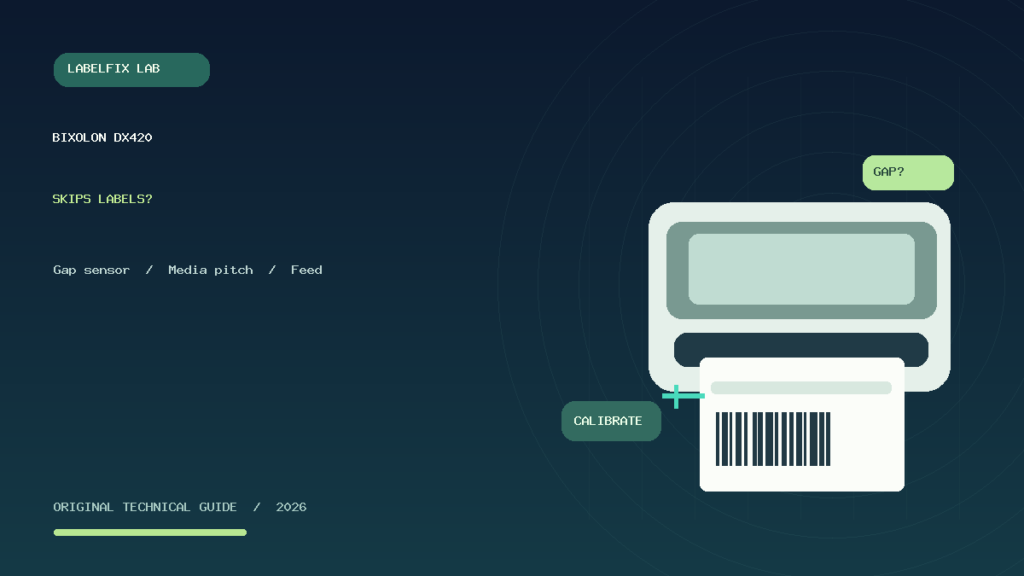
Editorial limitations: This guide is independent troubleshooting, not a verified BIXOLON service procedure or a physical SLP-DX420 test. Official sensor, firmware and loading instructions take precedence. The featured illustration is an original generic technical scene, not an actual product photo.
Independent general troubleshooting information for shipping labels and thermal printers. Model-specific button sequences, cleaning supplies and service instructions can differ; consult your manufacturer's official documentation. Never alter a carrier-generated barcode.