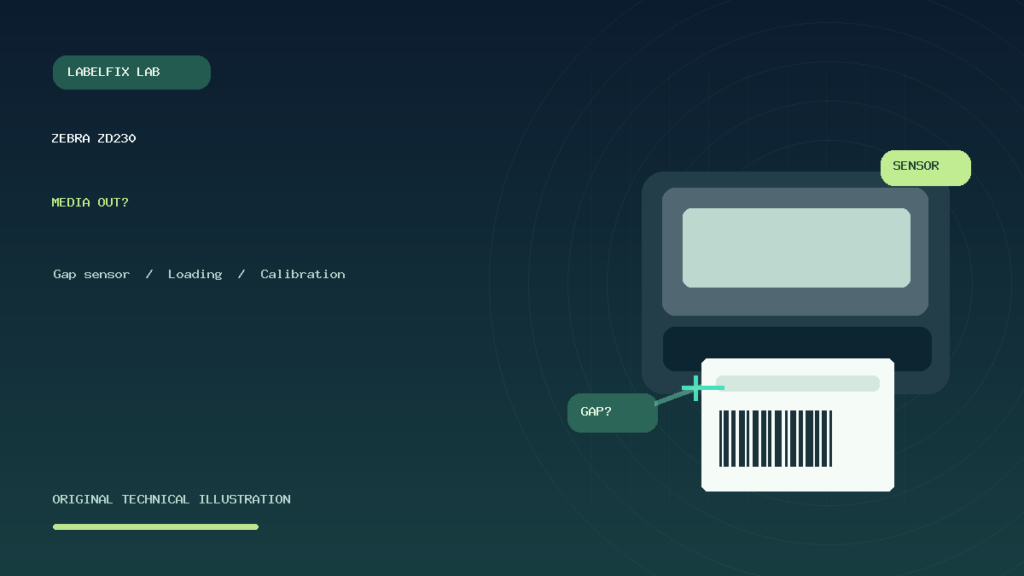
Quick answer: If a Zebra ZD230 displays or reports Media Out while a label roll is still installed, don’t assume the printer is completely empty. The printer may be unable to detect the label boundary, may be loaded with stock different from its configured media-tracking method, or may have an incorrectly routed liner. An application or driver can also request a label size that does not match the roll. The right first steps are to inspect the physical stock and loading path, identify the exact printer variant, and compare an approved internal media feed or test with the host print job.
This is independent troubleshooting for the ZD230 family, not an account of physical testing or a replacement for Zebra’s firmware-specific manual. ZD230 configurations can vary in print method, interface and media options. Use the current official Zebra documentation for your exact hardware and stock. Do not scan undocumented configuration barcodes or change several settings at once.
What does “Media Out” mean when the roll is loaded?
The error should be treated as a report that the printer cannot reliably handle media under its current setup, not as proof the spindle is physically empty. The roll may contain unused labels but the feed sensor may fail to identify the next gap or mark. Media can also wander away from the sensing area, be installed in the wrong path, or be different from the configuration used for the previous roll.
| Observation | Potential issue | First safe check |
|---|---|---|
| Media Out immediately after a new roll | Different gap/mark/continuous media or loading path | Compare old and new stock and official loading diagram |
| Printer advances many blank stickers before error | Unable to find next expected boundary | Inspect gap or black-mark detection and actual pitch |
| Error appears before any computer print job | Printer-side stock detection or readiness | Check media routing and documented local diagnostic |
| Local test feeds correctly but one app fails | Logical label length or print-job format | Compare source PDF and driver media preset |
| Roll visibly shifts left or right | Guide placement, tension or improper routing | Inspect permitted path and guide position |
| Blank label feeds after one successful image | Pagination, extra feed or different media registration fault | Count pages, print jobs and physical labels |
| Correct label prints, but barcode is too low | Page origin/size rather than media absence | Compare source dimensions and image placement |
1. Confirm the exact ZD230 configuration
Read the complete model identification rather than relying on a marketplace product photograph. The ZD230 family can have different configurations, and direct thermal versus thermal transfer is an important distinction for imaging, although it does not by itself determine every media-sensing fault. Record whether a ribbon is part of the current approved workflow, which interfaces are installed, and which physical label stock is used.
A roll that feeds but prints white is not the same as a roll that cannot be sensed. If your primary symptom is no printed image, go to our Zebra ZD220 printer setup and blank-label checks for a related but different device family, or consult the general blank thermal-label guide.
2. Check whether the roll is gap, black-mark or continuous stock
Not all adhesive rolls have the same registration method. Die-cut gap labels have spaces between individual stickers. Black-mark media uses printed marks in the relevant position. Continuous material does not offer a standard gap at fixed label intervals. The printer must be configured to find the form of boundary that actually exists.
A saved profile from a previous roll can be inappropriate even when the new pack has the same nominal width. Look at the backing or liner, gap length, mark placement and supported sensing method. Do not assume that “4×6” specifies whether the material is gapped or marked. A boundary method mismatch can cause the printer to feed in search of a mark that never appears.
3. Inspect the label route and roll position
Use Zebra’s illustrated loading path for the exact installed configuration. Check that labels pass through the intended guides and sensing area and that the liner is not twisted. Excessively tight guides can add drag; loose guides can permit the material to drift from the detection path. A roll that is physically present but routed incorrectly may not be sensed as expected.
Switch the printer to the manufacturer’s safe loading state before inspecting its mechanism, and keep fingers away from moving or hot components. Don’t pull stuck labels forcefully through a closed printhead or insert a tool into a sensor. If the stock was recently changed, a short comparison with the previous known-compatible material often isolates the change.
4. Measure the label body and pitch
The printed sticker height is not always the same as the distance from one label’s leading edge to the next. For gap media, the pitch includes the gap. If the host application and printer use the wrong length, labels can drift, overfeed or stop in unexpected positions. Record the actual width, sticker body length and pitch from several consecutive labels.
A nominal 4 × 6-inch label is 101.6 × 152.4 mm, while 100 × 150 mm material is not physically identical. Even a small repeated difference can become noticeable during batch printing. See Zebra label sizes and printable width for a wider discussion of stock dimensions.
5. Look for a sensor setting left over from the previous roll
If the printer handled one kind of stock yesterday and fails on a newly installed kind, compare the expected label-boundary method with the new media. An application may remember a stock profile while the hardware retains a separate configuration. That can produce confusing results: the computer says the correct page size while the printer still searches for a different boundary type.
Record the current configuration before changing anything. Check the official menu or configuration utility appropriate to your firmware. Avoid copying the settings or button sequence of a ZD220, ZD421, ZT230 or another printer simply because both have Zebra branding.
6. When should you calibrate the ZD230?
Media calibration is useful when the observed problem is detecting the start of labels and the media has been properly loaded and identified. Follow the documented ZD230 calibration method for the actual firmware and stock. Do not use an undocumented hold-time or generic “factory reset” sequence from a video for an unrelated model.
Calibration cannot fix every fault. It doesn’t make uncoated stock react to heat, rebuild a blank PDF, remove an extra page from a shipping document or change the physical dimensions of a roll. If the printer consistently senses each boundary during a local test but only one software application overfeeds, investigate the application’s page settings and output format. See how to calibrate thermal label printers.
7. Check whether the printer can feed independently of the application
Use a vendor-documented feed or configuration diagnostic suitable for your ZD230. If the printer feeds exactly to successive boundaries in an approved local test, basic registration works under those conditions. If it keeps advancing without finding a boundary, focus on the stock, route, tracking method and possible sensing problem.
Record whether the device reaches a ready state after the test and whether the error occurs immediately or only after a few labels. Avoid running repeated long feed attempts that waste an entire roll. One deliberately observed short test is more useful than repeatedly pressing buttons without tracking what changed.
8. Check the driver label size separately
A shipping platform may produce a PDF with an 8.5 × 11-inch Letter canvas even if a 4 × 6 label graphic is shown on the page. A native 4 × 6 PDF is 288 × 432 PDF points, while US Letter is 612 × 792 points. The host’s page length and orientation affect how much data is sent for each sticker.
If a local printer diagnostic handles media correctly but a particular shipping document results in a very long feed or clipping, check source page dimensions, printer stock and driver presets. Use our PDF Size Checkerpaper size keeps changing to Letter for a host-side explanation.
9. Distinguish “Paper Out” from a white image
A device that detects stock and feeds one appropriately positioned sticker but prints an entirely white image has progressed further through the media path than a device that cannot find stock at all. For a white image, inspect compatible label coating, ribbon or print mode where relevant, source-file content and imaging. Don’t repeatedly calibrate a printer whose media boundaries are detected correctly.
Our paper-out error with labels loaded guide focuses on detecting media. Our thermal printer blank-label guide covers imaging when media feeds correctly. Keep those diagnoses separate.
10. Why an extra blank label can be a PDF issue
One blank sticker following one correct printed label can be caused by an additional document page, a second application print command, or a handling/registration setting. Inspect the PDF page count and the Windows/Mac print queue. If the application submitted two pages, a repeated sensor calibration won’t remove a page from the source.
Conversely, if the original document has one page and the printer feeds through multiple label boundaries searching for a valid stop position, media sensing may be the relevant layer. Read extra blank label after printing for a controlled comparison.
11. Check the printhead and media sensor only after basic tests
If known-compatible stock, correct routing and documented calibration consistently fail to detect label boundaries, the sensor path may require official maintenance or professional service. Dust, adhesive buildup or a physical obstruction can affect some sensing systems. Follow the manufacturer’s cleaning instructions, not a guess involving scraping, household cleaners or opening electronics.
If the model provides a sensor adjustment or official diagnostic utility, use only the documented method for that exact configuration. Avoid claiming a sensor is defective just because a new roll behaves differently; first compare known-good stock and the correct expected sensing mode.
12. What changed just before the fault began?
Make a short timeline. A roll replacement points toward stock differences and loading. A driver update suggests a queue or media preset. A new warehouse app may generate a different page length. A printer that was moved between workstations may be receiving jobs for another media size. Isolating the first change can prevent replacing the wrong part.
Change only one variable at a time. For example, test known-compatible stock with the existing profile, then test the documented media selection if it does not work. Avoid factory-resetting the entire printer unless the current official instructions and support situation justify it, because resetting can affect an otherwise working integration.
13. Example: new roll immediately triggers Media Out
A warehouse used die-cut gap labels, then installed stock with a different registration arrangement. The printer still expects the previous boundary type and searches unsuccessfully. The operator identifies the new roll, checks its supported media method and follows the documented configuration and calibration path rather than changing USB cables.
14. Example: error appears only from a shipping website
A local printer test feeds individual labels correctly, but a shipping website sends a Letter PDF through a 4 × 6 stock profile and the resulting print advances too far. The operator checks original PDF dimensions, saved app settings and the active printer queue. The device may be mechanically sound; the mismatch lies in the host job.
15. Example: the roll drifts sideways during continuous printing
Several labels feed, and the liner slowly migrates away from its expected path. The operator stops safely and checks the guide placement, roll seating and material tension against the manual. Trying another calibration without correcting the physical path would not reliably solve that alignment problem.
16. Example: label body is right but pitch is wrong
A driver is configured for the sticker’s visible height but the actual die-cut liner includes a gap between stickers. Successive printed images drift lower on each label, even though the first looks acceptable. Comparing the real pitch with the document and media configuration reveals the different layer: geometry and registration rather than missing printer communication.
ZD230 Media Out checklist
- Identify the precise ZD230 configuration and original error state.
- Confirm supported stock and whether it is gap, black-mark or continuous media.
- Check the official loading path, guides and liner position.
- Measure label body, overall width and distance between label starts.
- Compare new stock with a previous known-compatible roll where possible.
- Use the documented local diagnostic before blaming the host print job.
- Calibrate only after verifying sensing method and correct loading.
- Compare PDF page length, job count and driver preset if local feed works.
- Preserve configuration details for qualified service if errors persist.
Frequently asked questions
Why does my Zebra ZD230 say Media Out when labels are loaded?
Possible causes include a mismatch between the configured sensing method and the roll, incorrect loading or guide placement, media pitch differences, or an actual sensing problem. Check the physical stock before resetting the driver.
Is Media Out the same as printing blank labels?
No. Media Out concerns detecting or handling stock. A printer that properly feeds a sticker but produces a white image may have incompatible supplies, a blank job or another imaging problem.
Do I need to calibrate every time I load a new roll?
Follow Zebra’s current model-specific guidance. Calibration is especially relevant when the printer can no longer reliably find label boundaries, but it does not repair wrong PDF dimensions or an incorrect print job.
Can a driver cause a Media Out error?
A host can send incompatible page-length or media settings, making feeding behavior look abnormal. Compare an approved local feed test with the failing application before deciding whether the problem is inside the printer.
Should I reset the ZD230 to factory settings?
Not as a first step. A reset can erase working configuration. Record the current media and driver setup, make reversible documented checks, and follow official support if a reset becomes appropriate.
Related LabelFix Lab guides
- Paper Out error with labels loaded
- Zebra label size and media width
- Thermal label printer calibration
- Printer skips labels
- Zebra ZD220 general printing guide
- Zebra ZD421 setup and media
- Extra blank label after printing
Editorial limitations: This guide offers diagnostic principles rather than a live ZD230 hardware test. Exact media sensor types, firmware controls and supported procedures depend on the device; consult Zebra’s official manual. The featured image is original generic editorial artwork and not a photograph of the ZD230.
Independent general troubleshooting information for shipping labels and thermal printers. Model-specific button sequences, cleaning supplies and service instructions can differ; consult your manufacturer's official documentation. Never alter a carrier-generated barcode.