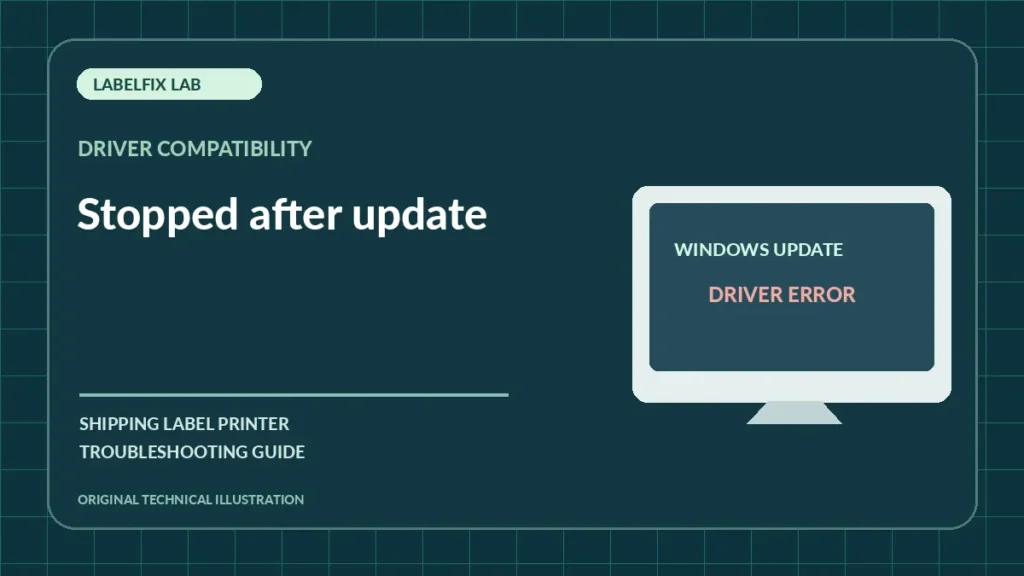
When a thermal label printer stops printing shortly after Windows updates, the timing is a clue but not proof that the update caused the fault. A driver may have been replaced, a queue might point to a different port, or a coincidental cable or media problem may have occurred. Preserve working settings before trying rollback or reinstall procedures.
Find the symptom that matches your case
Use the pattern below to focus your first check. Similar-looking symptoms can arise from different devices and applications.
| What you see | Investigate first |
|---|---|
| Printer disappears after restart | Device enumeration and USB/network connection |
| Queue exists but shows Offline | Port and service state |
| Printer Ready but wrong symbols print | Driver or printer-language mismatch |
| Printer works but returns to Letter | Preferences or new queue defaults |
1. Document what changed and what still works
Record the Windows build if available, driver name, queue, selected port and the first observed failure. Avoid assuming causation from a date alone. Test the printer’s built-in configuration output so you know whether the device still functions independently of Windows.
2. Check whether Windows detects the hardware
For USB printers, observe Device Manager and the connection using a known-good data cable. If the device is absent, follow our USB-detection guide. A hardware detection fault should not be treated as a PDF formatting bug.
3. Identify duplicated or replaced printer queues
An update or reinstall can leave more than one similarly named queue. Confirm which one your shipping application selects and which port is attached to the actual printer. Do not delete the old queue until you understand its working configuration.
4. Inspect the driver model and version
Use the official printer manufacturer’s driver and compatibility guidance for your Windows release. A generic replacement may accept a print job but send a different command format. Avoid third-party driver download aggregators.
5. Check job state and Offline or Paused settings
A retained print job or paused queue can look like a driver failure. Observe one supported test job and whether it stays Pending or disappears. The stuck-job guide helps isolate queue conditions.
6. Recheck saved 4×6 media preferences
Printer preferences may revert to Letter or a default size when a queue or driver changes. Compare page setup in the app and the driver using an original shipping PDF. See paper size reverting for persistent preset issues.
7. Test one official vendor-recommended recovery action
If the vendor specifically documents a driver repair or reinstall for your configuration, follow those steps, keeping a record of previous settings. An operating-system rollback can have security implications and should not be used casually as first-line printer troubleshooting.
8. Retest one complete carrier label
After communication is restored, inspect barcodes, quiet zones, address and routing text. Printing something is not proof the correct scaling and data survived a driver change. Keep duplicate labels under control during recovery.
When this is a different problem
If the problem is only blank paper, investigate media and print method. If raw symbols appear after a driver change, the print-language guide is the better starting point.
Validate the fix before printing live shipments
With the supported printer software, submit one known-good sample and observe the device, connection and queue. Check that the printed document has the complete barcode, readable address and required margins. If you cannot establish a reliable connection without disabling security controls, stop and seek qualified device or network support.
Frequently asked questions
Did Windows Update definitely break my printer?
Not necessarily. Check the driver, queue, port and hardware test before attributing the failure to the update.
Should I uninstall the update?
Only if vendor or IT guidance supports it and the tradeoffs are understood; first try reversible printer-specific diagnostics.
Why did my saved 4×6 setting disappear?
A new or different queue or driver may use separate defaults. Compare the selected printer and its saved profile.
Editorial note: Printer connection and driver instructions depend on the device model, operating system and installed interface. This independent article does not claim universal compatibility or live hands-on testing of every device. Follow the official manufacturer documentation for exact setup instructions.
Independent general troubleshooting information for shipping labels and thermal printers. Model-specific button sequences, cleaning supplies and service instructions can differ; consult your manufacturer's official documentation. Never alter a carrier-generated barcode.