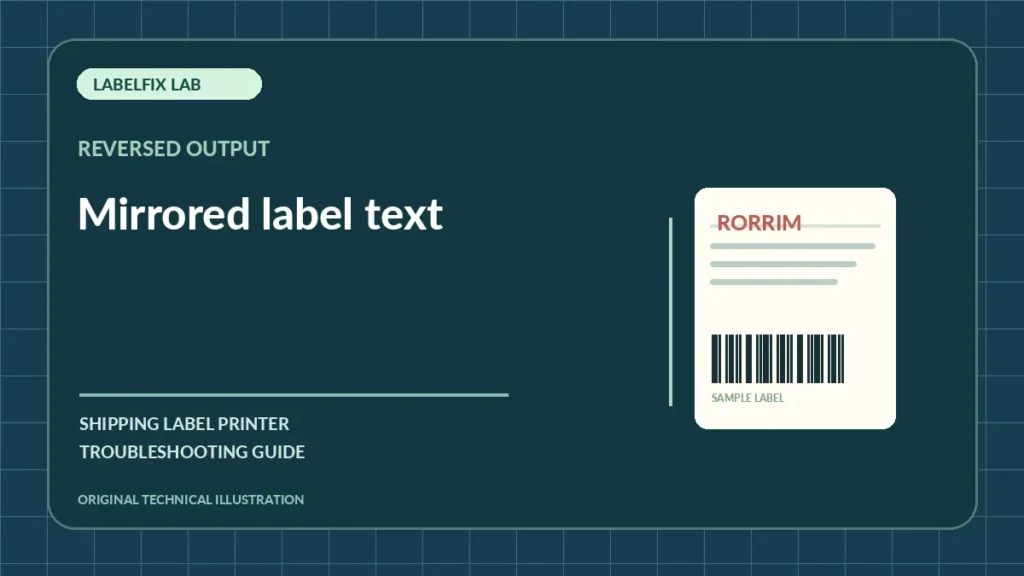
A label whose characters are reversed left to right has a different problem from a 4×6 PDF printed sideways. Mirrored printing can make addresses unreadable and reverse barcode bar patterns. Before replacing a printhead or rotating the label repeatedly, identify whether the reversal is already visible in the source file or appears only on paper.
Find the symptom that matches your printer
Use the pattern of the fault to narrow down which setting or component to test. A similar-looking result does not prove the same underlying cause.
| Observed behavior | Most relevant first check |
|---|---|
| PDF preview and printed label both mirrored | Document artwork or export configuration |
| Preview normal, thermal output mirrored | Driver mirror/flip setting or printer command |
| Text upright but order reversed left-right | Horizontal mirror, not rotation |
| Only a graphic or logo mirrored | Source asset or app layer setting |
1. Decide whether the result is mirrored or rotated
Use a sample containing a short non-sensitive word such as TEST and an asymmetric shape. If the characters read backward left-to-right, that is a mirror transformation. If the entire label is turned 90 or 180 degrees, the issue is orientation, which our sideways-printing guide covers.
2. Inspect the actual source PDF before printing
Open the original shipping label in a trusted reader and zoom in on its text. If the file itself shows mirror-image text, re-export it using the shipping provider’s normal label format. Do not edit tracking bars or manually flip an already issued label without provider instructions.
3. Compare on-screen print preview with the final paper
Preview can reveal whether the application applies an image flip before sending the job. If it looks normal in the document and preview but comes out mirrored on the printer, note the printer queue and driver used. This is stronger evidence of a host/device transformation than simply guessing at a faulty PDF.
4. Check for mirror or reverse settings in the printer driver
Some label-printing drivers or design applications support a mirror-print option intended for transfers or special workflows. The location varies by manufacturer; don’t assume every driver has it. Record the setting before changing it and print one known-good test word to see if only the horizontal reversal changes.
5. Distinguish direct thermal from thermal-transfer workflows
Printing method and media orientation matter, but they do not automatically imply that ordinary shipping labels should be mirrored. A transfer workflow might deliberately mirror a design for an intermediate process. Verify that the job and stock type match the printer’s documented label mode. See our print-method comparison.
6. Compare output from two trusted applications
If the same original PDF is normal when printed from one supported reader but mirrored from a specific shipping or label-design app, investigate that app’s transformation settings. Keep the same driver and roll during the comparison to isolate software from hardware.
7. Use a manufacturer-generated test pattern
A built-in configuration print can help determine whether the printer’s basic text output is normal. The exact method varies by model. If internal text prints correctly while one file mirrors, focus on application and job settings rather than printhead replacement.
8. Verify stock size and orientation after fixing mirror
Correcting a flip should not change the physical label dimensions. Confirm the PDF is the intended 4×6 size using PDF Size Checker and print a non-live sample at the proper scale. A normal-looking mirrored barcode may still be unreadable to carrier scanners.
9. Reprint a fresh official label for any compromised shipment
Do not apply a backward barcode, even if a phone seems able to interpret some marks. Obtain the original shipping PDF again once the printer settings are corrected and inspect the complete address, tracking symbol, quiet zone and routing marks.
How to decide what to try next
Use the simple TEST-word check to tell mirroring from rotation. Once you know whether the transformation exists in the original PDF, preview or only the final print, you can focus on the correct layer. Avoid combining mirror, rotation and scaling adjustments in one test because they obscure the cause.
Frequently asked questions
Why is my label text backward but the PDF is normal?
A mirror or reverse setting in the printer driver or application may be active. Compare a supported test document across two apps and inspect the exact printer’s settings.
Is mirrored printing the same as upside-down printing?
No. A horizontal mirror reverses left-to-right; rotation turns the whole image. They require different settings and checks.
Can a mirrored shipping barcode still be scanned?
Don’t rely on that assumption. Reprint from the carrier’s original file with the correct orientation and confirm symbol quality before shipping.
Editorial disclosure: This independently written guide describes model-agnostic troubleshooting, not a verified repair for every device. Use manufacturer instructions for buttons, service procedures, media compatibility, and electrical safety. We do not claim hands-on testing of the exact printer you own.
Independent general troubleshooting information for shipping labels and thermal printers. Model-specific button sequences, cleaning supplies and service instructions can differ; consult your manufacturer's official documentation. Never alter a carrier-generated barcode.