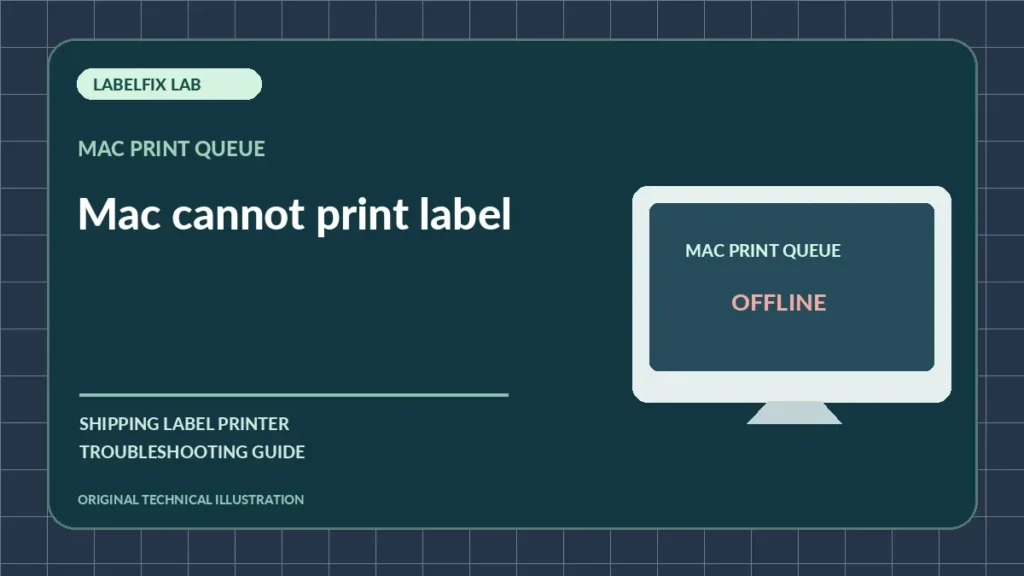
On macOS, a thermal label printer may appear in the Printers & Scanners list yet never receive a usable shipping job. Other models require a dedicated vendor app rather than the generic macOS print system. Before installing anything, confirm your specific model’s macOS support and whether the failure happens at discovery, queue processing or physical output. For a printer that is completely missing from macOS hardware or printer listings, see our Mac USB detection checklist.
Find the symptom that matches your case
Use the pattern below to focus your first check. Similar-looking symptoms can arise from different devices and applications.
| What you see | Investigate first |
|---|---|
| Printer never appears in Add Printer | Connection path or driver/model support |
| Printer appears but job pauses | Queue, port or driver |
| Job completes but no label moves | Wrong queue or incompatible print language |
| Label prints but is tiny or cropped | PDF layout and stock preset |
1. Confirm official support for your macOS version and Mac hardware
Use the manufacturer’s support page for the full model number. Some utility versions differ for Intel and Apple silicon Macs or between macOS releases. A printer that works on Windows is not automatically supported on macOS.
2. Test the printer independently of the Mac
Use the device’s manufacturer-documented configuration or self-test. If it cannot print a built-in sample, start with stock, status indicators and hardware. Our blank label guide addresses physical blank output.
3. Inspect the connection type
For USB, use a known-good data cable and compatible adapter. For network printers, confirm the printer has joined the right network and that a supported protocol is available. Some compact Bluetooth models work only with a vendor app rather than macOS’s ordinary print queue.
4. Open Printers & Scanners and inspect the actual queue
On supported macOS versions, use System Settings or System Preferences, depending on the release. Confirm which device is selected and whether its queue shows a failed or paused job. Avoid removing all existing printers when only one entry is affected.
5. Install the official driver or app if required
A generic driver can accept a job without understanding the device’s printer language or label size. Use vendor documentation to determine whether macOS printing requires a driver, application, or a specific supported printing protocol.
6. Check print layout in Preview or the supported PDF reader
Open the original carrier PDF. Confirm page count, orientation and 4×6 dimensions where appropriate. Use the PDF page-size checker to distinguish a Letter sheet from a genuine 4×6 page before adjusting scaling.
7. Compare a device test with a one-page macOS job
If the built-in test works but jobs remain in the Mac queue, the host connection or software is the more useful starting point. If labels move but content is clipped, the problem may be page setup, not basic connectivity.
8. Document repeatable faults before resetting queues
Record the macOS version, complete printer model, driver/app version, USB or network type, queue message and result of one test. A vendor may recommend resetting a specific printer configuration, but a global reset is disruptive and should not be the first move.
When this is a different problem
macOS-specific setup should not be treated as identical to Windows Device Manager troubleshooting. Once printing starts but the result is mis-sized, use the scaling guide or the orientation guide.
Validate the fix before printing live shipments
With the supported printer software, submit one known-good sample and observe the device, connection and queue. Check that the printed document has the complete barcode, readable address and required margins. If you cannot establish a reliable connection without disabling security controls, stop and seek qualified device or network support.
Find out whether macOS has a driver queue or an app-only printer
Some label printers support an ordinary macOS printer queue; others rely on a dedicated vendor application or connection workflow. A Bluetooth entry or USB device appearing in System Information does not by itself mean the printer supports generic PDF printing.
| Mac observation | What to test |
|---|---|
| Printer model absent from official macOS compatibility information | Confirm the correct model and supported software rather than assuming a generic driver will work. |
| Vendor’s internal printer test works, Mac queue cannot complete a job | Inspect the official driver/app, connection and queue status. |
| Mac queue prints a sample, but original PDF prints tiny | Review Preview’s paper size, scaling and the PDF canvas with the page-size checker. |
| Printer visible over Bluetooth but unsupported by Mac Print dialog | Check the vendor app’s supported Bluetooth mode and OS compatibility. |
Capture a Mac-specific support report
Keep the printer’s complete model, macOS version, connection type and exact queue or application error. Do not follow Windows Device Manager instructions on a Mac. Avoid installing unofficial drivers or bypassing operating-system protection merely to make a printer appear in the list.
Check compatibility in both the printer documentation and macOS help
Primary references to consult: The official printer manufacturer’s compatibility matrix and its supported Mac driver/app instructions, together with Apple’s help for the exact macOS release. Macs may use a standard print queue or a vendor application, depending on printer hardware and supported software.
- Confirm the full printer model, Mac hardware and macOS version before downloading software.
- Distinguish a USB/Ethernet print queue from Bluetooth app discovery; successful pairing alone does not establish AirPrint support.
- Compare the device’s own supported test with a single native 4×6 PDF job and inspect the resulting barcode.
A driver or menu name from a different macOS version may be misleading. Our editorial policy explains the limits of general printer guidance.
Printer setup depends on the operating system, and instructions for macOS do not automatically apply to ChromeOS. See our Chromebook thermal label printer compatibility guide before switching devices.
Frequently asked questions
Can any thermal label printer work with a Mac?
No. Confirm your exact device’s supported macOS versions and required driver or app.
Why does macOS say the print job is complete but no label comes out?
A wrong queue, unsupported protocol or driver mismatch may be involved. Compare manufacturer self-tests with one supported sample.
Should I install a random generic label driver?
Prefer official vendor support; unsupported drivers may send the wrong command language or page settings.
Editorial note: Printer connection and driver instructions depend on the device model, operating system and installed interface. This independent article does not claim universal compatibility or live hands-on testing of every device. Follow the official manufacturer documentation for exact setup instructions.
Independent general troubleshooting information for shipping labels and thermal printers. Model-specific button sequences, cleaning supplies and service instructions can differ; consult your manufacturer's official documentation. Never alter a carrier-generated barcode.