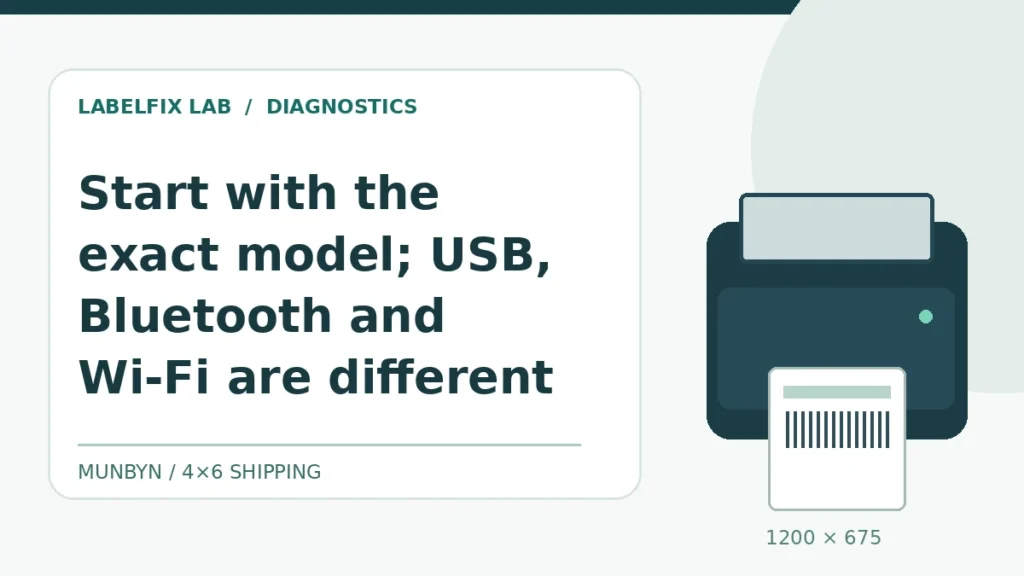
Quick answer: A MUNBYN 4×6 label printer can appear to be broken for very different reasons. A Windows driver may point at the wrong queue, a carrier PDF may be Letter-sized, a roll may be loaded backward, or the sensor may not see the gap. The word MUNBYN alone is not enough to determine the right fix because model families differ in connection method, supported media and controls.
Before you reset anything, write down the model number from the printer label, host operating system, how the device is connected, the size and type of stock, and whether the issue happens with one application or every application. This guide gives a fault-isolation route that avoids unsupported model-specific button combinations.
Identify the failure before changing settings
These observations narrow the fault domain. Run one controlled test at a time, and stop before making hardware changes if the source document itself is empty or wrong.
| What you see | Check next | What it suggests |
|---|---|---|
| Printer never appears on computer or phone | Check model-appropriate connection and discovery | Connectivity or host setup |
| Printer feeds a blank 4×6 label | Compare self-test and direct-thermal stock | Media, hardware marking, or source job |
| Barcode prints but text is cut off | Compare 4×6 source and printer page size | Scaling/rotation/offset |
| Printer jumps past several labels | Test gaps, media type and supported calibration | Sensor, stock, or feed |
| Barcode looks dark and merges together | Compare print density and source resolution | Heat/density or print artwork |
Step-by-step troubleshooting
1. Identify the precise MUNBYN model before following a tutorial
Check the product sticker or documentation, not only the shopping-listing title. An instruction that applies to a USB-only model may not work on a Bluetooth or Wi-Fi variant. Record the media width and connection type along with the model.
This prevents accidental troubleshooting of a network or phone path that the actual hardware never supported.
2. Get one source file with known dimensions
For size problems, open the downloaded carrier label and check the PDF page dimensions before sending it to the printer. A physical 4×6 label measures 101.6 × 152.4 mm. If the PDF has a different page size, do not automatically scale the carrier data without checking the intended print workflow.
A useful non-sensitive test is a sample 4×6 calibration PDF with clear measurement marks and no real postage.
3. Check thermal paper type and loading direction
Confirm that the supplier labels the stock as direct thermal and compatible with the exact printer. Align the paper through the supported guides without buckling the liner and close the cover fully. A correct feed path may still produce a blank image if the heat-sensitive side faces away from the printhead.
Do not force a large-core roll onto a narrow holder or wedge in media that exceeds the supported width.
4. Establish an independent printer test
Follow the self-test method listed for your specific MUNBYN model, if available. Compare the resulting label with the one printed from the shipping service. If the independent test is clean but the shipping label is blank, your next tests belong to the document and host print path.
If both are blank, investigate stock and marking rather than repeatedly reinstalling the app.
5. Inspect driver, queue and device selection
On Windows or macOS, check the actual installed printer entry and choose it explicitly in the print dialog. Some users accumulate old queues after driver updates or connection changes. On phone-connected variants, use the official supported app/workflow instead of assuming an ordinary desktop printer driver can submit a job over Bluetooth.
One clean test in a second approved application can reveal whether the problem is app-specific.
6. Match 4×6 media settings in every layer
Check the original label, print-dialog page size, orientation, scaling and printer preset. Choose actual size when appropriate and turn off headers and footers for browser printing. A queue set to Letter can place a small label in the corner or cut off content even though the thermal hardware is working.
Do not stretch or manually redraw a carrier barcode; use the original label data.
7. Troubleshoot repeated skipped labels separately
If the printer feeds a correct image followed by extra blank stock, compare the file page count, media gap and printer presentation settings. If even a simple feed moves across two gaps, the stock or calibration path is more relevant. Follow only official model-specific sensing steps.
Changing darkness will not move the label gap; it is a different control for a different problem.
8. Verify barcode readability without inventing tracking codes
After the print aligns correctly, check that bars are crisp and the symbol has its required blank quiet zone. If you have a legitimate label, use its sanctioned tracking workflow; otherwise test with a synthetic non-carrier barcode only in an isolated training context.
Avoid posting real customer codes or addresses in forum screenshots and keep density adjustments modest.
9. Collect evidence before an advanced reset
Capture the exact model, driver/app version, host OS, connection, paper type, PDF size, independent test output and a photo of the physical label with private data hidden. Model-specific reset and firmware instructions should be checked directly with MUNBYN support.
A repeatable log is safer than trying a series of unrelated button holds that might change network or media configuration.
Two distinctions that prevent unnecessary repairs
Blank versus not detected
If the computer cannot communicate with the device at all, label coating is not the first investigation. If the printer receives a job and feeds white stock, focus on the material and image generation. Keeping these two symptom branches separate saves substantial trial and error.
Model-dependent wireless behavior
Some MUNBYN devices use USB while others offer app or wireless workflows. Pairing in the phone OS, discovering a printer in a vendor app and selecting a Windows print queue are different actions. Use only the connection mode documented for the exact product.
Mistakes to avoid
- Following reset steps for a different MUNBYN model.
- Assuming every MUNBYN supports Bluetooth and Wi-Fi.
- Cropping away barcode quiet zones to make a label fit.
- Using generic 4×6 instructions when the original source has another approved size.
When to ask the manufacturer or your IT administrator
If the same symptom persists after a documented model-specific test with verified compatible stock and a known-good source file, stop repeating resets. Save the exact test results, model identification, software versions and a non-sensitive photo of the failure. Support can use that evidence to choose the next safe diagnostic rather than guessing at replacement parts.
Check the exact model and app/driver downloads at MUNBYN’s official website before making device-specific changes.
Frequently asked questions
Why is my MUNBYN thermal label printer printing blank?
Check direct-thermal stock and its orientation, then run a model-supported independent printer test. If the internal test is clear, focus on document and software settings.
Why is the 4×6 label too small?
Check page dimensions in the downloaded document, then match the print dialog and printer preset. Disable inappropriate Fit to page scaling.
Why does the printer skip labels after a roll change?
Look for a changed liner, gap spacing, mark type or guide alignment. Use the official calibration method only after confirming compatible media.
Can I install any thermal label driver?
No. Use the model’s manufacturer-supported driver or app for the exact operating system and connection type.
Related LabelFix Lab guides
- printer connected but not printing
- 4×6 labels printed too small
- gaps and skipped labels
- barcode scan-quality checklist
Editorial note: This is a manufacturer-neutral diagnostic workflow; model-specific buttons and menu names must be checked against the latest official instructions before use. No claim of hands-on testing is made.
Independent general troubleshooting information for shipping labels and thermal printers. Model-specific button sequences, cleaning supplies and service instructions can differ; consult your manufacturer's official documentation. Never alter a carrier-generated barcode.