Quick answer: If an Etsy shipping label prints too small, blank, off-center or on two 4×6 thermal labels, download the original PDF and check which label format Etsy has actually supplied. In Etsy’s current US help guidance, the dedicated 4×6 thermal-printer format applies to USPS shipping labels, while other label types may require a different print workflow. Set the printer’s paper size to match the original document and loaded stock; do not shrink a Letter-size page until its barcode becomes unreadable.
This independent guide is for sellers who already have authorization to print an Etsy order’s shipping label. Etsy’s carrier availability, supported models and print interfaces can change by country and account, so check the current Etsy download and print instructions for your exact region before altering settings.
First: identify which Etsy label format you have
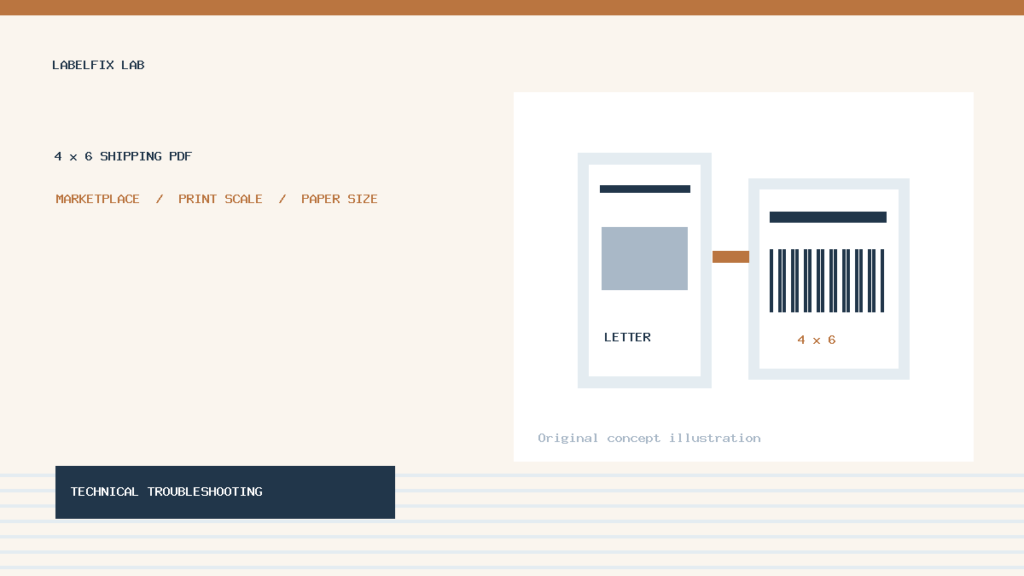
Some shipping services issue a PDF prepared for an 8.5×11-inch Letter sheet; some provide a thermal format intended for a 4×6 label printer. These are not interchangeable. A 4×6 printer cannot necessarily infer where a small label sits on a Letter page, and printing a screenshot of a larger document creates an entirely different scaling path.
At the time of this guide, Etsy’s US help page says only USPS shipping labels can be formatted for a 4×6 label printer within that described settings workflow. Etsy identifies DYMO LabelWriter 4XL and Zebra GC 420d as officially supported examples there, while noting other 4×6 printers may work. Do not present that list as a promise that every thermal printer or every carrier is supported.
Quick diagnosis table
| What happens | Likely cause | First useful check |
|---|---|---|
| Full Etsy label appears tiny on a 4×6 roll | Letter page scaled to thermal stock | Inspect original PDF page size and Etsy label settings |
| Barcode runs onto a second label | Page mismatch, crop or printer calibration | Check one-page source and actual roll dimensions |
| Nothing prints from Etsy browser window | Browser preview, print queue or PDF viewer | Download PDF and try trusted local viewer |
| PDF prints but barcode won’t scan | Scaling, blur, dark bars or cropped quiet zone | Print a clean size-correct sample and inspect edges |
| Thermal-format option absent for this label | Different carrier, locale or unsupported workflow | Check Etsy’s current available carrier-format settings |
| Extra blank label feeds after each order | Second page or gap calibration | Count PDF pages and run printer’s supported test |
1. Download the original PDF from the order
Use Etsy’s official order interface and its download/print action for the label you are authorized to use. Open the PDF in a reliable viewer and confirm whether it is one page or multiple pages. Avoid copying an image from a browser preview or taking a screenshot, because those steps may reduce resolution or alter the physical dimensions.
If the browser preview is blank or corrupted but the downloaded file is correct, the problem probably lies in the browser/PDF rendering path rather than the printer’s heat settings. Etsy’s help recommends checking the PDF viewer and browser when labels fail to print correctly. See our Adobe Acrobat printing diagnosis and blank shipping PDF in Chrome.
2. Locate Etsy’s label-printer format setting where available
According to Etsy’s published help for supported USPS thermal-format workflow, sellers can check settings through Shop Manager → Settings → Shipping settings → Shipping Label Options and choose a label-printer download option. The exact labels or menu names may vary as Etsy updates the interface.
If the option is missing, first verify the label’s carrier, location and current Etsy support policy. Do not try to force the setting by renaming a PDF file or changing the printer model in Windows. A print service that supplies a different document format may require a regular printer or a compliant conversion process. An unsupported carrier’s label should not be silently substituted with a USPS layout.
3. Check whether the file is 4×6 or Letter
Open document properties in a trusted PDF application. A single shipping label may occupy approximately 4×6 inches, while a full-sheet file is commonly 8.5×11 inches. A document may also include different MediaBox and CropBox dimensions; a preview that looks like a thermal label does not prove its physical PDF page is 4×6.
If the source is Letter-size, choose the platform’s supported thermal format if offered. Otherwise use an appropriate crop/print workflow that preserves the actual label content and barcode geometry. Our PDF MediaBox vs CropBox guide and safe 4×6 PDF crop instructions cover the distinction.
4. Match the printer settings to loaded 4×6 stock
In the print dialog, verify the destination device, loaded stock size and label orientation. If the source is truly 4×6, use its intended dimensions and supported scaling method rather than “fit to Letter.” Check the preview and physical output to ensure the full label—including the barcode’s blank margins—remains on one piece of stock.
Etsy’s help specifically tells users printing on label stock to select 4 in. × 6 in. where appropriate and inspect the preview for distortion. Printers vary: some need a true 4×6 preset, some use a model-specific paper entry with slightly different nominal dimensions, and some require calibration after a roll change. See Zebra paper-size matching for one manufacturer family.
5. Do not shrink the barcode simply to make everything fit
A shipping barcode is intended to be read by carrier equipment. Reducing a Letter page until it all fits in a thermal label can make bars too narrow, quiet zones disappear or text illegible. A cropped label may look acceptable at screen zoom while printing with missing outer edges.
Compare the final physical size with the carrier’s accepted label format. If the original PDF contains the intended label and unrelated blank sheet space, crop or regenerate from a proper source rather than compressing the whole page. For common scaling symptoms see shipping labels printing too small and barcode quiet zone cut off.
6. Separate Etsy problems from the printer’s own failures
Before troubleshooting every Etsy setting, print a harmless sample label from the printer manufacturer’s supported test utility. If the printer cannot output a correctly sized sample from any app, investigate its media, feed, USB/Wi-Fi connection and driver. If its own test succeeds but Etsy’s PDF fails, compare the source PDF, app print destination and scaling.
This makes a useful diagnostic split: a printer can be healthy while the Etsy browser generates a wrong-sized print, or the Etsy file can be correct while a thermal printer skips labels due to gap calibration. Our thermal printer skipping labels and Windows keeps changing paper size to Letter cover these separate causes.
7. When the label prints across two pieces of stock
First count the original PDF pages. An extra page can trigger an additional physical label even if the printer feeds perfectly. Next confirm actual source size and application scale. Only after those checks should you investigate the model’s supported gap or black-mark calibration routine.
If the printer advances across more than one gap when asked to feed one label, sensing is a candidate. If one PDF page spans two labels only from Etsy but a manufacturer sample prints correctly, source size is a stronger candidate. Avoid changing feed offset or printer density to conceal an incorrect PDF page. See 4×6 printing on two pages.
8. If the label PDF is blank or will not open
Download the file again through the authorized Etsy order interface and open it with a current PDF viewer. Compare against a harmless known-good PDF rather than modifying the purchased label. Browser extensions, stale downloads or rendering issues may prevent an inline preview while the underlying PDF is valid.
If the local file cannot be opened, do not claim a printer hardware fault. If the local file opens but the print job stalls, inspect the operating-system queue and selected destination. On a shared workstation, avoid canceling other sellers’ jobs without permission. Etsy’s support also recommends trying a different browser when PDF display fails.
9. Take special care with carrier-specific label rules
Some shipping services require particular paper, extra forms, customs pages or an approved document format. Etsy’s guidance notes that some international shipments involve multi-page forms. Those should not be cropped down to a single generic 4×6 label, nor should required customs information be discarded.
Always follow the current carrier and Etsy instructions for the purchased service. If the format is not supported by your thermal printer, choose a compliant printing option rather than manipulating the barcode. A successful print preview alone does not make an altered label acceptable to the carrier.
10. Verify printed barcode readability before shipping
After correcting the physical size, inspect the complete tracking barcode and its quiet zones. Avoid smears, cropped bars, wrinkles, glossy tape across the code, too-dark merged bars or faint printing. A safe test with a compatible scanner can catch obvious failures, but a handheld success does not certify every carrier requirement.
Do not edit or re-encode the tracking number to make the barcode scan. If the downloaded original itself appears malformed, re-download it or contact the appropriate support channel. Our shipping barcode not scanning guide provides broader print-quality checks.
11. One-variable-at-a-time Etsy print checklist
- Confirm the order and carrier, then download the original label PDF.
- Check Etsy’s current supported label-printer option for that specific carrier.
- Inspect PDF page dimensions and page count in a trusted viewer.
- Load compatible 4×6 stock and select the correct printer/driver preset.
- Print one authorized test at the intended size and inspect its margins.
- If the printer’s own sample fails, correct the hardware/connection issue separately.
- Ensure all required pages and tracking symbols remain present and readable.
FAQ
Can every Etsy shipping label be downloaded as a 4×6 thermal PDF?
No. Etsy’s current US help describes the dedicated 4×6 label-printer format for USPS labels; carrier and regional support varies.
Why does my Etsy label print very small?
The source may be Letter-sized or the app may shrink the page to the thermal stock. Inspect the PDF dimensions, format option and print scaling.
Does Etsy officially support every 4×6 thermal printer?
No. Etsy names certain examples in its official help and notes other printers may work; check your specific hardware and workflow.
Can I cut an international customs form down to one 4×6 label?
Do not discard or alter carrier-required pages. Follow the purchased service’s actual printing and attachment instructions.
Bottom line
Etsy label printing requires matching the carrier’s actual document format to the printer and paper. For a 4×6 thermal workflow, confirm the correct Etsy format is available, inspect PDF size and pages, and preserve all barcode and customs details. This separates source-document problems from printer hardware faults without risking an invalid shipping label.
Independent general troubleshooting information for shipping labels and thermal printers. Model-specific button sequences, cleaning supplies and service instructions can differ; consult your manufacturer's official documentation. Never alter a carrier-generated barcode.