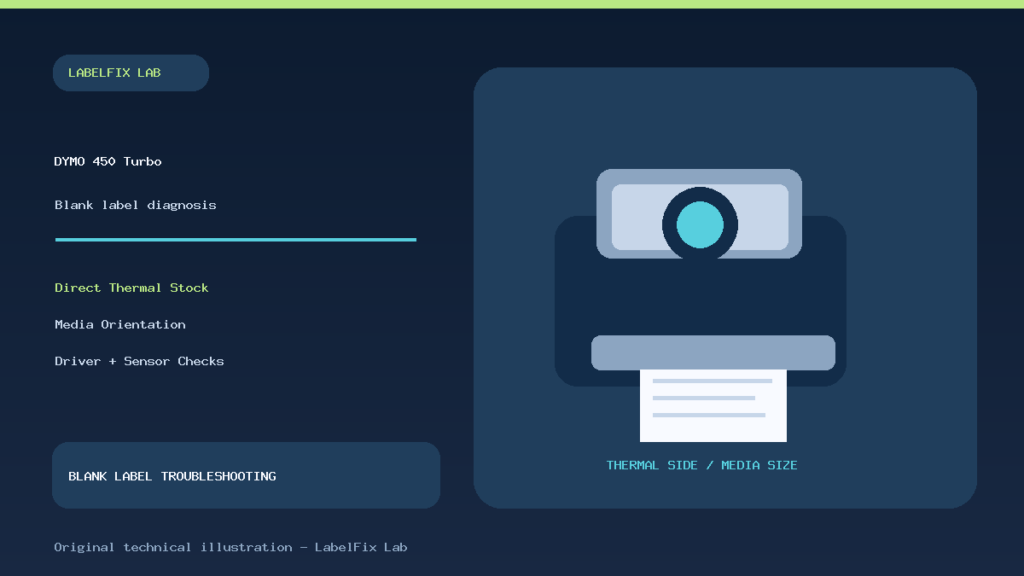
Quick answer: When a DYMO LabelWriter 450 Turbo feeds blank labels, do not start by replacing a toner cartridge: the LabelWriter is a direct-thermal printer and does not use ink or toner. First check the correct side and type of thermal stock, that labels are loaded face down and aligned to the left as DYMO instructs, then print a small label from the supported DYMO software. If that test works but a third-party program prints blanks or misaligned text, inspect the driver, application and label-size selection instead of disassembling the printer.
The 450 Turbo belongs to the older LabelWriter 450 family. It should not be confused with the LabelWriter 550 series, whose Automatic Label Recognition workflow differs. DYMO’s official troubleshooting guidance for the 450 family separates media feeding/cleaning from host printing and recommends matching software to the exact printer and operating system.
Identify which kind of “blank” print you have
| What happens | Suspect first | Controlled comparison |
|---|---|---|
| Printer feeds blank labels with every app | Thermal stock orientation or printhead/contact | Check thermal coating and load direction |
| DYMO software prints, shipping site does not | Third-party page size or print path | Use same roll with a simple vendor label |
| Only left or right part appears | Roll guide, width or head quality | Inspect load and test a clean sample |
| Printer pulls many blank labels continuously | Entry/exit sensor, media or roller residue | Inspect feed path and follow DYMO cleaning |
| Job marked printed but nothing moves | Queue, driver, USB or power | Separate host status from physical feed |
1. Confirm it is the 450 Turbo and identify the labels
Read the model name on the unit, not just the text in the print queue. The LabelWriter 450, 450 Turbo, 450 Twin Turbo and 450 Duo are related but not identical, especially where multiple feed paths or tape compartments exist. The correct software and driver package depends on the operating system and model. Look at the roll SKU or box and compare with compatible stock in DYMO’s support guidance.
Thermal labels must have a heat-sensitive printable coating. A conventional uncoated sticker can feed normally yet remain blank because a thermal head cannot create an image on it. If a new, unfamiliar roll coincides with the failure, retain a known-good roll for a controlled comparison.
2. Check thermal coating with a careful scratch comparison
A basic direct-thermal test is to make a small mark with a fingernail or a non-sharp object on a spare label face, away from important shipping information. Some thermal papers darken locally from friction or heat; if the surface clearly behaves differently from a known-good compatible roll, review the material specification. This is a screening clue, not a substitute for DYMO’s compatibility guidance or a guarantee that a particular paper is safe for the printer.
A roll meant for thermal transfer printing may need a ribbon in a different class of printer. The 450 Turbo does not take that ribbon. Our direct thermal versus thermal transfer guide explains why two identical-looking label materials can print differently.
3. Reload labels facing down and aligned left
DYMO’s official LabelWriter cleaning guide specifies loading LabelWriter labels with the label faces down and the media aligned completely to the left-hand side of the feed path. Verify the roll is seated properly on its spool and the guide is close enough to prevent sideways drift without squeezing the stack. Feed a small section and watch whether the liner travels straight.
If the roll is reversed or loose on the spool, the thermal side may not contact the head as intended, or the registration sensor may not see the gaps correctly. Avoid pulling labels forcefully backward against the mechanism. Use the model’s release lever as described by DYMO when necessary.
4. Print one harmless label through DYMO software
Create a short test such as “DYMO TEST 450” using an appropriate stock preset in supported DYMO software. Try a large black text object and, separately, a small Code 128 test only if you need barcode diagnosis. This eliminates PDF cropping and complicated shipping-platform rendering as initial variables. If DYMO software prints cleanly, the thermal head, compatible stock and at least one communication path have worked under controlled conditions.
If the same known-good roll remains blank from the native application, the problem is more likely stock orientation, printer-side condition or driver installation. Do not conclude that a shipping website is defective until the native test succeeds.
5. Set the correct label size: 450 series does not auto-detect every format
DYMO’s support explicitly distinguishes the older LabelWriter 450 series from the 550 series’ newer Automatic Label Recognition. For the 450 family, users must select the appropriate label size in DYMO software and ensure the actual roll corresponds. The driver and any third-party shipping app may have their own presets. A mismatch can place text outside the printable region, creating a seemingly blank output even though the printer is functioning.
Open the printer’s printing preferences and find the selected stock size, then compare it with the roll SKU. The same label might have a different design orientation or source page than expected. Our LabelWriter 450 general troubleshooting guide covers the surrounding driver and queue checks.
6. Separate a bad PDF from a printer issue
Shipping and marketplace PDFs vary: some contain a native label page, while others put one or multiple labels inside a Letter sheet. Sending an entire Letter page to a much narrower DYMO roll can result in clipped, microscopic or absent-looking text. Inspect the original document’s dimensions and preview, then use a supported, properly sized print path. Do not stretch the barcode separately from the shipping label’s other elements.
A simple black-text native label that prints correctly provides stronger evidence than repeatedly attempting the same problematic PDF. For Letter-to-label cropping when the source allows it, see our shipping-label PDF cropping guide. Note that a LabelWriter 450 Turbo’s supported media width may not match a full 4 × 6 shipping printer.
7. Inspect the roller and sensors before cleaning
DYMO’s 450-family maintenance instructions cover the label path, entry sensor and exit sensor. Adhesive residue and loose backing scraps can interfere with both feeding and registration. The company recommends removing obvious stuck material safely, then using an approved cleaning card or a rigid card lightly moistened with isopropyl alcohol and fed through the rollers according to its procedure.
Follow the official step-by-step guide How to clean my LabelWriter. It describes several passes with the cleaning card and careful treatment of the exit sensor. The same article warns that instructions for LabelWriter 5-series devices differ. Do not pour solvent into the printer, soak components or reach into a moving mechanism.
8. Know when cleaning can and cannot fix blank output
Cleaning may remove adhesive that prevents reliable feeding or obscures registration sensors. It may also help an uneven or contaminated print area. But it cannot change plain paper into thermal stock, install a missing driver or correct a PDF whose content lies outside the selected label dimensions. Therefore, choose cleaning when there is evidence of a feed-path or contact issue, not automatically for every blank page.
After approved maintenance, load a known-good compatible roll, print one native black-text label and record whether it is fully blank, partly pale or sharp. A vertical white stripe or consistently faded side may warrant separate printhead and platen inspection. Our one-sided thermal fading guide explains the distinction.
9. Verify USB connection, driver and print queue
A Windows or macOS queue showing “completed” does not prove that a physical label was imaged. Check the cable seating and, where practical, a direct USB connection rather than an unstable unpowered hub. Select the exact LabelWriter model in the application. If jobs remain queued, cancel only the failed test jobs, then check supported driver installation and restart the print workflow.
DYMO’s Mac troubleshooting guide provides an orderly queue and reconnection procedure; its web service and certificate instructions apply to certain browser-driven integrations. Do not reinstall certificates as a first step when even a direct native DYMO label is blank. The USB disconnection guide helps diagnose intermittent device recognition separately.
10. Why only the shipping platform prints blank
Suppose the printer prints “TEST” from DYMO software, but a web app produces an empty label. Compare the exact physical roll and printer selected in both programs, the page’s orientation and actual size, and whether the web integration expects a DYMO web service. Test the simplest supported output route the platform offers. If a browser PDF downloads normally, inspect it directly instead of assuming the printer’s thermal head failed.
DYMO notes that its web service allows web pages to communicate with a LabelWriter and has separate troubleshooting for that service. Only use those instructions when you can reproduce a web integration error such as a service or certificate failure. Otherwise stay focused on size, driver or application compatibility.
11. When to suspect service rather than setup
If a known-good compatible thermal roll is loaded in the correct orientation, the supported DYMO application is selected correctly, and a controlled native label remains completely blank, document the result and consult DYMO support. Physical head or electrical faults cannot be reliably resolved through random temperature or density changes. A consistent partial stripe across different labels also points to a narrower head/contact investigation.
Record the model’s serial number without publishing it, operating system, DYMO software version, label SKU and a photo of the test output. Avoid attempting to bypass safety interlocks or disassemble the printhead without the manufacturer’s service procedure.
Quick LabelWriter 450 Turbo checklist
- Confirm exact model and compatible label roll.
- Verify the printable thermal side and loading orientation.
- Align the roll left and inspect spool tension.
- Print black text from supported DYMO software.
- Match the selected stock size in driver and application.
- Compare any failing PDF’s source dimensions.
- Inspect and clean the roller/sensors only as documented.
- Test direct USB and a clean queue if the job never moves.
- Escalate persistent native-print blankness with test evidence.
Frequently asked questions
Does a DYMO LabelWriter 450 Turbo use ink or toner?
No. It is a direct-thermal label printer that uses compatible heat-sensitive stock. There is no toner cartridge to replace.
Why do labels feed but stay white?
Check thermal stock type, printable side, media loading and a native DYMO test. If that fails with known-good supplies, inspect manufacturer-supported hardware checks.
Can incorrect label size cause blank-looking output?
Yes. Content can be placed outside the selected media region. The older 450-series workflow requires correct stock-size selection.
Should I clean the printer’s sensors?
Only when the feed path, adhesive debris or detection behavior suggests it. Follow DYMO’s 450-family instructions and don’t apply the 550-series procedure blindly.
Official DYMO references
- DYMO: LabelWriter 450 family cleaning and media loading
- DYMO: print alignment and label size in third-party software
- DYMO: LabelWriter Mac printing errors
- DYMO: web service certificate troubleshooting
Editorial scope: Manufacturer-source-based checks, not an assertion of hands-on testing for every LabelWriter 450 Turbo hardware or software revision.
Independent general troubleshooting information for shipping labels and thermal printers. Model-specific button sequences, cleaning supplies and service instructions can differ; consult your manufacturer's official documentation. Never alter a carrier-generated barcode.