Quick answer: When a DYMO LabelWriter 550 reports that a label roll is missing, incompatible, empty or not recognized, don’t begin by reinstalling every application on the computer. First identify the exact roll you installed, whether the printer detects it through its supported label-recognition system, and whether the label is properly loaded. The LabelWriter 550 series differs from some older LabelWriter generations in how supported labels are identified. A generic roll that physically fits is not necessarily supported or recognizable, and a roll-recognition error is different from a PDF printing at the wrong size.
DYMO’s supported-roll identification, available sizes, software/driver compatibility and warning messages can change by exact 550-series variant, region and supplies. Use the current official DYMO support information for your model and the actual label product. This article does not claim to test RFID/label recognition hardware or provide workarounds for supply authentication.
Match the symptom before resetting anything
| What happens? | Likely layer | First useful test |
|---|---|---|
| Printer says no labels even though a roll is installed | Loading, compatible supply identification, roll-recognition system | Compare exact roll SKU against official supported stock |
| Printer detects the roll but reports the wrong size | Roll identification or design template mismatch | Check detected size and actual roll specification |
| Known-compatible roll works; another does not | Roll compatibility, supply condition or identification | Keep all other variables unchanged and compare |
| Roll is recognized; print queue remains pending | Host connection, selected queue or driver | Check supported software and a harmless print |
| Roll is recognized and feeds, but prints white | Media print surface, imaging or source file | Compare a supported safe test with the source |
| Correct image prints on the wrong-size sticker | Label editor template or driver dimensions | Compare physical roll size with selected design |
| Label advances twice or cutting is unexpected | Source page count, stock type or feed control | Count actual labels versus document pages |
1. Confirm whether your printer is the 550 or another LabelWriter model
If the model is a 550 Turbo and the problem is a missing Ethernet printer rather than an unrecognized roll, use our DYMO 550 Turbo wired-LAN troubleshooting guide. The standard 550 and the 550 Turbo have different network hardware.
Read the complete model designation on the actual device. The LabelWriter 450, 4XL, 550 and other model families should not be treated as identical. Their supported media, driver requirements, label handling and available software functions can differ even when their external appearance is similar. For 4×6 shipping labels on the larger 5XL, see DYMO LabelWriter 5XL printing fixes.
Before using advice written for an older LabelWriter model, check whether it applies to the 550 series. A paper roll that worked in an older printer does not by itself establish compatibility with the newer unit. For related but distinct printer problems, read our LabelWriter 450 troubleshooting or LabelWriter 4XL troubleshooting.
2. Understand automatic label recognition
The LabelWriter 550 family uses a label-recognition approach to identify supported supplies. That changes the troubleshooting sequence: you need to determine whether the roll itself is supported and correctly detected before blaming the computer’s PDF viewer. Some label supplies from older workflows or third-party sources may not be accepted, even if they fit mechanically.
Do not assume that a roll with approximately the same width, number of labels or an aftermarket description of “compatible” is recognized by the printer. Confirm the genuine product number and current official compatibility details. Avoid advice involving bypassing identification components or inserting foreign objects near internal sensors: those measures can damage equipment and do not establish compliant printing.
3. Check the exact roll part number and packaging
Find the roll’s official product identifier and check it against the manufacturer’s current list for the exact device. Do not rely only on the seller’s description “DYMO compatible.” Where possible, retain the original packaging and note the size, die-cut versus continuous style, expected label count, and whether it was obtained from an approved supply channel.
If an authentic, known-supported unused roll is available, perform one controlled comparison without changing any computer settings. If it is recognized and the problem roll is not, that suggests the difference lies in compatibility or the roll rather than USB or PDF software. A new roll may still be defective, incorrectly stored, or unsuitable for the chosen printer.
4. Load the roll using the correct documented path
A printer might report missing or unsuitable media if the roll is not seated properly or the liner is routed incorrectly. Verify the spindle or holder orientation, label feed route and cover closure using the manual for your specific LabelWriter 550 configuration. Do not force a roll that doesn’t fit.
Make sure the leading label is positioned as instructed, and avoid feeding adhesive backing sideways against the mechanism. If the printer displays an error immediately after changing stock, note whether the error began before any computer print job. That observation makes a PDF scaling error unlikely to be the primary cause.
5. Does the printer recognize its roll independently of the computer?
Observe the documented printer status or software reporting for the installed labels. If supported controls indicate the roll is missing or unrecognized even when no document is printing, focus on roll identification, safe loading and device-side media status. Do not repeatedly reinstall the operating-system print driver expecting it to rewrite a physical supply’s compatibility.
If the roll is detected and the printer reports the correct stock, the next steps are application, document and queue checks. Keep a note of the detected media description and any precise error wording so you can compare it with official DYMO support guidance.
6. Check the supported label software and driver
The software appropriate to a newer LabelWriter series may differ from what was previously used with a 450 or 4XL. Verify the current supported DYMO printing application and driver for your operating system. If an older application is in use, don’t assume that it has full support for the 550 model or its roll-identification features.
Use vendor-supported installation paths and avoid unofficial downloads offering to “unlock” printer stock or patch a driver. Such programs can introduce security risks and may make troubleshooting more difficult. If a supported app correctly identifies the stock but another app doesn’t, the mismatch can be in that application’s integration or media preset.
7. Test a harmless label after roll recognition succeeds
Once the correct roll is recognized, print a short synthetic label in a trusted vendor-supported application, such as simple text and lines that have no real shipping or customer data. Choose a design matching the physical roll. If the image prints at the correct size and location, basic media detection, imaging and supported app output have succeeded under that test.
If a shipping PDF then fails, inspect its original page dimensions and your print dialog rather than resetting the roll sensor. If even the safe sample prints white or feeds badly with confirmed compatible media, the issue is further down the printer or handling path. Read blank thermal labels for imaging-specific checks.
8. A roll can be recognized but the PDF can still be wrong
Matching an installed roll does not automatically resize any PDF you send. A full Letter document or a 4 × 6 shipping page may be wider or longer than the individual labels in the printer. Selecting Fit can shrink the entire document, while forcing Actual Size on mismatched stock can crop it.
Use the intended label design and supported paper size. The exact role of the 550 model, its media size and printable width must be confirmed from actual specifications; don’t assume it behaves like a wide 4XL shipping printer. Our PDF Size Checkershipping label too small
9. Label count or remaining-stock indicators
Some label-recognition systems report information associated with the installed supply. An error about missing or insufficient labels should be interpreted using the current model documentation and the actual roll condition. Do not assume that a roll is usable merely because some material remains on the spindle, or that an application display reflects the exact physical count under every circumstance.
Record what the printer reports and compare with the manufacturer’s expected behavior. If the indication appears inconsistent for a clearly supported roll, use official diagnostic or support procedures. Avoid altering recognition components or attempting undocumented refills as a first troubleshooting step.
10. How to separate recognition failure from a USB or print queue issue
If the device recognizes its roll but the computer cannot send jobs, examine the computer connection and queue. Check whether the correct printer is installed, whether the operating system has a supported driver, and whether jobs are pending, errored or completed without output.
A saved Windows printer queue can remain visible after the cable is disconnected, and an app may select an old device profile. Compare a supported safe sample and the actual queue destination before changing supplies again. See printer not detected in Windows and job stuck in Windows print queue.
11. If labels are feeding but printing blank
Once a supported roll is recognized, verify the intended thermal print surface and original document contents. A recognized roll does not prove that a PDF includes image data or that every application prints it correctly. Compare an approved harmless internal or vendor-generated test with a document printed through the failing program.
If the same stock produces visible text from one supported program but white output from another, focus on PDF rendering, driver/media preset and job transmission. If every safe test is blank despite verified supplies, follow official device-side troubleshooting. Avoid treating blank imaging as a guaranteed recognition failure.
12. Unexpected label size or die-cut alignment
Different DYMO labels use different geometry. If the printer recognizes a roll but a template is for another size, printed content may be too small, clipped or out of position. Verify that the label editor’s stock selection agrees with the actual recognized media and that the content fits within the usable printable area.
Where a roll contains separate die-cut stickers, the physical gap and pitch determine label registration. A printer feeding multiple blanks requires a separate diagnosis from a roll-identification alert or incorrect text margins. Our thermal printer skipping labels
13. Avoid confusing counterfeit, unsupported and defective stock
A roll that is not recognized could be unsupported, damaged or incorrectly loaded; failure alone is not proof of counterfeiting. Likewise, genuine-looking packaging alone doesn’t prove a roll is valid for the particular 550 device. Evaluate the product code and supported supply guidance and use reputable distribution channels.
When escalating to support, provide the printer’s full model, software version, the actual roll identifier and observed status message. Don’t post private serial numbers, account credentials or shipping data publicly.
14. What to do after a computer or software update
If recognition or printing problems began after an OS update, keep the stock constant and record the before-and-after software configuration. Compare what the printer itself reports about the installed roll with what the host application displays. If device-side recognition remains correct but the host app has lost the label template, updating supported software or printer configuration may be appropriate under official guidance.
Do not update firmware and remove printer drivers and replace rolls all in one pass; if the outcome changes, you won’t know what fixed it. For separate host changes see thermal printer stopped after Windows update.
15. Example: an aftermarket roll physically fits but is rejected
An office replaces a previously supported LabelWriter 550 roll with a third-party pack marketed as a similar size. The spindle fits but the printer reports the stock isn’t recognized. Instead of changing the barcode font or resetting Windows, the operator compares the exact supply compatibility with official DYMO information and tests a known-supported roll without changing other settings.
16. Example: the roll is identified but the shipping page clips
The application recognizes the correct small-label stock, yet a shipping PDF is much larger than one sticker. Printing at full size clips the barcode. The right fix is using a supported label/document combination and authentic issued shipping output, not forcing a large 4 × 6 carrier label into smaller stock.
17. Example: correct roll, wrong printer queue
A supported label roll is recognized by the printer’s application, but a different Windows program sends jobs to an older 450-series queue. Nothing emerges. The operator chooses the verified 550 queue and prints a harmless sample to isolate the host-routing problem. Replacing a working label roll would not address the selected destination.
18. Example: recognized roll with white output from one browser
A vendor-supported sample prints clearly on the installed roll, but a browser PDF produces a blank sticker. This comparison suggests a rendering or document issue rather than a failed recognition system. The operator checks original PDF content and an approved second viewer before considering hardware service.
Checklist for DYMO LabelWriter 550 recognition problems
- Confirm the exact 550 model and full supported label-roll part number.
- Check current manufacturer media compatibility, not just outside dimensions.
- Load the roll and liner following documented instructions.
- Observe the actual recognition message before any PC print job.
- Compare one known-supported roll without changing other variables.
- Use officially compatible label software and print drivers.
- Print one harmless test on correctly sized stock after recognition works.
- Diagnose source PDF/queue/blank imaging separately from roll recognition.
- Do not bypass recognition components or install untrusted patches.
Frequently asked questions
Why won’t DYMO LabelWriter 550 recognize my labels?
Check the exact supply identifier, current supported-roll list and proper loading. A roll can fit mechanically but still be unsupported by the model’s label-recognition system.
Can I use any third-party label roll with LabelWriter 550?
Don’t assume generic compatibility. Check the manufacturer’s current requirements and the exact roll. This guide does not provide bypasses for supply-recognition restrictions.
Does reinstalling the driver fix an unrecognized roll?
Not necessarily. If the printer itself cannot identify a physical roll, start with compatibility and loading before treating it as a computer print-queue problem.
Why does the printer recognize my roll but print blank labels?
Recognition and imaging are different stages. Compare a vendor-supported safe test with the original source and verify compatible media, selected queue and PDF rendering.
Is LabelWriter 550 the same as LabelWriter 450?
No. Generations can differ in supported media and software. Confirm the exact model and use its own official documentation rather than transferring procedures or roll assumptions.
Related LabelFix Lab guides
- LabelWriter 450 not printing
- LabelWriter 4XL 4 × 6 troubleshooting
- Thermal printer printing white labels
- Windows label printing queue
- Printer skips blank stickers
- Shipping label wrong size
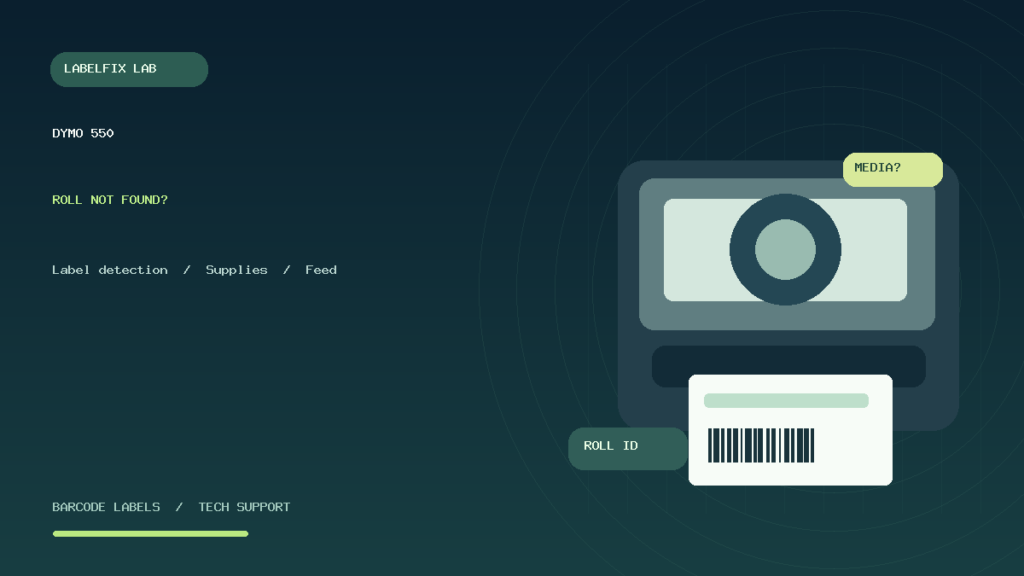
Editorial scope: This is independent, model-focused diagnostic guidance, not a physical verification of a LabelWriter 550 or a live compatibility list for every roll. The featured artwork is an original generic label-printer drawing rather than an official product photo.
Independent general troubleshooting information for shipping labels and thermal printers. Model-specific button sequences, cleaning supplies and service instructions can differ; consult your manufacturer's official documentation. Never alter a carrier-generated barcode.