Quick answer: To print reliable product barcode labels using data stored in Excel, treat product identifiers as text, decide which barcode symbology your inventory or checkout system expects, prepare a label layout matching your real stock, and verify both the decoded value and physical print before producing a full batch. A spreadsheet with correct-looking SKU numbers does not automatically create valid machine-readable barcodes. The barcode-design or printing software must generate the encoded symbols using the intended standard and dimensions.
This workflow is for internal inventory, shelf, asset and product labels where you have authority to assign or print the identifier. It is not permission to invent a GTIN, recreate an Amazon FNSKU, or replace a carrier-issued transport barcode. For standardized identifiers or marketplace labels, use the properly issued values and official encoding and printing requirements.
Before printing: five things to decide
| Decision | Why it matters | Example question |
|---|---|---|
| Identifier source | The symbol must match an actual record | Is this an internal SKU or an officially assigned GTIN? |
| Barcode type | The scanner and software must support it | Code 128, EAN/UPC or a supported 2D code? |
| Label stock | Page and cell sizes determine alignment | Sheet labels, direct-thermal roll or thermal-transfer stock? |
| Print workflow | Excel itself may not implement all barcode encoding rules | Supported label-designer import, add-in or another documented solution? |
| Verification method | Readable text is not proof of scannability | How will a test scan be matched to the correct product record? |
1. Build a clean inventory worksheet
Begin with one row per intended product or label instance. Include only fields the label truly needs, for example InternalSKU, BarcodeValue, ProductName, Variant, QtyToPrint and an optional Location. Use distinct column names and avoid mixing unit count with the actual code value.
If you print several labels for one item, keep the number of copies in a separate numeric column. Do not multiply or concatenate a product identifier to represent label quantity. When exporting data to a label application, verify that each record still corresponds to exactly the intended product and variation.
2. Set barcode values to Text before entering or importing data
Excel can automatically interpret an identifier as a number, remove leading zeros, show long values in scientific notation or convert date-like strings to calendar dates. That is dangerous for barcodes because every encoded digit can be significant. Before input, format the identifier column as Text, then test values such as 000012345678, 12345678901234567 and 03-04.
Changing a cell’s format after Excel has already modified its stored value does not reliably recover missing zeros or lost long-ID digits. Retrieve the original source and reimport using a text-preserving workflow. Our Excel barcode value troubleshooting guide explains why this happens.
3. Choose the right barcode type for the job
Code 128 is frequently used for internal alphanumeric inventory labels where supported by the workflow. UPC/EAN relate to standardized retail identification and their associated number formats. GS1-128 uses Code 128 with additional field-encoding requirements, including FNC1 and Application Identifiers. Two-dimensional formats such as QR or Data Matrix may be suitable for other documented processes but require compatible readers and software.
Don’t select a format purely because it produces the smallest image. Decide based on the actual receiving system, scanner capability, identifier scheme and any applicable standard. If the labels are for Amazon FBA or a carrier shipment, obtain the authorized source instead of constructing new postage or product labels in Excel. Our GS1-128 and FNC1 guide explains the distinction between a simple Code 128 symbol and structured GS1 data.
4. A barcode font alone may not be enough
Some barcode formats require more than substituting a typeface. Code 128, for example, requires appropriate encoding of the source data into codewords, start and stop patterns, and a check character. A generic font applied directly to raw SKU text can produce bars that look convincing but are not correctly encoded or cannot be scanned.
Use a legitimate, supported barcode-label designer or encoder with documented implementation of the intended symbology. If you use an Excel add-in, verify its provenance, compatibility, security and output rules. For GS1 or externally assigned product identifiers, ensure the application implements the relevant standard rather than simply styling raw characters as bars. Do not install unknown macros or untrusted “free barcode generator” software that requests extensive computer permissions.
5. Export or connect your worksheet to a label-design workflow
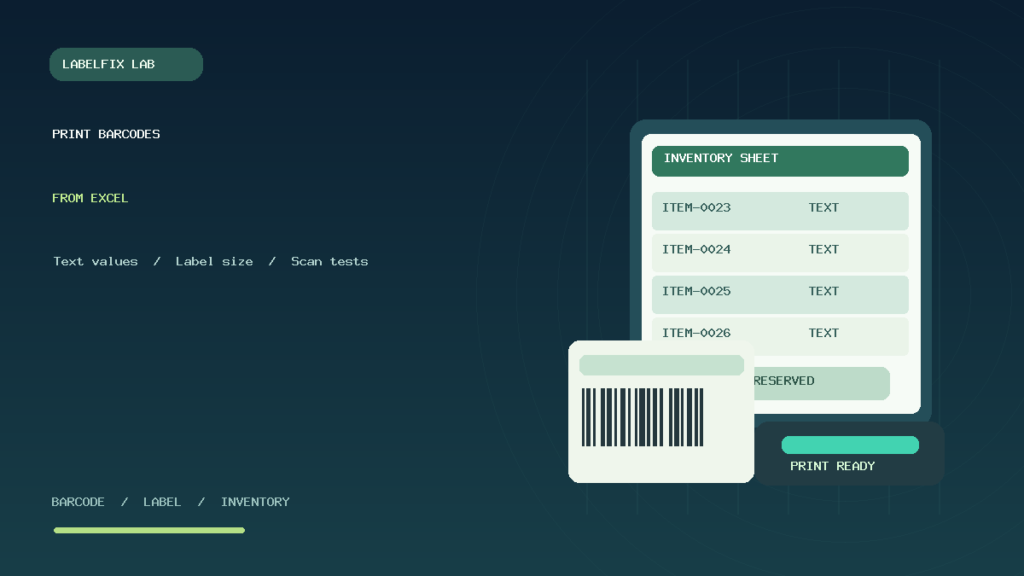
A practical workflow is to save a verified source workbook, then use a trusted label designer that can read Excel or a carefully exported CSV with the identifier fields preserved as text. Map the fields to the label layout: the barcode symbol receives BarcodeValue, the human-readable line receives the appropriate identifier, and the item name or size receives the correct descriptive fields.
The exact interface differs by printer vendor and label application. If you export a CSV, be careful: a spreadsheet opened again by double-clicking may auto-convert data. Use a documented import route that specifies the barcode column as text before loading. Keep the original verified worksheet unchanged for recovery.
6. Match label stock to the template’s physical dimensions
Measure the labels you physically bought. For a sheet, record page size, left and right margins, top offset, cell width/height, column gap and row pitch. For a roll, measure the sticker width and length, liner, gap or black mark, and the printer’s supported imageable width.
Don’t assume every “2 × 1 inch” advertised label is identical after allowing for backing and printer margins. A printer can support the overall roll while imaging a narrower region. If you’re using Letter sheets, a document exported for A4 can drift or clip even if the two sizes look similar on the screen. Our product-label sheet alignment guide covers the difference between page canvas and label cells.
7. Choose an appropriate thermal printing method
Direct-thermal media reacts to heat and may be suitable for shorter-life labels in supported environments. Thermal-transfer printing uses an appropriate ribbon and compatible media and is often considered when long-term durability is needed. Neither method is universally correct; choose according to the product environment, expected label lifetime, printer hardware and material specifications.
If your printer was previously used for 4 × 6 shipping labels, change its media preset deliberately for smaller inventory stickers. A printer retaining a large page size may place one tiny barcode on an oversized sticker or advance several labels between jobs. Verify the actual driver and label-application settings before printing.
8. Print at real size and avoid automatic shrinking
When the source label template matches your actual stock and printer, print at its intended physical dimensions. An unintended “Fit to Page” action can reduce a barcode and narrow its bars. Conversely, forcing a large page at 100% onto smaller stock can crop the symbol. Do not correct this by independently stretching the barcode artwork.
Inspect the preview for orientation, pages per sheet, missing side margins and scaling percentage. A full-sheet PDF with dozens of label cells is not equivalent to a single small label PDF. For the source page itself, our PDF Size Checker can report page dimensions without uploading personal documents to the website.
9. Why labels drift down a sheet
If the first row is aligned but each subsequent row shifts farther, compare the physical row pitch with the source layout. A tiny mismatch accumulates over many rows. If all rows have the same offset, focus on a fixed top or left margin or paper-feed origin. If only one column clips, measure column gaps and printable width rather than changing the whole document scale.
Print a harmless alignment proof on ordinary paper and hold it under an unused adhesive sheet to compare row and column boundaries. This is only a geometry check; it does not prove barcode quality or compliance. Avoid wasting a full pack of labels to test a setting that can be checked with one sample page.
10. Validate one barcode at the scanner and application levels
After printing a small sample, use the actual scanner and host setup intended for production. For a documented keyboard-emulation scanner, a neutral text editor may show the exact decoded value. Compare it character by character with the original worksheet, including leading zeros, punctuation and any hidden or additional input characters.
Then test the business application with a harmless product record. The scan may decode correctly but find the wrong SKU because of duplicate identifiers or product mapping. See barcode scanner selecting the wrong SKU for the application-layer decision tree. A successful beep by itself does not prove inventory accuracy.
11. Keep clear margins around the barcode
A barcode needs appropriate blank space at its edges. Placing decorative borders, price stickers or other graphics too close to the symbol can reduce scannability. Check the relevant barcode symbology specification and intended scanner conditions. Avoid trimming printed stickers so tightly that the start or stop region or required quiet zone is compromised.
For warehouse labels, the sticker should lie flat and avoid highly curved surfaces, corners or damage from handling. The accepted placement rules for retail or logistics partners may be more specific than a generic in-house label. See barcode quiet-zone cutting and placement for common print defects.
12. Control darkness, resolution and stock compatibility
Thermal printer darkness and speed interact with the stock and ribbon, where applicable. Excess heat can cause bars to spread into spaces, while insufficient energy can leave gaps in black strokes. Dot density also limits how precisely narrow bars can be rendered. A higher DPI model does not automatically make a poorly encoded source scannable.
Start with compatible media and manufacturer-supported settings, then compare one variable at a time. Our 203 vs 300 DPI guide and blurry barcode printing article explain the physical layer without claiming one fixed darkness value suits every device.
13. Prevent mixed labels when batch printing
Large batches containing many products or variants can produce a perfectly printed but incorrectly applied label. Preserve a clear connection among each worksheet row, generated barcode and physical item. Use a controlled sequence, test the first and last records, and confirm any copy-count field before sending a long job.
For color or size variants, verify that the identifier points to the exact variation rather than only the product family. If employees prepare multiple bins at once, separate printed sheets or rolls by SKU and avoid loose unmarked stacks. An inventory-label mix-up is not fixed by increasing print contrast.
14. Example: a long item number becomes scientific notation
A worksheet contains a 17-digit asset ID, but Excel treats it as numeric and displays an exponent. A label designer reads the transformed value, resulting in a barcode that doesn’t match the source system. The operator retrieves the exact original ID and imports it as Text. Reformatting the corrupted numeric value afterward is not reliable because the original digits may have been lost.
15. Example: all product stickers print too small
A label design intended for a sheet is sent to a small thermal roll printer. The print dialog fits the entire sheet onto one sticker, creating tiny barcode bars. The proper fix is to use an authorized single-label layout or the correct sheet printer and stock—not crop random rectangles or magnify bars independently of their encoded geometry.
16. Example: first two rows align, later rows drift
The printer uses Letter stock, but the imported label template has a slightly different row pitch. Early stickers appear close enough, while the final rows drift off the adhesive boundaries. Measure the actual stock and regenerate the correctly sized sheet layout. One controlled plain-paper alignment test is more useful than changing the barcode font.
17. Example: a label scans correctly but returns the wrong variant
The scanner reads the full value into a text editor, but the inventory application opens a different product color. That result points toward the product database, source row mapping or a mislabeled item, not the barcode’s optical quality. Check the assigned value against exact variant records before printing the remainder of the batch.
Product barcode label printing checklist
- Use only identifiers you are authorized to issue or print.
- Keep all barcode and SKU values as Text in Excel and exports.
- Select the barcode symbology required by the receiving system.
- Use a trusted encoder that implements the symbology correctly.
- Measure actual sheet or roll stock and match printer settings.
- Print one geometry sample before a production batch.
- Verify intact bar geometry, contrast and quiet zones.
- Scan the test code and compare it with the exact original text ID.
- Check the correct product, variant and label quantity before mass printing.
Frequently asked questions
Can I print barcode labels directly from Excel?
You can use Excel as a data source and, depending on the workflow, connect it to an appropriate supported label designer or encoding solution. Correctly encoding the barcode is separate from displaying a code as text in a spreadsheet.
Is a barcode font sufficient for Code 128?
Not always. Code 128 requires a valid encoded symbol structure and check character. Use an appropriate encoder or trusted supported software rather than assuming raw text becomes a compliant barcode when a font is applied.
Why are my printed barcode labels too small?
Check the source label size, PDF page size, printer stock preset and Fit/Scale settings. Do not shrink a complete sheet layout onto one small roll sticker.
Why are the last rows on the page misaligned?
Progressive misalignment often means the actual label-row pitch differs from the source template or overall scale. Measure sheet geometry and test alignment on plain paper first.
Why does Excel remove zeros from barcodes?
Excel may interpret identifiers as numbers. Set the column or import data type to Text before values are entered and verify the original source, especially for long IDs.
Can I make Amazon FNSKU or carrier shipping barcodes from Excel?
Do not assume permission or format compatibility. Use the authentic labels issued through the applicable official marketplace or carrier workflow rather than inventing replacement codes.
Related LabelFix Lab guides
- Preserve scanned IDs in Excel
- Scanner returns the wrong SKU
- GS1-128 FNC1 data formatting
- FBA label sheets printing at the wrong size
- Blurry thermal barcode printouts
- Check physical PDF dimensions
- Barcode clear-margin issues
Editorial limitations: This is practical data and printing guidance, not a barcode-generation utility, formal GS1/ISO barcode verification or permission to assign standardized identifiers. All examples and the original featured illustration are fictional. Use the current documentation for your printing equipment, chosen barcode software and applicable identifier standards.
Independent general troubleshooting information for shipping labels and thermal printers. Model-specific button sequences, cleaning supplies and service instructions can differ; consult your manufacturer's official documentation. Never alter a carrier-generated barcode.