Quick diagnosis: If a shipping-label document from Amazon Seller Central doesn’t download, opens blank, or never comes out of your printer, first determine which step failed. A label that was never generated or saved is not the same problem as a valid PDF that opens but won’t print; that, in turn, differs from a printer that ejects white labels or scales the page incorrectly. Work from the original shipment document to the browser, PDF viewer, print queue and physical printer in that order.
This independent guide covers already authorized label documents used in Seller Central shipping and fulfillment workflows. Different Amazon services, marketplaces, account permissions, and shipment arrangements may use different screens, supported print methods and label types. Don’t rely on a named menu from an old tutorial; use the current official instructions for your particular transaction. The guide does not generate postage or bypass account restrictions.
Find the failed stage first
| What you see | Likely layer | First test |
|---|---|---|
| Clicking a download action seems to do nothing | Browser download, blocked pop-up, session, or app workflow | Look for a generated file and review browser download indicators |
| PDF is saved, but viewer shows blank or missing content | Document/export or PDF renderer | Open the original in a trusted second viewer |
| PDF looks correct on screen but prints white | Rendering, driver, data path, or printer media | Print a harmless independent sample to the same device |
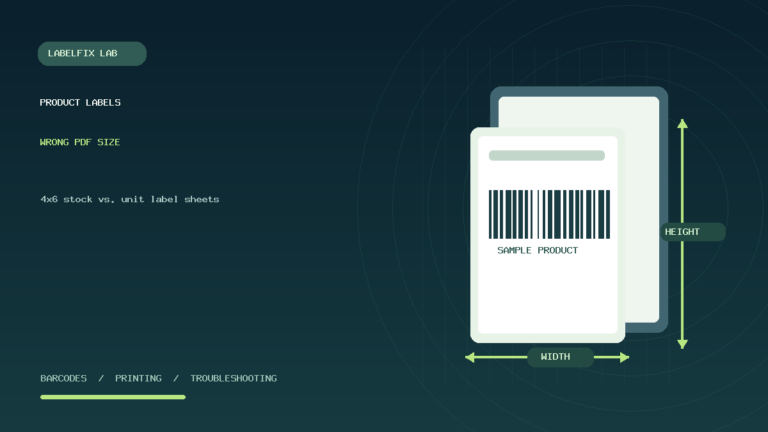
| Label is tiny on 4 × 6 stock | Full-sheet PDF scaled to smaller media | Check PDF page properties and 100% versus Fit |
| Label is cut off or sideways | Orientation, printable width, driver stock preset | Compare source page dimensions and print preview |
| Printer makes two physical labels for one document | PDF page count, repeated job, or media feed registration | Count source pages and observe one controlled test print |
Record which document you’re printing: a product-unit barcode sheet, an FBA box identification label, or a carrier transportation label. Those documents have different purposes, and a successful download of one doesn’t prove it can replace another. See our FBA box ID versus carrier label guide if the roles are unclear.
1. Confirm that the shipping document has actually been issued
Before changing your printer, return to the shipment or order in the authorized account and verify that the document you need is available to your user and current workflow. A shipment status screen, order summary or purchase confirmation may not be the actual printable label file. If a document isn’t available, the problem may involve the shipment process or permissions rather than the printer.
Use the official account support route for missing or failed document generation. Do not invent a barcode or substitute a screenshot of the shipment record. A carrier label may contain routing information beyond the human-readable address and tracking number.
2. Check the browser’s download history and file location
After requesting the original PDF, check whether the browser created a download and where it was saved. On shared machines, files may land in an unexpected folder or be renamed by the browser to avoid overwriting an older document. An old label.pdf might still be open in another tab, causing confusion about which shipment you’re viewing.
If the file exists and has a sensible size, open that copy locally in a trusted PDF viewer. If it is empty, incomplete, or unavailable, return to the authorized source and obtain a fresh download. Do not repeatedly send a partially downloaded file to the printer and expect it to produce a valid label.
3. Investigate browser blockers without disabling security broadly
A browser can restrict certain downloads or new windows depending on its own security settings, extensions and site permissions. If the document should open in a new window but none appears, inspect the browser’s visible blocked pop-up or download indication for the official site. Make only a narrowly scoped, trusted adjustment when appropriate and return it to its normal state after testing.
Do not deactivate all browser security tools, install arbitrary “Seller Central printer fix” extensions, or share account credentials with troubleshooting sites. If an extension seems to interfere, compare with an officially supported clean browser profile after getting workplace approval. This isolates the browser without introducing unknown software into a seller account.
4. Confirm the downloaded PDF is complete and readable
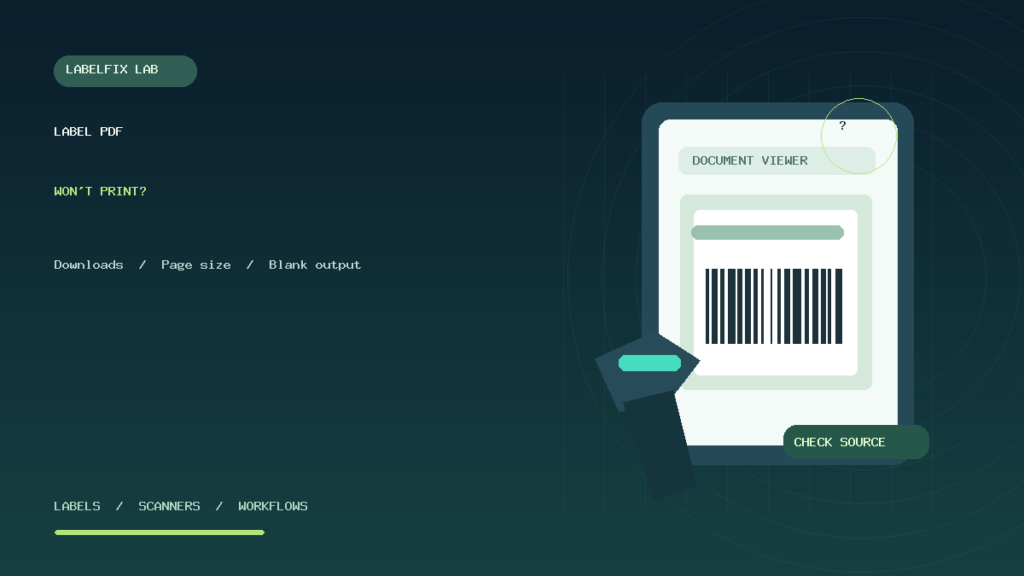
In a trusted viewer, inspect the PDF page count, visible artwork and physical page dimensions. Check whether the expected box identifier, carrier routing text and other required symbols appear. A blank page in one viewer can result from rendering incompatibility, a damaged export or a file that never contained the expected artwork. If possible, compare the same source file in another supported viewer without modifying the content.
Keep a copy of the unaltered original for reference. If essential information is missing in all viewers, request an authorized re-export instead of trying to recreate barcode graphics. You can also read our Chrome blank shipping PDF guide and Adobe Acrobat printing guide for application-specific checks.
5. Identify the original PDF’s physical page size
A native portrait 4 × 6-inch PDF is 101.6 × 152.4 mm or 288 × 432 PDF points. A US Letter document is 8.5 × 11 inches or 612 × 792 points. An A4 document is 210 × 297 mm. These measurements describe the overall page, not a smaller barcode graphic drawn on that page.
If your source is Letter but the thermal printer is using 4 × 6 stock, “Fit to Page” can shrink the entire sheet and make the barcode too small. If you choose 100% on incompatible paper, it can clip the source. Prefer an authorized, compatible document format instead of guessing a crop. Our local PDF Size Checker can show the page geometry, not validate shipping eligibility.
6. Match paper stock to the specific document type
A product-unit barcode sheet may contain many individual labels, whereas a shipping-label PDF may contain one or more carton/transport labels. Don’t send a multi-label sheet to a 4 × 6 roll printer and assume it will divide the page correctly. The number of cells per sheet, their dimensions, top/side margins and gap pitch matter.
If you are printing product labels rather than shipping documents, see FBA product-label sheets printing at the wrong size. If you are preparing an outer carton, follow the document type issued for that carton and the correct printer/stock combination.
7. Use a harmless diagnostic PDF to isolate the printer
If the authorized PDF appears valid in the viewer but the physical printer prints nothing, try a non-postage sample with the same printer and intended media. Our 4 × 6 SAMPLE printer test can reveal basic scale, alignment and feed issues on a compatible label printer. Use a sample that matches your actual device; a 4 × 6 test isn’t appropriate for every small product-label roll.
Also compare a manufacturer-supported internal printer diagnostic if available. If even the internal test fails, investigate supplies, compatible thermal stock, ribbon where required, printer condition and documented maintenance. If the sample works and the Seller Central PDF doesn’t, focus on the original file, renderer, selected queue and application workflow.
8. Check the selected printer queue and driver
When several printers are installed, a browser or desktop application may remember a different queue from the previous job. Verify the actual device name and physical output destination. Check paper dimensions, orientation, output resolution and driver support without changing multiple settings simultaneously.
A printer being online doesn’t prove the driver rendered the PDF correctly. Compare one safe sample in a trusted viewer with the same physical queue. If jobs remain stuck, use the operating system’s supported spooler troubleshooting steps. Our Windows print queue guide covers stalled jobs, while paper-size defaults reverting to Letter covers persistent driver presets.
9. Understand why a perfectly visible PDF prints blank
The file may contain elements the current print path cannot render, or the selected printer may not be imaging any data. A blank image is not one universal failure. Compare a second PDF viewer and a safe sample. For a direct-thermal printer, incompatible stock or loading the uncoated side can cause a white output. For thermal-transfer devices, the relevant ribbon and media setup matter.
Never attempt to improve a carrier barcode by copying the visible tracking number into a generic barcode generator. If the authorized source itself is incomplete or incompatible, request a corrected original or use the issuing service’s officially supported print workflow.
10. Diagnose clipping, rotation and missing barcode margins
If the document prints but cuts off part of the address or barcode, inspect source orientation and the printer’s actual printable width. A machine may accept a four-inch roll but have narrower imageable area. Rotating both the source and the driver can create a sideways or off-center image; make one reversible change at a time and check the preview.
A barcode with missing quiet space can fail to scan even when most bars appear dark. See sideways and clipped shipping labels and barcode quiet-zone clipping. A visually centered PDF is not guaranteed to be a carrier-compliant physical label.
11. Check for extra pages and duplicate print jobs
Inspect the PDF page count first. Some downloads contain multiple pages; a packing slip or another document may accompany the relevant label. If a single-page file makes two physical stickers, check whether the application submitted the job twice, whether the driver added a page, or whether the printer’s media sensor advanced an extra label.
Run a controlled non-postage sample and observe both the print queue and the feed. Do not treat a blank advance as a duplicate paid label unless the actual image was printed twice. Our 4 × 6 printing on two pages guide distinguishes source pagination from media registration.
12. Example: clicking Download Label produces no file
A seller requests a label, but the browser displays no saved PDF. Instead of restarting the thermal printer, the seller checks the authorized workflow and the browser’s download indicator, then tests a supported way to retrieve the issued document. If generation itself fails, they use official account support. The fault occurs before the printer ever receives data.
13. Example: valid PDF prints as a tiny square
The downloaded file is Letter-sized, but the selected printer’s stock is 4 × 6. The viewer scales down the complete Letter page, making the actual label artwork very small. The correct approach is to identify an authorized thermal-compatible output if available, then match the PDF geometry and physical stock—not to increase printhead darkness.
14. Example: sample PDF prints, shipment PDF comes out blank
A harmless 4 × 6 document prints with full contrast on the same roll and printer. The Seller Central PDF is blank from a particular browser but appears in a different trusted viewer. Those observations suggest the document/renderer/print path deserves attention before replacing hardware. Preserve the authorized original and avoid editing routing or tracking symbols.
15. Example: one carton gets the wrong label
A packer downloads documents for several cartons, each named similarly by the computer. The print job succeeds, but the label is applied to the wrong box. Organizing files by shipment and carton, verifying document purpose and matching identifiers before application is the real remedy. Printer calibration cannot correct a document-selection mistake.
Before reprinting any live shipping label
- Confirm the document was authorized for the exact shipment, carton and shipping service.
- Identify whether it is a product-unit label, box identifier or carrier transport label.
- Inspect the original PDF’s page count and physical dimensions.
- Match stock, driver preset, orientation and supported printer output method.
- Use a harmless sample to isolate hardware and page geometry.
- Preserve all required barcodes, addresses, symbols and quiet margins.
- Keep downloaded labels and customer shipment data secure.
Frequently asked questions
Why won’t a Seller Central label PDF download?
The document may not have been generated or available, or the browser may have blocked or redirected the download. Check the specific authorized workflow and browser download indications before troubleshooting the printer.
Why does the PDF open correctly but print blank?
Compare a safe sample on the same device with printing from a second trusted viewer. The failure might be PDF rendering, the driver, the selected queue, incompatible thermal stock or another printer-side issue.
Should I print Seller Central box labels on a 4 × 6 thermal printer?
Only if the authorized document format, your printer, label stock and current shipment instructions are compatible. Don’t assume every box or product-label PDF is designed for 4 × 6.
Can I use a screenshot if the PDF won’t download?
A screenshot may omit routing details or distort barcode dimensions. Obtain the authentic issued document or follow the platform’s supported alternative rather than reconstructing the label.
Why does my shipping label print too small?
Check whether a Letter or A4 page is being fitted onto a smaller label roll, or a 4 × 6 file is being shrunk unnecessarily. Compare original page geometry with physical media before changing the printer.
Related LabelFix Lab guides
- Amazon FBA box ID vs carrier shipping label
- FBA product label sheets printing wrong size
- Shipping PDF prints blank from Chrome
- Shipping PDF won’t print from Acrobat
- Shipping label printing too small
- Free harmless 4 × 6 test PDF
- Check the PDF’s real page size
Editorial note: This is general troubleshooting, not a live test of current Amazon Seller Central menus, an endorsement of a shipping workflow or confirmation of carrier policies. Use the exact authorized labels and official instructions for your shipment. The featured illustration is original and shows a fictional PDF, not an account screenshot.
Independent general troubleshooting information for shipping labels and thermal printers. Model-specific button sequences, cleaning supplies and service instructions can differ; consult your manufacturer's official documentation. Never alter a carrier-generated barcode.