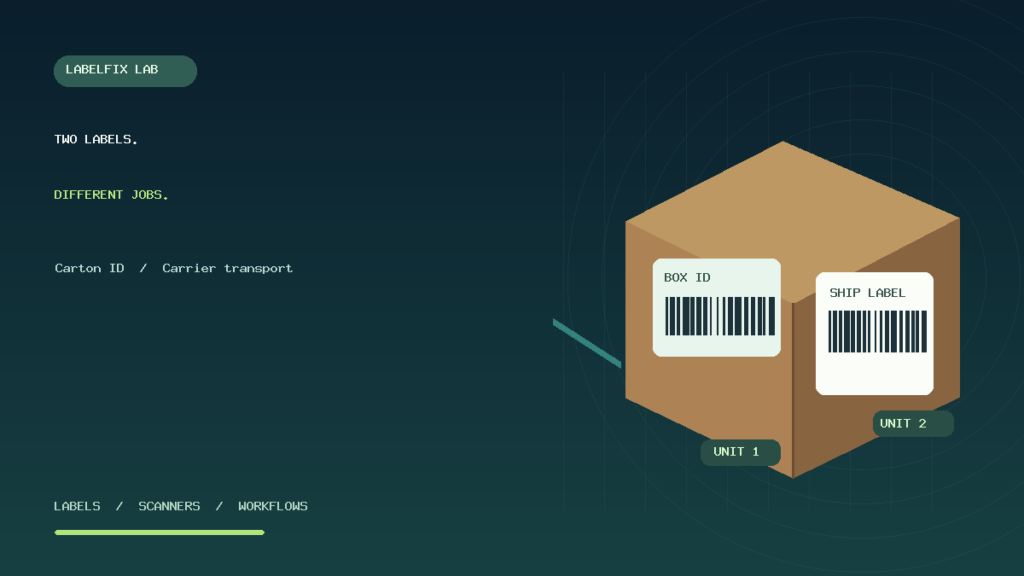
Quick answer: An Amazon FBA box identification label and a carrier shipping label may both be associated with the same outbound carton, but they identify different parts of the process. The box identifier helps the fulfillment workflow associate a carton with an inbound shipment. The carrier’s label helps its delivery network route and transport the parcel. One label is not automatically a replacement for the other. Your shipment’s actual workflow determines what documents are issued, which labels are required, and how each should be printed and placed.
Seller Central screens, approved shipping methods, label requirements and label combinations can vary by marketplace and change over time. This independent guide explains how to identify the documents you have and diagnose common printing mix-ups. Check the current instructions for the specific shipment in official Amazon Seller Central and the relevant carrier documentation before dispatch.
Box ID versus carrier label: the simplest comparison
| Question | FBA box identification label | Carrier shipping label |
|---|---|---|
| What does it identify? | A carton in the relevant fulfillment receiving/shipment workflow | A transport parcel or other carrier-handling unit |
| Who uses the information? | Fulfillment and receiving systems | The selected carrier’s transport network |
| Where should it come from? | The authorized inbound shipment documentation | The permitted carrier/postage or shipping-label workflow |
| Is it an FNSKU product-unit label? | No | No |
| Can it be recreated from a number or screenshot? | Do not assume so; use the issued original | Use authentic carrier-issued label data |
| Is a 4 × 6 thermal PDF always available? | Not guaranteed for every process | Depends on the carrier and shipping integration |
Neither label should be confused with the small barcode placed on an individual sellable product unit. For product-level barcode printing and scanning, see our FNSKU troubleshooting guide.
1. Confirm which documents your shipment actually provides
Before touching a printer, open the relevant shipment in its authorized account. Inventory programs, shipping arrangements and account flows can result in different documents. Look at the purpose of each file and the instructions accompanying it. A shipping confirmation, carton-content record, product-unit barcode, box identification document and parcel transport label are not interchangeable just because they contain lines or a barcode.
Save the original issued files separately, with neutral names that identify their function. For example, use a local folder for box-identification files and another for carrier transport documents. Never use a customer tracking number as a substitute for an issued label or assume that a label issued for an older shipment can safely be reused.
2. Why one physical box can have two different codes
The carton can have one identifier used by the fulfillment receiving system and another used by the transport service. These identifiers can coexist because they answer different operational questions: What inbound shipment does this box belong to? versus Which transportation route and service should handle the parcel?
The actual label count, grouping and placement must come from the current shipping instructions. Do not infer that every parcel in every workflow requires precisely two stickers; a particular program may provide combined documents or different labeling and transport arrangements. When there is any ambiguity, follow the shipment-specific official directions rather than improvising.
3. Keep product-unit labels separate from box-level documents
A product-unit label can be small enough for one individual product, while the box-level document belongs to the carton containing those products. If you mistakenly attach a carton label to a retail unit or vice versa, the barcode could scan but still be wrong for that step of the process. A readable scanner response does not prove the correct business document was used.
When preparing several variations or several cartons, match the document to the actual product, carton and shipment. Keep a controlled sequence during printing and application; sorting loose label sheets without a reliable matching method invites mix-ups. Our FBA product-label size guide explains why a multi-label unit sheet is different from an ordinary shipping PDF.
4. Inspect page size and orientation before printing
Open the original PDF in a trusted reader and inspect its physical page dimensions. A standard portrait 4 × 6-inch page is 101.6 × 152.4 mm or 288 × 432 PDF points. US Letter is 8.5 × 11 inches or 612 × 792 points. The document you have may use either format or another supported layout.
Do not assume that because both labels are intended for a box, they both use identical page dimensions. If one file is Letter and another is 4 × 6, sending both to the same 4 × 6 printer profile can result in tiny images, clipped barcodes or multiple labels. Our PDF Size Checker
5. Which printer should you use?
The appropriate device depends on the actual issued file, supported label stock, printable width, and current shipment instructions. A thermal shipping-label printer is designed for particular roll or fanfold stock; a full-sheet PDF may require a different authorized workflow. Even an office printer can produce a poor barcode if the document is scaled incorrectly or the adhesive stock is unsuitable.
For a native 4 × 6 document on compatible stock, Actual Size / 100% is a useful initial setting. For a Letter document, forcing Fit onto a small thermal roll can shrink required symbols. Avoid cutting away information manually or stretching barcode widths to make a document fit. Check our shipping-label size troubleshooting before reprinting a batch.
6. Check that both documents correspond to the same carton
In a multi-box shipment, it’s easy to place the wrong document on a package. Use the shipment’s official carton identifiers and any other documented matching information to confirm that each label belongs to the intended box. If a document identifies box A, don’t move it to box B merely because they have similar contents or dimensions.
Don’t rely on a code’s appearance: two barcodes can look similar to a person and represent completely different data. Maintain a clear record of which original file was printed and applied, especially when shipments are prepared by several staff members or multiple printers.
7. Avoid label overlap, folds and unclear barcodes
Printed barcodes need intact black and white regions and enough clear space next to the symbol for reliable decoding. A sticker wrapped around a corner, placed across a seam or covered by another label may not scan correctly. Check the official carrier and receiving-system placement instructions for your particular shipment. Do not cover mandatory handling marks or any other required package information.
Use clean, compatible stock and ensure a label lies flat. Glossy tape, damaged adhesive and wrinkled plastic wrapping can degrade scanning or detach during transport. Our shipping-label barcode scanning article explains general print-quality failures, while quiet-zone clipping covers the margins around the code.
8. A barcode scans but the shipment system rejects the box
A successful decode only means the scanner interpreted a symbol. The receiving system can still reject it because it doesn’t expect that identifier at the current stage. Check whether the operator scanned the FBA box code or the carrier transport code, whether the label belongs to the correct carton, and whether the shipment record is in the expected workflow.
If the print looks good and the raw barcode decodes properly, focus on identifying the correct source document and authorized shipment mapping before changing thermal printhead settings. Do not fabricate a different barcode or edit human-readable tracking content to force acceptance.
9. Printing from several PDFs without mixing them
When several cartons are being prepared, use a simple controlled method: obtain the official documents, group by shipment and carton, print in a known sequence, confirm the first printed sticker, then apply immediately to the correct box. Avoid leaving multiple nearly identical loose labels on a shared desk.
Don’t use confusing filenames like label.pdf for every document if the file system replaces an older download. Keep distinct filenames or folders without putting unnecessary personal information into filenames. When the shipping platform allows an authorized reprint, ensure you are printing the intended latest document rather than a cached copy from an older shipment.
10. Troubleshooting table: symptoms and likely causes
| Symptom | First likely cause | What to check |
|---|---|---|
| Box ID and carrier barcode seem different | They serve different purposes | Actual labels requested for that shipment |
| One document prints at postage-stamp size | Letter PDF fitted to 4 × 6 | Source page size, stock and print scaling |
| Both documents print but one is clipped | Wrong orientation or printable width | Driver stock preset and page preview |
| Barcode scans into a text field but isn’t accepted | Wrong identifier or workflow | Box mapping and intended document |
| One sticker ends up on the wrong carton | Printing/application sequence mix-up | Official carton identifiers and shipment records |
| Several blank labels feed after printing | Document page count or media sensor mismatch | PDF page count and printer’s supported feed mode |
11. Example: a seller prints the box ID as a shipping label
One carton has an FBA box-identification document but no separate transport label has been printed. The packer assumes the box identifier should serve as the carrier’s barcode and hands the parcel to a transport service. The safer response is to check the official shipment’s carrier/transport requirements and obtain the legitimate issued shipping document rather than using a different identifier in its place.
12. Example: a Letter box-label file prints tiny on a thermal roll
The PDF viewer reports 8.5 × 11 inches while the printer uses 4 × 6 media. Fit to Page shrinks the entire Letter canvas, including every barcode. Adjusting printhead darkness won’t restore correct dimensions. The right investigation is whether the authorized shipment workflow provides a compatible page format or requires another approved printing method.
13. Example: two cartons receive crossed labels
Two cartons containing similar products are packed beside each other. A worker prints all labels, then applies them without matching identifiers. The barcodes look crisp, but the paperwork for box 1 ends up on box 2. Correcting this is an operational matching problem; it requires verification against the shipment record, not printer calibration.
Checklist before sending an FBA shipment
- Confirm the authorized shipment and carrier instructions for the chosen workflow.
- Identify product-unit, box identification and carrier transport labels separately.
- Verify the correct document belongs to the correct product or carton.
- Check each original PDF’s physical page size and the printer’s matching stock.
- Inspect full barcode bars, quiet zones, addresses and other required fields.
- Follow the relevant current label-placement rules and avoid overlapping symbols.
- Keep originals and document sequence organized until shipment acceptance.
Frequently asked questions
Is an Amazon FBA box ID the same as a shipping tracking number?
No. Box identification and carrier transport information generally serve different roles. Your actual shipment workflow determines what labels are required and whether any documents combine information.
Do I need to print both box and carrier labels?
Follow the label requirements specified for your shipment. Don’t assume a universal label count across every marketplace, program, or shipping service.
Can I use a regular printer instead of a 4 × 6 thermal printer?
The right output depends on the authorized source format and the current label and carrier requirements. A full-sheet document may call for a different print method from a native thermal-label PDF.
Why does my box label scan but a carrier refuses it?
A readable receiving-system identifier isn’t automatically a valid transport label. Check which issued document the carrier expects and whether it belongs to the actual parcel.
Can a box label replace an FNSKU barcode on a product?
No, those are different identification levels. Product-unit preparation should follow the current requirements for the individual item and inventory workflow.
Related LabelFix Lab guides
- FNSKU product barcode not scanning
- FBA unit-label PDF sheet sizing
- Seller Central shipping PDF won’t print
- Shipping label prints too small
- Check a PDF’s actual page dimensions
- Shipping barcode does not scan
Editorial limitations: This is an independent comparison, not current verification of each Amazon fulfillment program or carrier service. Refer to official shipment-specific directions for required labels and placement. The original featured illustration uses synthetic sample labels, not real Amazon or carrier codes.
Independent general troubleshooting information for shipping labels and thermal printers. Model-specific button sequences, cleaning supplies and service instructions can differ; consult your manufacturer's official documentation. Never alter a carrier-generated barcode.