Quick answer: When a label created through Shippo prints at the wrong size, goes to the wrong printer, or appears blank, verify the original label file’s format before resetting the thermal printer. A native 4 × 6-inch PDF and a Letter-sized PDF containing a label image are not equivalent. Your print workflow must agree on the source file size, physical stock, selected queue, print scaling and supported media handling.
Shippo can be used through different account and integration arrangements, so available labels, format settings, print integrations and screens may change. This guide is about printing an already authorized shipping label; it does not create postage, certify barcodes or promise that a particular printer is supported by every Shippo workflow. Check the service’s current official help and your connected carrier’s requirements for the exact account.
Shippo printing problem: use the result to choose your first test
| Result | What it may mean | First diagnostic comparison |
|---|---|---|
| Label is centered but tiny on 4 × 6 stock | Letter-sized source or Fit/Shrink scaling | Check PDF properties and 100% scale |
| Only the top half or right side prints | Source orientation, printable-width or wrong paper length | Compare preview to actual driver stock preset |
| Print job never reaches the printer | Selected queue, browser handoff or connection | Save the original PDF and print from a trusted reader |
| Blank labels feed while the preview looks right | Wrong driver data path or printer-side imaging problem | Run a supported printer diagnostic and benign sample |
| Extra blank sticker appears after each label | Additional PDF page, application pagination or gap mismatch | Count PDF pages and inspect registration |
| Printer prints command text or symbols | Label command language/driver mismatch | Identify the print path and model-supported format |
Step 1: Identify the source that actually issued the label
Open the shipment in the authorized shipping platform or integration. Confirm that the printable document corresponds to the correct shipment, carrier, address and selected shipping method. A shipping quote, purchased label, order receipt and packing slip serve different purposes. Do not print a screenshot of a shipping confirmation and assume it contains all the carrier’s required data.
Some order-management integrations pass a label file to Shippo or receive a document through an application. The place where you click “Print” is not always the place that defines the original page geometry. Determine which system generated the actual document, and obtain an authorized reprint or download through that workflow if needed. Avoid independently editing routing marks, postage values or tracking barcodes.
Step 2: Determine whether the file is PDF or printer-command output
A PDF can be opened in a normal document viewer and its page size inspected. Some label printing systems instead send printer-specific commands through a direct integration. Those formats are not interchangeable: a command stream suitable for one printer family cannot automatically be opened as a PDF or printed through a generic driver. If your software offers a choice, select only a documented format compatible with the intended hardware.
Never paste an entire paid label or tracking code into a public online converter. If a printer is emitting readable instruction characters rather than the expected barcode, identify the supported printer language and job integration before trying a different media type.
Step 3: Read the actual PDF page size
With a PDF-based workflow, save the original document and check its page dimensions in a trusted reader. A 4 × 6-inch page measures exactly 101.6 × 152.4 mm or 288 × 432 PDF points. US Letter is 8.5 × 11 inches or 612 × 792 PDF points. A 4 × 6 artwork block positioned on a Letter canvas still has a Letter-sized source page.
If the source is full-sheet and your printer uses 4 × 6 stock, the viewer may shrink the entire canvas and make the barcode too small. Prefer a compatible, authorized native thermal-label export if available, instead of reconstructing the barcode. Our PDF Size Checker can identify dimensions in the browser, but it does not validate postage or printability.
Step 4: Confirm the physical thermal label size
Measure the stock you actually loaded. A roll sold as 100 × 150 mm is close to, but not exactly, 4 × 6 inches. Some printers accept a nominally four-inch-wide roll but have a smaller maximum printable area. Inspect the manufacturer specifications for the exact model, print method, label width, liner/gap and feeding configuration. The stock’s core and supply path must also suit the device.
If you use a direct-thermal shipping printer, it needs appropriate heat-reactive labels. A thermal-transfer unit requires compatible ribbon and media according to its hardware configuration. If the printer is completely blank even on its own approved self-test, changing Shippo’s output format alone cannot solve incompatible supplies or an imaging fault.
Step 5: Compare print dialog, driver and application presets
Choose the actual thermal printer, not a default office printer or a virtual “Save to PDF” queue. Verify paper width, length and orientation in its supported driver or vendor app. For an authorized 4 × 6 PDF on matching stock, begin with Actual Size / 100% in a trusted PDF reader. Fit to Page or Shrink to Printable Area may make the barcode smaller than intended.
Conversely, sending a Letter page at Actual Size to 4 × 6 stock can crop most of it. The correct solution is identifying the source/stock mismatch, not toggling scaling repeatedly until something is visible. A direct command integration may bypass the browser’s PDF scaling settings completely; identify whether your actual job uses the normal operating-system queue.
Step 6: Test the printer without paid postage
Our free 4 × 6 SAMPLE PDF is not a shipping label and contains no real tracking code. Print it on compatible stock to check page size, physical alignment and basic imaging. It can help distinguish a printer preset problem from a source-file issue.
Use three observations in order: Can a vendor-supported internal printer test print? Can the synthetic 4 × 6 PDF print at the right size? Can the original authorized label then print correctly? If the first two succeed and the third fails, investigate the Shippo label’s export or print integration before replacing hardware.
Step 7: Diagnose why one shipment prints on two stickers
First inspect the original document’s page count. A download can include multiple pages or accompanying material even if you bought postage for only one shipment. Next confirm the driver’s physical label height. If the document has one page but the printer advances two stickers, check stock registration, gap/black-mark mode, media pitch and the documented calibration method for the exact hardware.
Do not reset the printer’s entire configuration to address a PDF pagination error. If a complete page is printing twice, inspect duplicate jobs, an application retry or a stale queue. If only an empty second sticker advances, focus on page length, sensing and feed registration.
Step 8: Solve a blank PDF or incomplete image at the correct layer
When the file’s preview is blank, obtain a fresh authorized export rather than dismantling a printer. When the preview contains all elements but the host prints a white label, compare a second trusted PDF viewer and the selected queue. When even a manufacturer-supported internal test is blank, investigate media type, ribbon if applicable and physical printing according to the model’s documentation.
When the barcode is visible but only some text disappears, PDF rendering or font/subset handling could be involved. Our shipping-label PDF missing text guide explains this separate path. Keep the original carrier document unchanged and seek an official re-export if essential routing content is missing.
Practical case: Shippo label prints very small
Suppose the warehouse uses a 4 × 6 roll, but the downloaded PDF is 8.5 × 11 inches, with the label centered on the page. The printer dialog fits the entire Letter sheet to one small sticker. The barcode ends up tiny. The important observation is that the file’s page geometry is wrong for the selected stock, not that the printhead has lost darkness. Check the provider’s supported format options, then print a correctly sized original through the matching driver.
Practical case: the PDF opens correctly but never prints
Suppose the Shippo-supplied PDF opens in a reader and the printed preview is full-size, but nothing emerges. Send a harmless vendor-supported sample and monitor the queue. If the sample also fails, inspect the printer’s OS connection and status. If the sample prints, compare the file’s destination, page range, rendering application and driver options. This isolates a host workflow issue without spending several paid labels.
Practical case: browser printing and desktop printing differ
The same original document produces different output when printed directly from a browser tab versus a PDF reader. Keep the roll, printer and file identical while comparing the two print dialogs’ scaling, stock selection and page orientation. This is evidence of a host rendering or preset difference, not automatic proof that the shipping platform generated an invalid barcode.
Before attaching a Shippo-created label
- Match the downloaded document to the correct purchased shipment and service.
- Confirm page size, driver stock and physical label dimensions.
- Use the issuing workflow’s authorized label format and reprint method.
- Inspect the entire address, carrier marks, barcode bars and quiet zones.
- Check that print darkness and media preserve scanner readability.
- Keep customer data confidential during troubleshooting and dispose of test copies securely.
Frequently asked questions
Can I print a Shippo label on any thermal printer?
No. The exact model needs compatible stock, enough printable width, an appropriate driver or command path and a label format accepted by the shipping provider. A small mobile label maker is not necessarily suitable for full-size carrier documents.
Why does my Shippo shipping label print tiny?
Common causes include Letter-sized source pages being fitted to 4 × 6 stock or a print dialog scaling an already correct page. Check the PDF dimensions and paper preset before changing print darkness.
Is 100 × 150 mm the same as a 4 × 6 shipping label?
No. Four by six inches is exactly 101.6 × 152.4 mm. Check both the printer’s printable area and the shipping provider’s approved format rather than treating the sizes as automatically interchangeable.
Can a browser setting fix a direct printer-command integration?
Not necessarily. If the workflow sends raw supported printer-language data, a PDF viewer’s Fit and Actual Size controls may not be involved. Identify the data path and printer-language compatibility first.
Why does my printer feed a blank label after each Shippo print?
Check the PDF page count, selected label length and media sensing mode. A duplicated host job is different from a correct print followed by one unprinted feed.
Related LabelFix Lab guides
- ShipStation print failures — separate integration workflow
- Shopify thermal shipping-label printing
- Why a 4 × 6 label prints too small
- Paper-size preference keeps returning to Letter
- Shipping PDF prints blank from Chrome
- Check PDF page size before printing
- Use the non-postage 4 × 6 printer test PDF
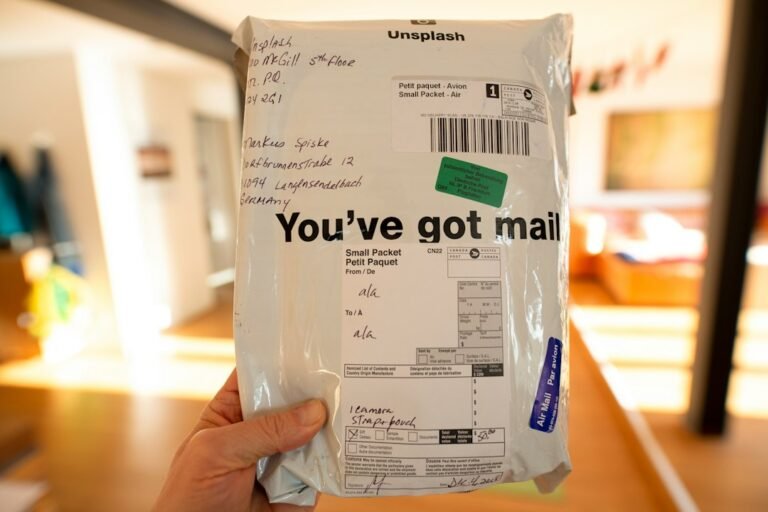
Featured image: Mediamodifier / Unsplash. Illustrative parcel photograph, not a Shippo-generated shipping label.
Editorial note: The workflow explanations are general troubleshooting, not a test of a live Shippo account or its current control labels. Available options, carrier eligibility, and printer integrations should be checked against the service’s official current documentation and the specific hardware’s manual.
Independent general troubleshooting information for shipping labels and thermal printers. Model-specific button sequences, cleaning supplies and service instructions can differ; consult your manufacturer's official documentation. Never alter a carrier-generated barcode.