Quick answer: You may be able to ship a Depop sale without a home printer, but the correct method depends on the shipping arrangement actually assigned to that order. First check whether the order provides an authorized printable label, an explicit QR-code or label-free drop-off option, or instructions requiring you to arrange shipping yourself. A shipping address, tracking number, order screenshot, and carrier-authorized QR code are different things; do not substitute one for another.
This guide is for sellers who have a package ready but no working printer. Depop’s shipping partners, country coverage, seller settings and screens can change. Use the current instructions inside your own order and the applicable carrier’s official documentation for final confirmation; the steps here are a decision process, not a claim that every Depop seller has identical services.
Which shipping document do you actually have?
| Order displays | What it means | No-printer starting point |
|---|---|---|
| An official shipping QR code with a participating drop-off instruction | The specific order may qualify for a print-at-drop-off workflow | Check which carrier and location accept that exact code |
| A downloadable shipping-label PDF only | The parcel may require a printed and attached label | Use a trusted print shop, workplace printer with permission, or an officially offered alternative |
| A self-shipping instruction without prepaid label | You may need to buy shipping through the permitted workflow | Follow the order’s agreed shipping method and record tracking correctly |
| A tracking reference, receipt or shipping address | Evidence of a sale or shipment, not necessarily a usable carrier label | Find the actual authorized shipping method; don’t create your own QR code |
| No label, code or clear dispatch instructions | The order may be incomplete or a shipping option may not have been selected | Review the order details and use official account support |
Step 1: Check the exact sold order, not a generic seller tutorial
Open the relevant sold item in your official Depop account and inspect its shipping instructions. Identify the destination country, selected shipping method and responsible carrier. Note whether the platform or seller is expected to provide postage and whether there is an actual downloadable label or QR code.
Do not assume that a QR option shown in another seller’s screenshot applies to your order. Different transactions may use different delivery methods or shipping services, and the relevant information can change after a carrier or product update. You should not switch to a different shipping method solely to avoid printing unless the official workflow permits it.
Step 2: When an authorized QR code is available
A carrier-issued QR-code option can allow a participating staffed drop-off location to process the package or print its label. That is true only if the specific order instructions explicitly authorize it. A random QR code generated from the buyer’s address or tracking number does not issue postage, and a normal in-store barcode scanner does not automatically provide label-printing service.
Before traveling, check the actual code’s instructions for carrier, eligible drop-off locations, package preparation, expiration conditions and whether the phone screen is an accepted presentation method. A parcel locker, unattended drop box or retail counter may not offer the same service as a staffed carrier location.
After handoff, keep the carrier’s acceptance receipt or other authorized confirmation. The fact that a QR image was displayed on a phone does not prove the package was accepted into the tracking network.
Step 3: When Depop provides a PDF but not a QR code
Save the original PDF to your phone or computer. Do not use a screenshot of the order page, retype the tracking number into a homemade label generator or paste buyer details into an unknown website. A genuine carrier label may include routing identifiers, required clear margins and other details beyond the visible address.
Find a nearby printing option that accepts PDF documents: for example, a public library, an office-supply store, a local print shop or a workplace printer where use is permitted. Availability, charges and file-transfer methods vary. Ask whether it can print the file at its original size and whether it deletes documents after the job. A label containing a buyer’s address is personal information, so treat it accordingly.
Use a trusted PDF reader to check the page size. A 4 × 6-inch document measures 101.6 × 152.4 mm, while US Letter is 215.9 × 279.4 mm. A 4 × 6 label on a Letter canvas can shrink if an entire page is fitted to a smaller sticker; ask for a suitable output rather than artificially enlarging the barcode. Our PDF Size Checker can identify the page geometry, but it cannot validate postage.
Step 4: When you must arrange shipping yourself
Some workflows require the seller to organize postage according to the buyer’s address and the transaction’s shipping terms. This is not the same as printing an already-paid label. Follow the instructions and seller obligations for your specific order; if you buy shipping from an eligible carrier, use that provider’s authorized document or drop-off options. Add tracking and confirm dispatch in the way the marketplace currently requires, without guessing at fields that may have changed.
Do not mark an item as dispatched before it has actually been handed to the permitted carrier. Do not pay for a second label when a prepaid label has already been issued unless the platform or carrier gives you an explicit reason and process.
Can the buyer print the Depop label for you?
For ordinary seller-to-buyer dispatch, the seller is responsible for shipping in accordance with the order terms. Asking a buyer to print or arrange a label may create avoidable privacy, tracking and transaction problems. Avoid sending the buyer a different shipment request through unofficial messages. If the original shipping method cannot be fulfilled, use the marketplace’s official assistance channel rather than changing terms informally.
Print an original label from a phone securely
- Download the issued PDF to a local folder on your device.
- Inspect its page count and physical dimensions in a trusted reader.
- Send it only to a known, permitted printing provider through that provider’s approved method.
- Ask for actual-size output when the PDF and stock match; inspect every barcode, address line and margin.
- Remove unneeded copies from a shared workstation and retain your own original order record.
Do not share your Depop password or allow a print shop to log into your seller account. If the shop offers email-to-print, check where the document will be stored and whether the provider can handle shipping-label PDFs confidentially.
Common no-printer mistakes
| Mistake | Why it fails | Better approach |
|---|---|---|
| Showing a plain tracking number at any parcel shop | Tracking is not equivalent to an authorized print-at-counter code | Use the exact QR/label instructions from the issuer |
| Printing an address screenshot | Missing carrier markings and distorted machine-readable information | Print the original issued PDF |
| Assuming all carrier locations print labels | Service participation varies by carrier, location and parcel | Verify the stated participating location first |
| Letting a shop resize the barcode independently | Bar proportions and required quiet zones can be damaged | Use authorized original format and correct page scaling |
| Paying for new postage when a prepaid label exists | Duplicate cost and possible mismatched transaction tracking | Resolve the original label with marketplace or carrier support |
Example A: only a printable document is available
A seller has a single-page shipping PDF but no printer. They save the file on their phone, confirm its size, and arrange printing at a reputable local provider. They verify that the entire barcode and address are clear and that the provider did not crop the quiet space. This solves the printer-access problem without altering or inventing a postage label.
Example B: a QR-based handoff is explicitly offered
Another seller’s actual order instructions include a QR code and specify a participating location. That seller prepares the parcel exactly as instructed, confirms the location accepts the service and presents the original code. They retain the receipt. This example is conditional: it is not evidence that every country or Depop account offers that handoff method.
What to check before you leave home
- Match the item and shipping document to the correct order.
- Check whether the shipping method is a prepaid label, QR handoff or self-arranged postage.
- Confirm packaging, weight and dimension requirements for the chosen service.
- Check the participating drop-off location and its current acceptance method.
- Keep a receipt and track the shipment through the agreed service.
- Protect your buyer’s name, address and order information.
Frequently asked questions
Do Depop sellers always receive a QR code?
No universal QR-code entitlement should be assumed. The actual order, delivery method, country and carrier determine which options are available. Follow the instructions supplied with your own shipment.
Can I show a PDF on my phone instead of printing it?
Only when the carrier or shipping service explicitly accepts that digital format. A printable PDF is not automatically a valid mobile drop-off credential.
Where can I print a Depop shipping label?
Depending on local availability, a library, print shop, office-supply retailer or permitted workplace printer may print the original PDF. Ask about charges, privacy and the available paper format.
Can I use a screenshot of the buyer’s address?
A screenshot of an address is not necessarily a carrier-issued shipping label. Use the authorized document or drop-off workflow; preserve barcode and routing information.
Can I use a thermal printer if I later purchase one?
Only if the original shipping document’s format and the carrier’s rules match the printer and label stock. For a 4 × 6 PDF, start with our printing-too-small guide and inspect the page dimensions.
Related LabelFix Lab guides
- How eBay return QR codes differ from printable labels
- Shipping-label PDF wrong size on a phone
- Check the page size of a shipping PDF
- Shipping barcode not scanning
- Printable 4 × 6 SAMPLE PDF for alignment checks
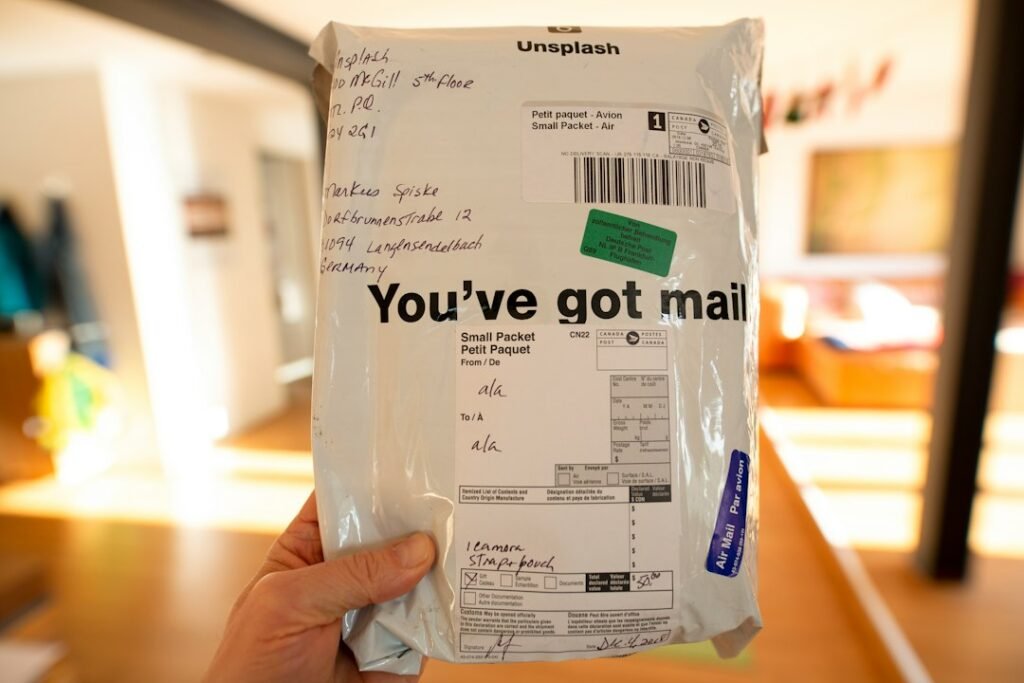
Featured photograph: Markus Spiske / Unsplash (illustrative mail package; not a Depop carrier label).
Editorial limitations: This article provides order-dependent diagnostic options, not a verified snapshot of current Depop menus, delivery partners or regional QR eligibility. No live Depop order was used to test these scenarios. Check official Depop and carrier instructions for the transaction before shipping.
Independent general troubleshooting information for shipping labels and thermal printers. Model-specific button sequences, cleaning supplies and service instructions can differ; consult your manufacturer's official documentation. Never alter a carrier-generated barcode.