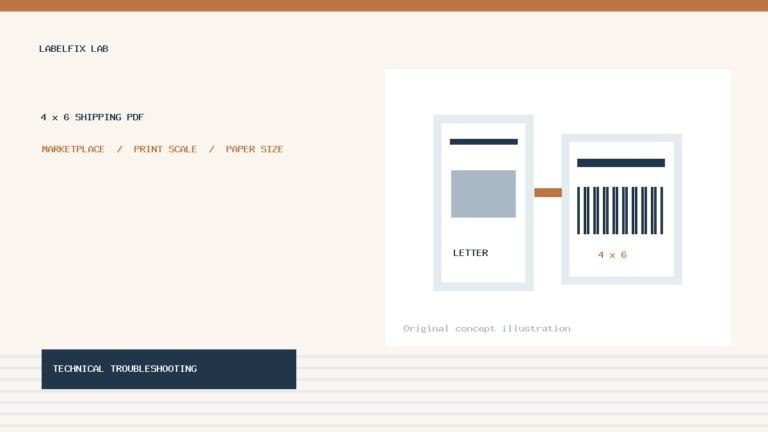
Quick answer: If a shipping service gives you a US Letter PDF containing one 4 × 6-inch label, printing the entire 8.5 × 11-inch page with Fit to Page on a 4 × 6 thermal printer can make the barcode tiny. A correctly identified 4 × 6 region cropped at its original size avoids that particular full-page reduction—but only if the entire authorized label, barcode quiet zones, addresses and routing marks are included. Before cropping any live postage document, check whether the shipping platform offers its own native 4 × 6 export. That is generally the safer first choice.
This guide explains the physical geometry and diagnostic differences between page-size changes, cropping and proportional scaling. It does not recommend manually rebuilding tracking barcodes or certifying altered carrier labels as valid postage.
The key difference: PDF page size versus the label drawn on the page
| Element | Example dimension | Why it matters |
|---|---|---|
| US Letter PDF canvas | 8.5 × 11 in / 612 × 792 pt | Contains the full page; a PDF viewer often scales this complete rectangle |
| Native 4 × 6 PDF canvas | 4 × 6 in / 288 × 432 pt | Matches common thermal shipping-label stock |
| Label artwork within Letter | May occupy 4 × 6 in or another region | The artwork dimensions can differ from the overall PDF page |
| Actual printable width | Depends on the exact printer model | A printer may accept 4-inch media but have narrower usable image width |
A document that displays a 4 × 6 rectangle on an 8.5 × 11 page will still report Letter dimensions in its document properties. The printer’s paper-size preference does not automatically change the PDF canvas. That is why a label may appear correct on screen yet print as a postage-stamp-sized image on a 4 × 6 sticker.
Before doing anything: inspect the original file
Download the authorized original document rather than printing a browser screenshot. Read the page count and size in a trusted PDF viewer. Our browser-based PDF Size Checker can report the physical page dimensions without requiring a server upload. If the file is already 4 × 6, try printing it at 100% on matching stock before considering a crop.
Check whether the page contains one label, several labels or an additional invoice/receipt. Do not assume all objects on the page belong to one postage label; cropping out required content or selecting a wrong panel could invalidate the print. Preserve the original file unchanged so you can re-export if anything goes wrong.
Compare three possible workflows
| Method | What it changes | When it might help | Main risk |
|---|---|---|---|
| Native thermal export | The shipping provider supplies its intended 4 × 6 layout | Preferred for live carrier labels when available | Not every workflow exposes a compatible format |
| Fit Letter page to 4 × 6 | Shrinks the entire Letter canvas proportionally | Only for proofs or non-carrier documents | Small barcode bars and text, possible scan failure |
| Crop the exact 4 × 6 label region | Removes surrounding PDF canvas without shrinking the selected content | When the original already contains an exact, complete 4 × 6 region | Accidentally cutting quiet zones or other required marks |
Why Fit to Page makes a label smaller
Consider a portrait Letter page: 612 × 792 PDF points. A portrait thermal label canvas is 288 × 432 points. To fit the entire Letter page, the PDF viewer must scale its width by at most 288/612, or about 47%, if proportional scaling is used. That can reduce a 4-inch-wide label graphic on the Letter page to around 1.88 inches wide. Actual placement and viewer margins may reduce it further.
This is an illustrative geometry calculation—not a universal number for every document or driver. The important point is that proportional scaling of the whole page affects everything inside it, including the barcode. Increasing print darkness cannot reverse this geometry change.
How to determine whether cropping is appropriate
Identify the full rectangular boundary of the original authorized label. Confirm its physical width and height, and check that all the following remain inside it: every machine-readable code, its required clear margins, the complete destination and return addresses, route and service markings, and any other carrier-required fields. If the source label itself is smaller, larger, partially outside the region or stretched, a simple 4 × 6 crop is not a reliable solution.
Make a copy for inspection, not a replacement for the original. A crop should preserve the original content scale; do not independently adjust a barcode’s bar widths or redraw the code. If you cannot confidently identify the full region, return to the shipping platform and request a supported thermal-format label.
Crop coordinates: top-left versus PDF bottom-left
Most people measure an offset from the top-left of a page. PDF graphics coordinates commonly use a bottom-left origin. For example, a 4 × 6-inch rectangle starting 2 inches from the left and 1 inch below the top of an 8.5 × 11-inch Letter page occupies these source coordinates, measured in inches:
| Boundary | Position |
|---|---|
| Left | 2 inches |
| Right | 6 inches |
| Top (from bottom) | 10 inches |
| Bottom (from bottom) | 4 inches |
The resulting rectangle is exactly 4 inches wide and 6 inches tall. In PDF points, its boundaries are left 144, right 432, bottom 288 and top 720. These are example crop coordinates, not a recommendation for a particular USPS, eBay, Shopify or other platform label. A different source layout requires different measurements.
What about a PDF’s MediaBox and CropBox?
PDF pages can define several boundaries, including MediaBox (the overall page medium) and CropBox (the visible or printable region used by many PDF viewers). If these boxes differ, a document can appear to be the right size in one application yet print differently in another. For a deeper explanation, see our MediaBox vs CropBox guide.
Changing the CropBox alone is not always the same as creating a new PDF whose physical page is 288 × 432 points. Before using a modified document, reopen it in a trusted viewer and verify its page size, visible content and final printed result.
Print a non-postage sample before using a shipping label
Our free 4 × 6 SAMPLE PDF is designed for alignment checks without real postage. Print this file at Actual Size on the target stock. Measure its scale bar and inspect the margins. If the harmless sample is already reduced or clipped, fix the printer’s paper preset or PDF viewer before handling a live label.
Keep the printer’s media width separate from its maximum printable width. Some devices accept a 4-inch-wide roll while leaving a narrow unprintable area. Cropping a PDF to exactly 4 × 6 does not expand the printer’s physical printhead.
Troubleshooting: the cropped label still prints tiny
First verify that the saved output page is actually 4 × 6—not a Letter PDF whose visible content was cropped but whose canvas remained Letter. Next inspect the selected printer and stock preset. If the document and paper match, start with Actual Size / 100% where supported and turn off unintended Shrink or Multiple Pages settings. Also check whether a shipping-platform print connector bypasses the PDF viewer’s settings.
Troubleshooting: the barcode is cut off at the edge
Stop using that output for shipping. Inspect the original file to establish whether the crop excluded a required quiet zone or whether the printer’s hardware can’t reach the edge. Check source label layout, page orientation, usable print width and margins; don’t try to repair barcode truncation by stretching the remaining bars or editing tracking data.
Troubleshooting: one source label produces two stickers
Look at the source PDF page count first. A single file may contain two pages or a packing slip alongside a label. If the source is one page but the physical printer advances two stickers, investigate the paper-length preset, media pitch and gap/black-mark sensing. Our two-page thermal-label diagnostic separates these cases.
What to check before mailing a parcel
- Use the authorized carrier or marketplace label, not a re-created barcode.
- Prefer the shipping provider’s native thermal-format export.
- Verify the actual output PDF is 4 × 6 inches if that’s the intended format.
- Inspect every barcode and its required quiet margins, the complete address and routing symbols.
- Check the printed label against the carrier’s current material and placement rules.
- Keep damaged or duplicate labels with personal details out of public view.
Frequently asked questions
Can I turn a Letter PDF into a 4 × 6 file?
Yes, in terms of page geometry, but resizing the entire Letter page is not the same as extracting the correct shipping label. For live postage, the original carrier’s 4 × 6 export is safer where available.
Is cropping safer than fitting the full page?
It can avoid shrinking an already complete 4 × 6 region, but a wrong crop can remove barcode margins or mandatory text. Neither method guarantees carrier acceptance.
Should I use a screenshot of the shipping label?
No. Screenshots can introduce scaling artifacts, clipped content and raster blur. Start with the original authorized printable file.
Is a 100 × 150 mm label identical to 4 × 6 inches?
No. Four by six inches is 101.6 × 152.4 mm. Confirm printer compatibility and carrier requirements rather than assuming those stock sizes are interchangeable.
How can I check a 4 × 6 PDF before printing it?
Read the document properties or use a local size checker, then test your device with a harmless alignment page. A dimension check does not validate barcode grade or postage.
Related guides and tools
- Free PDF Size Checker
- 4×6 PDF Page Converter — fit or crop a PDF locally
- 4 × 6 Thermal Printer Test PDF
- Shipping Label Prints Too Small
- Several Shipping Labels on One PDF Page
- Shipping Label Barcode Won’t Scan
Featured photograph: Mediamodifier / Unsplash, used for illustration; it is not an example of a valid postage label.
Editorial scope: Page dimensions and coordinate examples are mathematical. This article does not claim current verification of every carrier’s label format or approval of cropped postage. Consult your postage issuer’s official instructions for real shipments.
Independent general troubleshooting information for shipping labels and thermal printers. Model-specific button sequences, cleaning supplies and service instructions can differ; consult your manufacturer's official documentation. Never alter a carrier-generated barcode.