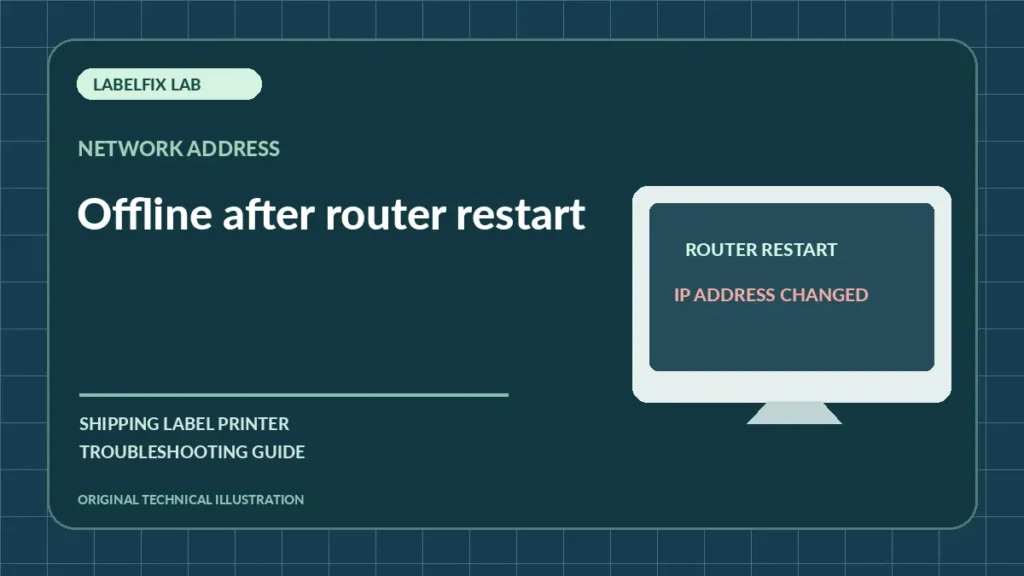
If an Ethernet or Wi-Fi label printer worked before a router restart and now displays Offline, the printer’s saved address or the computer’s print port may no longer point to the same device. This guide focuses on network printers that previously worked, rather than devices that have never joined the network or USB-only models.
Find the symptom that matches your case
Use the pattern below to focus your first check. Similar-looking symptoms can arise from different devices and applications.
| What you see | Investigate first |
|---|---|
| Printer display shows a different IP address | Dynamic address changed |
| Printer joins Wi-Fi but queue says Offline | Stale destination or blocked reachability |
| Another computer can still print | One workstation’s port or queue settings |
| Device cannot join the router | Wi-Fi credentials or supported network configuration |
1. Confirm the device really has network support
Check the exact model and whether its connection is Ethernet, Wi-Fi or another supported option. A USB-only printer does not acquire an ordinary network address just because the PC connects to Wi-Fi.
2. Read the printer’s current network configuration safely
Use the manufacturer’s approved status screen or configuration print to record its current address and connection state. Do not publish passwords, device identifiers or private IP configurations unnecessarily.
3. Compare that address with the Windows or Mac printer port
If the queue targets an older address, jobs may appear stuck or Offline. Record the original queue configuration before updating it through the operating system’s supported printer settings.
4. Check host names as well as raw numeric addresses
Some print queues discover the printer by name rather than IP; others use direct TCP/IP ports or a vendor service. Resolve the exact method for your printer model instead of changing protocols at random.
5. Look for guest-network or client-isolation changes
Router resets can change Wi-Fi network names or move devices to separated networks. A computer and printer may connect to the same router yet be unable to communicate across isolated segments. Ask the authorized network administrator before modifying security settings.
6. Consider supported address reservation
If manufacturer and network administrator guidance allow, a stable printer destination or DHCP reservation can prevent recurring stale-address faults. Avoid assigning an arbitrary static address that conflicts with other devices.
7. Send one supported print job after restoring connectivity
Run a device-generated test to confirm the printer is operational, then a single non-live shipping label to verify the network print path. Inspect the print queue while submitting the job.
8. Separate communication from PDF print quality
A printer that now accepts jobs but prints tiny labels has a page-size problem, not a router problem. Verify dimensions with the PDF size checker and the driver stock preset.
When this is a different problem
For initial Wi-Fi discovery failure, start with Wi-Fi printer not found. For a USB printer that Windows marks Offline, use the general Offline guide; this article focuses specifically on network address changes after a router restart.
Validate the fix before printing live shipments
With the supported printer software, submit one known-good sample and observe the device, connection and queue. Check that the printed document has the complete barcode, readable address and required margins. If you cannot establish a reliable connection without disabling security controls, stop and seek qualified device or network support.
Frequently asked questions
Can a router restart change a printer IP address?
Yes, a network using dynamic assignment can provide a different address. The exact behavior depends on router, lease and printer configuration.
Should I turn off the firewall to fix printing?
No. Identify reachability and the supported print path first; modify security settings only through authorized guidance.
Why can one computer print while another says Offline?
The workstations may have different saved printer ports or drivers. Compare the actual queue destinations.
Editorial note: Printer connection and driver instructions depend on the device model, operating system and installed interface. This independent article does not claim universal compatibility or live hands-on testing of every device. Follow the official manufacturer documentation for exact setup instructions.
Independent general troubleshooting information for shipping labels and thermal printers. Model-specific button sequences, cleaning supplies and service instructions can differ; consult your manufacturer's official documentation. Never alter a carrier-generated barcode.