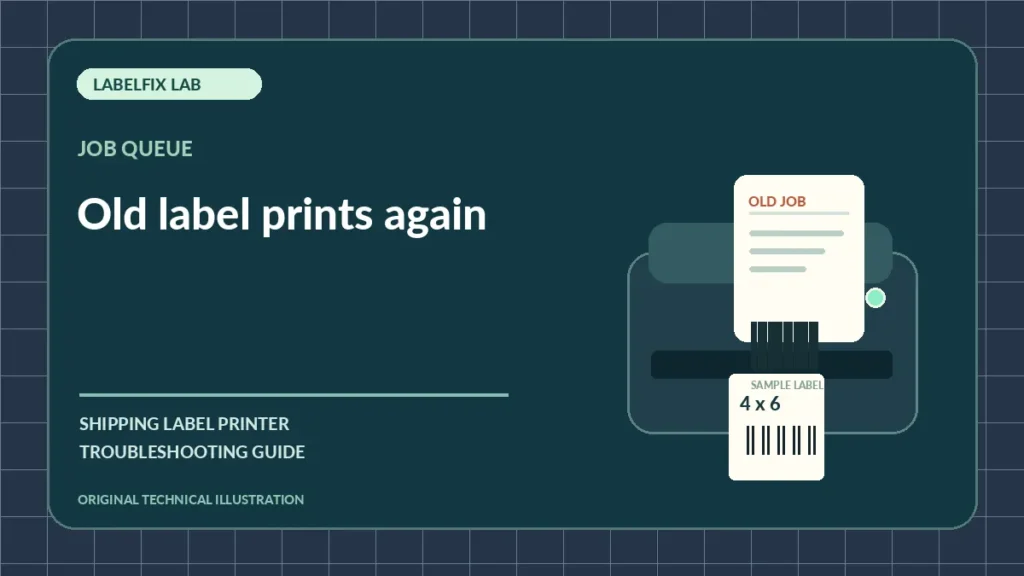
A thermal printer that prints yesterday’s label—or prints one shipment twice—can create a serious fulfillment mix-up. This is often a job-management problem, not a physical printing defect. The safest priority is to prevent an old tracking code from being attached to the wrong parcel, then determine whether the duplicate job came from the application, operating-system queue or printer’s own documented reprint feature.
Identify the failure pattern
A symptom may have several possible causes. Use the observations below to choose a starting check rather than making several changes at once.
| Observed result | Start here |
|---|---|
| Old label prints immediately on reconnect | Queued job retry or device-resident job behavior |
| Two identical copies print after one click | Copies setting, duplicate submission or application retries |
| Wrong order’s barcode appears for today’s parcel | Selected document and shipment mapping |
| Printer repeats without any visible new app job | Spooler/device state; model-specific investigation |
1. Stop production printing and protect affected parcels
Suspend the affected shipping batch using supported controls so the same tracking ID is not attached to different packages. Keep current and previous printed labels separated. Don’t rely on a barcode looking valid; verify the shipment reference in the originating marketplace or carrier system before using any physical label.
2. Check which document is open and selected
A browser tab, PDF reader or shipping dashboard may still display an older label. Confirm the order number and tracking reference at the source without sharing them publicly. The print preview may be correct while a different app window is sending another job.
3. Inspect pending and paused print jobs
Open the relevant Windows or macOS print queue and identify which documents are waiting or retrying. A job that previously failed during a USB interruption may resume when the connection returns. Cancel only unintended jobs after confirming that valid shipments can be regenerated; don’t clear shared queues blindly.
4. Review application copies, auto-retry and batch settings
Some shipping software can generate multiple labels or submit retries after a timeout. Check the app’s job history and copies count, and avoid pressing Print repeatedly because the first attempt looked slow. A delay is not proof that the first request failed.
5. Observe whether the queue changes when the old label prints
Send no new jobs and, if safe, watch what Windows shows when the printer reconnects or resumes. If a queued entry changes state, the host is probably delivering the job. If the printer produces a copy without a new queue event, the manufacturer may have a documented local reprint or buffered-job behavior worth checking.
6. Identify the exact printer model and reprint function
Some devices have a button or firmware function that can repeat a previous label or report. This is not universal; check the current manual. Don’t assume holding Feed or other buttons is harmless: on other printers those combinations may calibrate or reset configuration.
7. Check duplicate queues and connected applications
An office computer may have more than one label-printing service or platform integration. Two sources can issue the same label without the printer itself duplicating data. Record which app and queue are active, then test from only one trusted source with a non-live label.
8. Compare a short, controlled one-label test
After confirming that no production jobs are waiting, use a sample clearly marked TEST and issue a single print request. Observe the document identity and number of outputs. Avoid repeating a live customer label as a troubleshooting specimen.
9. Resolve the original connection fault if jobs resume unexpectedly
A USB or network interruption can leave a job in a retriable state. If the printer reconnects repeatedly, our USB disconnect guide and stuck queue guide help isolate that behavior. Don’t delete the whole driver stack before identifying the source.
What to do after your comparison
When an old label reappears, the critical check is the identity of the job at the moment of printing. Separate application re-submission from queue retry and printer-local reprint functions. Keep order-to-package matching under control and discard duplicate samples securely; the goal is preventing fulfillment mistakes as well as restoring normal printing.
Identify which system sent the previous shipping label again
When an old shipment label unexpectedly reprints, stop production before it can be applied to another parcel. Identify whether the duplicate originated in the shipping application, a retained operating-system queue or a model-specific device reprint function.
| Observed pattern | First diagnostic check |
|---|---|
| Old job was Pending, then prints after reconnection | Inspect print queue retry behavior and stuck jobs. |
| Application’s Print Preview shows an earlier order | Check selected order, cached document and copies count. |
| Printer reprints with no new visible operating-system job | Consult the exact model’s documented stored-job or reprint feature, if available. |
| Several apps send output to one printer | Check which application and queue originated each job before retrying. |
Controlled follow-up
Match every printed tracking number with its intended order before resending anything. Cancel only confirmed duplicate or recoverable jobs and prevent discarded copies from accidentally being used. Avoid testing with a large batch of real shipment labels.
Frequently asked questions
Why does my printer print an old label after I reconnect USB?
A pending print job may resume when communication returns. Check the queue and vendor features before assuming the printer stores all past labels.
Does clearing the print queue delete the shipping order?
It generally removes queued local print jobs, not the shipment record in the carrier system, but verify you can regenerate the label before cancelling anything.
Could the printer itself reprint the last label?
Some models have documented reprint functions. Check the exact printer manual; don’t assume every thermal printer stores jobs or uses the same buttons.
Editorial note: The guidance here is independently authored and does not claim direct access to your equipment or manufacturer testing. Menu labels, supported drivers, media and operating procedures vary by device and software release. Follow the exact vendor documentation for unsafe or model-specific actions.
Independent general troubleshooting information for shipping labels and thermal printers. Model-specific button sequences, cleaning supplies and service instructions can differ; consult your manufacturer's official documentation. Never alter a carrier-generated barcode.