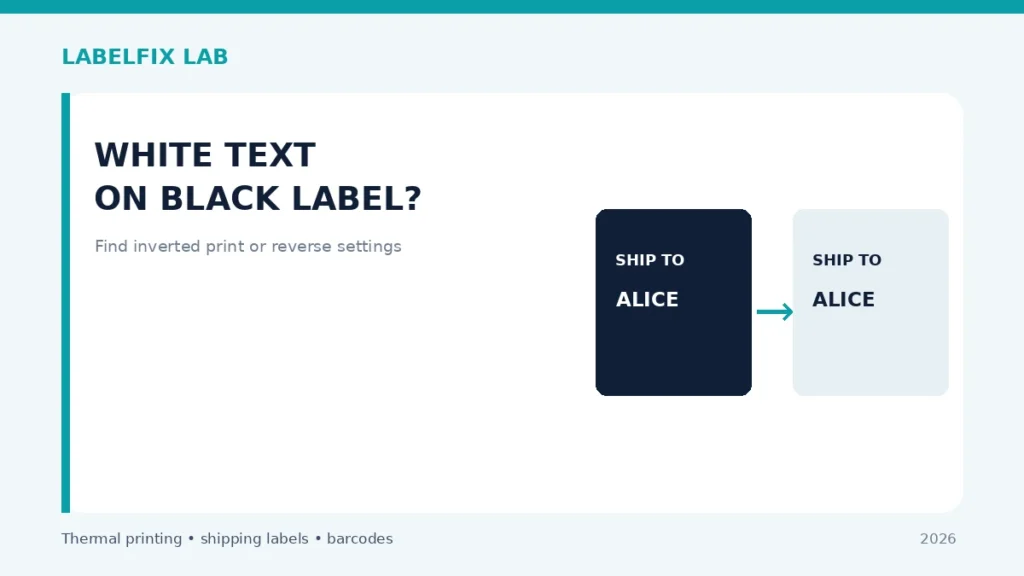
A thermal label that prints with a dark background and light letters may be using an intentional negative or reverse-image setting, or the original file may contain dark fills. This is different from a barcode that becomes one solid black block after too much heat. Before resetting the printer, determine whether the inversion already exists in the PDF or appears only on paper.
First rule: Compare one non-live sample with the original source or device test. Keep track of settings changed and avoid unapproved driver downloads, repair commands or external websites handling live shipping data.
Match the symptom to the correct layer
| Visible symptom | Start here |
|---|---|
| Entire label is dark in the PDF preview | Source design, layers or export |
| PDF preview normal but entire print reversed | Application, driver or device reverse mode |
| Only one graphic area black with merged bars | Rendering, density or damaged barcode |
| One app reverses print; other app prints correctly | Application-specific rendering or preset |
A practical diagnostic procedure
1. Inspect the original downloaded label
Open the carrier’s native PDF in a trusted reader. Check whether address blocks and background are normally white. If the file already contains negative artwork, the label printer cannot invent a white background; request the provider’s correct export where required.
2. Compare a documented printer self-test
A manufacturer-generated sample helps determine whether the device can print ordinary dark text on light stock. If its sample is normal while one PDF becomes inverted, software rendering or settings deserve attention before printhead maintenance.
3. Look for reverse or negative graphics settings
Some printer drivers and vendor utilities expose negative-image or reverse-print choices. Names and availability vary. Record the original setting before changing it; do not apply unknown raw printer commands or copy a code sequence from a different model.
4. Check the printing technology and compatible stock
A standard direct-thermal printer generally creates dark marks where heat acts on compatible coating; it does not physically print opaque white ink. Transfer systems can use different ribbon/media combinations, but the intended contrast still depends on actual materials and required workflow.
5. Distinguish reverse print from excessive darkness
If letters remain normally oriented but bars merge or the background darkens, review the darkness guide and media compatibility. A truly inverted graphic and spreading black bars are not the same symptom.
6. Compare two approved applications
Print one non-live sample from the original carrier PDF using a supported viewer, then compare with the manufacturer utility if applicable. If only one application inverts output, isolate its graphics or driver preset rather than changing roll stock.
7. Check whether barcode colors meet carrier requirements
A negative barcode with light bars on a dark background may not be accepted by the relevant scanning workflow. Do not assume a camera app accepting it establishes carrier compliance. Prefer the carrier-generated original contrast and clear margins.
8. Reprint from the original with one setting changed
After identifying the responsible supported option, restore normal artwork and print a single safe label. Inspect the full routing marks, barcode, address and text. Do not rely on an inverted live shipping label if its validity is uncertain.
What the outcome means
An all-over reversed page with a normal digital source suggests app or device reverse-image mode. A reversed digital source needs a correct original export. A small black block or merged barcode is a separate print/rendering problem.
Final quality and safety check
Before printing real shipments, verify the complete output from the supported carrier or manufacturer application. Confirm the original page dimensions, barcode geometry, unprinted clear area, recipient and service details. A document being readable on screen does not guarantee the physical printer is compatible, and a barcode that one phone scans is not proof of carrier acceptance.
Worked example: a hypothetical diagnostic case
A desktop printer outputs readable white text on an almost solid black rectangle. First inspect the carrier-generated PDF itself: if it already contains a dark fill, no printer heat setting can turn that source into a conventional black-on-white label. If the original file is normal, compare a documented internal printer sample and one supported second PDF application. A normal self-test plus inversion from only one application points toward software rendering or a reverse-image preset. If small bars are simply spreading together while text stays dark, investigate excessive darkness and stock response instead. These patterns may look alike in a small photograph but require different checks.
What not to conclude from one test
Do not ship a reversed barcode merely because one phone can recognize it. Carrier systems may require specific reflectance, contrast and background conventions; preserve the original label layout rather than recreating the data.
Keep an accurate test record with the model, interface, source file, material and original settings, then document one controlled change and its physical outcome. Avoid putting customer identifiers in public screenshots. This is an illustrative scenario, not a claim of direct testing of a particular product.
Frequently asked questions
Can direct-thermal printers print real white ink?
Standard direct thermal uses heat-sensitive media rather than opaque white ink. The materials and printing method matter.
Why do only some PDFs print with a black background?
The document, viewer graphics handling or app-specific presets may differ. Compare the source and a supported second reader.
Should I use a negative barcode on a shipping parcel?
Follow the carrier’s barcode and contrast requirements; do not assume reverse-image output is permitted.
Editorial note: These general procedures are not vendor-specific instructions or proof of live device testing. Use the exact printer manual and carrier specifications. See our technical sourcing policy.
Independent general troubleshooting information for shipping labels and thermal printers. Model-specific button sequences, cleaning supplies and service instructions can differ; consult your manufacturer's official documentation. Never alter a carrier-generated barcode.