Quick answer: To print an authorized FedEx shipping label on a 4 × 6 thermal printer, check three sizes independently: the page size in the original label file, the stock loaded in the printer, and the paper preset used by the driver or printing application. For a true 4 × 6 document, the PDF page measures 101.6 × 152.4 mm (288 × 432 PDF points). When the source, stock and printer settings already agree, start with Actual Size / 100% instead of shrinking the whole document to fit.
This guide helps troubleshoot print output from a legitimately issued FedEx label. It does not create shipment postage, guarantee that one format is accepted by every FedEx service, or claim that the same menu exists in all FedEx printing tools. Output workflows can differ among official portals, business shipping integrations, operating systems and third-party shipping software. Consult the current service instructions for your account and shipping method.
Identify the symptom before you change a printer setting
| What the print looks like | First likely cause | Diagnostic step |
|---|---|---|
| Full label appears tiny in the middle of the sticker | Letter-sized PDF or print scaling | Inspect the source page dimensions and Fit/Shrink setting |
| Barcode or address is cut off at an edge | Wrong width, origin, rotation or printable area | Compare actual stock to driver dimensions and margins |
| Printer feeds a blank sticker | Thermal stock or data/rendering problem | Compare a manufacturer device test with PDF printing |
| Two physical labels come out for one shipment | PDF has multiple pages, job repeats, or feed mismatch | Check page count and printer registration |
| Label prints but barcode fails to scan | Print resolution, distortion, quiet-zone clipping or damage | Inspect barcode and compare a correctly generated original |
| Job sits in the queue or never reaches the device | Software, connection, port or destination issue | Print a harmless text-only sample from a supported host workflow |
Step 1: Obtain the right original FedEx document
Start with the printable shipping label issued by the authorized service used for that package. A confirmation page, email notification, label screenshot, packing list and purchased carrier label may contain overlapping information but are not necessarily interchangeable. Save the original document in the format your account or shipping integration provides. If a shipment has been changed or corrected, use that issuer’s updated document rather than attempting to edit postage, routing information or barcodes independently.
Some shipping systems export PDF pages, some render output through an integrated desktop application, and others send printer-language data to compatible devices. Identify which path your workflow actually uses. A driver setting changed in the browser may not override raw label data sent directly to a printer.
Step 2: Inspect the PDF page dimensions
In a trusted reader, view the PDF page size and count. A standard 4 × 6-inch portrait page is 288 × 432 points. An 8.5 × 11-inch Letter page is 612 × 792 points. A label drawing may occupy only a portion of a Letter canvas, which means a printer dialog can shrink the actual shipping image when it scales the entire Letter page down to 4 × 6 stock.
Our PDF Size Checker measures the source page geometry in the browser. It does not validate the carrier barcode or postage. If your file is a full-sheet page rather than a native thermal label, first check whether the authorized printing workflow offers a suitable 4 × 6 format. Avoid cropping a live label unless all required routing marks and clear margins remain and the issuer permits the format.
Step 3: Confirm that the thermal printer supports the intended label
Thermal printers vary by media width, maximum printable width, print resolution and print method. A model that accepts a four-inch roll may not print ink-like dots across the entire four-inch width. Check both the printer’s paper specifications and the carrier’s current output requirements before selecting a stock preset.
Direct-thermal printers require compatible heat-sensitive labels. Thermal-transfer systems use appropriate stock and a ribbon where supported. A printer that uses neither ink cartridges nor toner can still print fully blank pages if its stock is reversed or incompatible. Check the manufacturer documentation for the exact model.
Step 4: Match the paper size in the driver or shipping application
Measure the actual roll instead of trusting its advertised description. 4 × 6 inches equals 101.6 × 152.4 mm. Some suppliers sell 100 × 150 mm rolls under similar names, but the dimensions are not identical. For die-cut media, consider the gap between labels and the sensor type; those details matter for where a print job ends.
Choose the correct physical printer from the host print dialog and set the corresponding stock size. A stale default printer, saved Letter paper preset, incorrect landscape setting or duplicate printer queue can change output even when the original PDF is correct. If the printing software bypasses the standard host driver, consult its approved print path instead of repeatedly changing the operating-system default.
Step 5: Select scaling and orientation deliberately
For a native 4 × 6 PDF on compatible 4 × 6 stock, begin with Actual Size / 100% and compare the preview with the physical output. Automatically applying Fit to Page or Shrink to Printable Area can reduce a label’s barcode and text. A Letter-sized document sent at 100% to a smaller roll can instead be clipped. These are opposite problems, and one checkbox does not solve both.
Make one change at a time. If a portrait source prints sideways, compare its page orientation with the driver’s feed direction and any rotation option in the shipping application. Repeatedly rotating both the source and printer job may create an upside-down or off-center print.
Step 6: Test with a harmless 4 × 6 sample
Before using paid postage as a test fixture, print our 4 × 6 SAMPLE test PDF. It contains no genuine tracking code or postage and can help expose page scaling, edge alignment and blank-label feed. If the sample is correct but a FedEx label is small or blank, focus on the authorized source document and the specific shipping application’s print settings.
If a manufacturer-generated printer diagnostic also prints blank, focus on supported stock, print method, mechanical imaging and error status rather than the carrier’s label software. A PDF viewer cannot repair a head or ribbon failure.
Step 7: Diagnose the extra blank-label problem separately
Some printouts include an unexpected blank sticker after the real label. The cause might be a second page inside the document, a driver or print queue submitting duplicate jobs, or a printer that cannot detect the next label gap. Check the PDF page count first, then send one harmless sample and observe whether the printer feeds once or twice.
For a feed-registration failure, confirm whether the stock uses gaps, black marks or continuous media. Follow your exact printer’s documented calibration procedure. Calibration may advance several labels intentionally, but it does not correct the proportions of a Letter-sized PDF.
Step 8: Verify barcode quality, not just visible darkness
Carrier barcodes are designed for machine reading. A dark print is not necessarily scannable when its bars are distorted, its quiet space is clipped or its image is blurred. Inspect the complete required symbols, routing information, destination address and edges after printing. Do not magnify or redraw the barcode independently in a graphics editor, and do not cover it with wrinkled reflective tape.
If the label prints too faintly, compare the manufacturer’s supported print settings and known-good stock. Changing darkness without regard to print speed and media can widen bars or damage heat-sensitive material. Our barcode scanning guide covers print-quality checks without claiming that any arbitrary scan test certifies carrier compliance.
Practical example: a FedEx PDF prints at half the expected size
A warehouse has a 4 × 6 roll installed but a saved document that reports an 8.5 × 11-inch page. The print viewer reduces the entire page so it fits on the smaller label. The barcode may remain visually centered, but the physical bar size is too small. The useful fix is to obtain a supported thermal-format original when available and match the page to the printer, not to increase printhead darkness or calibrate the sensor repeatedly.
Practical example: the label is correct but prints sideways
The source PDF measures four inches wide and six inches high, but the printer job defines its stock in the opposite orientation. A print dialog may display the document as if the sheet will be rotated, while the actual roll feeds along its long axis. Compare a non-postage sample, then make one reversible orientation change in the driver or application. Check the final routing marks and barcode before releasing a shipment.
Where FedEx workflows may differ
A browser-based shipping page, an account-integrated desktop program and a third-party order-management system can have different print destinations and export settings. A model’s official driver may support raster PDFs while another workflow sends raw printer-language commands. Do not assume a troubleshooting tip for one account or program transfers to every other environment. Use the full printer model, operating system, source file and actual job path to identify which layer is failing.
Final shipping-desk checklist
- Use an authentic, current shipping label issued by the authorized service.
- Verify that the PDF page size and physical stock agree.
- Check supported printable width, orientation, media type and driver settings.
- Inspect barcode quiet space and all required shipping details.
- Print one harmless sample if the device or queue has changed.
- Keep incorrect or duplicate copies of personal shipment data secure.
- Follow current FedEx service and label-placement requirements.
Frequently asked questions
Can I print a FedEx label on a 4 × 6 thermal printer?
When the authorized label format, printer’s supported width and stock, and current carrier requirements are compatible, thermal printing may be appropriate. Check your actual shipping workflow rather than assuming one format fits every service.
What does a 4 × 6 PDF measure in millimeters and points?
Exactly 101.6 × 152.4 mm and 288 × 432 PDF points in the standard 72-points-per-inch coordinate system.
Why does my FedEx shipping label print tiny?
Inspect whether the source is a Letter-sized page or whether Fit/Shrink is selected for an already correct 4 × 6 PDF. A wrong printer stock preset can also contribute.
Will calibrating my printer fix a tiny barcode?
Not generally. Calibration concerns media registration and feed. A tiny printed image often points to source page size or scaling instead.
Can I use a screenshot instead of the original FedEx label?
A screenshot may omit details or distort barcodes. Use the legitimate carrier-issued printable document and its supported print method.
Related LabelFix Lab guides
- Shipping-label PDF printing too small
- Check the actual PDF page size
- 4 × 6 alignment SAMPLE PDF
- Shipping label sideways or cut off
- Extra blank label after printing
- Thermal printer printing blank labels
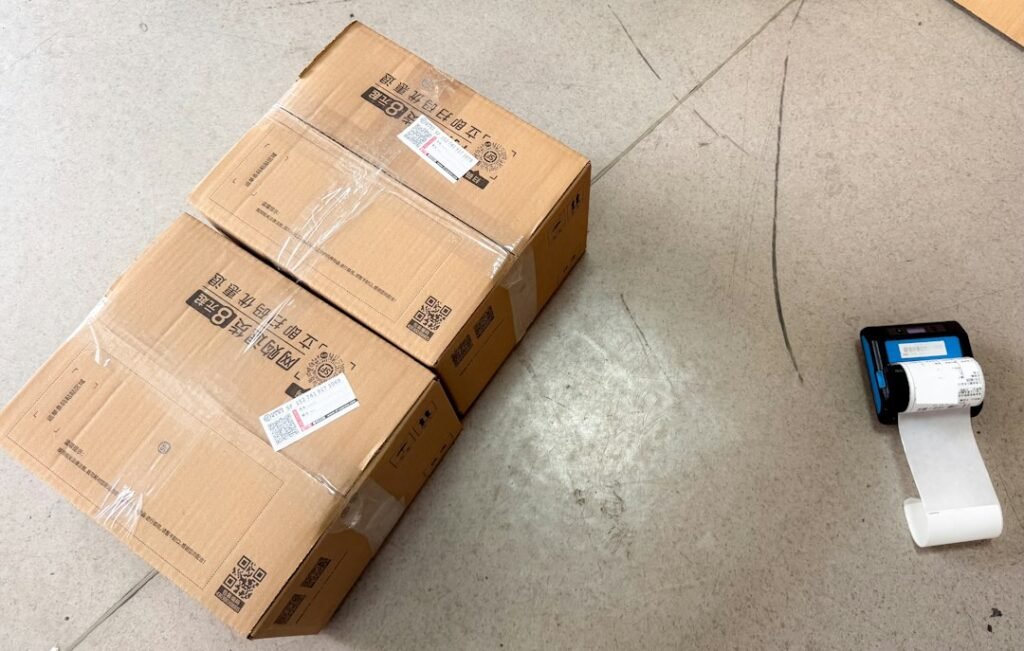
Featured photograph: Karori Production / Unsplash (illustrative shipping desk, not a FedEx-specific setup).
Editorial scope: Physical unit conversions and the troubleshooting hierarchy are general technical guidance. This article is not an endorsement, a report of hands-on FedEx or printer testing, or verification of every current account-specific menu. Check the official shipping service and exact printer manual before production use.
Independent general troubleshooting information for shipping labels and thermal printers. Model-specific button sequences, cleaning supplies and service instructions can differ; consult your manufacturer's official documentation. Never alter a carrier-generated barcode.