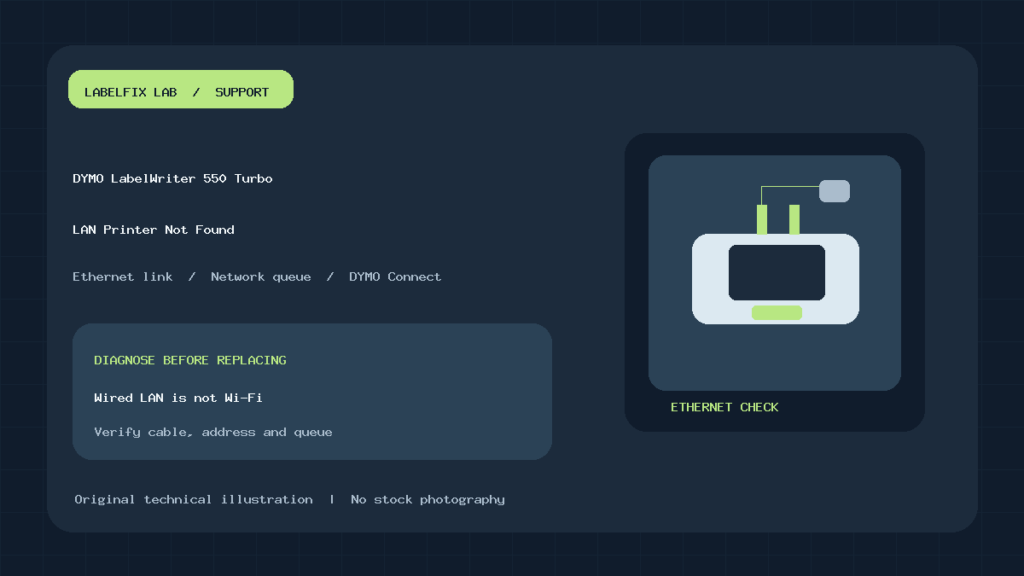
Quick answer: If a DYMO LabelWriter 550 Turbo is not found on your network, start with its built-in wired Ethernet connection, not Wi-Fi pairing. Check the LAN cable and status light, the printer’s address, and DYMO Connect for Desktop on each computer that needs to print. The 550 Turbo has a network-capable LAN port; the standard LabelWriter 550 does not share this exact built-in Ethernet workflow.
The printer may also appear through USB, and the software can show two separate entries for the same physical unit. A label-roll detection error is not the same as a network-discovery failure. This article separates those layers so you can make a controlled change rather than repeatedly reinstalling everything.
Match the symptom to the failed layer
| Observed symptom | Likely cause group | First controlled test |
|---|---|---|
| No LAN status light | Cable, active switch port, power or link | Compare cable and known active LAN port |
| LAN light on, printer absent in DYMO Connect | Discovery, subnet, app installation or device address | Use Add Network Printer on the intended host |
| Printer appears twice | Simultaneous USB and LAN connections | Identify the entry marked LAN versus USB |
| Printing worked until router replacement | Dynamic IP change or network segmentation | Review the current address and saved queue |
| Printer found, but says labels not recognized | Consumable identification or loading | Test approved authentic DYMO LW stock |
| Local DYMO sample prints, shipping PDF does not | Document size, label preset or app integration | Inspect source file and target queue |
1. Confirm the 550 Turbo and its actual LAN port
Read the product label, not just the queue name. DYMO’s LabelWriter 550 Series User Guide identifies an Ethernet LAN port and LAN status light for the 550 Turbo and 5XL. All three covered series models can use USB, but the 550 Turbo and 5XL have the built-in wired network connection described by the guide.
This is a common source of confusion: a computer that is using Wi-Fi can send jobs through the router to a 550 Turbo connected by Ethernet. That does not make the printer itself a Wi-Fi printer. A Bluetooth pairing or wireless SSID search is not the correct first step for this wired LAN connection.
2. Check the physical Ethernet link before drivers
Inspect that the Ethernet cable is securely seated between the printer’s LAN port and an active switch or router LAN port. The manufacturer’s wired-LAN procedure says the printer’s LAN status indicator should illuminate when connected as expected. Compare with a known functioning cable and port if permitted. Do not plug the device into an arbitrary internet-facing port or alter a managed network without the administrator’s approval.
If the LAN indicator never becomes active, adding a new Windows printer queue will not repair the missing physical link. If it is active but the software cannot locate the printer, proceed to addressing and application discovery. A successful Ethernet link and a usable print path are two different checks.
3. Install DYMO Connect for Desktop on each printing computer
DYMO’s documented setup requires DYMO Connect for Desktop on every computer that will print to the LabelWriter over the local network. Use the current compatible software from DYMO support rather than a random driver package. The guide instructs users to install the software before connecting a printer during initial computer setup. For a network printer, use the software’s supported network-printer installation path.
In the manufacturer’s procedure, choose File → Add Network Printer in DYMO Connect for Desktop and follow the prompts. The exact UI labels may evolve, so use the latest official instructions if the menu has changed. Avoid treating a generic Windows printer entry as proof that DYMO Connect has discovered and selected the correct device.
4. Understand duplicate USB and LAN entries
With both USB and Ethernet connected, DYMO says the same LabelWriter may appear twice inside DYMO Connect, once with a LAN icon and once with a USB icon. This can mislead testing: a local sample could succeed through USB while the network queue remains broken. Select the desired interface explicitly, then repeat the test on the host that normally prints over the network.
A useful control is to print an ordinary small sample through the LAN entry, not the USB one. If the USB sample works and the LAN sample doesn’t, you have narrowed the problem toward network reachability, the LAN entry or application discovery. Don’t attempt to fix it by changing the physical roll immediately.
5. Check DHCP and changing addresses
The DYMO series guide states that the printer is assigned an address dynamically by default. After a router replacement, network reconfiguration or lease change, a saved address may no longer refer to the printer. Work with the network administrator to identify the current address and verify that the computer can reach the same local network.
DYMO also documents a static-IP configuration process: connect the printer by USB, open the printer’s Printer Status page in DYMO Connect, select Configure network, then specify the required static fields. A fixed address may be helpful in some managed environments, but assigning arbitrary values can create conflicts. Do not change static IP settings without understanding the local subnet, gateway and address reservation policy.
Our network printer offline after router restart guide covers general DHCP and stale-port symptoms. The procedure here is specific to DYMO’s LAN-capable device and desktop utility.
6. Rule out guest Wi-Fi and network isolation
A laptop may be on a guest wireless network while the printer is connected to a staff LAN. Even with both devices on the same router hardware, policy may prevent communication between those networks. Managed offices may segment printers into a dedicated VLAN; discovery services and printer access then need approved routing and firewall rules.
Ask the network administrator to confirm that the computer is allowed to reach the printer’s current address. Do not disable all firewall protections or relocate the printer onto a public network merely to make it discoverable. Generic Wi-Fi printer discovery checks may help explain the host side, but the 550 Turbo itself is using Ethernet here.
7. Separate label recognition from Ethernet failure
The LabelWriter 550 series has particular media-compatibility requirements. DYMO’s official guide states that it uses authentic DYMO LW labels and will not recognize non-authentic stock. If the printer is detected but rejects a roll, that is a consumables/loading branch; swapping LAN cables will not solve it. Confirm the exact roll and spool alignment before suspecting software corruption.
If the symptom is specifically “labels not recognized,” see our LabelWriter 550 roll detection guide, which treats the supply system separately. Avoid bypassing label authentication or modifying the device to defeat consumable recognition.
8. If network printing works but the label is wrong
A successful connection can still deliver an incorrectly sized document. The selected label dimensions in DYMO Connect, print driver and source PDF must match the loaded label roll. A Letter PDF sent to a small address label cannot be corrected by changing the network protocol. Use an original printer-supported test label as a baseline before examining shipping documents.
The 550 Turbo is not the same class of 4-inch-wide shipping printer as a LabelWriter 5XL. Confirm the exact printer’s supported media width and current DYMO label stock. Do not assume every DYMO device can print a full carrier 4 × 6 shipping label; our 5XL shipping-label guide covers that other model’s workflow.
9. Worked example: printer visible by USB but offline on network
A front-desk computer prints through USB; a back-office laptop can’t locate the 550 Turbo. First identify that the desktop’s working queue is USB. Confirm the printer’s LAN cable and indicator, run DYMO Connect on the laptop and use its supported Add Network Printer function. If no printer appears, compare the laptop’s network and the printer’s current address with IT. When the LAN queue finally sends a DYMO sample label, then recheck the original application.
This isolates a network issue without resetting printer media settings, erasing other computers’ working queues or reformatting postage labels.
10. When should you reset or replace anything?
Reset only after documenting existing configuration and verifying the official reset procedure. Replacing the printer is premature if the LAN link, address or installed software hasn’t been checked. If the hardware link fails across known-good approved cables and ports, or the printer cannot produce its supported self-test, collect the device model, status indicators and test results for DYMO support.
Frequently asked questions
Does the LabelWriter 550 Turbo have Wi-Fi?
The manufacturer’s described built-in network connection is Ethernet LAN. A Wi-Fi-connected computer may access it through the network, but that differs from the printer joining Wi-Fi itself.
Why do I see the same DYMO printer twice?
The guide explicitly notes separate USB and LAN entries when both interfaces are connected. Choose the interface that matches your intended print path.
Can a dynamic IP cause printing to stop?
Yes, if a queue or discovery record still uses the previous address. Verify the current device address and local network policy before using a static setting.
Do all office PCs need DYMO Connect?
DYMO’s LAN setup guide directs installing DYMO Connect for Desktop on every computer that will print over the network.
Manufacturer documentation
- DYMO LabelWriter 550 Series User Guide — LAN setup and static IP
- DYMO help: networking and LabelWriter sharing
- DYMO LabelWriter 550 Turbo product information
Editorial note: This is a manufacturer-sourced workflow, not a hands-on repair report. Network permissions, compatible operating systems and current app menus may differ across installations.
Independent general troubleshooting information for shipping labels and thermal printers. Model-specific button sequences, cleaning supplies and service instructions can differ; consult your manufacturer's official documentation. Never alter a carrier-generated barcode.