Quick answer: If your Brother QL-810W prints a two-color design only in black, leaves the red parts blank, or produces the wrong colors, first check the actual DK roll and the software’s two-color printing workflow. The QL-810W can support black/red printing with the appropriate compatible special media and supported application settings. That does not mean every ordinary white DK label can develop red simply because the design contains red text. Distinguish media compatibility, source artwork and driver/printing-app settings before replacing the printer.
This is independent technical guidance, not hands-on testing of the exact hardware. Brother’s supported DK supplies, software versions and operating-system compatibility can change. Confirm the exact printer and media against official Brother documentation, including the special roll specified for two-color printing, often identified as DK-2251 in supported workflows. Avoid assuming identical capabilities across all QL models.
What does the QL-810W two-color feature actually require?
Brother’s special two-color thermal-label printing depends on the printer, a suitable black/red-on-white label roll and a supported design/printing path. A file showing red text on your computer doesn’t automatically mean the physical label can produce red. Some Brother DK rolls are intended for standard monochrome printing; changing the text color in a PDF does not change the chemistry of ordinary stock.
| Symptom | Likely area | First controlled check |
|---|---|---|
| Black prints, but every red element is missing | Stock/media type or color mapping | Identify installed roll and supported two-color workflow |
| Design preview has red, but physical result is all black | App/driver rendering or wrong stock preset | Use a supported vendor label-editor sample |
| Both colors appear, but edges look weak | Media condition, heat/speed or artwork sizing | Compare a harmless short supported color sample |
| Colors work in editor but not browser PDF | Print application or rasterization path | Keep same printer and roll; change only app |
| Printer is not detected over Wi-Fi | Network discovery and connection | Diagnose connection separately from color |
| Labels cut at unexpected positions | Die-cut versus continuous DK roll and cut settings | Verify the physical roll and template dimensions |
| No image of either color appears | Blank job, incompatible stock or printer imaging | Try supported harmless test and check stock |
1. Identify the QL-810W model, not just the QL family
Read the model identification on the actual unit. The QL-810W, QL-820NWB, QL-800 and wide-format QL-1110NWB have overlapping label concepts, but do not share identical connectivity or output arrangements. A tutorial written for another model may show a software menu or media size you cannot use.
The QL-810W’s network-related issues also differ from those of a USB-only printer. For a model comparison on connectivity, see our Brother QL-820NWB troubleshooting, and for a simpler USB model see Brother QL-700 USB and DK roll guide.
2. Confirm you installed the correct two-color DK roll
Check the genuine part number and compatibility information on the roll packaging. For supported Brother QL black-and-red output, DK-2251 is a widely documented special black/red-on-white continuous label stock. Check the current official supplies guide for your model rather than relying solely on a marketplace title such as “red thermal labels.”
Ordinary monochrome DK stock is not equivalent to special two-color stock. If you can print black but not red using a conventional roll, the printer may be behaving as designed. Test only on compatible material and note the manufacturer-supported finished label dimensions and cutting behavior.
3. Understand how special two-color thermal material works
Two-color thermal printing relies on a compatible media coating and the appropriate application control of the heat/printing process. It isn’t comparable to an inkjet printer mixing cyan, magenta and yellow. The supported outcome is typically black and red on the appropriate white stock, not arbitrary full-color labels.
Don’t attempt to get other colors by changing Windows print color profiles or feeding regular inkjet adhesive paper through the QL-810W. Those changes do not add unsupported ink channels and can damage the print workflow. The design should use the specific output modes and colors the manufacturer documents for the selected supplies.
4. Build one simple supported color test
Before printing a whole batch, create a harmless label in a manufacturer-supported label editor with a short black title and one red test element. Avoid real customer names, tracking numbers or live shipping barcodes. Select the actual installed DK roll and its approved two-color printing configuration.
Print one label and inspect which elements are present. If both black and red show correctly, the printer, stock and app have demonstrated that combination under the test. If the same document sent through a browser PDF prints only black, focus on differences in how the PDF path handles the color data.
5. Why a PDF may lose the red channel
PDF readers and printer drivers can process images differently from a dedicated Brother label editor. A PDF that displays a rich red on-screen may be converted to grayscale, mapped into unsupported values or rasterized without the intended two-color thermal settings. A working editor sample with the same roll helps identify that distinction.
Inspect the current print dialog for color/grayscale processing and verify that the supported two-color output path is selected. Do not guess that every browser, driver or mobile app implements the special thermal color mode. See driver versus label editor versus PDF reader for how settings can be applied at different stages.
6. Check the color and artwork expectations
A design may use gradients, anti-aliased text, transparent overlays and color shades that don’t correspond neatly to a two-color thermal process. A sharp red-and-black sample is a better diagnostic than a complex photographic logo. Use the vendor’s recommended artwork preparation guidelines for the exact media and editor.
Do not assume “red RGB” values in every graphic format will be handled identically. If a supported two-color sample works but a particular logo does not, simplify the artwork on a copy and test again. Preserve the original design and do not alter any actual shipping barcode or product identification data merely to force colors.
7. The roll is recognized, but printing defaults to monochrome
Some printing workflows may retain an old label type or monochrome output preset. Verify the actual DK roll selected in the supported application and check whether its two-color mode is available and enabled. A default setting saved for ordinary stock can produce a monochrome result even if the physical roll is compatible.
Make one documented application change at a time and compare the same harmless sample. If the two-color option is not available, check the current official printer/app support and supply compatibility instead of installing unknown color-enabling utilities from the internet.
8. Print darkness and speed can affect output quality
With thermal printing, media, heat and speed influence visible contrast and bar quality. Special two-color stock may have its own recommended settings. Excessive or insufficient heat can change how the image looks, but maximum darkness is not a universal way to make missing red appear.
Use only manufacturer-supported settings and a controlled test with approved media. A barcode that becomes too dark or blurred can fail to scan even when it appears stronger. Read our too-dark thermal labels and blurry barcode troubleshooting articles if the image exists but its edges degrade.
9. DK roll width and label length still matter
The QL-810W uses supported DK stock arrangements, including die-cut and continuous media workflows where available. The installed roll determines the physical width, while a supported application can set the finished length for appropriate continuous stock. A printer using the wrong saved label dimensions can clip a red heading or cut it off before the finished label ends.
Measure the actual roll and confirm the supported design size. Do not solve missing red by changing page dimensions if the test proves the media or app is monochrome. Our Brother QL-800 wrong DK label size guide explains the geometry layer; the exact QL-810W compatibility still requires its own documentation.
10. Why an ordinary 4 × 6 shipping PDF isn’t a two-color label design
A carrier shipping label may be issued in native 4 × 6, Letter or another supported format and include routing barcodes. A QL-810W with a special red/black roll is not automatically a substitute for a compatible four-inch-wide carrier label workflow. Follow the issuer’s approved document and physical size requirements.
A portrait 4 × 6 PDF has a 101.6 × 152.4 mm page canvas, but not every QL DK roll offers that printable width. Do not shrink or reconstruct the carrier barcode to fit the two-color stock. Our PDF Size Checker
11. Wi-Fi detection and red/black output are different branches
If the QL-810W isn’t reachable over Wi-Fi, first diagnose network association, compatible host application, discovery and the selected printer queue. A device that never receives the print job cannot produce red or black. But if it receives a job and prints only black, networking was successful for that test; investigate stock and print-mode settings instead.
A router restart may change a network destination while the host retains an old queue. Use official setup for the exact printer and avoid weakening router security as a general workaround. See Wi-Fi label printer not found and printer offline after router restart.
12. USB and supported software comparison
Where the exact printer and host setup support a wired connection, a harmless test can help separate local printing from network discovery. Keep the same label roll and source design when testing. If the approved test works from USB but fails through one wireless app, the issue may be the app’s output path rather than the thermal color capability.
Check the supported Brother driver and application versions for your operating system. Avoid adding generic printer drivers that don’t understand the special stock or its documented color mode. A queue working with black text on ordinary DK labels is not proof it can perform the two-color job.
13. What to check if red prints but black is faded
When both colors are present but contrast is uneven, verify compatible stock, how the roll was stored, print speed/heat settings and the quality of the source artwork. Faded regions can arise from media issues or physical printhead contact. Compare a short known-good two-color sample before diagnosing a particular artwork file.
If a recurring blank vertical strip appears on every independent sample, consult official cleaning and repair guidance. Never scrape the printhead or apply inappropriate solvent. See vertical thermal print lines for a general hardware-quality diagnostic.
14. Examples of two-color failure patterns
Example A: ordinary DK roll, red design. The editor shows a red sale message but the physical output is monochrome. The operator identifies that the loaded roll is standard black-print stock and switches only to documented, compatible special two-color media. The printer did not need repair.
Example B: supported two-color roll, grayscale PDF. A vendor-supported sample prints black and red, but a browser print job converts the same design to monochrome. The operator compares the actual PDF output path, selects the documented two-color mode and retests, keeping the physical roll unchanged.
Example C: two colors print but the red text is cut off. The label application still uses a template for a shorter DK roll. The operator measures the actual continuous label design and fixes the supported page length rather than trying to increase thermal darkness.
Example D: phone app cannot print red. A supported desktop editor creates two-color labels, but a mobile app lacks the necessary output settings for the chosen stock. The correct path is to check current software compatibility, not to assume Wi-Fi hardware is defective.
QL-810W red-and-black print checklist
- Confirm the exact QL-810W and a currently supported two-color DK roll.
- Use the manufacturer’s documentation to verify black/red media, such as supported DK-2251 stock.
- Prepare a harmless, simple two-color test in compatible label software.
- Check the editor’s actual roll selection and color output mode.
- Compare editor and PDF/browser output with the same printer and stock.
- Check page geometry and cutting only if the label is clipped or too short.
- Diagnose Wi-Fi and queue delivery separately from thermal color output.
- Change one supported setting at a time; avoid unofficial drivers and workarounds.
- Preserve authentic carrier barcode and identifier dimensions in any shipping workflow.
Frequently asked questions
Can Brother QL-810W print red and black?
The model supports special black/red printing with suitable manufacturer-supported two-color DK stock and compatible output software. It is not a general full-color inkjet printer.
Why does my QL-810W print only black?
Check whether the loaded roll is genuine supported black/red media and whether the label editor and printer output settings enable the appropriate two-color workflow. Ordinary monochrome stock cannot reproduce red simply because the document contains red artwork.
Does every DK label roll support two-color printing?
No. Confirm the exact special roll and current Brother compatibility information; ordinary DK rolls are not automatically capable of red-and-black thermal output.
Why does red print in the Brother editor but not in a PDF?
The PDF printing path may use different color conversion, rasterization or media presets. Compare a supported harmless two-color test with the same roll and printer, then check the chosen application settings.
Can I print arbitrary colors using a QL-810W?
Do not assume full-color printing. The special workflow concerns supported black/red output on compatible stock rather than unlimited colors.
Related LabelFix Lab guides
- Brother QL-800 DK label size problems
- Brother QL-820NWB connectivity troubleshooting
- Brother QL-700 USB and DK stock
- Driver versus label editor printing
- Wi-Fi label printer not found
- Darkness and thermal print quality
- PDF page size checker
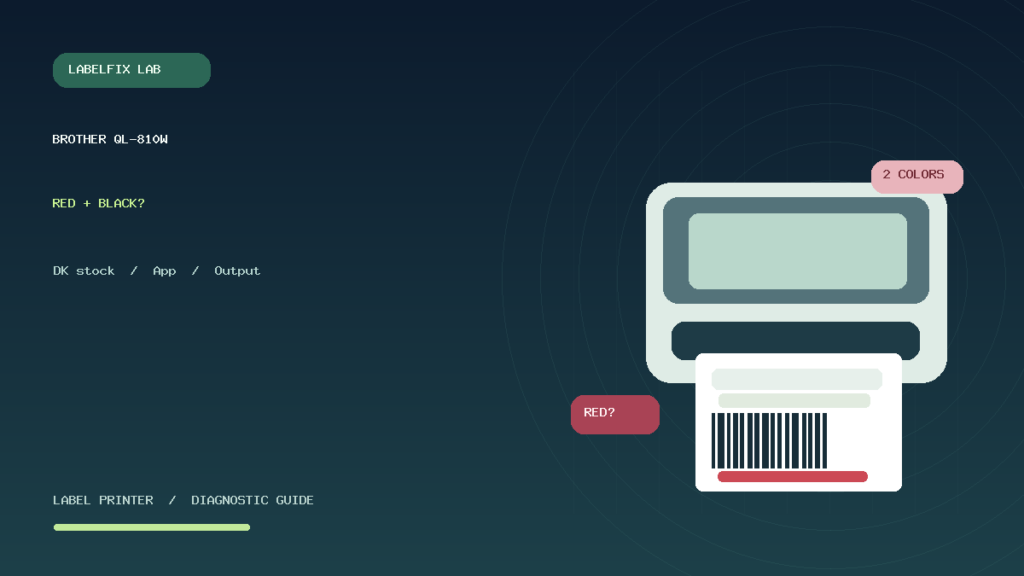
Editorial limitations: This guide describes known printing principles and a model-specific capability without claiming live verification of every Brother software release or DK stock. Consult official QL-810W documentation for current media and application support. The featured illustration is original generic equipment artwork and not an official product image.
Independent general troubleshooting information for shipping labels and thermal printers. Model-specific button sequences, cleaning supplies and service instructions can differ; consult your manufacturer's official documentation. Never alter a carrier-generated barcode.