Quick diagnosis: If a Brother QL-820NWB stops printing labels, first distinguish a connection problem from a job-format or roll problem. If a harmless internal or vendor-supported test prints but a network job never arrives, investigate the device’s connection and selected print queue. If USB printing works but wireless printing fails, prioritize the relevant Wi-Fi or Bluetooth path. If the printer feeds media but the image is clipped or the job is rejected, check the label design, installed DK roll and driver media selection.
The QL-820NWB has multiple supported connection capabilities and media-related options, but their exact availability and interface can depend on the host operating system, printer configuration and software version. This is a model-focused troubleshooting framework, not proof that a particular menu, pairing step or driver release was recently tested. Use the official Brother documentation for the exact unit before changing production settings.
Find the symptom before changing settings
| What you observe | Likely layer | First controlled comparison |
|---|---|---|
| Printer works from USB but not Wi-Fi | Network connection, address, discovery or queue | Verify current network path and selected printer |
| Printer is listed in the app but nothing prints | Stale queue, unsupported app path, driver or port | Print a harmless supported test outside that app |
| Bluetooth pairs but printing still fails | Supported Bluetooth printing integration, app or active connection | Confirm official app/host compatibility |
| Label size is wrong or artwork is clipped | DK roll, design page, auto scaling or media preset | Compare actual roll code and layout dimensions |
| Printer reports no/incorrect roll | Roll loading, compatible supplies or media detection | Check stock and documented loading procedure |
| Print job completes, but a blank label emerges | Application renderer, blank source, stock or imaging | Compare approved internal/test output |
| Only one computer cannot print | That host’s driver, queue or network access | Keep printer constant and compare a working host |
1. Identify the actual print path you are using
The same label printer may be connected over a supported USB link, a local wireless network or a compatible Bluetooth printing workflow. Each path has different discovery and application requirements. A printer being powered on and visible in a settings screen doesn’t necessarily mean the currently selected app can deliver a print job through that interface.
Record the printer’s full model identifier, the operating system and application, whether you are sending a PDF or a label-editor document, and how the host is supposed to reach the printer. Avoid switching USB, Wi-Fi and Bluetooth settings together; first determine which path fails and which one provides a working baseline.
2. Check whether the printer can create an approved test print
Use a documented printer self-test or a harmless sample supported by the manufacturer and the installed roll. A successful printer-generated test shows that the device can produce a physical image under those conditions. It does not by itself prove the computer’s driver or network is correct, but it narrows the diagnosis.
If the manufacturer test fails, inspect supplies, roll loading and printer status before resetting the computer. If it works and a document from one computer fails, concentrate on the selected queue, document format or host-side integration. Avoid wasting real shipping labels while testing.
3. Why USB printing can work while Wi-Fi does not
A working wired path demonstrates that the printer can print at least one job without using the wireless network. It does not prove that the wireless interface is connected to the intended local network, that the host can reach its current address, or that its print queue still points to the right destination.
Check that the printer and host are using a supported network arrangement and that the printer is connected as expected. The device may have joined a different wireless network, lost its address after a router change or become unavailable to clients on an isolated guest network. Ask the network administrator before modifying router security or connecting business printing equipment to another network.
Our Wi-Fi thermal printer not found on network and printer offline after a router restart guides cover those generic network patterns.
4. Don’t confuse printer discovery with an active print connection
A desktop application may remember a previously installed QL-820NWB print queue after the printer has been moved to a different Wi-Fi network or changed address. The printer can still appear in the list, even though the job goes nowhere. Confirm the current destination and status through the operating system’s supported printer settings.
On managed networks, printer discovery protocols, firewall rules and client isolation can affect how a host sees a device. The correct solution is not to disable firewall protection broadly. Make a narrowly scoped, administrator-approved change if official device and network documentation calls for it. Keep a record of the known working configuration.
5. Bluetooth support depends on the host and application
A phone or computer reporting that a Bluetooth accessory is paired does not necessarily prove that the printing application supports the expected protocol. Check the exact supported Brother app, operating-system version, device profile and connection method before diagnosing the label hardware. A wireless symbol on the printer screen is not universal evidence of active data transfer for the app you are using.
If a supported Bluetooth job fails, test a harmless label from the approved application. Compare with a compatible USB test using the same roll and print settings. If USB succeeds but Bluetooth doesn’t, the issue may be the Bluetooth printing workflow, not the thermal mechanism or stock. See label printer Bluetooth pairing on phones for related considerations.
6. Verify the installed DK roll and its actual dimensions
Brother QL label printers use supported DK media arrangements. Some are pre-cut labels, while others are continuous stock intended to be cut to the required length. The exact roll determines available dimensions and printing behavior. Don’t assume every roll fits the same default page or that an off-brand roll has identical detection and material properties.
Identify the actual loaded roll, measure its width and label length or intended continuous cut length, and confirm the manufacturer-supported stock for your model and application. If the printer reports an incorrect/no roll, review the documented installation and media-detection instructions. Avoid bypassing sensors or forcing incompatible materials through the mechanism.
Our Brother QL-800 wrong label size article explains similar DK page-geometry concepts, but printer and connection differences mean you should not blindly reuse another model’s controls.
7. PDF page size and DK label size are different things
A PDF page may be US Letter, A4 or a native shipping-label page. The printer’s actual DK stock can be much narrower than a 4 × 6 shipping roll. If you send a full Letter page through a small label profile, the software may reduce the entire page, crop it or create unexpected output. Matching paper size by guesswork is not a safe fix for carrier barcodes.
Check the original PDF’s page properties and its internal artwork. A portrait 4 × 6 page measures 101.6 × 152.4 mm, but that is not automatically a compatible page for the DK media installed. Prefer a document generated for the actual roll and print method. Our PDF Size Checker reports source dimensions without claiming that the file fits every printer.
8. Compare label-editor output with browser PDF output
A supported label-editor workflow can set dimensions and content according to its own design template. A PDF viewer instead processes an existing document with its own scaling and print dialog. If a test label from a compatible label editor works while a shipping PDF does not, that narrows the problem to document geometry, rendering or application settings rather than the printer hardware alone.
When testing, keep the same roll and printer. Use a harmless synthetic label that contains no real postage or customer tracking information. Check that the correct queue is selected, and compare each application’s page size, scaling and orientation. See thermal printer software: driver versus editor versus PDF reader.
9. Windows: check the selected driver and stuck jobs
In Windows, an old print queue may remain installed after a printer has been reconnected or moved to another network. Verify the selected queue and supported driver for the QL-820NWB and your actual Windows release. If a job stays pending, use the operating system’s documented queue troubleshooting before installing unrelated third-party driver packages.
Test the same harmless document from a supported second app if practical. A job that reaches the queue but never exits is a different problem from a PDF that is blank before the print dialog opens. Our Windows thermal printer queue guide covers spooler and pending-job symptoms.
10. Mac and mobile apps: separate device support from layout
On macOS or mobile operating systems, supported printer discovery and document handling differ from Windows. Confirm the app and current host OS are compatible with the selected QL printer path. A mobile app that can see the printer may still require a supported document or template size before it can generate a printable label.
Do not assume that every AirPrint or generic operating-system printing screen supports every DK roll or custom layout. Use official Brother software and compatibility guidance where needed. For a general Mac diagnosis, see thermal printer not detected on Mac.
11. A printer that feeds blank labels is not necessarily disconnected
If the QL-820NWB physically feeds a sticker but prints no image, the job may be empty, wrongly scaled or incorrectly rendered, or there may be a supply/imaging issue. Compare a manufacturer-supported internal sample and a harmless label-editor test. If those produce a visible image, isolate the failing app or document.
Inspect the loaded roll and printer status if every test is blank. Replacing the driver will not repair incompatible media or a mechanical problem, and replacing the printhead is premature if the hardware can print a proper sample. See general blank thermal labels troubleshooting.
12. If one extra empty label advances after each print
Check whether the stock is continuous or die-cut and whether the design’s page length matches the roll. A fixed extra feed can result from application pagination, label-sensing registration or a cut/tear workflow. A full duplicate printed image suggests another print job or extra page; one empty feed after the correct image suggests different causes.
Record exactly what emerges, including whether the second sticker has any ink/thermal marks. If the same device prints a harmless vendor sample correctly, compare the source application’s output before changing hardware sensing.
13. Handle cutting and roll problems safely
Continuous label stock may be cut according to the approved application design and printer configuration. If a cutter fails or repeatedly cycles, stop the job and follow the manufacturer’s safe maintenance instructions. Never insert tools or fingers into the moving cutter or open hot internal components during a print cycle.
Repeated feed, jams and incorrect cut length are different from a lost network connection. Our cutter not cutting and label printer jam guides describe safer ways to distinguish physical symptoms.
14. Case study: USB works, but wireless printing stopped after moving desks
A workstation is moved to another area and the same printer continues to print over a supported USB cable. Wireless jobs remain pending. The operator confirms the actual network the printer joined and compares the old queue destination with its current network path. Instead of recalibrating DK labels, the team investigates printer discovery and network reachability through approved administrative steps.
15. Case study: the label is cropped on a new DK roll
The printer previously used one die-cut size, then the office installs another roll. A saved label template still expects the old dimensions, so the right edge is clipped. The operator measures and identifies the new stock, selects a compatible layout, and prints one safe sample. Network pairing is unchanged; the fault belongs to media/template geometry.
16. Case study: a PDF prints blank, but editor test works
An authorized PDF displays a complete label in one browser tab, but a white label emerges. The printer’s supported test label prints clearly from an editor with the same roll. That comparison directs attention to PDF source dimensions, renderer and queue settings rather than to a defective printhead. The original shipping barcode should be re-exported through its issuing workflow if the file is incomplete.
Safe QL-820NWB troubleshooting checklist
- Record the exact operating system, app and connection path.
- Confirm the printer can image a manufacturer-supported test with the loaded DK stock.
- For Wi-Fi, check current network and destination without disabling security broadly.
- For Bluetooth, confirm host/app support rather than relying only on the paired state.
- Identify the actual DK roll and compatible design dimensions.
- Compare browser PDF output with the supported label-editor output.
- Inspect page size, orientation, print queue and scaling.
- Change one relevant setting at a time and repeat the same harmless sample.
Frequently asked questions
Why does my Brother QL-820NWB print by USB but not Wi-Fi?
The printer can be mechanically healthy while its network connection, address, discovery or selected print queue is wrong. Verify the intended network path and supported driver rather than resetting the roll sensor.
Can the Brother QL-820NWB print from Bluetooth?
Check the supported connection mode, device and official Brother application for your setup. Bluetooth pairing alone does not guarantee that a particular app can send a printable job.
Why does it say the wrong DK roll is installed?
Confirm the physical roll type and size, its supported compatibility, documented loading and the printer/application label template. Do not force incompatible rolls or bypass media detection.
Why are my shipping labels too small on a QL printer?
The source PDF may be a larger page being scaled to narrow DK stock. Check source geometry and the selected roll’s actual dimensions; 4 × 6 shipping layouts are not automatically compatible with every DK label size.
Why does the printer feed blank stock after the job completes?
Check whether the source has multiple pages, the stock/template length and the selected cut/feed mode. Compare a harmless known-size print to separate software pagination from media sensing.
Related LabelFix Lab guides
- Brother QL-800 wrong label size
- Wi-Fi printer not found on network
- Printer offline after router restart
- Bluetooth label printer pairing
- Print job stuck in Windows queue
- Printer software, driver and editor explained
- Blank thermal label troubleshooting
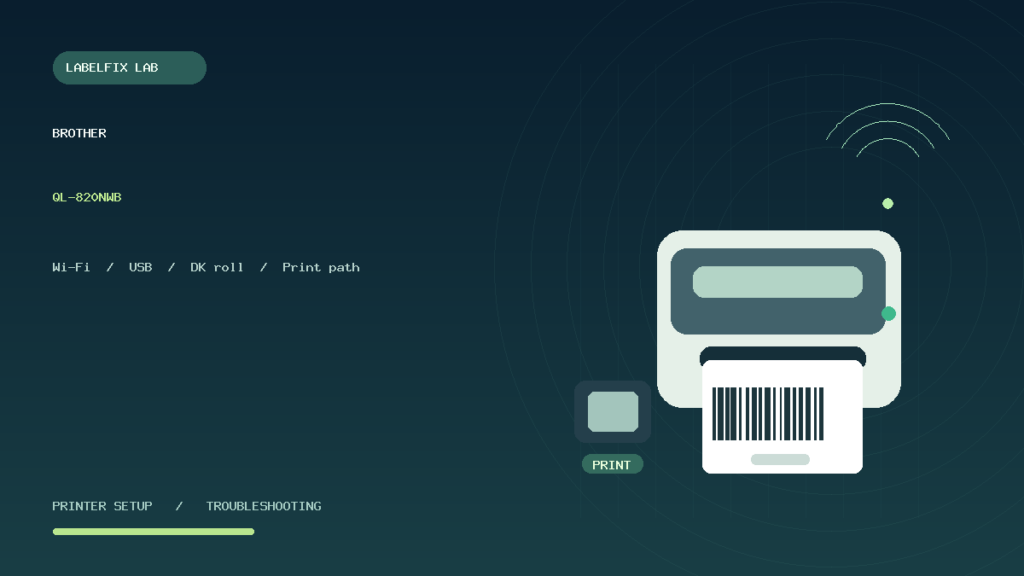
Editorial scope: This is an independent diagnostic guide. Current Brother compatibility lists, driver names and control-panel steps should be confirmed from official product documentation. The original illustration represents generic desktop label-printer hardware and does not depict an actual QL-820NWB product.
Independent general troubleshooting information for shipping labels and thermal printers. Model-specific button sequences, cleaning supplies and service instructions can differ; consult your manufacturer's official documentation. Never alter a carrier-generated barcode.