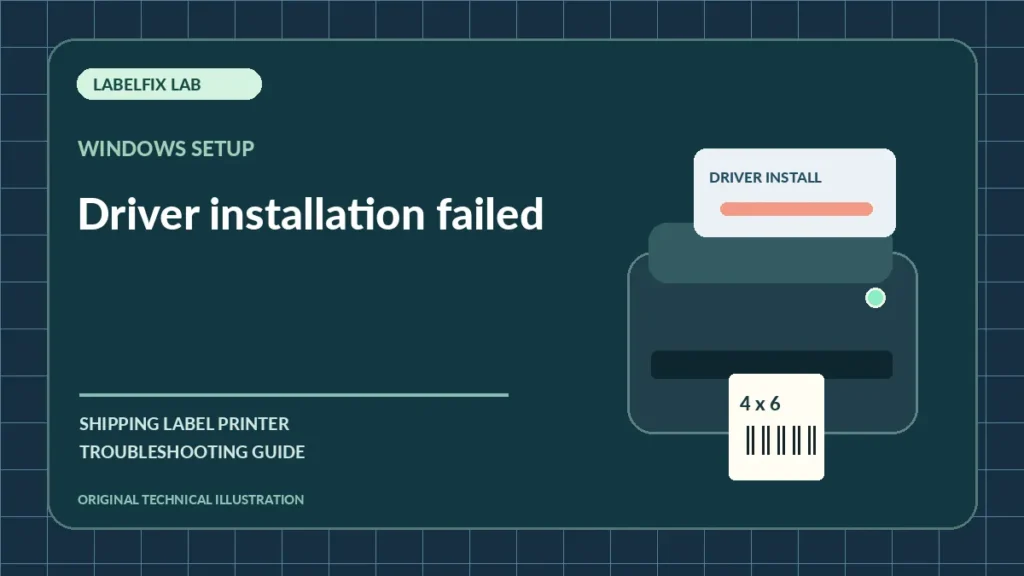
When a thermal label printer driver fails during installation on Windows 11, the installer error is more informative than the printer’s brand alone. A driver package can be incompatible, unsigned, incomplete, blocked by a work policy or intended for a different USB/print-language variant. Treat this as a driver installation problem, not simply a USB detection issue, and resist the temptation to disable operating-system security.
Identify the failure pattern
A symptom may have several possible causes. Use the observations below to choose a starting check rather than making several changes at once.
| Observed result | Start here |
|---|---|
| Installer says operating system not supported | Official driver compatibility and architecture |
| Installation requests administrator access | Permission and organization policy |
| Package installs but printer stays unknown | Device identification and wrong driver model |
| Printer shows in Windows but prints symbols | Print language or driver matching |
1. Capture the exact installation error and model
Record the message, code and stage at which installation stops. Find the complete printer model and interface suffix from the official product label. A model family might include USB, network and different command-language variants; guessing from a similar-looking product can lead to an incompatible package.
2. Download the manufacturer-supported Windows 11 package
Use the printer maker’s official support page. Check that the driver is designated for your Windows version and device, and that the installer comes from a trusted source. Don’t obtain random driver bundles from ad-filled archives or unofficial mirrors just because the original installer fails.
3. Check the system architecture and driver type
Current Windows hardware typically uses 64-bit systems, but driver compatibility must be verified rather than assumed. Distinguish a complete printer driver, setup utility and raw-label SDK; they aren’t interchangeable. Some devices require a specialized printing application rather than a standard Windows queue.
4. Follow the documented USB connection sequence
Some installers require the printer connected before setup, others request disconnection until a prompt. Follow the vendor’s precise instructions and use a known-good USB data cable. A device absent from Device Manager may have a physical or connection problem rather than a defective installer. See Windows USB detection checks.
5. Use approved administrator access without disabling protection
A managed workplace might restrict driver installation. If admin access or approval is required, ask the authorized administrator. Don’t disable antivirus, Windows security checks or driver signing protections based on unverified online advice; doing so can expose the whole workstation to risk.
6. Check for obsolete or duplicate print queues
Previous installation attempts can leave multiple similarly named queues or ports. Identify the actual device and existing settings before removing anything. Deleting every printer queue or driver indiscriminately can disrupt other users and doesn’t address the original installer error.
7. Observe Device Manager after a legitimate installation
If the installer completes, check whether the device appears with a usable driver and whether Windows reports a device error. A visible USB device isn’t proof that the printing command language is correct. Record any Device Manager code and compare it with the vendor’s documented support steps.
8. Send a vendor-supported test before printing a real label
Where possible, run a built-in device test and then one official sample using the new Windows print queue. If the device prints commands instead of a shipping label, the driver or emulation mode may be wrong; consult printer language troubleshooting.
9. Preserve the working baseline for future updates
Once the correct driver installs, document its version, model profile, port and 4×6 stock preset. A future update or new workstation may require the same setup. If installation consistently fails with the official package, contact manufacturer support with the exact installer error rather than flashing firmware as a general remedy.
What to do after your comparison
Do not confuse an installer that fails to run with a printer that installs correctly but cannot print. The right evidence is the driver package version, Windows compatibility, the actual error message and whether the hardware is detectable. Security settings should remain enabled throughout ordinary printer troubleshooting.
Identify which Windows 11 driver installation stage fails
Driver installation failure can mean the installer does not open, a driver package is rejected, or a printer queue exists but cannot communicate. Capture the exact error text and stage instead of applying an unrelated reinstall.
| Observed pattern | First diagnostic check |
|---|---|
| Official installer does not launch | Confirm Windows 11 and system architecture compatibility using the official vendor package. |
| Installer finishes but USB device remains unknown | Check the prescribed connection sequence, data cable and Device Manager error. |
| Printer queue exists but is Offline | Inspect the active queue’s port and the connection status. |
| Windows accepts jobs but prints raw command symbols | Check the official driver and supported print language, not label calibration. |
Controlled follow-up
Record the full model and interface, OS architecture, package version and exact failure stage. Do not disable Defender, driver signature checks or other Windows security protections to force an unknown package to run. Verify recovery with one supported sample label.
Verify the official Windows 11 driver before changing security settings
Primary references to consult: The printer manufacturer’s downloads page for the full model and connection variant, and Microsoft’s Windows 11 guidance for printer installation and Device Manager. A generic similarly named printer driver is not proof of compatibility.
- Note whether the computer uses Windows 11 on an ARM or x64 system, if relevant to the vendor’s driver package.
- Record the exact installer error, device warning and official driver version rather than installing multiple unrelated packages.
- Follow the vendor’s USB connection order and verify one supported sample label before printing tracking documents.
Do not disable driver-signature enforcement, system security or antivirus tools just to force a downloaded driver to install. The editorial policy explains why we do not invent universal installation sequences.
Frequently asked questions
Should I turn off Windows driver signing to install a printer?
No as a general fix. Obtain a verified compatible driver from the manufacturer or consult an authorized administrator.
Why does the driver install but the printer still not work?
The wrong model profile, port or command language may have been selected, or the device may not be connected correctly. Compare device detection and a vendor test.
Is a Windows 10 driver automatically supported on Windows 11?
Not necessarily. Verify compatibility with the printer manufacturer’s current documentation rather than assuming support based on the operating-system name.
Editorial note: The guidance here is independently authored and does not claim direct access to your equipment or manufacturer testing. Menu labels, supported drivers, media and operating procedures vary by device and software release. Follow the exact vendor documentation for unsafe or model-specific actions.
Independent general troubleshooting information for shipping labels and thermal printers. Model-specific button sequences, cleaning supplies and service instructions can differ; consult your manufacturer's official documentation. Never alter a carrier-generated barcode.