A shipping PDF may appear blank in Chrome’s print preview, print blank only from Chrome, or display normally but produce an empty physical label. Those are three distinct symptoms. This guide focuses on separating a browser/PDF rendering issue from a thermal printer that cannot create an image under any application.
Start with the observable symptom
These patterns narrow the troubleshooting path; they are not a guarantee of a specific cause. Record what actually happens instead of changing multiple settings together.
| What happens | Where to start |
|---|---|
| Blank in Chrome preview, normal elsewhere | Browser PDF rendering and source file |
| Preview correct but physical label blank | Driver, printer media or job delivery |
| Only one provider PDF blank | PDF export or document complexity |
| All apps print blank labels | Printer print method, stock or hardware |
1. Preserve a copy of the original PDF
Download the file directly from the shipping platform when available instead of printing a screenshot of its website preview. Confirm the file opens and contains the expected label page. Avoid uploading real tracking and address documents to unknown PDF converter sites.
2. Compare Chrome’s preview with another supported reader
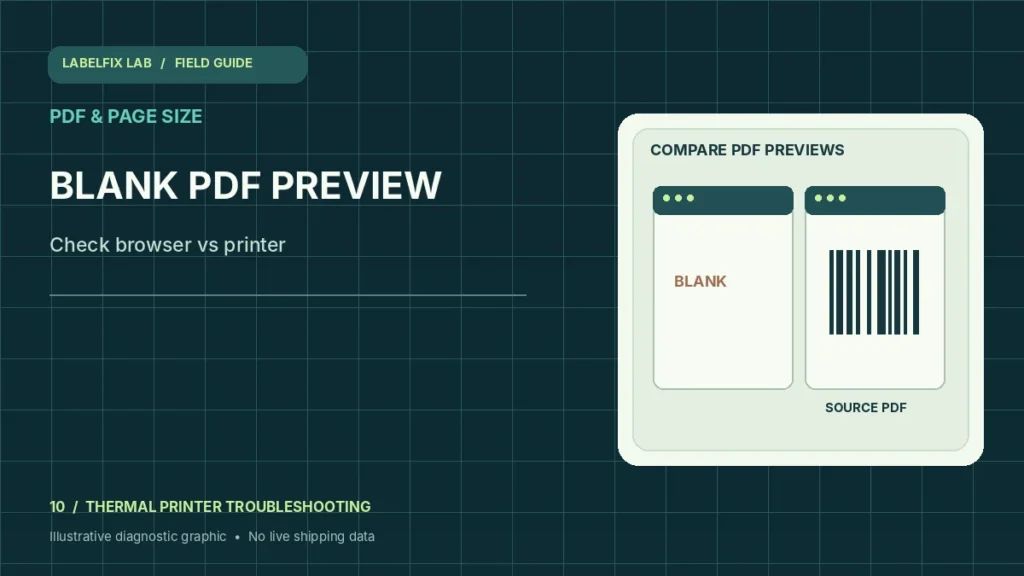
Open the same saved PDF in a trusted reader such as the operating system’s or another vendor-supported PDF viewer. If it displays there but Chrome preview is blank, the document and printer may be okay while the browser’s renderer is involved. Note the browser version rather than assuming a universal bug.
3. Distinguish on-screen blankness from blank paper
If Chrome preview contains the barcode and address but the printer feeds an empty sticker, that is not the same as a blank preview. Check whether a manufacturer self-test prints visibly. Our blank thermal output guide covers media and print method.
4. Check Chrome’s selected destination and page options
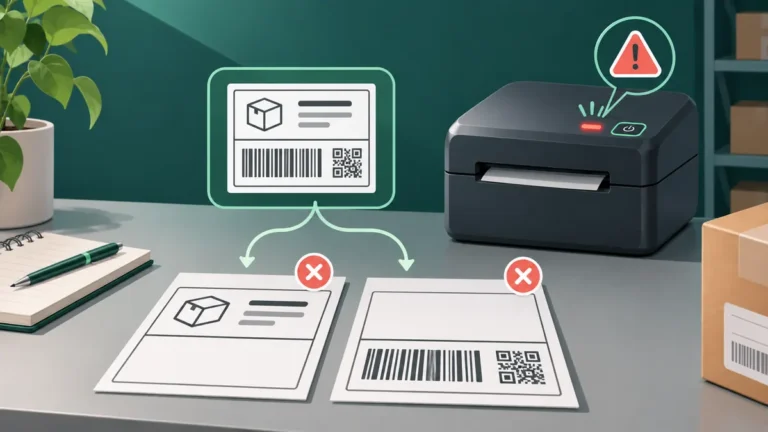
In the print dialog, confirm the actual thermal printer rather than Save as PDF or an old queue. Inspect page count, orientation, scaling and advanced options. A wrong stock preset can cause missing or clipped content, but does not explain an entirely blank on-screen PDF by itself.
5. Check the PDF page box and export format
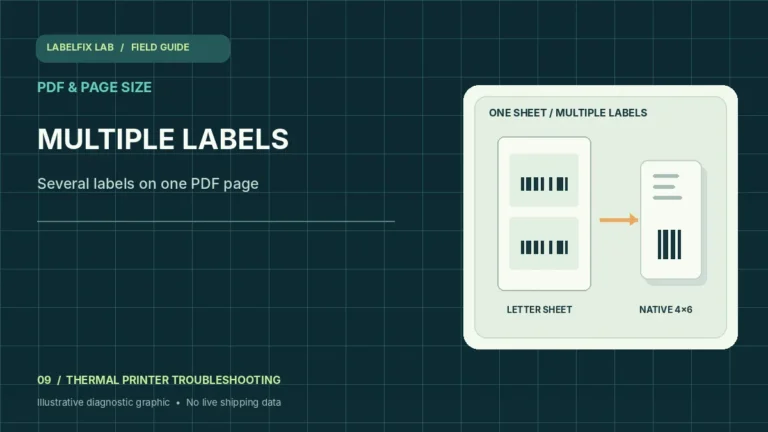
Inspect page dimensions with 4×6 PDF Size Checker. Some shipping platforms deliver a Letter sheet even when a 4×6 printer is selected. Prefer the platform’s genuine thermal-label export instead of using print preview scaling as a substitute.
6. Reopen the file before changing printer settings
Close and reopen the PDF from a fresh, original download, and compare one test. If this one file consistently appears blank across supported readers, ask the shipping platform for a new export instead of rebuilding tracking graphics yourself.
7. Compare a single job with a known-good label
Print one non-live sample from a trusted reader and one device-generated test where supported. If both look normal, focus on the Chrome workflow for the problematic PDF. If every application prints blank stock, diagnose the printer and media.
8. Avoid disabling browser security to make a label appear
Do not follow unsupported advice to turn off browser security, download untrusted extensions or install printer drivers from third-party sites. Keep shipping documents private and use the manufacturer’s and browser vendor’s official diagnostic guidance.
Interpret the outcome before changing more settings
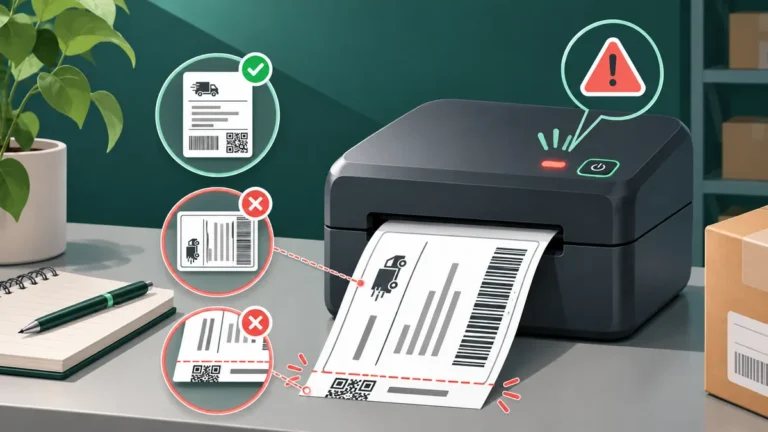
If the shipping page prints the barcode but it is tiny, use our 4×6 scaling guide. If the printer is visible to Windows but never starts a job, see connected but not printing. A browser preview problem should be diagnosed before changing thermal heat settings.
Avoid these common mistakes
- Treating a blank browser preview as proof of a broken printhead
- Using a web PDF converter with real customer addresses and tracking data
- Changing media calibration before confirming the original PDF has visible content
Frequently asked questions
Why is my PDF blank only in Chrome?
Compare the same original document in another trusted viewer. The browser’s PDF rendering or a particular source file may be involved.
Can a wrong thermal label roll make Chrome preview blank?
No. Printer media doesn’t normally determine what the browser shows on screen, though it can cause blank physical output after printing.
Should I convert the label to a screenshot to print it?
Prefer the shipping provider’s original downloadable PDF and a supported print workflow. Screenshots can reduce barcode edge clarity and compromise required margins.
Editorial note: This independent guide provides general troubleshooting, not guaranteed fixes for every model or carrier. Device-specific calibration and safety steps must follow the official printer manual. Label dimensions and software options vary by shipping service.
Independent general troubleshooting information for shipping labels and thermal printers. Model-specific button sequences, cleaning supplies and service instructions can differ; consult your manufacturer's official documentation. Never alter a carrier-generated barcode.