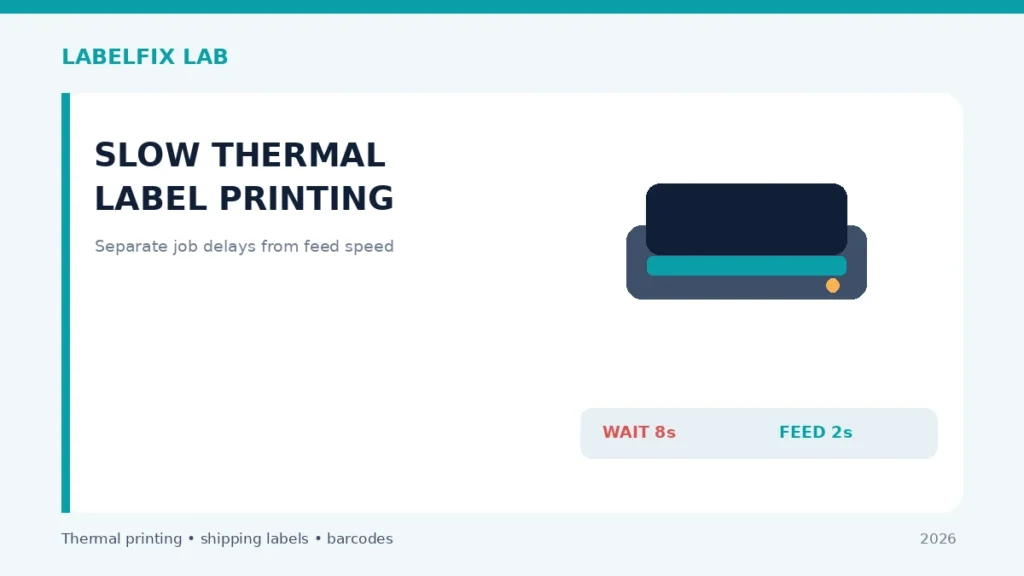
A slow shipping-label printer is not always experiencing a hardware fault. One job can be delayed while a complex PDF is rendered, or the printer may feed stock slowly after receiving data. Those are separate bottlenecks. Measure time to first label and the time between subsequent labels before adjusting heat, drivers or network settings.
First rule: Compare one non-live sample with the original source or device test. Keep track of settings changed and avoid unapproved driver downloads, repair commands or external websites handling live shipping data.
Match the symptom to the correct layer
| Visible symptom | Start here |
|---|---|
| Long pause before the first sticker moves | PDF rendering, driver processing or job delivery |
| First label fast, later labels noticeably slower | Batch handling, print rate or device status |
| Internal test fast, PDF job slow | Host software and graphics conversion |
| Print speed drops with a red or temperature warning | Device error state or supported duty limits |
A practical diagnostic procedure
1. Measure two delays separately
Use a small non-live batch and note the time from pressing Print to the first movement, then the approximate interval between finished labels. Do not change any settings for this baseline. A long first delay with quick successive labels points in a different direction from a feed motor that advances every label slowly.
2. Compare a documented printer-generated sample
Run the manufacturer’s supported self-test or configuration print. If that test feeds normally but the PDF batch is slow, software rendering or communication becomes a more useful starting point. A slow internal print may reflect a configured speed limit or device status, not necessarily a faulty computer.
3. Check whether the original PDF is unusually complex
Rasterized full-page images, large backgrounds and multiple layered elements can require more processing than a simple carrier PDF. Compare two legitimate sample files of equal physical size without reducing barcode quality or converting sensitive shipment files through unknown websites.
4. Inspect the selected driver and actual printer resolution
A model-specific driver may offer print speed, graphics mode and supported DPI controls. If the queue uses the wrong variant, image processing can be inefficient or produce wrong-sized output. Check the exact device’s official driver and supported firmware guidance before experimentation.
5. Compare transport paths where officially supported
For USB printers, check the supported cable and direct connection; for Ethernet or Wi-Fi models, confirm normal network communication. Avoid treating every pause as a slow radio signal. If jobs remain Pending, use the queue troubleshooting guide.
6. Review darkness and speed as a material pair
Thermal printers may expose speed and energy settings, but safe ranges depend on model, media and print method. Fast printing with insufficient energy can produce faded bars. Record settings and make only a documented adjustment while inspecting barcode quality, not simply maximizing throughput.
7. Watch for protected pauses or physical resistance
A printer that stops during long runs might report a temperature or media warning. Check status indicators and mid-job stopping diagnosis. Repeated jams, power interruptions or a tight roll should be resolved before performance tuning.
8. Measure the full shipping workflow
Include the time required to open files, choose the correct orders and verify successful barcodes. A slightly faster mechanical output is not beneficial if it produces unreadable labels or duplicate jobs. Keep the throughput claim tied to your tested model and workload.
What the outcome means
If a printer self-test is fast but the first PDF takes a long time to start, focus on the app, driver and delivery path. If every label advances slowly including internal samples, inspect device settings and model-specific limits. Avoid speed changes that damage barcode contrast.
Final quality and safety check
Before printing real shipments, verify the complete output from the supported carrier or manufacturer application. Confirm the original page dimensions, barcode geometry, unprinted clear area, recipient and service details. A document being readable on screen does not guarantee the physical printer is compatible, and a barcode that one phone scans is not proof of carrier acceptance.
Worked example: a hypothetical diagnostic case
A staff member reports that the first 4×6 label takes twenty seconds to appear but the next nine print quickly. In that hypothetical case, measure the preparation time separately from the printer’s ongoing label interval. The PDF renderer or host print queue may be doing one-time work. In another case, every label advances slowly even during a manufacturer-generated test; then check the model’s speed profile, media limits and status indicators. A third case involves a mid-batch pause accompanied by a documented temperature warning; reducing the PDF’s file size will not address the warning. Recording these patterns is more useful than blindly replacing the USB cable.
What not to conclude from one test
A faster printer rating is not a guarantee of faster actual shipments. Total throughput includes file preparation, data delivery, the device’s mechanics and verification of a complete, scannable carrier label.
Keep an accurate test record with the model, interface, source file, material and original settings, then document one controlled change and its physical outcome. Avoid putting customer identifiers in public screenshots. This is an illustrative scenario, not a claim of direct testing of a particular product.
Frequently asked questions
Will a faster USB cable automatically make labels print faster?
Not necessarily. The bottleneck may be rendering or mechanical output, and the supported printer interface may not benefit.
Can I increase print speed safely?
Only within the manufacturer’s approved settings for your printer and loaded material, followed by a complete print-quality check.
Why is only the first label slow?
Job preparation or rendering can take time before a batch starts. Compare queue and printer behavior.
Editorial note: These general procedures are not vendor-specific instructions or proof of live device testing. Use the exact printer manual and carrier specifications. See our technical sourcing policy.
Independent general troubleshooting information for shipping labels and thermal printers. Model-specific button sequences, cleaning supplies and service instructions can differ; consult your manufacturer's official documentation. Never alter a carrier-generated barcode.