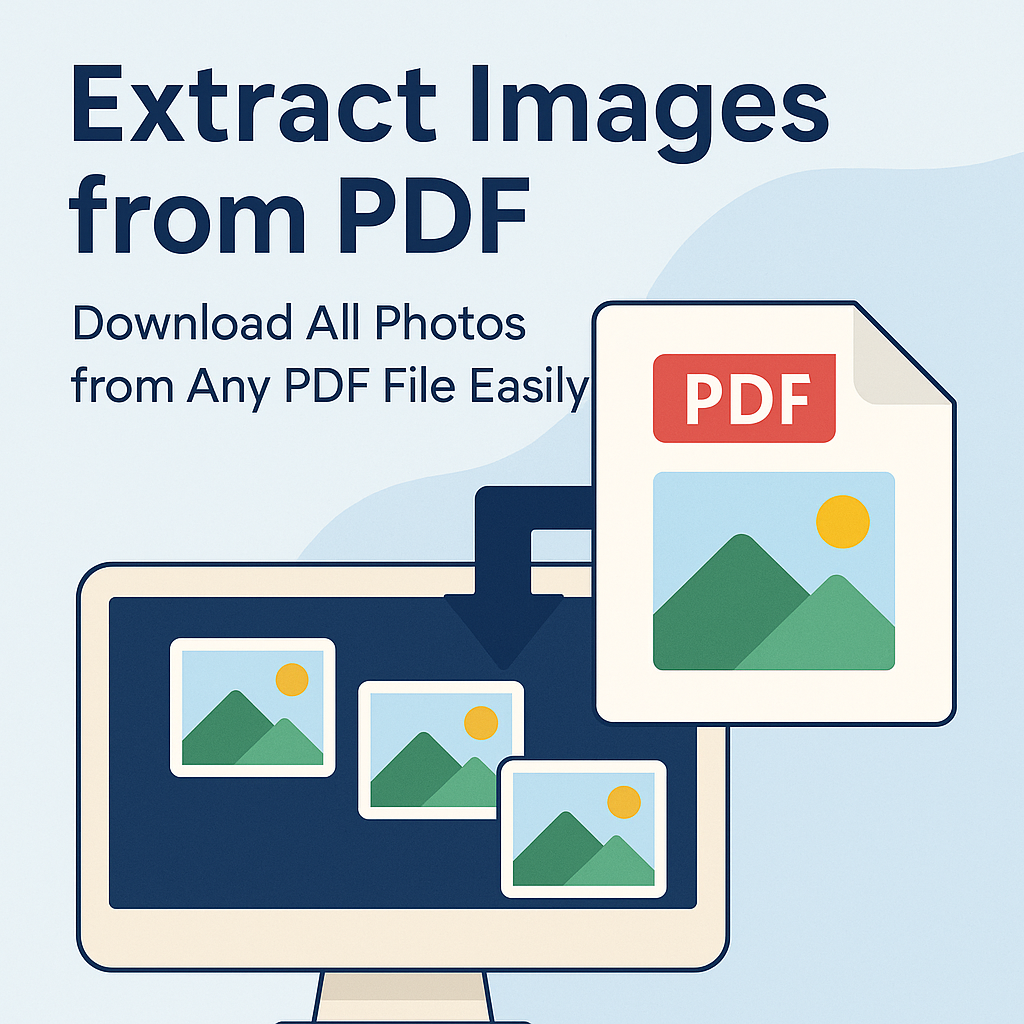
Extract Images from PDF – Download All Photos from Any PDF File Easily
PDF files often contain valuable images — product photos, scanned documents, infographics, charts, logos, and illustrations. But when you need to reuse these images in a presentation, website, report, or social media post, copying them manually from a PDF can be frustrating and time-consuming.
Our free online Extract Images from PDF tool solves this problem instantly. With just a few clicks, you can extract and download every image inside a PDF file in high quality, without taking screenshots or installing any software.
Why Extract Images from a PDF?
1. Reuse Images in New Projects
You might have a PDF brochure, catalog, report, or eBook that contains professionally designed images you want to reuse. Extracting them as files lets you:
- Use them in PowerPoint presentations.
- Add them to websites or landing pages.
- Include them in marketing materials.
- Share them on social media.
2. Save Time Compared to Screenshots
Taking screenshots of images inside a PDF lowers quality and wastes time. Our tool extracts the original images directly from the file, preserving maximum resolution and clarity.
3. Extract Scanned Photos and Figures
If your PDF is a scanned book, scanned document, or a set of old photos, you can extract each scanned page as an image and reuse or edit it separately.
4. Get Graphics and Icons from Reports
Many business reports and research PDFs contain charts, graphs, and visual data. Extracting images allows you to repurpose these visuals without rebuilding them from scratch.
How to Extract Images from a PDF Online (Step-by-Step)
With our online tool, you can extract all images from a PDF file in just a few simple steps:
Step 1 – Open the Extract Images from PDF Tool
Go to: Extract Images from PDF tool
Step 2 – Upload Your PDF File
Click on the upload area or drag and drop your PDF into the tool. It supports:
- Standard PDFs
- Scanned PDFs
- Multi-page PDFs with lots of images
- Catalogs, brochures, eBooks, manuals
Step 3 – Start the Extraction
Click the “Extract Images” button. The tool scans all pages in the PDF and collects every embedded image inside the file.
Step 4 – Download Your Images
Once processing is complete, you can download all extracted images. Typically, they are delivered as:
- Individual image files (JPG/PNG), or
- A single ZIP file containing all images.
You can then open, edit, or upload these images wherever you like.
What Types of Images Can Be Extracted?
1. Photos
Product images, photography, profile photos, and any photo embedded in the PDF.
2. Logos and Icons
Company logos, app icons, and branding elements can be extracted and reused in other designs.
3. Charts and Graphs
Visuals from reports, analytics, or dashboards can be saved as images and reused.
4. Illustrations and Diagrams
Educational PDFs, tutorials, and manuals often include diagrams that are very useful outside the PDF.
5. Scanned Pages
If every page of your PDF is an image (scanned book, document, notebook), each page can be extracted as a separate image file.
Benefits of Our Extract Images from PDF Tool
1. High-Quality Images
Instead of low-quality screenshots, the tool extracts original embedded images at their real resolution.
2. Fast and Automatic
You don’t need to scroll through every page yourself. The system automatically finds and extracts images from the entire document.
3. No Software Installation
Everything happens in your browser. No apps, no plugins, no setup.
4. Works on Any Device
You can use the tool on:
- Windows or Mac
- Android phones and tablets
- iPhone and iPad
- Linux devices
5. Secure & Private
All files are encrypted during processing and deleted automatically after a short period. Your PDFs and images are never stored permanently.
Related PDF Tools You Might Need
You can combine the Extract Images from PDF tool with other tools to create a powerful workflow:
- PDF to Image Converter – convert each page of your PDF into a full-page image.
- PDF to PNG – get high-quality PNG images from your PDF pages.
- PDF to JPG – export PDF pages as JPG images.
- Merge PDF – after extracting and editing, you can merge modified PDFs back together.
- Split PDF – separate pages that contain the images you care about most.
- Compress PDF – reduce file size before or after extraction.
When Should You Use the Extract Images from PDF Tool?
- When you need photos from a product catalog.
- When a designer sends you a PDF and you need the images.
- When studying from illustrated PDFs and you want to save diagrams.
- When preparing slides or social media posts using existing PDF visuals.
- When you need company logos or icons embedded in PDF branding documents.
FAQ – Extract Images from PDF
1. Will the images lose quality?
No. The tool extracts the original image data stored inside the PDF, keeping the best quality possible.
2. Can I extract images from scanned PDFs?
Yes. Each scanned page is treated as an image and can be extracted.
3. Are the images downloaded individually or as a ZIP?
For PDFs with many images, they are typically provided as a ZIP file for convenience.
4. Does the tool support large PDF files?
Yes, but if your PDF is very large, you can first reduce its size using Compress PDF.
5. Is it safe to upload private PDFs?
Yes. Your files are processed securely and removed automatically after extraction.
Conclusion
Extracting images from a PDF no longer needs to be difficult or slow. With our Extract Images from PDF tool, you can download all photos, logos, charts, and scanned pages in just a few seconds — in high quality and with zero effort.
Whether you're a designer, student, business owner, or just someone who needs images from a document, this tool gives you a fast, free, and secure way to get exactly what you need.