Extract Pages from PDF – Easily Split and Save Specific PDF Pages Online
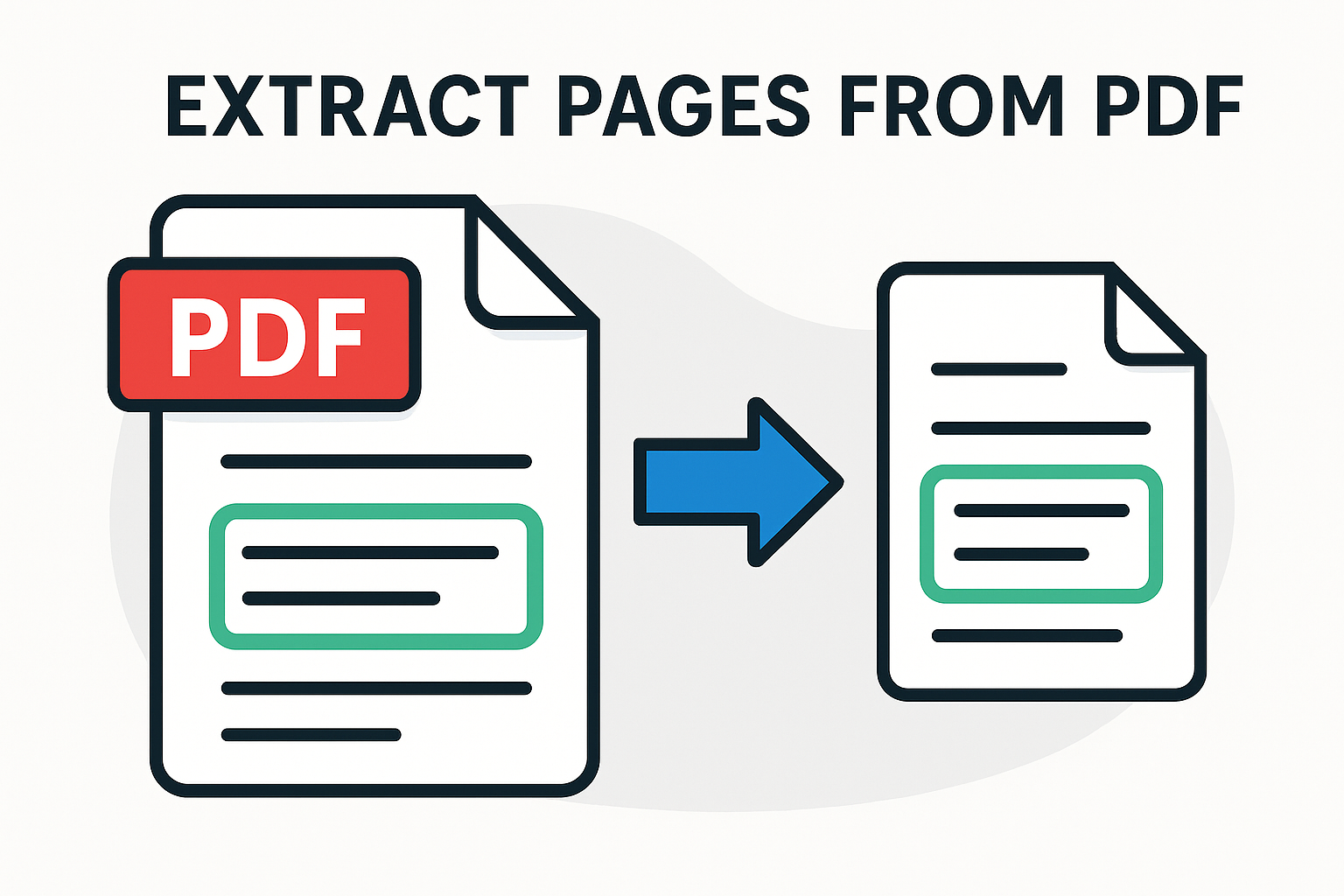
Sometimes you don’t need an entire PDF file — you only need a few pages from it. Maybe it’s a specific chapter from an eBook, a single invoice from a batch, an important contract page, or selected slides from a presentation. Instead of sending or saving the whole document, you can simply extract pages from the PDF and create a new, smaller file.
With our free online Extract Pages from PDF tool, you can quickly choose the pages you want and save them into a new PDF — all in your browser, with no installation and no registration required.
Why Extract Pages from a PDF?
1. Share Only What’s Important
Many PDFs contain dozens or even hundreds of pages. If you only need to send a few pages to a client, teacher, colleague, or friend, extracting pages is much better than forwarding the entire file. It keeps things simple and protects sensitive or irrelevant information.
2. Reduce File Size
Large PDFs can be hard to upload, send, or store. By extracting only the required pages, you can dramatically reduce the file size and make it easier to email or share.
3. Organize Your Documents
If you have one PDF that contains multiple reports, chapters, or sections, extracting pages allows you to split it into smaller documents based on topic, client, or project.
4. Save Key Pages for Quick Access
Instead of opening a large document every time, you can extract and store frequently used pages separately — such as instructions, checklists, summaries, or forms.
5. Prepare Files for Printing
If you only need to print a few pages from a long PDF, it can be easier to extract them into a separate file and print that new, shorter PDF.
How to Extract Pages from a PDF Online (Step-by-Step)
Our online tool makes it extremely easy to extract one or more pages from any PDF file. Here’s how it works:
Step 1 – Open the Extract Pages Tool
Go to: Extract Pages from PDF
Step 2 – Upload Your PDF File
Click on the upload area or drag-and-drop your PDF file into the tool. It supports:
- Standard PDFs
- Scanned PDFs
- Multi-page reports
- Books, manuals, and presentations
Step 3 – Select the Pages You Want
You can choose:
- A single page (e.g., page 5)
- A range of pages (e.g., 3–10)
- Multiple non-consecutive pages (e.g., 2, 5, 9, 12)
Simply enter the page numbers or use the page selection options provided by the tool.
Step 4 – Extract the Selected Pages
Click the “Extract Pages” button. The tool will create a new PDF that contains only the pages you selected.
Step 5 – Download Your New PDF
Once processing is complete, you can download your new PDF file. This document is much smaller, simpler, and contains exactly the content you need — nothing more.
Use Cases for Extracting PDF Pages
1. Students & Teachers
Students can extract:
- Specific chapters from textbooks
- Assignments or worksheets
- Important reference pages
Teachers can share only the pages needed for a lesson instead of entire books.
2. Business & Office Use
Companies often deal with large documents such as:
- Combined invoices
- Monthly reports
- Project documentation
- Employee contracts
Extracting selected pages makes it easier to send specific sections to clients, partners, or departments.
3. Legal & Administrative Work
Lawyers and administrators may only need certain clauses, signatures, or pages from a long contract. Extracting those pages ensures focused communication and better document management.
4. Design & Printing
Designers might want to extract only the design pages from a multi-section PDF before sending to print or sharing with a client.
Benefits of Our Extract Pages from PDF Tool
1. Fast and Simple
There’s no need to install heavy desktop software. Everything runs in your browser in a clean, simple interface.
2. Full Control Over Page Selection
You decide exactly which pages to keep and which to ignore — down to the exact page number.
3. Preserves Original Quality
Extracted pages retain the same quality as in the original PDF. No compression or quality loss is applied unless you choose to compress the file later.
4. Works on All Devices
The tool works perfectly on:
- Windows and Mac
- Android phones and tablets
- iPhone and iPad
- Linux
5. Secure and Private
Your files are processed securely and deleted automatically after a short period. No one else can access your PDFs.
Related Tools to Use with Extract Pages
You can combine our page extraction tool with other PDF tools to build a powerful workflow:
- Split PDF – split a PDF into multiple smaller documents by range or number of pages.
- Merge PDF – after extracting pages, you can merge them with other PDFs into a single file.
- Remove Pages from PDF – instead of extracting pages, remove unwanted pages from the original file.
- Organize PDF – reorder, rotate, or delete pages to restructure your document.
- Compress PDF – reduce the size of your extracted PDF before sending it by email or uploading it online.
- PDF Reader – quickly open and preview the new extracted file in your browser.
FAQ – Extract Pages from PDF
1. Can I extract multiple page ranges?
Yes. You can select multiple ranges (for example: 1–3, 7–9, 15) and the tool will put them all into one new PDF.
2. Will the original PDF be changed?
No. The original file remains intact. The tool creates a new PDF containing only the extracted pages.
3. Is there a page limit?
You can extract pages from large PDFs as well. If the file is very big, you may want to compress the final result using Compress PDF.
4. Does this work with scanned PDFs?
Yes — scanned pages are treated just like normal pages and can be extracted without any problem.
5. Is it safe to use with confidential documents?
Yes. All files are processed securely and automatically removed after a short time.
Conclusion
Extracting pages from a PDF is one of the most practical ways to manage large documents, share only the content that matters, and organize your files more efficiently. With our Extract Pages from PDF tool, you can select and save specific pages into a new PDF in just a few seconds — all online, for free, and without losing quality.
Whether you’re a student, professional, business owner, or casual user, this tool gives you full control over your PDF pages with zero hassle.