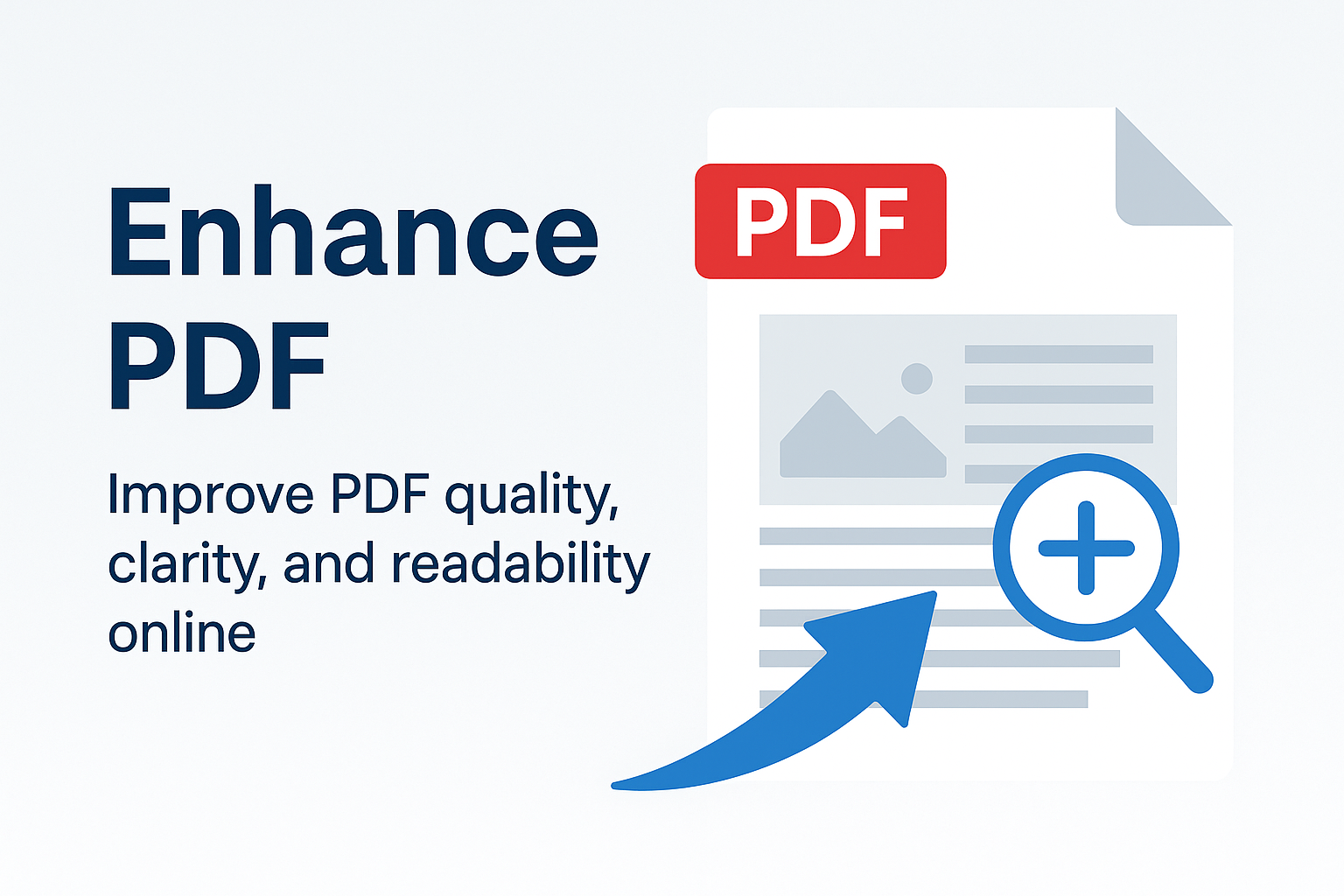
Enhance PDF – Improve PDF Quality, Clarity, and Readability Online
PDF files often lose quality when scanned, photographed, or exported incorrectly. Blurry text, dark backgrounds, low contrast, or faded images can make a PDF difficult to read. With our powerful Enhance PDF tool, you can instantly improve the clarity of your document and make it easier to view, print, and share.
Enhancing a PDF means improving brightness, sharpening text, removing shadows, and adjusting contrast to produce a clean, readable, and professional-quality file — all online, without installing any software.
Why Enhance a PDF?
1. Fix Low-Quality Scans
Many scanned PDFs appear dark or blurred. Enhancing the PDF makes the text sharper and more readable.
2. Improve Readability for Students & Professionals
If you're studying from scanned books, notes, or old documents, enhancement makes pages clearer and reduces eye strain.
3. Enhance Images Inside the PDF
Pictures, graphs, and charts inside a PDF may appear faded. The enhancement process improves color depth and visibility.
4. Prepare Documents for Printing
Enhancing a PDF ensures clean printouts with sharper text and higher contrast.
5. Correct Photos Converted to PDF
If your PDF was created using a camera, enhancement removes shadows and improves brightness.
Main Features of the Enhance PDF Tool
1. Brightness Correction
Improves dark pages, making the background lighter and clearer.
2. Contrast Adjustment
Enhances text visibility by increasing the difference between text and background.
3. Text Sharpening
Sharpens faded letters, making them easier to read, especially in scans.
4. Noise Reduction
Removes grainy backgrounds and unwanted noise resulting from old printers or low-quality scans.
5. Auto Enhancement
One-click enhancement automatically adjusts your entire document.
6. Page-by-Page Enhancement
Choose specific pages if only part of the document needs improvement.
7. Keep Original Quality
The tool enhances the visual quality without reducing resolution or affecting file structure.
How to Enhance a PDF Online (Step-by-Step)
Enhancing PDFs has never been easier. You can improve your document in seconds using any device.
Step 1 – Open the Enhance PDF Tool
Visit: Enhance PDF tool
Step 2 – Upload Your PDF
Drag & drop your PDF or select it manually. The tool supports:
- Scanned documents
- Camera-generated PDFs
- Books & study materials
- Reports & forms
- Multi-page PDFs
Step 3 – Choose Enhancement Level
You can select:
- Light enhancement
- Medium enhancement (recommended)
- Strong enhancement for very poor-quality scans
Step 4 – Apply Enhancement
Click “Enhance PDF” and let the tool process your document.
Step 5 – Download the Enhanced PDF
Your improved document will be ready for download — clean, sharp, and easy to read.
When Should You Use the Enhance PDF Tool?
- When your scanned PDFs look dark or blurry
- If your camera-generated PDFs contain shadows
- When text is difficult to read because of low contrast
- When studying from unclear scanned books
- If old documents need restoration
- To prepare a clean version of a contract or form
Related Tools You May Find Helpful
- OCR PDF – extract text from scanned pages.
- Compress PDF – reduce enhanced file size.
- PDF to Image – convert enhanced pages to images.
- Crop PDF – remove margins before enhancing.
- Edit PDF – add elements after enhancement.
FAQ – Enhance PDF
1. Will enhancement improve scanned pages?
Yes — it fixes shadows, blurriness, and low contrast.
2. Does it support multi-page PDFs?
Absolutely. You can enhance all pages or selected ones.
3. Can I use it for old or faded documents?
Yes — it restores visibility and improves readability.
4. Will it change the resolution?
No — enhancement improves appearance without reducing resolution.
5. Is it safe?
Yes — all files are automatically deleted once processed.
Conclusion
Improving PDF quality doesn’t have to be difficult. With our Enhance PDF tool, you can restore clarity, sharpen text, brighten pages, and make your documents easier to read — all in seconds, directly from your browser.