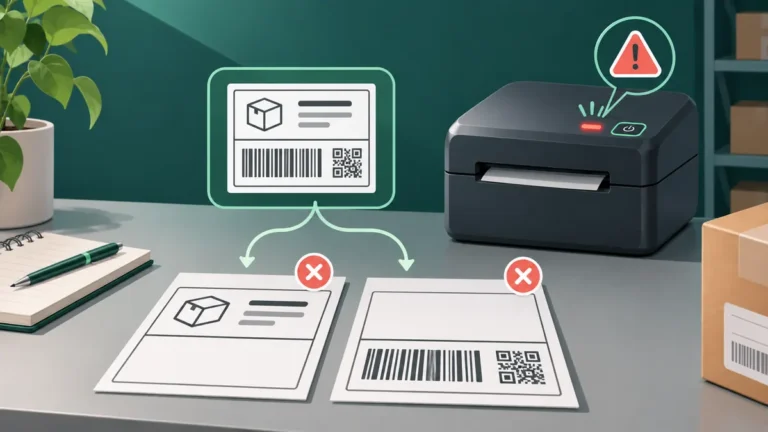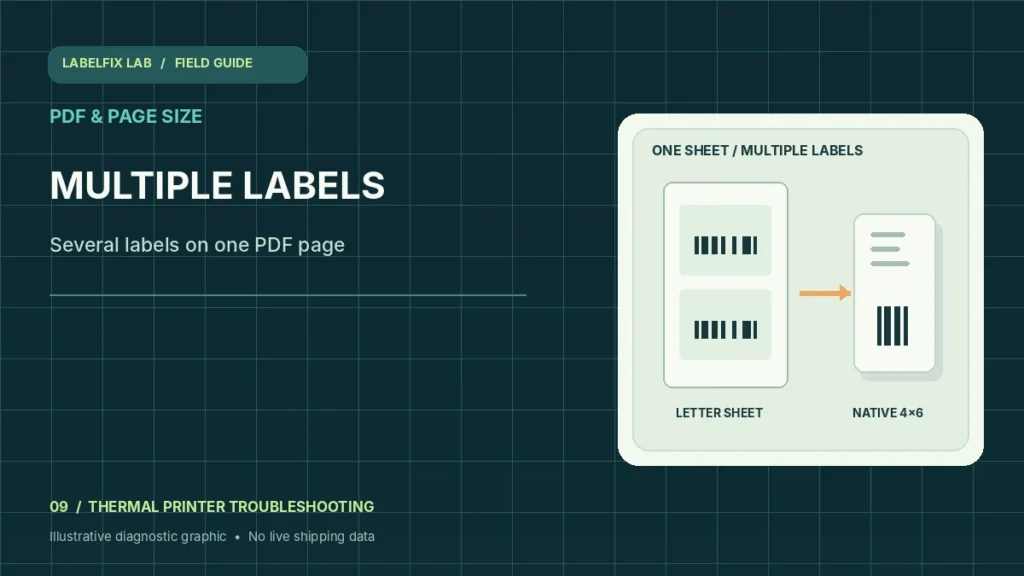
Some marketplaces and shipping platforms export several shipment labels on a single Letter or A4 PDF page. A thermal printer uses a much smaller roll, so trying to shrink the whole page can make every address and barcode tiny. The safest solution is usually to obtain the platform’s native thermal-label export, rather than slicing up a full-size print sheet blindly.
Start with the observable symptom
These patterns narrow the troubleshooting path; they are not a guarantee of a specific cause. Record what actually happens instead of changing multiple settings together.
| What happens | Where to start |
|---|---|
| One Letter page contains two or four labels | Full-sheet export rather than native thermal format |
| PDF has two separate 4×6 pages | Multi-page file, not multiple labels on one page |
| One label is enlarged and others clipped | Wrong printer stock or app tiling |
| Barcodes become tiny when fitting the page | Whole-sheet scaling on 4×6 media |
1. Count pages and labels separately
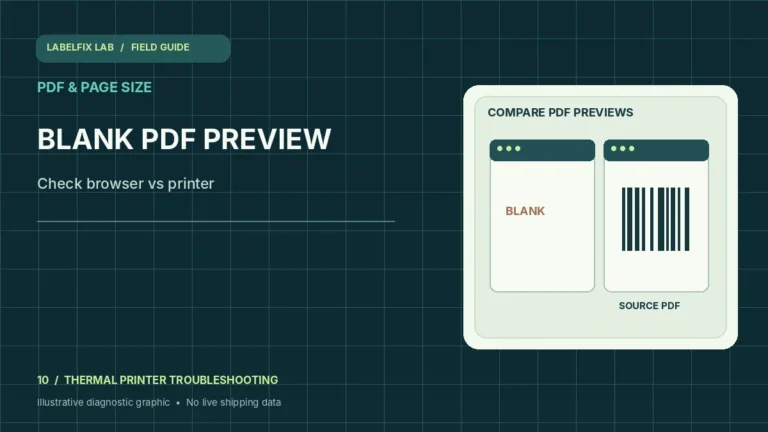
A PDF file can have one page with multiple label graphics, or several pages with one label each. Those are different structures and need different handling. Open the original document and count both physical PDF pages and visible tracking-label panels.
2. Inspect page dimensions before printing
Use our PDF Label Size Checker to learn whether the file canvas is Letter, A4, 4×6 or custom. The checker reads page dimensions; it does not detect individual label drawings or split the PDF into separate output files.
3. Look for a platform setting called thermal or 4×6
Shipping systems often have separate label-format options; names and availability differ by service and account. Where the provider offers a native 4×6 thermal PDF, choose that official export instead of resizing the complete full-sheet document.
4. Do not shrink two barcodes onto one narrow sticker
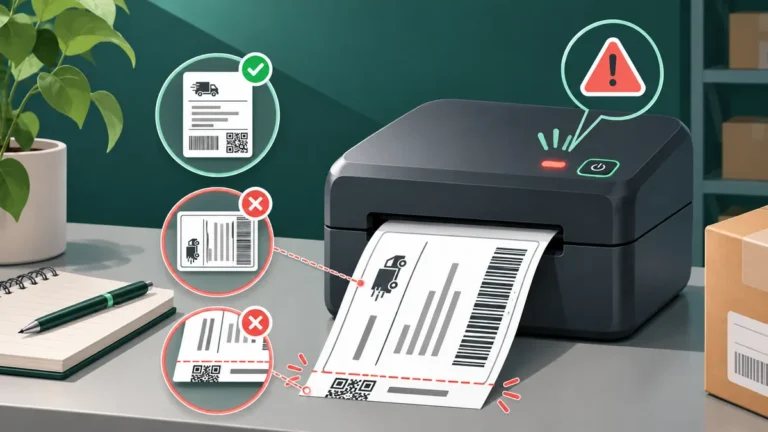
Fit to Page on a thermal printer usually scales the entire PDF canvas, not the individual label you want. That can reduce text below readable size and alter barcode edges. Check the print preview before wasting rolls or compromising tracking symbols.
5. Verify whether each label has a separate PDF page
If the provider exports multiple pages, each exactly 4×6, your printer may be able to print them sequentially when correctly configured. Confirm the number of copies and pages, media sensing, and selected printer before sending a batch.
6. Avoid arbitrary cropping that removes routing data
Every carrier label can contain routing marks, service identifiers, recipient details and quiet zones around the barcode. Cutting an area by eye can omit required information. If manual cropping is necessary, use only the carrier’s documented procedure or an approved tool.
7. Check that page order still matches each order
When printing several labels from one source, verify that every tracking label matches the intended package. A technically readable barcode attached to the wrong parcel is still a serious fulfillment problem. Control the printed batch and label each parcel carefully.
8. Print one non-live test before the full batch
Use a safe sample, inspect all edges, the original dimensions and complete code. Confirm that the printer doesn’t send the remaining PDF pages at the wrong size. Then follow the shipping platform’s documented bulk-print workflow.
Interpret the outcome before changing more settings
A single 4×6 source page being printed across two pieces of physical stock is a separate problem covered in printing on two pages. For a 4×6 label that prints at reduced scale, see printing too small.
Avoid these common mistakes
- Assuming two visible labels means two PDF pages
- Shrinking an entire A4 sheet to fit a single 4×6 sticker
- Cropping barcode quiet zones or routing information without carrier approval
Frequently asked questions
Can the PDF size checker split a file into individual labels?
No. It reports page count, dimensions and orientation only. Use the shipping provider’s correct export format when possible.
Can one Letter page be printed on a thermal 4×6 printer?
A driver may scale it, but shrinking the full page is generally not equivalent to obtaining a proper native 4×6 label and may harm readability.
Why are my barcodes tiny after Fit to Page?
The entire Letter or A4 page has been reduced to fit small stock. Download native thermal-label pages instead.
Editorial note: This independent guide provides general troubleshooting, not guaranteed fixes for every model or carrier. Device-specific calibration and safety steps must follow the official printer manual. Label dimensions and software options vary by shipping service.
Independent general troubleshooting information for shipping labels and thermal printers. Model-specific button sequences, cleaning supplies and service instructions can differ; consult your manufacturer's official documentation. Never alter a carrier-generated barcode.