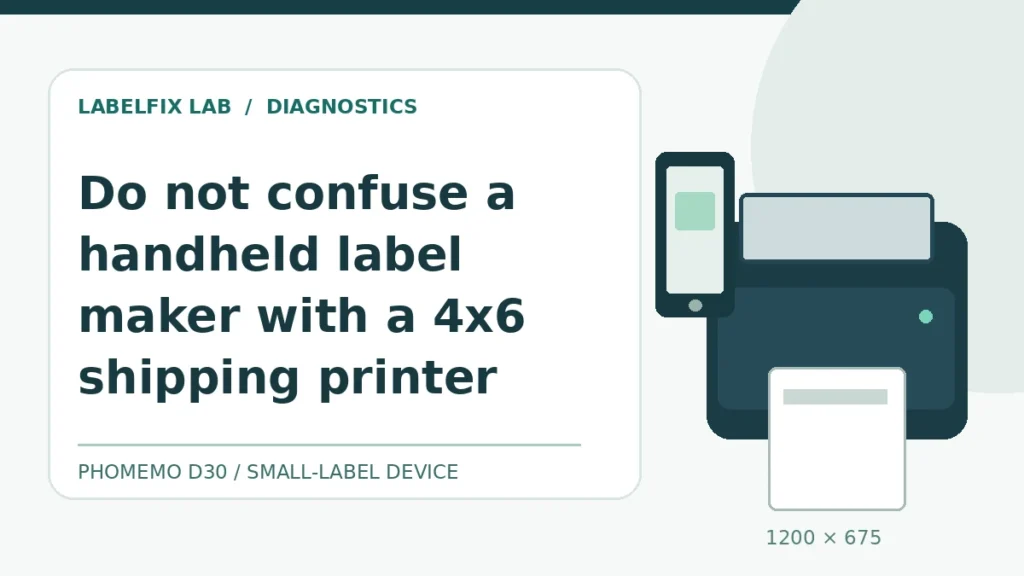
Quick answer: The Phomemo D30 is a compact label-making device used with a phone app, so diagnosing it like a desktop 4×6 shipping printer can send you in the wrong direction. Problems typically fall into one of four categories: the phone cannot discover the printer, the app connects but does not submit the job, the mechanism feeds without a visible image, or the label lands in the wrong place.
First identify the D30 generation, the app shown in your printer documentation, your phone platform and app version, and the exact media roll. Different Phomemo devices and regional app builds can present different menus; this guide does not rely on unverified button-hold resets or an assumed desktop Windows driver.
Identify the failure before changing settings
These observations narrow the fault domain. Run one controlled test at a time, and stop before making hardware changes if the source document itself is empty or wrong.
| What you see | Check next | What it suggests |
|---|---|---|
| Phone cannot discover D30 | Inspect power, Bluetooth state, and app permission | Connection or discovery issue |
| App says connected but printing never starts | Try a simple text-only test inside the app | App workflow or device communication |
| Label feeds but has no visible text | Verify direct-thermal stock and coating orientation | Media/loading or printhead marking |
| Print shifts between label gaps | Check compatible stock and feed path | Media dimensions and sensing |
| Only one saved template fails | Create new short text on a default canvas | Template or app document setting |
Step-by-step troubleshooting
1. Start with a controlled, non-sensitive label
Create a two-word sample such as TEST LABEL in the supported app rather than opening a complex saved project. Keep the design black on white at a readable size and print one label. This removes barcode encoding, font substitutions and imported images from the first diagnostic.
If a simple sample works, the next test should change the template or design, not the printer hardware.
2. Verify that the device is powered and ready
Check whether the device has enough charge and shows its documented normal status. Charge it with manufacturer-supported equipment and inspect for obvious physical damage. A device with low battery or a cover that is not fully seated may fail before any print job reaches the printhead.
Do not open the battery enclosure or improvise a power source to bypass a charging problem.
3. Use the intended app connection path
Check the app named in the documentation supplied with your exact D30 model. Phone-level Bluetooth menus do not necessarily establish the same app-level connection required by a label maker. For Android or iPhone pairing problems beyond this D30 model, see our Bluetooth label printer pairing guide. Follow the app’s supported device discovery flow, checking the printer identity so you do not connect to a nearby unit.
Avoid installing unrelated “universal printer driver” apps that request broad phone permissions.
4. Review Bluetooth permissions on the phone
Android and iOS permission prompts differ by OS version. If the app cannot discover nearby Bluetooth accessories, inspect its current Bluetooth or nearby-device permissions in the phone’s system settings and try again with the device close to the phone. Do not assume that granting unrelated storage or location permission will fix every pairing failure.
If the app updates or the phone OS changes, permissions may need reviewing even when the printer worked previously.
5. Separate app crashes from radio connection failures
If the app opens but a print action does nothing, try a fresh text-only label, then note whether the app freezes, shows a warning, or returns to the editor. If the phone displays a Bluetooth device but the app never lists it, record those as different symptoms.
Update the legitimate app through its normal app store only after preserving any locally saved designs that might not sync.
6. Confirm that the media is the right width and material
The D30 uses device-specific label materials; not every “thermal label” roll fits. Check the packaging for compatible models and inspect the roll path and coating orientation. Replace a damaged leading label and avoid pulling the liner sideways while the mechanism is gripping it.
A small-label maker should not be expected to accept a 4×6 carrier label simply because both products use thermal printing.
7. Distinguish invisible printing from placement errors
If the printer feeds but the sample stays white, focus on material type and whether the printhead marks a known-compatible roll. If the text appears but straddles a gap or cuts off, verify that the selected template dimensions agree with the loaded material.
Use a few small test labels rather than increasing print density dramatically in response to a positioning problem.
8. Prepare a precise support report when the basic tests fail
Document phone model, OS, app name and version, D30 product identification, media part or size, connection behavior, and results of a simple label test. If an error is shown, record its exact wording instead of paraphrasing.
Avoid sharing Bluetooth identifiers or personal information publicly if the diagnostic requires screenshots.
Two distinctions that prevent unnecessary repairs
Why USB-PC instructions may be misleading
A desktop thermal shipping printer often relies on operating-system drivers and print queues. An app-based portable label maker generally follows a different job path. If the sample works on one phone but not another, compare app permissions and OS differences before assuming printhead damage.
Saved templates and unusual fonts
A copied design may reference characters, imported artwork, or dimensions not handled in the same way after an app update. Recreating a short sample from scratch helps distinguish a compatibility issue in the design from a failure to connect to the printer.
Mistakes to avoid
- Applying 4×6 desktop printer driver instructions to the D30.
- Installing unofficial apps or firmware from file-sharing sites.
- Forcing an incompatible label roll into the feed slot.
- Resetting the printer without checking model-specific instructions and saved app designs.
When to ask the manufacturer or your IT administrator
If the same symptom persists after a documented model-specific test with verified compatible stock and a known-good source file, stop repeating resets. Save the exact test results, model identification, software versions and a non-sensitive photo of the failure. Support can use that evidence to choose the next safe diagnostic rather than guessing at replacement parts.
Confirm supported apps, media and update steps at Phomemo’s official website. Menu names may differ by app version.
Frequently asked questions
Why is my Phomemo D30 not showing in the app?
Check power, device identity, the correct supported app and the phone’s current Bluetooth permissions. A listing in system Bluetooth settings does not always mean the label app is connected.
Can the Phomemo D30 print shipping labels?
Do not treat the D30 as a standard 4×6 carrier-label printer. Confirm supported media width and intended applications for your precise model before planning a shipping workflow.
Why does it feed blank labels?
First check the recommended label material, roll orientation and a simple app-generated text sample. A blank label does not automatically indicate a broken printhead.
What should I try if only an old template fails?
Create a new short text label in the supported app with the correct stock size. If it prints, compare the saved design’s fonts, image layers and dimensions.
Related LabelFix Lab guides
Editorial note: This is a manufacturer-neutral diagnostic workflow; model-specific buttons and menu names must be checked against the latest official instructions before use. No claim of hands-on testing is made.
Independent general troubleshooting information for shipping labels and thermal printers. Model-specific button sequences, cleaning supplies and service instructions can differ; consult your manufacturer's official documentation. Never alter a carrier-generated barcode.