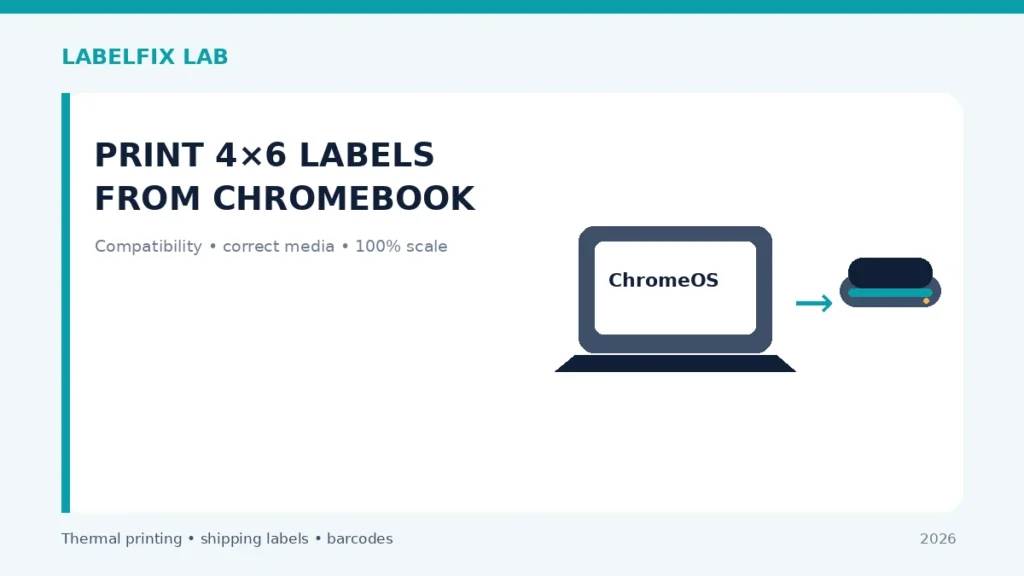
ChromeOS does not automatically support every USB label printer that works with Windows. Some thermal models advertise Windows or macOS drivers but offer no compatible Chromebook print path; others can use supported network printer protocols or an approved app. Start by confirming manufacturer and ChromeOS compatibility before changing the paper-size settings.
First rule: Compare one non-live sample with the original source or device test. Keep track of settings changed and avoid unapproved driver downloads, repair commands or external websites handling live shipping data.
Match the symptom to the correct layer
| Visible symptom | Start here |
|---|---|
| USB cable connected but no compatible printer appears | Device/ChromeOS driver or USB support |
| Network printer is visible but jobs fail | Printing protocol, queue or app compatibility |
| Printer works but 4×6 label is tiny | PDF canvas and stock preset |
| Phone companion app works, Chromebook cannot print | Different supported software workflows |
A practical diagnostic procedure
1. Confirm full model and ChromeOS support
Check the actual printer manufacturer’s compatibility information for Chromebook or ChromeOS. Do not assume that a Windows-only driver package can be installed on a Chromebook. Some specialized shipping printers require proprietary command languages not handled by ChromeOS’s generic printing system.
2. Determine the printer’s connection method
USB, Ethernet, Wi-Fi and Bluetooth variants are not interchangeable. A working Bluetooth pairing with a phone may use a vendor mobile app and might not create a ChromeOS print queue. Use the documented interface and avoid installing unsupported software.
3. Inspect ChromeOS printer settings
Use the supported ChromeOS settings workflow for adding a printer, noting menus can change across releases. If the model is not automatically discovered, only configure it manually with a manufacturer-approved protocol and address. A device listed in a network scan is not proof that it supports the required page description language.
4. Obtain the original carrier-generated PDF
Choose the shipping platform’s documented thermal-label export where offered, rather than copying a screenshot. Inspect its actual page dimensions with the local PDF page-size checker on a compatible browser.
5. Check orientation and stock in the print dialog
A portrait 4×6 label is 101.6 × 152.4 mm, but some roll products are advertised at 100×150 mm. Match the physical roll and the carrier requirements; do not shrink an entire Letter sheet to make it fit. Use Actual Size only when supported by the app and exact source format.
6. Send a vendor-supported sample without real shipment details
If official Chromebook support exists, try one non-live label and observe the printer, queue and physical output. If the printer is Ready but nothing comes out, record the ChromeOS version and connection instead of assuming the roll is wrong.
7. Do not use unknown extensions to bypass driver limitations
Browser add-ons promising universal thermal printer support may request broad file or device access. A shipping PDF contains addresses and tracking identifiers. Prefer supported vendor apps and reviewed extension permissions, and avoid uploading carrier documents to untrusted converters.
8. Use a supported alternative workflow when necessary
If the exact model does not support ChromeOS, a Windows/macOS workstation, documented network print server or officially supported vendor application may be the reliable option. Confirm the chosen method with your shipping software before preparing large batches.
What the outcome means
The first question is whether your particular printer and ChromeOS workflow support each other, not how to make the PDF 4×6. If a compatible queue prints incorrectly, diagnose document size; if it never communicates, focus on supported drivers and protocols.
Final quality and safety check
Before printing real shipments, verify the complete output from the supported carrier or manufacturer application. Confirm the original page dimensions, barcode geometry, unprinted clear area, recipient and service details. A document being readable on screen does not guarantee the physical printer is compatible, and a barcode that one phone scans is not proof of carrier acceptance.
Worked example: a hypothetical diagnostic case
A Chromebook user can open a 4×6 PDF perfectly in the browser but cannot add the connected USB printer. Because rendering the file and sending the proprietary printer language are separate tasks, the first check is whether the exact printer supports the ChromeOS print system or a documented application. A second Chromebook connects to a supported network printer, but the output is tiny. In that case the transport path works well enough to produce paper, so compare the source PDF and driver stock selection. For Bluetooth models that only offer a phone app, ordinary system pairing may not expose a Chromebook print queue. These cases need different responses.
What not to conclude from one test
Do not install Windows-only driver files or unreviewed browser extensions to make the printer appear. Confirm documented support and preserve the privacy of shipping PDFs containing real customer addresses and tracking numbers.
Keep an accurate test record with the model, interface, source file, material and original settings, then document one controlled change and its physical outcome. Avoid putting customer identifiers in public screenshots. This is an illustrative scenario, not a claim of direct testing of a particular product.
Frequently asked questions
Do all USB thermal printers work on Chromebook?
No. Compatibility depends on model, supported print language and ChromeOS workflow.
Can I install a Windows .exe printer driver on ChromeOS?
Not as a normal ChromeOS driver. Use official Chromebook support or a compatible print pathway.
Does Chrome’s PDF viewer guarantee printing?
No. Viewing a PDF and driving a specific thermal label printer are separate capabilities.
Editorial note: These general procedures are not vendor-specific instructions or proof of live device testing. Use the exact printer manual and carrier specifications. See our technical sourcing policy.
Independent general troubleshooting information for shipping labels and thermal printers. Model-specific button sequences, cleaning supplies and service instructions can differ; consult your manufacturer's official documentation. Never alter a carrier-generated barcode.