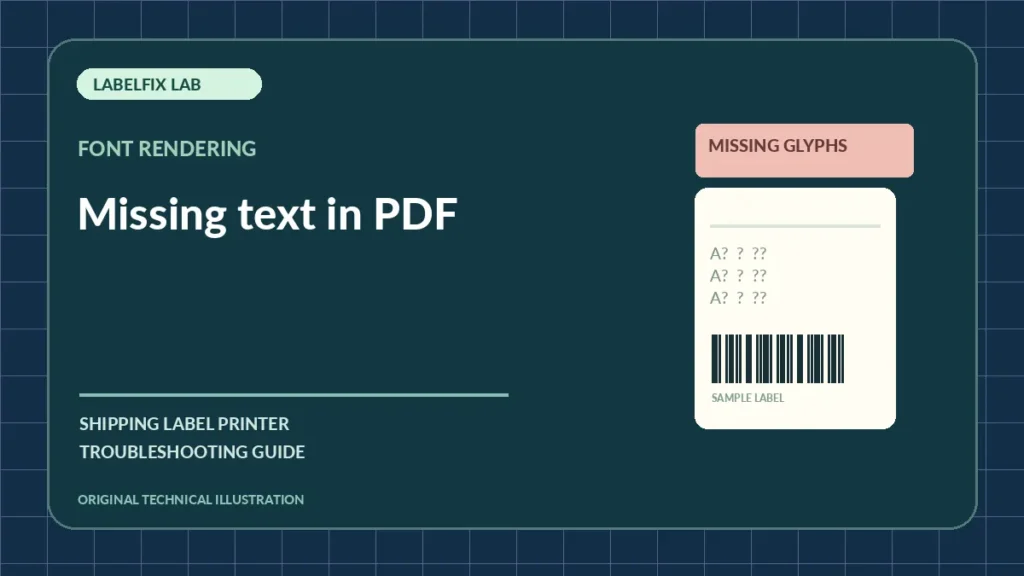
A label may display its barcode correctly while recipient names, addresses or service text disappear in print. In other cases the PDF viewer itself shows missing characters. These outcomes differ: one points toward the document and its fonts, the other toward the application-to-printer rendering path. Avoid reconstructing a shipping label by typing the address over a barcode image.
Diagnose by the visible symptom
A single observed pattern is a starting point, not a guarantee of a specific cause. Compare the PDF, the print job and the printer’s independent test when relevant.
| Observation | First check |
|---|---|
| Text missing on screen in every PDF viewer | Corrupt/incomplete source or unsupported font data |
| PDF displays text but paper omits it | Print rendering, driver or unsupported command path |
| Only a few characters display as blanks | Font encoding and glyph availability |
| Address clipped only near page edge | Page size, margins or orientation |
1. Inspect a fresh original export before testing the printer
Re-download the label from the shipping provider using its intended PDF format. Confirm the document contains the expected address and routing information. A screenshot or printed preview may omit layers, fonts or text that are present in the actual provider file.
2. Compare two trusted viewers on the same local file
Open the saved original in Chrome and a supported desktop PDF reader. If the same characters are missing on screen in both, prioritize the source export or its font handling. If one viewer displays them correctly, compare the rendering path rather than altering printer heat settings.
3. Check whether the issue affects only certain characters
Missing accented letters, symbols or non-Latin text can suggest an encoding or font-embedding problem. Don’t replace special characters manually on a live carrier label. Ask the platform to regenerate the document or follow its official font/export guidance.
4. Print one approved test from a reader that displays correctly
If a trusted reader displays the entire label, send one non-live sample using the supported printer driver. Observe whether all text is missing or just small text. A manufacturer-generated device test can establish that the printer is capable of printing ordinary characters independently of the PDF.
5. Verify the driver and printer-language selection
A printer queue can accept a job yet use an incompatible command language or raster-rendering mode. Check the official model driver rather than a similarly named generic printer. If raw symbols appear, see our printer-language troubleshooting.
6. Check the document page size and clipping
If letters disappear only near one edge, the PDF might be cropped by a stock-size mismatch. Inspect its actual page canvas with our local PDF size checker and the supported 4×6 driver preset.
7. Avoid flattening documents through unknown web converters
Real labels contain names, addresses and tracking identifiers. Do not upload them to untrusted conversion websites. If the shipping provider or manufacturer officially recommends a safe local raster-print option, test it against a non-live file and verify barcode clarity.
8. Reprint only when every required detail is complete
Inspect the address, routing marks, service identifiers and barcode together. A barcode that scans on a phone cannot compensate for a missing recipient address or clipped carrier text. Ask for a fresh official label export if the document remains incomplete.
How to distinguish this from a related failure
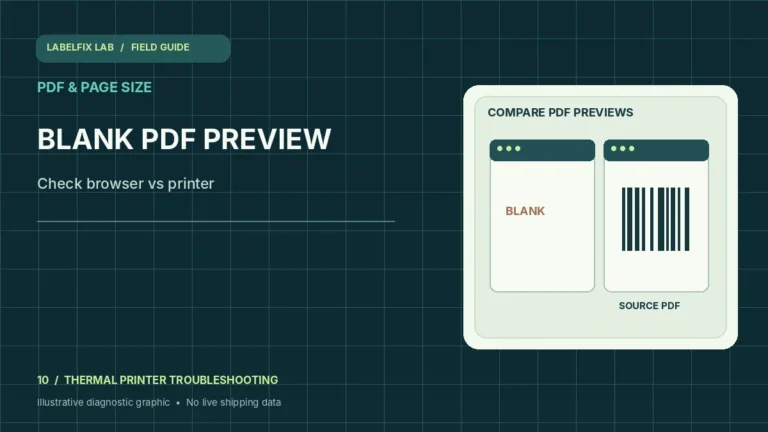
A completely blank browser print preview belongs in blank PDF preview troubleshooting. A label whose content is merely too small belongs in 4×6 scaling. Missing glyphs should not be treated as a media calibration issue.
Final test before using the label
Test with a supported sample and inspect the original shipping file and final print. Verify the complete barcode, quiet zones, address and routing details; check the page-size selection and media if applicable. A successful phone scan is not proof of acceptance by a shipping carrier’s automated systems. Escalate a persistent error with exact device and software details rather than guessing a generic reset.
Frequently asked questions
Why does the barcode print but the address not print?
The file may render fonts differently from barcode graphics, or the driver may mishandle a particular text layer. Compare the original in two trusted readers and the physical output.
Should I type the address onto the PDF myself?
Use a new official shipping-platform export instead. Manual editing may omit required formatting or introduce mistakes.
Can label paper cause letters to be missing in the PDF preview?
No. The physical roll cannot change which fonts are visible in the on-screen PDF document.
Editorial note: These diagnostic checks are independent and general. Device behavior, print drivers, media specifications and shipping requirements vary; follow the exact manufacturer’s current procedures. We do not claim hands-on verification of every model.
Independent general troubleshooting information for shipping labels and thermal printers. Model-specific button sequences, cleaning supplies and service instructions can differ; consult your manufacturer's official documentation. Never alter a carrier-generated barcode.