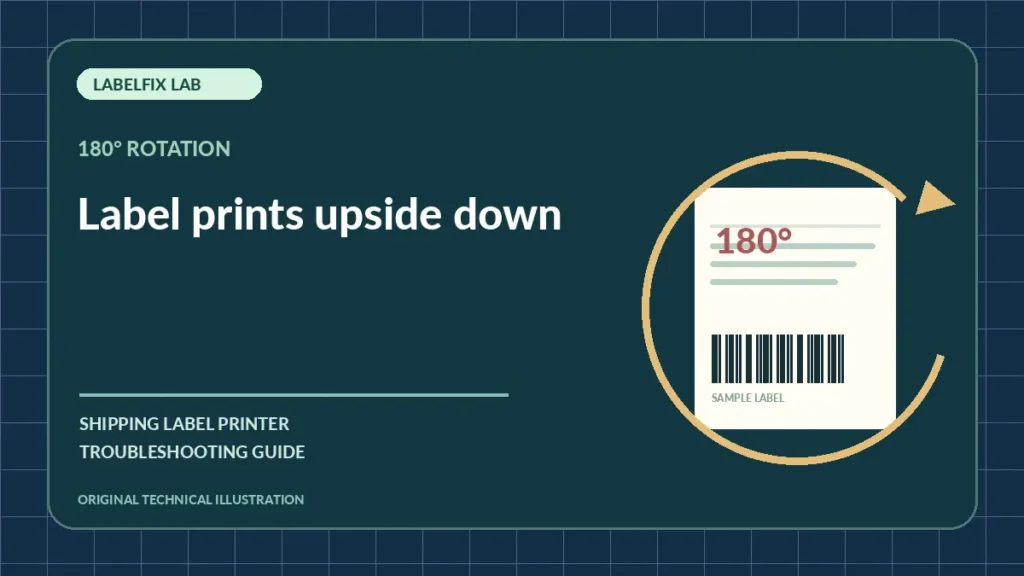
An upside-down shipping label means the content has been rotated 180 degrees. It is not the same as a portrait page printing sideways or an address shifting toward one edge. The printed label may still fit the 4×6 stock perfectly, so changing the page dimensions often creates a second problem.
Quick symptom comparison
Start with what you can observe. A single indicator or printed pattern does not establish a component failure without another controlled test.
| Symptom | First checks |
|---|---|
| Complete label inverted but not clipped | 180-degree rotation or reverse-feed orientation |
| Label rotated sideways | 90/270-degree page orientation |
| Only one shipping app prints inverted | App-specific print preset or rendering |
| All internal tests print in the opposite direction | Device mounting, supported orientation mode |
1. Define the direction using text, not the roll position
Place the finished label upright as a human would read it. If every line is upside down but fully within the boundaries, note a 180-degree inversion. If text is horizontal when it should be vertical, see the sideways-printing guide instead.
2. Open the original shipping PDF
View the file at its normal orientation. Check whether the address text is upright on screen and whether the PDF includes a saved page rotation. A label that is inverted in the source should be corrected through the shipping platform’s official export or a supported viewer option.
3. Check application rotation and driver rotation separately
The PDF viewer, browser print dialog and label-driver preferences may each offer rotation. If both the application and driver rotate by 180 degrees, they can cancel or compound one another depending on the workflow. Change only one layer at a time and record the original choice.
4. Verify stock orientation and feed direction
Some approved printer configurations support different installation or tear-off orientations. Loading a roll with the wrong printable side may instead produce blank output. Follow the model’s documented stock path and do not flip the roll arbitrarily to compensate for software rotation.
5. Print a manufacturer-generated sample
A built-in sample can reveal the printer’s normal feed direction independently of the PDF application. Compare where its first line appears relative to the tear-off edge. A normal self-test with an inverted shipping PDF usually points back to application or document rotation.
6. Keep the physical PDF dimensions unchanged
A 4×6 page is 101.6 × 152.4 mm regardless of content rotation by 180 degrees. Our PDF Size Checker can confirm page size and orientation but does not rotate the page or fix printing.
7. Test with one safe copy and inspect the whole label
Before bulk printing, ensure the address, routing text and barcode remain intact and have the required clear margins. Do not manually redraw barcodes or crop out carrier routing information to make the orientation look better.
8. Save the correct preset for the specific workflow
When the correct setting is identified, save it in the application or manufacturer utility that actually controls rotation. A setting that works in one browser might not persist in a desktop shipping program. Record the method for future workstation setups.
What the results mean
If the page is oriented correctly but physically shifted sideways, investigate horizontal alignment. If your printer prints the label on two physical stickers, the problem is page length or splitting.
Before you return to shipping production
Make a controlled test print, confirm that the barcode, clear margins, recipient address and routing information are complete, and compare with the original shipping document. If uncertainty remains, use the documented test mode for your printer model or contact manufacturer support. Do not use a damaged or partially printed tracking label on a parcel.
Frequently asked questions
Is upside down the same as printing sideways?
No. Upside down refers to 180-degree rotation; sideways typically means 90 or 270 degrees.
Does a rotated label require a different paper size?
No. Rotation of the content does not change a true 4×6 canvas into Letter or A4.
Why are only browser prints upside down?
The browser print dialog or its remembered preset may differ from the driver’s default. Compare with a supported PDF viewer.
Editorial disclosure: This independent guide explains general diagnostic principles. Exact button sequences, errors, media types and service steps vary by printer manufacturer and model. We do not claim hands-on testing of every device.
Independent general troubleshooting information for shipping labels and thermal printers. Model-specific button sequences, cleaning supplies and service instructions can differ; consult your manufacturer's official documentation. Never alter a carrier-generated barcode.