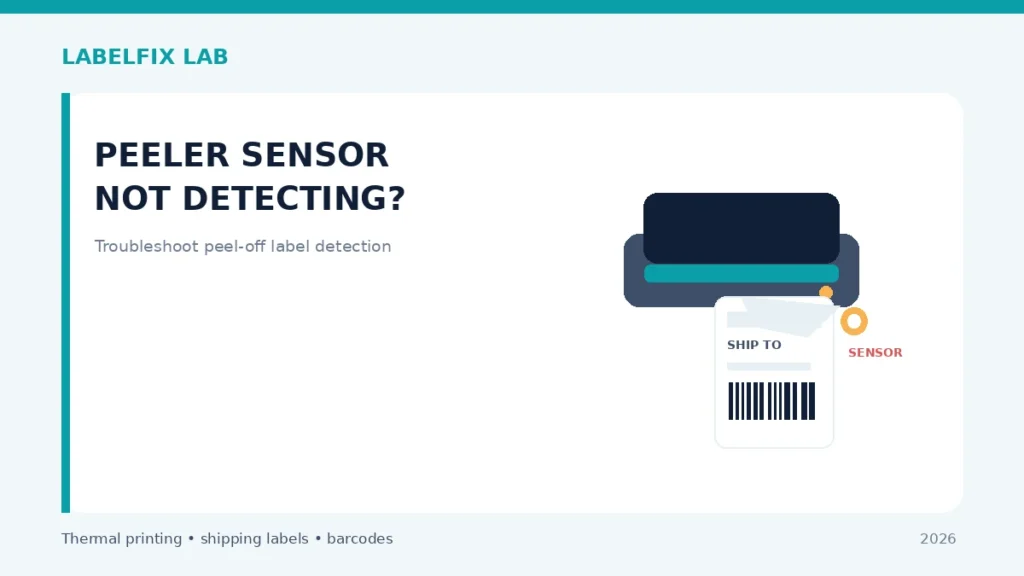
Some thermal printers have an optional peel or label-present mechanism that separates a sticker from its liner and waits until the operator removes it. If a printer remains paused after the label is taken, the cause may be sensor detection or an incorrectly selected finishing mode. This advice is only relevant to devices with a documented peeler or presenter accessory.
Use safely: Record the exact printer and stock model before changing configuration. Keep original settings, make one reversible change at a time, and use non-live test labels rather than a shipment batch.
Quick comparison: what you see
| Observation | Investigate first |
|---|---|
| Label presented and printer waits after removal | Check label-taken sensor and mode |
| Printer feeds complete stickers on backing | Peel mode or rerouted liner not enabled |
| Printer advances an extra sticker without waiting | Presenter settings or sensor configuration |
| Liner catches in the take-up mechanism | Incorrect threading, incompatible stock or jam |
How to diagnose it step by step
1. Verify the installed hardware first
Check the exact model and physically installed accessory in the product manual. A basic tear-bar printer cannot become a peeler by enabling a driver checkbox. Some systems use a separate presenter or rewind unit with different sensors and loading procedures.
2. Observe the expected documented cycle
A typical supported workflow advances a sticker, separates it from the backing and waits for a label-taken signal. A job that stops after its first sticker may also be a document or queue problem; compare our first-label batch printing diagnostic before blaming the peeler. Exact behavior varies. Record whether the printer stops before presentation, after removal or during liner transport; each observation directs you to a different setting.
3. Compare peel mode and tear-off mode
A mismatched finishing setting can change how far stock advances or whether the device pauses. Check the official driver or control-panel settings; record the original mode before a reversible change. Do not substitute auto-cutter controls for peel mode.
4. Inspect the approved liner route safely
Peelers may require backing to follow a route different from standard printing, sometimes around a separator and into a take-up path. Power down as the manual specifies before inspecting. Do not pull against a closed mechanism, expose fingers to a moving roller or defeat a safety interlock.
5. Check the label-taken sensor without defeating it
Some units use a reflective or mechanical detector near the presented sticker. Verify whether the sensor area is blocked by a remaining label, misplaced backing or debris. Clean only with manufacturer-approved materials and avoid poking or bending the detector.
6. Check media compatibility with peel operations
Heavy liners, thick synthetic materials or unusual adhesive constructions may not separate consistently. Compare the manufacturer’s supported stocks with the supplier’s peelability specifications. A material that prints perfectly in tear-off mode may still behave poorly in a peeler.
7. Run a documented sample test
Use a non-live label in the supported peel mode. Observe one full present-remove-resume cycle, then repeat it a few times. If it only fails with a particular stock type, material suitability deserves attention before electronics replacement.
8. Escalate with a precise event description
Provide the device model, peeler accessory version, stock construction, status indication and whether the sensor recognizes an intentionally removed test label. A persistent sensor fault should be serviced through the approved process rather than bypassed.
What the checks tell you
If the printer does not have a peeler, this is not your fault category. If it does, separate the liner route, selected finishing mode and label-taken signal before replacing hardware. For ordinary feed issues, see continuous feeding.
Production-ready verification
Use the vendor’s approved test procedure and an original, correctly sized sample. Confirm the media advances reliably and the final print preserves its barcode, clear margins, address and routing marks. If the manufacturer’s manual disagrees with a generic suggestion, follow that documented model-specific method. Never force feed rollers, bypass sensors or use unsuitable cleaning materials.
Worked example: a hypothetical diagnostic case
A printer with an installed peeler presents the first label, then waits even after an operator removes it. Before treating this as a mechanical jam, compare the documented peel mode with the selected finishing setting and observe whether a visible sticker remnant is blocking the label-taken detector. If the unit instead advances full labels on backing, inspect whether the liner was loaded through the peeler path the manual requires. Another test uses a known-good supported stock: if one adhesive material peels reliably and another repeatedly sticks to the backing, material compatibility deserves attention. Never cover a sensor to force the device to continue.
What not to conclude from one test
This symptom does not apply to printers that have only a manual tear bar. A peeler can be optional hardware, and its sensors and supported stock specifications are specific to the model and installed accessory.
Keep an accurate test record with the model, interface, source file, material and original settings, then document one controlled change and its physical outcome. Avoid putting customer identifiers in public screenshots. This is an illustrative scenario, not a claim of direct testing of a particular product.
Frequently asked questions
Does every 4×6 printer have a label-taken sensor?
No. Peel and presenter mechanisms are model-specific options.
Why does a printer wait after a sticker is removed?
It may not have received the documented label-taken signal, or the finishing mode may not match the accessory.
Can I cover the sensor to make it continue?
Do not bypass sensing or safety systems. Follow documented diagnostics and service instructions.
Editorial disclosure: This is general, independent technical guidance. We do not claim hands-on testing of every printer variant. Refer to the exact model manual, consumables specification and our editorial verification policy.
Independent general troubleshooting information for shipping labels and thermal printers. Model-specific button sequences, cleaning supplies and service instructions can differ; consult your manufacturer's official documentation. Never alter a carrier-generated barcode.