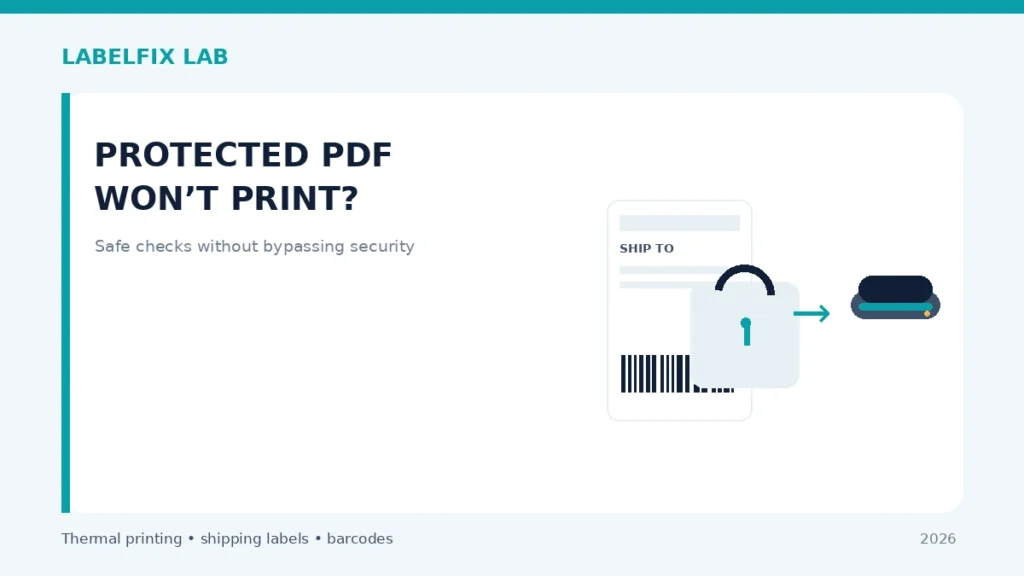
A PDF can fail to open because it is encrypted, request a password, or display correctly while its print option is restricted. These are different document-level conditions, not proof that a thermal printer is broken. Shipping labels can contain personal addresses and tracking data, so the safest first step is to identify the legitimate source and permissions.
First rule: Compare one non-live sample with the original source or device test. Keep track of settings changed and avoid unapproved driver downloads, repair commands or external websites handling live shipping data.
Match the symptom to the correct layer
| Visible symptom | Start here |
|---|---|
| PDF requests a password before displaying | Open-password protection or file access restriction |
| Document opens but Print is disabled | Document permissions or viewer enforcement |
| Only one viewer refuses the file | Viewer compatibility or security behavior |
| Newly downloaded shipping label cannot open anywhere | Potentially incomplete/corrupt export or unsupported encryption |
A practical diagnostic procedure
1. Confirm the label came from the expected platform
Use the official marketplace, carrier or shipping portal, not a forwarded link from an unknown sender. Verify that the file is meant for your shipment and that you are authorized to open it. A password requirement might be an intentional provider security control.
2. Distinguish open protection from print restrictions
Some PDF documents request credentials to view their contents; others may display but limit printing. Read the trusted PDF reader’s exact error message. Do not assume all ‘cannot print’ errors mean password encryption; disabled output can have other causes.
3. Try an officially supported reader
Use a current, trusted desktop or browser PDF viewer that supports the document format. If one viewer fails while another can legitimately open and print, record the difference rather than installing a random PDF password remover.
4. Request the correct password through the legitimate channel
If authorization and a password are required, obtain it from the document issuer using the provider’s official process. Do not guess combinations, attempt unauthorized bypass or post the protected label to a public unlocking website.
5. Generate a fresh shipping label through the original workflow
Many shipping services allow downloading an original label again. If an export was truncated or created in an unsupported format, a fresh legitimate PDF may resolve the problem. Keep order numbers private while contacting support.
6. Separate content access from page-size problems
Once the file opens legitimately, inspect the actual page dimensions and orientation. Our local PDF Size Checker is for readable, supported PDFs and does not unlock encrypted files. A 4×6 page and a password policy are unrelated attributes.
7. Check the selected printer only after the document is usable
If the reader can print to another supported destination but not the thermal printer, verify the correct queue and compatible driver. Do not change encryption or remove protections merely to mask a connection problem.
8. Handle restricted content with privacy and compliance in mind
Customer addresses and shipment identifiers should remain within approved systems. If the provider intentionally restricts printing, contact them for an authorized label format. Never treat a bypass as equivalent to carrier approval.
What the outcome means
A password prompt requires legitimate access; a restricted Print option requires understanding provider permissions; a readable document that only fails on one printer needs ordinary queue/driver diagnosis. Fix the correct layer instead of using an untrusted PDF unlocking site.
Final quality and safety check
Before printing real shipments, verify the complete output from the supported carrier or manufacturer application. Confirm the original page dimensions, barcode geometry, unprinted clear area, recipient and service details. A document being readable on screen does not guarantee the physical printer is compatible, and a barcode that one phone scans is not proof of carrier acceptance.
Worked example: a hypothetical diagnostic case
A shipping manager receives a document that asks for a password before showing any address or barcode. That is an access issue, not a print-density fault. Use the verified provider channel to obtain authorized access or a fresh export. In a different case the PDF opens normally, but the reader disables the Print command; the restriction or viewer’s capabilities should be checked before changing printer drivers. A third file opens and prints from one trusted reader but not another, suggesting a format or application difference. None of these observations authorizes uploading protected customer labels to unknown unlocking websites. Once legitimately readable, check page size and carrier format separately.
What not to conclude from one test
Encryption, document permissions and a broken printer are distinct issues. Do not recommend bypassing access controls or treating a password prompt as a harmless glitch; privacy and the document issuer’s requirements take precedence.
Keep an accurate test record with the model, interface, source file, material and original settings, then document one controlled change and its physical outcome. Avoid putting customer identifiers in public screenshots. This is an illustrative scenario, not a claim of direct testing of a particular product.
Frequently asked questions
Can the free PDF Size Checker unlock a password-protected label?
No. The tool measures readable page dimensions and does not remove encryption.
Is every PDF print error caused by a password?
No. Viewer, application, driver, queue and document errors are distinct.
Should I upload a protected shipping label to an unlocking site?
Not unless you have an authorized, trusted workflow and appropriate privacy protections; asking the issuer is safer.
Editorial note: These general procedures are not vendor-specific instructions or proof of live device testing. Use the exact printer manual and carrier specifications. See our technical sourcing policy.
Independent general troubleshooting information for shipping labels and thermal printers. Model-specific button sequences, cleaning supplies and service instructions can differ; consult your manufacturer's official documentation. Never alter a carrier-generated barcode.