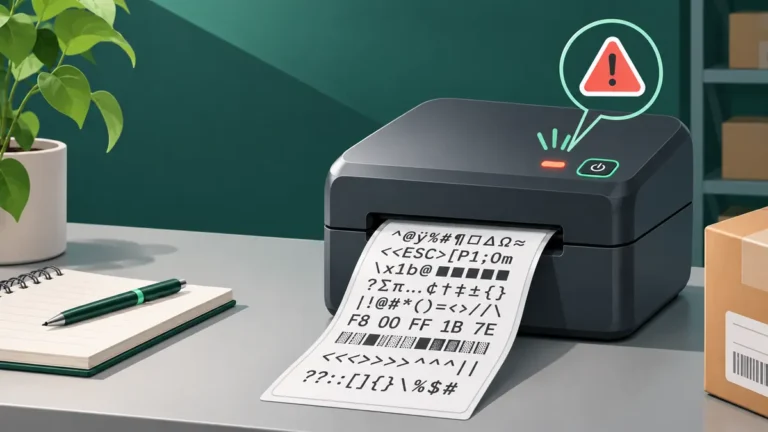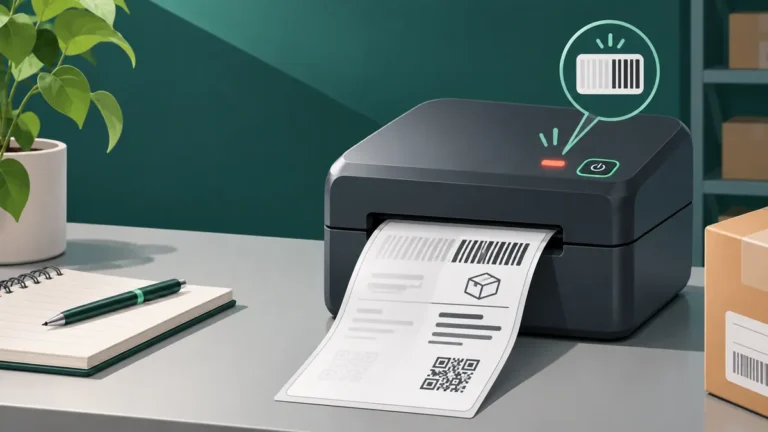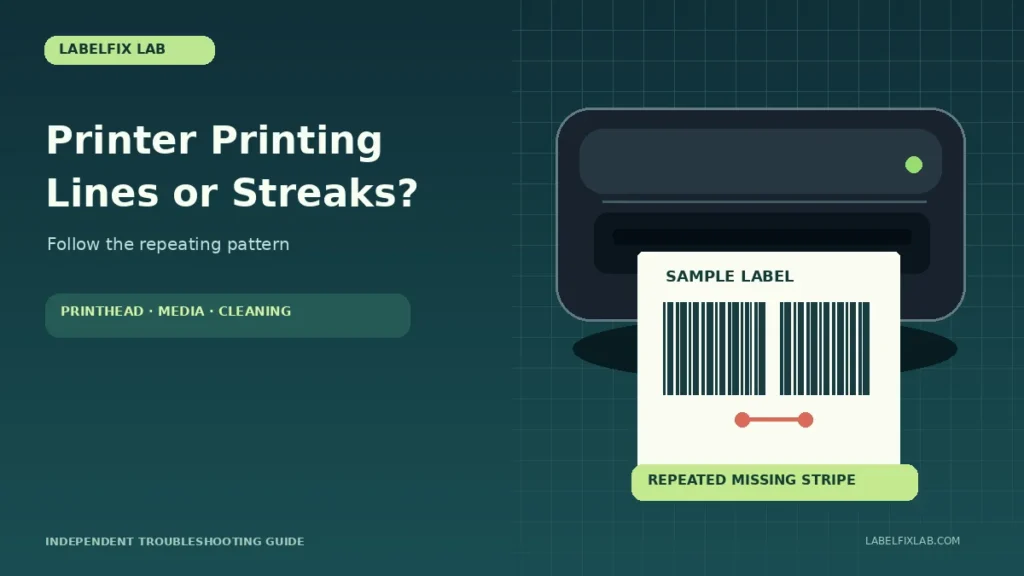
If a thermal printer leaves white lines through text, dark bands across a label, or repeated stripes in a barcode, look closely at the direction and repeatability of the mark. A physical defect that appears in the same position on every label deserves different troubleshooting from a line that exists only in one PDF.
First: identify which kind of line you see
| Pattern on the label | Possible starting points |
|---|---|
| Narrow white line in the same position on every label | Printhead debris, contact problem or failed heating element |
| Dark stripe that repeats at intervals | Media path, contamination, roller or calibration conditions |
| Random faded patches or broken bars | Stock quality, coating, wrinkles, printhead contact |
| Line visible in the original PDF itself | Artwork or document-export issue rather than printer hardware |
| One edge consistently lighter than the other | Uneven printing across the label width |
The direction of the marks should be described relative to the direction of paper travel, not how the final label happens to be rotated in the PDF viewer.
1. Check whether the defect is in the source PDF
Zoom in on the original carrier PDF and inspect the affected area. A graphic line or missing region that already exists in the file cannot be fixed by cleaning a printhead. If the defect is absent in the PDF but present in the print, note the application, print scaling and driver configuration.
Prefer a PDF exported by the shipping provider rather than a resized screenshot. If the label is unexpectedly tiny or clipped, follow the 4×6 shipping-label sizing guide first.
2. Print a device-generated configuration or test pattern
Most dedicated label printers offer some form of built-in diagnostic output. Consult the exact model manual for the sequence. If the same physical stripe appears in both the built-in output and a shipping PDF, the problem is unlikely to be limited to one application.
If the built-in output is normal but one computer prints broken bars, compare printer queues, official drivers, image-processing options and the original document. A single document is not enough to diagnose failed hardware.
3. Compare the defect across several consecutive labels
Print a small test batch on compatible stock and observe whether the line stays at the same position, moves, fades, or disappears. A line in a repeatable location can indicate debris or a heating element that is not transferring energy; an inconsistent smudge may point instead to the media surface or temporary contamination.
Do not immediately increase darkness to the maximum. More heat can distort bar widths and white spaces, making barcodes harder to scan even if they appear darker.
4. Inspect media and loading before cleaning
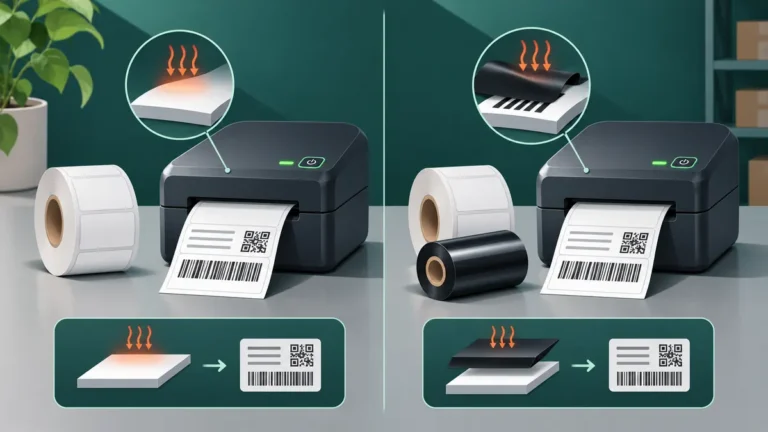
Check that the stock matches your device’s direct-thermal or thermal-transfer requirements. Wrinkled backing, unsupported width, unsuitable coating and incorrectly loaded ribbon can all reduce print consistency. For an explanation of the two print methods, see direct thermal versus thermal transfer labels.
Reload the roll without overtightening the side guides and check that it advances straight. If you have a known-good roll of approved stock, compare the results using the same test pattern.
5. Clean the printhead only as the manufacturer allows
Shut down and unplug the printer where directed, then allow the printhead to cool. Use only recommended cleaning materials and procedures. Do not scrape the heated line, apply excessive pressure, or use random household solvents. A persistent defect after approved cleaning may require service rather than more aggressive cleaning.
6. Distinguish a printhead defect from a platen or feed problem
The printhead forms the image, while the platen or feed mechanism helps move media at a consistent rate. Worn, dirty or uneven components can affect print quality. A defect that varies with paper movement or appears in regular intervals may need a model-specific roller or feed inspection.
Because printer mechanisms differ, do not dismantle covers or adjust pressure assemblies without instructions for the exact device. A qualified service provider may be needed if built-in tests consistently show the same stripe.
7. Recheck speed and darkness in controlled steps
Use the media manufacturer’s recommended range where available. Make one small change, print a single test label, and compare the entire barcode and text. If the printed image becomes blurry or bars merge, revert the adjustment instead of continuing to increase heat.
Barcode quality is the final acceptance test
A narrow missing line through a barcode may be serious even when the shipping address remains readable. Check bar completeness, adequate blank margins and contrast against the original. If the label is damaged, reprint the carrier-generated original. Read our separate guide on shipping barcodes that will not scan for more checks.
When to seek service
Consider professional inspection when a reproducible defect remains on a manufacturer-generated test after loading compatible media and completing supported maintenance. Record the model, firmware version if available, stock type and position of the defect to help a technician isolate the problem.
Frequently asked questions
Why does my thermal printer leave a white stripe down every label?
Debris or a malfunctioning heating element may be involved, but verify the pattern with a built-in test and follow approved cleaning instructions before assuming the printhead needs replacement.
Can the PDF cause lines in a shipping label?
Yes. Incorrect source artwork, document export or rendering can introduce lines. Check whether the line appears in the original document and whether printer-generated output is clean.
Will increasing darkness fix missing barcode lines?
Not reliably. Excess heat can merge bars and gaps. First identify whether the issue is media contact, residue, stock compatibility or the document.
Do vertical and horizontal streaks have different causes?
They can. The pattern, paper-feed direction and repeatability provide useful clues, but no orientation alone proves a specific component has failed.
Editorial note: This is a general diagnostic procedure, not a claim of hands-on testing on a specific printer model. Follow official safety and service instructions.
Independent general troubleshooting information for shipping labels and thermal printers. Model-specific button sequences, cleaning supplies and service instructions can differ; consult your manufacturer's official documentation. Never alter a carrier-generated barcode.