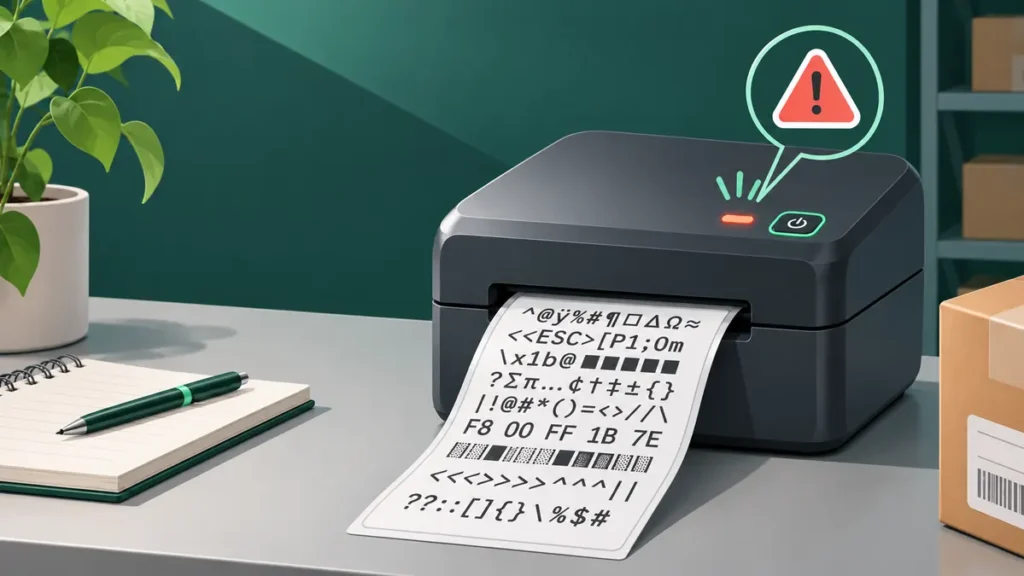
A thermal label printer that prints rows of strange characters, command-like text or unreadable symbols may not have a bad printhead at all. Sometimes the printer receives instructions in a language it does not understand, or an application sends the wrong kind of data for the selected driver. The first goal is to distinguish this from an ordinary PDF scaling or label-quality problem.
First, look at what is actually printing
“Gibberish” can describe several symptoms. The distinction changes the diagnostic path:
| What comes out | Useful first check |
|---|---|
| Readable text containing commands, symbols or code | Driver or print-language mismatch |
| Random letters instead of a label image | Application data format or queue configuration |
| Correct content but tiny, sideways or clipped | PDF page size, orientation and scaling |
| Smudged or pale letters that should be readable | Media, heat transfer and printhead condition |
If the printed content is correct but appears too small, see our 4×6 PDF scaling guide. The checks below focus on genuinely incorrect symbols or printer commands appearing on labels.
Why print-language mismatches happen
Dedicated label printers often support one or more command languages for sending text, barcodes, positions and printer settings. Examples in the label-printing industry include ZPL, EPL, TSPL and CPCL. These languages are not universally interchangeable; support varies by manufacturer, product line, model and firmware.
If a program expects one printer language but the receiving device expects another, the job may not print as intended. Depending on the equipment, it could print raw text, produce a partial label, show an error or do nothing. Not every gibberish symptom is caused by a language mismatch, so confirm it with tests.
1. Use the printer’s own self-test as a baseline
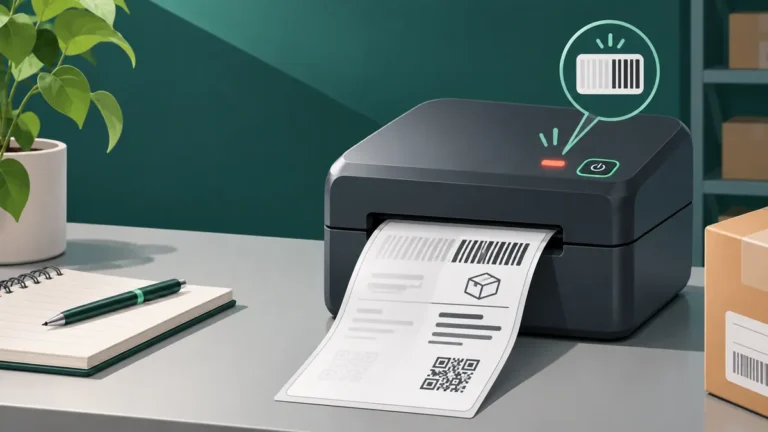
Consult the official manual for the exact self-test or configuration-label procedure. This is usually generated within the printer, without the shipping browser or computer sending a document. If the built-in label prints correctly, you know the printer can create at least that pattern on the loaded stock.
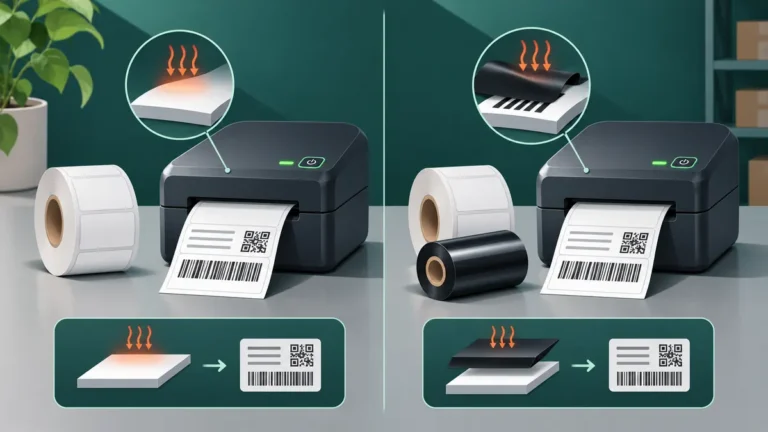
If the built-in print is also unreadable or blank, verify consumables, print method, compatibility and physical condition before blaming the computer. Our guide to direct thermal versus thermal transfer explains one common source of incompatible media.
2. Check that the computer selected the correct printer
When multiple label printers, virtual PDF printers or saved queues exist, a shipping app can silently use an unintended default. Open the print dialog and confirm the exact device and intended queue. A queue named after a different printer model may point to an incompatible driver even if it sends data to the correct physical USB or network port.
3. Verify the driver matches the precise model
Compare the printer’s model label with the installed driver. Download installation files from the printer manufacturer’s official support resources. Do not rely on drivers from unknown third-party download sites, and do not assume a generic thermal driver supports every barcode language or print resolution.
Some systems can send a PDF as a rendered image; others expect the software to generate printer-specific commands. Choose the workflow the manufacturer supports for your device and operating system.
4. Determine whether you are sending a PDF, an image or raw commands
Open the file before printing. A normal PDF typically displays a readable shipping label in a PDF reader. If it does, print from a compatible PDF workflow and compare the output. A file containing literal instructions or raw printer commands is a different kind of input and generally should not be printed as if it were a document image.
Some marketplace software prints labels through a browser, while other systems send commands directly over USB or a network. The same label can behave differently in those two paths.
5. Test a simple supported document
Using the correct driver, print a small ordinary test label or supported sample from the manufacturer’s software. If its output is normal but the shipping application prints symbols, the application integration is the next thing to check. If both application and sample fail but a built-in self-test works, focus on the host-to-printer path.
6. Inspect print queue and connection settings
Check for duplicate queues, jobs left in a failed state and any unexpected routing through a network print server. For network printers, ensure that the driver uses a connection method recommended by the manufacturer. Randomly changing ports or sending commands to unknown addresses can disrupt a working print setup.
Record current settings before troubleshooting. Restart the affected queue or application only after you have saved any unsent shipping work.
7. Try the manufacturer’s setup utility
Many manufacturers provide official diagnostics that show firmware version, printer language, status and media information. Use those tools to confirm supported configuration, not to guess unsupported command combinations. A firmware update is not a general first-line fix: only perform one when the manufacturer specifically recommends it for the model and issue.
8. Change one variable and retest
After selecting the correct queue or driver, send one known-good test job and inspect both the physical print and the application’s output. Avoid making several driver, paper-size and sensor changes simultaneously. If the result improves, save the working settings so you can restore them later.
Frequently asked questions
Why does my label printer print code instead of a barcode?
One possible cause is that raw commands are being sent to a printer or driver that does not interpret that command language. Compare the device’s self-test, official driver and the application’s output format.
Does printing gibberish mean the printhead is damaged?
Not usually as the first hypothesis when characters are physically dark and crisp but semantically wrong. A damaged printhead more often produces missing, pale or repeated physical defects. Use a built-in print to separate the symptoms.
Can I use any thermal printer driver?
No. Driver, printer model, print resolution and supported language matter. Obtain the driver or software recommended by the device manufacturer.
What if a PDF prints correctly on an office printer but not the thermal printer?
That can point to different print paths or driver support. Confirm that the thermal driver and application agree on both the document format and the required 4×6 media.
Editorial note: Printer languages and supported connection protocols vary by model. Always use the device manufacturer’s guidance for firmware, driver installation and command configuration.
Independent general troubleshooting information for shipping labels and thermal printers. Model-specific button sequences, cleaning supplies and service instructions can differ; consult your manufacturer's official documentation. Never alter a carrier-generated barcode.