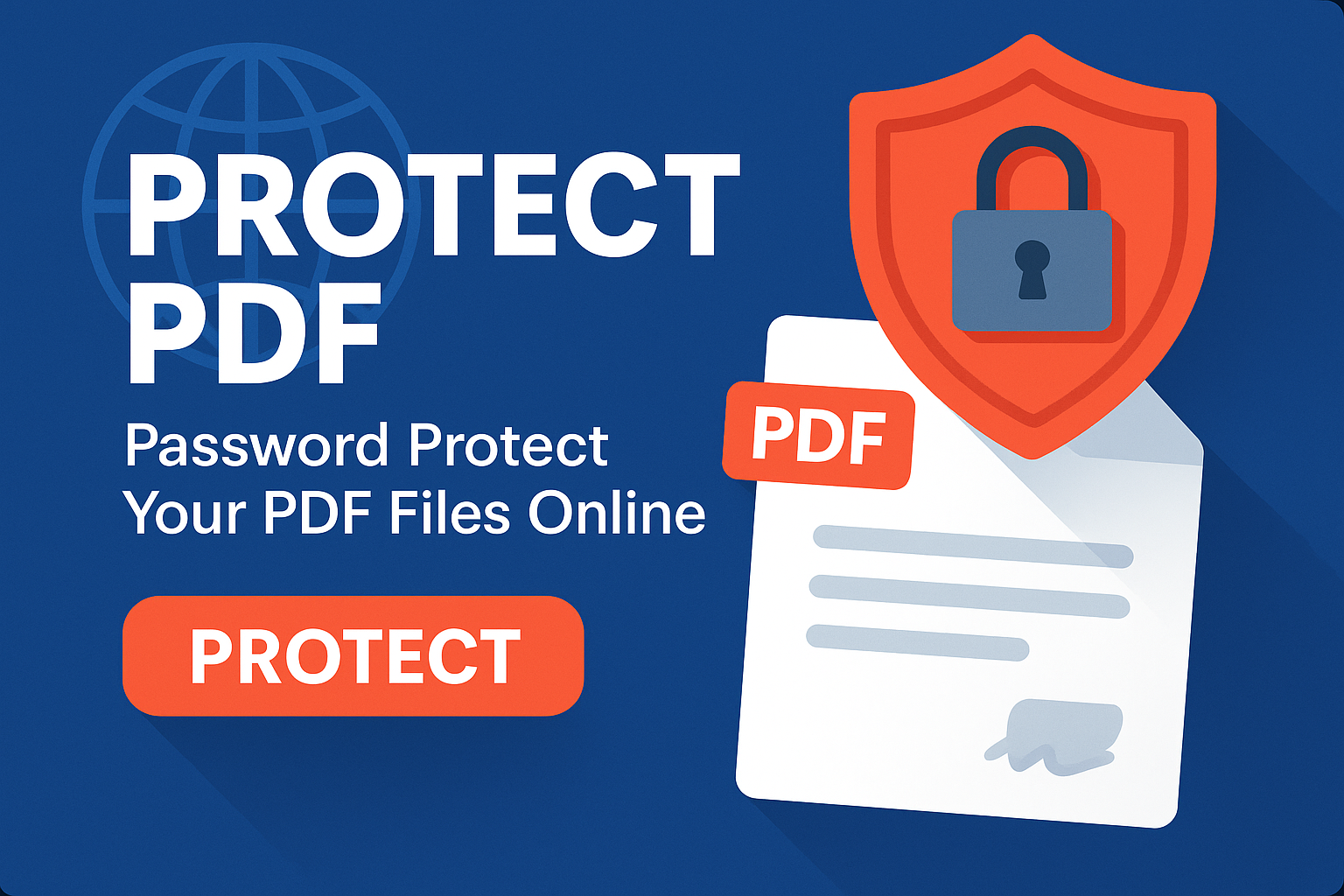
Protect PDF – Password Protect Your PDF Files Online
PDF files are widely used for contracts, reports, invoices, legal documents, academic work, and confidential information. However, when you share a PDF file without protection, anyone who receives it can open, copy, print, or forward it. If your document contains sensitive data, you need a secure way to lock it. That’s where our Protect PDF – Password Protect Your PDF Files Online tool becomes essential.
With this tool, you can easily add a password to any PDF file so that only people who know the password can open and view it. No software installation is required, everything happens online, and the process is fast, secure, and user-friendly.
Use the tool here: Protect PDF Online
Why You Should Protect Your PDF Files
1. Secure Sensitive Information
Many PDFs contain personal, financial, legal, or business data. Adding a password reduces the risk of unauthorized access and data leaks.
2. Control Who Can Read Your Documents
By protecting a PDF with a password, you ensure that only trusted people with the password can open the document.
3. Professional and Legal Requirements
Some contracts, reports, or internal documents must be protected according to company or legal policies. Password-protecting PDFs helps you comply with these requirements.
4. Prevent Unauthorized Sharing
Even if someone forwards your file, the password protection remains. The document is useless without the correct password.
5. Easy Extra Layer of Security
Adding a password is one of the simplest ways to add security to documents that travel over email, messaging apps, or shared drives.
How to Password Protect a PDF Online (Step-by-Step)
Step 1 – Open the Protect PDF Tool
Visit the tool page: Protect PDF Online
Step 2 – Upload Your PDF Document
Click the upload button or drag and drop your PDF into the upload area. You can upload:
- Contracts and agreements
- Financial reports
- Invoices and billing documents
- Academic papers and research
- Employee records or HR files
- Confidential internal documents
Step 3 – Choose a Strong Password
Enter the password you want to use for protecting your PDF. For best security, choose a password that:
- Is at least 8–12 characters long
- Includes uppercase and lowercase letters
- Includes numbers
- Optionally includes special characters (e.g. !, @, #)
Avoid simple passwords like 123456, password, or your name. A strong password makes your PDF much more secure.
Step 4 – Apply Protection
Click the button to protect your PDF. The tool will encrypt the file and add password protection instantly.
Step 5 – Download the Protected PDF
Download your new, secured PDF. Now, anyone trying to open it will be asked to enter the password.
Who Uses Protect PDF Tools?
- Students – protecting assignments or projects before sharing
- Teachers – locking exam papers and answer keys
- Business owners – securing proposals, financial sheets, and client documents
- HR departments – protecting employee information and salary files
- Lawyers – safeguarding contracts, case files, and legal opinions
- Accountants – locking balance sheets, tax documents, and financial reports
- Freelancers – protecting client deliverables and confidential work
Main Features of Our Protect PDF Tool
1. Strong Encryption
The tool uses secure encryption standards to protect your PDF. Without the password, the file cannot be opened.
2. Fast and Simple
No technical knowledge required — just upload, set a password, and download the secured file.
3. 100% Online
No software installation or browser extension needed. Everything works directly in your browser.
4. Works on All Devices
Supports Windows, macOS, Linux, Android, and iOS — all you need is a browser and internet connection.
5. Secure and Private
Your files are handled securely and are deleted automatically after processing. Your passwords are never stored.
6. No Watermarks or Limits
The output PDF does not contain any watermarks or branding. You can protect as many PDFs as you want.
Best Practices for Choosing a PDF Password
A strong password is the heart of secure PDF protection. Here are some tips:
- Do not reuse passwords from your email or social media accounts.
- Avoid names, birthdays, or simple patterns (1234, qwerty, etc.).
- Use a mix of letters, digits, and symbols.
- Consider using a password manager to generate and store strong passwords.
- Share the password through a different channel than the PDF (for example: send the PDF via email and the password via WhatsApp).
Use Cases for Protecting PDFs
1. Protecting Client Proposals and Quotes
Freelancers and agencies often share pricing and project details. Locking these PDFs prevents untrusted users from viewing or reusing sensitive content.
2. Securing Legal Documents
Contracts, NDAs, and legal letters often require restricted access. Password protection ensures only authorized people can open the file.
3. Protecting Academic Work
Students and researchers can protect their thesis, research, or unpublished work against unauthorized distribution.
4. Confidential Business Reports
Financial statements, sales reports, and internal strategies should not be publicly accessible. Locking the PDF improves privacy.
5. HR & Employee Data
Salary reports, employee reviews, and personal files must be handled with care. Password protection is a basic but powerful step.
Related Tools
- Unlock PDF – remove passwords from PDF files when you know the password.
- Compress PDF – reduce file size after applying protection.
- Edit PDF – edit content before securing the document.
- Merge PDF – combine multiple PDFs, then protect the final file.
FAQ – Protect PDF
1. Can I remove the password later?
Yes. If you know the password, you can use the Unlock PDF tool to remove it.
2. What happens if I forget the password?
If you lose the password, you may no longer be able to open the PDF. Always store your password safely.
3. Is the protection strong?
Yes — the file is encrypted, and without the correct password, it cannot be opened using standard PDF readers.
4. Is this service free?
Yes, you can protect as many PDF files as you want for free.
5. Are my documents stored on your servers?
Your files are processed securely and deleted automatically after a short time. We do not permanently store your documents.
Conclusion
Our Protect PDF tool offers a quick and reliable way to secure your PDF files with a password. Whether you're sending confidential business data, academic work, legal files, or personal documents, password protection adds a powerful layer of security. With fast online processing, strong encryption, and no software installation, this tool is the easiest way to lock your PDFs and keep your information safe.