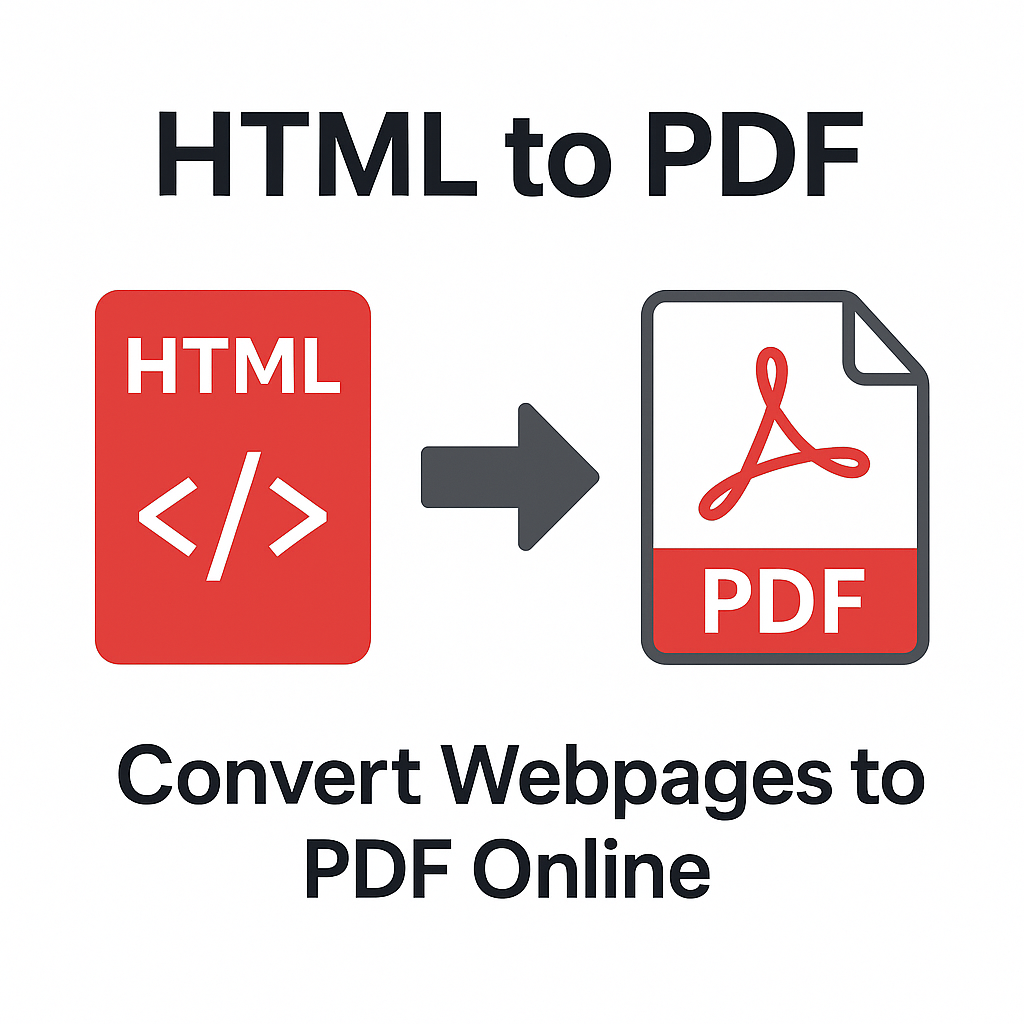
HTML to PDF – Convert Webpages to PDF Online
Web pages are great for reading content online, but they are not always convenient for offline access, printing, or long-term archiving. Links can break, designs can change, and content may be removed from the internet. That’s why converting HTML or a live webpage into a PDF file is extremely useful. A PDF captures the state of the page at a specific moment and preserves it as a portable, shareable document.
With our online HTML to PDF tool, you can quickly turn any HTML content or URL into a high-quality PDF file — without installing any software, extensions, or plugins.
Why Convert HTML to PDF?
1. Save Webpages for Offline Reading
Sometimes you find a useful article, tutorial, or documentation page that you want to keep forever. Instead of bookmarking a link that might change in the future, you can save the page as a PDF and access it any time, even without an internet connection.
2. Create Printable Versions of Web Content
Web pages are not always optimized for printing. Converting HTML to PDF generates a print-ready document with proper page breaks, margins, and layout that’s much easier to print.
3. Keep a Record of Online Transactions
You can save:
- Invoices
- Order confirmations
- Payment receipts
- Registration confirmations
by converting the HTML pages directly into PDFs for accounting or proof of purchase.
4. Share Content in a Universal Format
Not everyone wants to click on links, and sometimes web content is private or behind a login. A PDF version of the page is easier to email, store, and attach to reports or presentations.
5. Archive Documentation and Knowledge
Developers, teams, and companies often store documentation in HTML or web-based formats. Converting these to PDF ensures you retain a permanent copy for internal use.
How to Convert HTML to PDF Online (Step-by-Step)
Our online converter makes it simple to transform any HTML or webpage into a clean, professional PDF file.
Step 1 – Open the HTML to PDF Tool
Visit: HTML to PDF tool
Step 2 – Choose Your Input Type
You can convert:
- An HTML file from your device (for example:
.htmlor.htm). - A live URL (webpage link) that you want to capture as a PDF.
Step 3 – Upload or Paste the URL
If you have an HTML file, click the upload area and select it. If you want to convert a live webpage, simply paste the URL (for example: https://example.com/article) into the input field.
Step 4 – Configure Optional Settings (If Available)
Some conversions work best with custom options such as:
- Page size (A4, Letter, etc.)
- Orientation (Portrait or Landscape)
- Margin size
- Enable or disable background graphics
Step 5 – Convert HTML to PDF
Click the “Convert” button. The tool will load the HTML, process the layout, and generate a PDF version of the page.
Step 6 – Download Your PDF File
Download the generated PDF and save it to your device. You can now:
- Share it via email
- Upload it as a document
- Attach it to reports
- Print it anytime
What Can You Convert Using HTML to PDF?
1. Online Articles and Blog Posts
Save long blog posts or tutorials as PDFs so you can read them later, highlight them, or send them to others for review.
2. Web-Based Invoices and Receipts
Many websites show order details and invoices on-screen only. Use HTML to PDF to turn those pages into proper documents for your financial records.
3. Documentation Pages and Wikis
Convert developer documentation, API references, internal wiki pages, and knowledge base articles into PDFs that can be used offline or attached to project files.
4. Email Templates and Landing Pages
Designers and marketers can save landing pages, HTML emails, and campaign pages as PDF snapshots to share with clients or keep for their portfolio.
5. Forms and Online Applications
If you fill in an online form and want proof of your submission, convert the filled page into a PDF and store it as evidence.
Benefits of Using Our HTML to PDF Tool
1. No Extensions or Software Required
Everything runs in your browser. No need to install browser add-ons or desktop readers.
2. High-Quality Page Rendering
The converter is designed to respect:
- Fonts and typography
- CSS layout as much as possible
- Images and icons
- Headings, lists, and structured content
3. Mobile and Desktop Friendly
You can convert HTML to PDF on:
- Windows and Mac
- Android phones and tablets
- iPhone and iPad
4. Secure and Private
Your URLs and files are processed securely and are not stored permanently. PDFs are generated on the fly and then removed after a short period.
5. Completely Free
You can use the HTML to PDF converter without registration, subscription, or watermarks.
Related Tools to Build a Full PDF Workflow
After converting HTML to PDF, you may want to optimize, edit, or combine your new document using other tools:
- Merge PDF – combine multiple PDFs into one file.
- Compress PDF – reduce the file size before emailing or uploading.
- Edit PDF Online – add annotations, text, or images to the generated PDF.
- Word to PDF – convert Word documents to PDF for a unified document format.
- PDF to Word – turn any PDF back into an editable Word document.
- Text to PDF – generate PDFs directly from simple text or notes.
FAQ – HTML to PDF
1. Will the PDF look exactly like the webpage?
The converter does its best to preserve layout and styling. However, some complex interactive elements (like animations or dynamic scripts) may not appear in the PDF version.
2. Can I convert password-protected pages?
You can convert content you have access to, but pages behind a login or restricted content may not always render if authentication is required.
3. Does the tool keep links clickable?
In many cases, hyperlinks inside the HTML remain clickable in the PDF, depending on the page structure.
4. Is there a size limit for HTML files or pages?
Very large pages or heavy content may take longer to convert. You can always compress the final PDF using Compress PDF.
5. Can I use this tool on mobile devices?
Yes. The HTML to PDF converter works smoothly on mobile browsers, allowing you to save pages from your phone directly as PDFs.
Conclusion
Converting HTML and webpages to PDF is the best way to preserve online content, create printable documents, and archive information in a stable, portable format. With our HTML to PDF tool, you can capture any webpage and save it as a high-quality PDF in just a few seconds — all online, free, and without any technical setup.