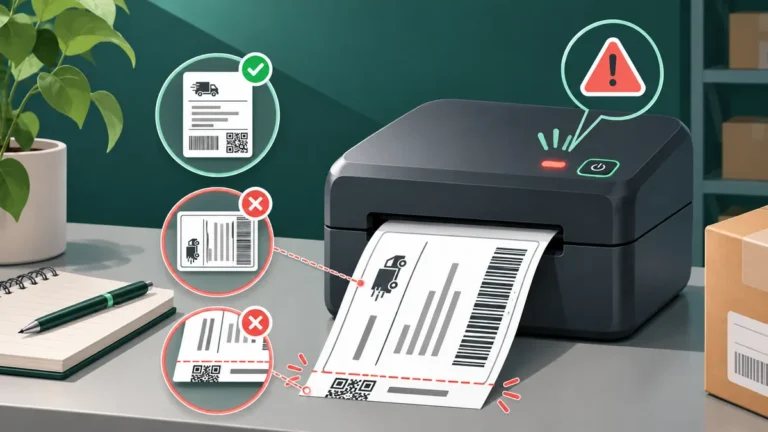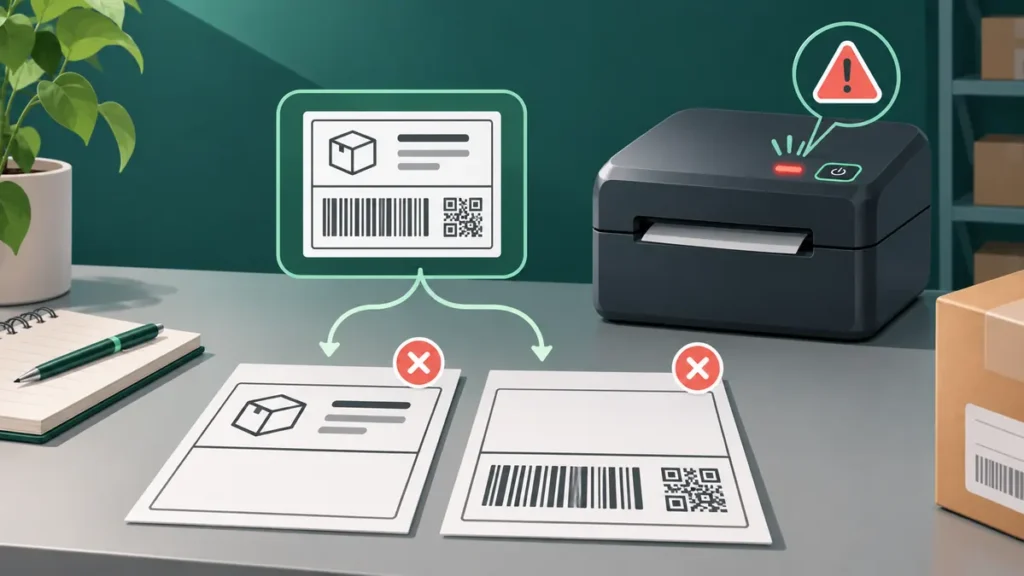
If a single 4×6 shipping label comes out as two pages, the extra sheet does not always mean the PDF has two pages. It might be an intentional second page in the downloaded document, a paper-size mismatch, or a printer that feeds an extra blank label after a finished job. Find out which case you have before changing settings.
Step 1: Check whether the original file contains two pages
Open the PDF in a dedicated viewer, rather than judging by how the shipping website displays it. Look at the page count, often shown as “1 of 1” or “1 of 2.” Then check the size of each page in document properties.
If the original PDF already contains two pages, printing one label per sheet may be correct behavior. Some shipping workflows include an additional receipt, packing slip, or instructions. Do not simply delete that page until you understand what it contains. Choose the platform’s dedicated 4×6 label download when one is offered.
If the PDF contains one page but the printer produces two pieces of stock, continue with the next checks.
Step 2: See what prints on the second sheet
| Second sheet | More likely starting point |
|---|---|
| Contains the bottom of the label | Page dimensions, clipping or app pagination |
| Repeats the full label | Copies, duplicate jobs or queue settings |
| Is entirely blank | Extra feed, end-of-job behavior, stock calibration |
| Shows a receipt or instructions | The downloaded document may genuinely have multiple pages |
This distinction matters because resizing a document will not fix a duplicate print job, and calibrating a printer will not remove a page already embedded in the PDF.
Step 3: Match the PDF canvas to the printer media
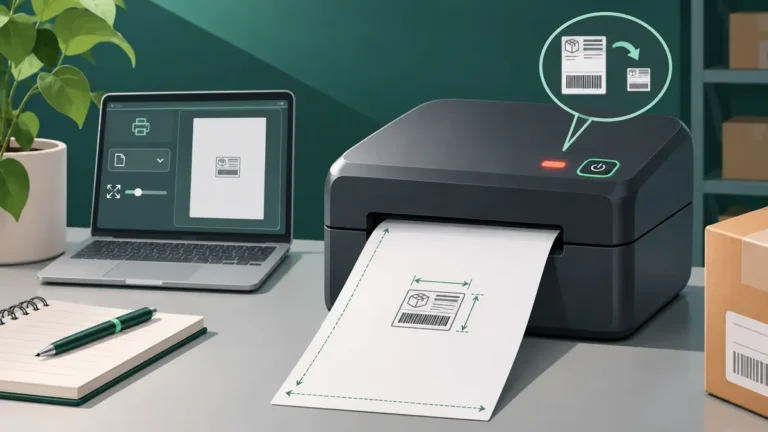
A portrait 4×6 shipping label is four inches wide and six inches tall, or 101.6 × 152.4 mm. Those measurements refer to the label’s intended page area, not the outside diameter of its roll or the width of its backing liner.
Check three independent places: the PDF page dimensions, the page or paper size in the printing application, and the media preset in the printer driver. A 4×6 PDF printed through a driver configured for Letter or A4 stock can lead to incorrect scaling or excessive feeding. A document that is six inches wide by four inches high may also need a different orientation from a four-inch-wide portrait label.
For another common size symptom, see our guide to shipping labels printing too small.
Step 4: Check the print dialog carefully
With the original 4×6 PDF open, inspect the preview before printing. Confirm that “Copies” is set to one and that page selection is not requesting multiple document pages. If the PDF page already matches your printer’s stock, choose Actual size / 100% where your viewer and driver support it.
Avoid “Multiple,” “Poster,” tiled pages, or booklet modes; these options are intended for different document layouts and can split or repeat artwork. Printer and application menus differ across Windows, macOS and browsers, so compare what the preview shows rather than assuming every button has the same name.
Step 5: If you print from a browser, use the original label PDF
Printing a webpage can produce a very different result from printing a shipping PDF. Browsers may add page headers, footers, margins or page breaks around HTML content. When your carrier or store platform offers a dedicated thermal-label PDF, download that file and print it from a PDF reader to isolate browser layout from printer behavior.
Do not use a screenshot as the final shipping label if the original file is available. Enlarging and resampling screenshots can affect barcode edges and required quiet zones.
Step 6: Diagnose an entirely blank second label
When the printer outputs a complete first label and then a blank second label, ask whether the blank advances after every job or only with certain label stock. Try a manufacturer-generated test label and compare it with the PDF workflow. If built-in tests also consume excess media, inspect the gap or black-mark sensor settings and the current media calibration procedure.
If the printer’s internal test feeds correctly but PDF jobs add a blank label, check the driver’s label length, print mode and application settings first. Our skipping-label troubleshooting guide covers media gaps and calibration in more detail.
Step 7: Test one label without risking a shipment
After each change, print a single label and compare its size and contents to the original PDF. Check that the barcode is complete, neither end is cut off, and no address or routing text is missing. The goal is a full, readable label generated by the shipping service—not merely something that fits the sticker.
Do not: stretch a tracking barcode sideways, rebuild it in a generic barcode generator, or crop its surrounding blank margins without knowing the carrier’s requirements.
Quick decision checklist
- PDF has two pages: check what each page contains and request the correct thermal-label format.
- PDF has one page; print shows two halves: match the PDF page size, print mode and driver media dimensions.
- Second print repeats the first: check copy count, job queue and app retries.
- Second label is blank: isolate an end-of-job feed or media-sensing problem with a built-in test.
Frequently asked questions
Why does a 4×6 shipping label print on two 4×6 stickers?
First check whether the document already contains two pages. If not, look at the print preview, paper preset and whether the second label is blank, split or duplicated. Those outcomes suggest different causes.
Can I just print page 1 of a shipping PDF?
Only after checking what the other page contains. A second page may be a receipt or another required document, depending on the shipping workflow.
Should I set the page to “Fit”?
Not as a universal fix. If both the PDF canvas and the stock are already 4×6, Actual size is generally the safer starting point, subject to your printer’s printable area.
Is an extra blank label the same as skipped labels?
Not always. A printer can add a blank label when a job ends without skipping labels during continuous printing. Test both a printer-generated output and a shipping PDF to separate the cases.
Technical note: Label stock sensing, driver options and end-of-job behavior differ by printer model. Use the manufacturer’s documented procedures for your device.
Independent general troubleshooting information for shipping labels and thermal printers. Model-specific button sequences, cleaning supplies and service instructions can differ; consult your manufacturer's official documentation. Never alter a carrier-generated barcode.