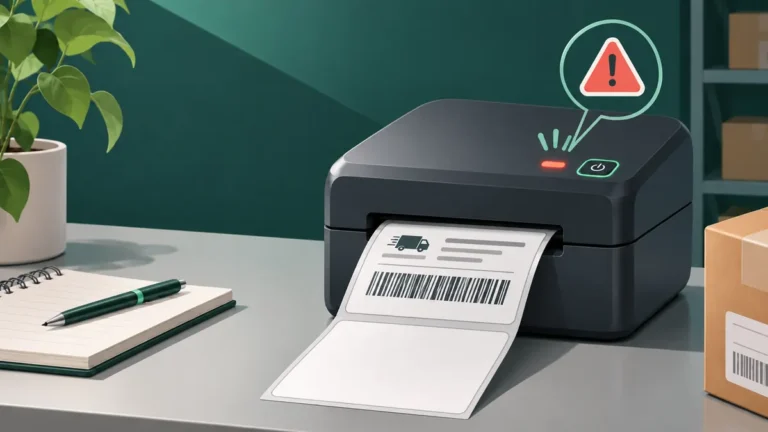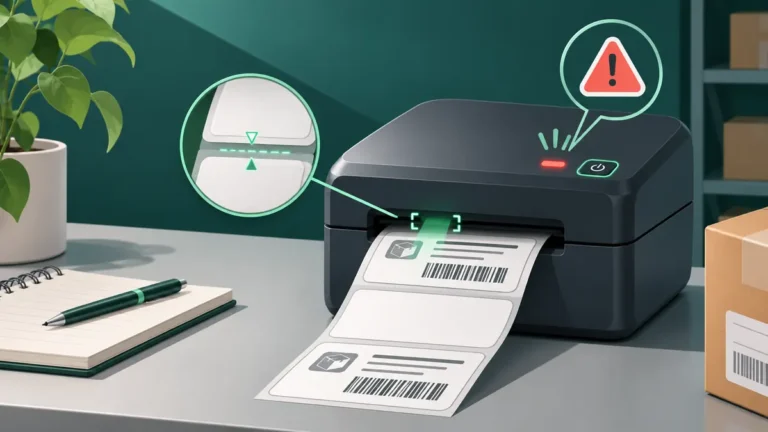
A thermal label printer that keeps advancing stock without stopping may be misreading label gaps, using the wrong media mode, or receiving a feed instruction from a computer or application. Start by separating uncontrolled movement from normal calibration or a long print job.
What does “feeding continuously” look like?
The phrase can refer to different faults. A printer may feed several blank labels while learning stock length, advance stock every time an application retries a job, or move the roll endlessly because the expected gap is never detected. These are not equivalent symptoms.
| Pattern | Where to start |
|---|---|
| Several labels advance during deliberate calibration, then stop | Confirm that this is normal for the model |
| Blank stock advances continuously without a print job | Feed control, sensor mode, media loading, device diagnostics |
| Movement starts only when a shipping app prints | Print queue, page length, driver media preset, job data |
| Only a new roll causes nonstop feeding | Gap or black-mark format, media compatibility, roll path |
| One extra blank label appears only after a job | End-of-job feed and tear-off settings |
Step 1: Stop repeated jobs and isolate the computer
If stock moves only after pressing Print, check the operating-system print queue and the shipping application for duplicate or stuck jobs. Cancel an unintended repeating job using the supported software controls. Record the printer and queue selected for that job before changing drivers.
If the printer keeps feeding without the computer requesting anything, follow the manufacturer’s safe device troubleshooting steps. Some models feed automatically after media changes or startup; the official guide determines whether that behavior is normal.
Step 2: Check whether the roll uses gaps or black marks
Gap stock has a detectable separation between adjacent die-cut labels. Black-mark stock has registration marks, often on the liner. Continuous stock does not have a regularly detected label boundary. A printer looking for gaps cannot automatically understand every black-mark roll, and the reverse is also true.
Use the media’s packaging and the printer manual to identify the correct sensing method. On devices with a selectable sensor position, verify that the sensor actually crosses the gap or mark. Do not force movable parts or adjust internal hardware that is not intended for users.
Step 3: Inspect label loading and liner condition
Remove a damaged roll using the approved media-loading procedure and look for crumpled backing, detached labels or adhesive residue. Reload the stock so it advances straight, without crushed edges or excessive friction from adjustable guides. A transparent, unusually thick or preprinted liner may be incompatible with the selected sensor type.
If the fault started when you changed supplier, temporarily compare with a known-good roll that meets the printer’s specifications. This can distinguish a stock-detection mismatch from a more general printer fault without assuming either is defective.
Step 4: Check the driver’s label size and sensing mode
The page size sent to the printer should correspond to the intended label. For a nominal portrait 4×6 shipping label, the printed area is 101.6 × 152.4 mm. Die-cut stock may also have a gap between labels, so the printable height and physical repeat distance can differ.
Compare the PDF dimensions, the application’s page size and the driver’s media configuration. If the driver is set to continuous mode for gap stock, or to an excessively long page, feeding behavior may become unpredictable. Make a note of the current preset before changing one setting at a time.
Step 5: Recalibrate with the actual roll installed
Use the manufacturer’s documented media-calibration procedure for the exact printer model. It is common for a calibration routine to advance multiple labels while the device learns a reference mark or gap. Do not mistake those intentional movements for a failed calibration.
After calibration finishes, use a simple one-label test before sending a full batch. If the printer still cannot identify the boundary, inspect approved sensor-cleaning guidance or consider an incompatible stock type.
Step 6: Compare a built-in test with a shipping PDF
A built-in configuration or self-test may bypass the computer’s driver and application. If it advances labels correctly while a specific PDF job triggers long feeding, focus on the PDF page count, length, print scaling, and software queue. If the built-in test also fails to locate boundaries, focus on roll loading, sensing and device service guidance.
For the closely related symptom of one blank label between prints, read thermal printer skipping labels. The difference between repeated skipped labels and nonstop feeding is important when choosing the next check.
Step 7: Inspect controls and maintenance without risking damage
If the physical Feed button appears pressed or the control panel reports an error, use the manufacturer’s safe inspection and reset instructions. A stuck control can look like a media-sensor issue. Avoid repeated factory resets: they may erase working network, print-method and media profiles.
Clean accessible optical sensors only using approved materials, with the printer powered down or isolated as directed in the manual. If a correctly loaded supported roll cannot be detected after documented calibration, service may be required.
Checklist before replacing the sensor
- Did the repeated movement happen without a print job?
- Does a known-good roll behave differently?
- Is the stock gap-based, black-mark or continuous?
- Does the configured sensing mode match the roll?
- Does the self-test behave differently from a PDF print?
- Have you recorded the original settings and completed only the supported calibration?
Frequently asked questions
Why does my thermal printer keep feeding blank labels?
One possibility is that it cannot detect the next gap or registration mark. Check the stock, sensor mode, loading path and calibration. Also rule out a repeated job from the computer.
Can a PDF cause a printer to feed continuously?
An incorrect page length or repeated print request may cause excess feeding on some devices. Compare the behavior with a built-in test to decide whether the issue comes from the computer or the printer.
Should I reset the printer when labels keep moving?
Not as a first step. A reset can erase a working configuration. Stop the unintended job, check media settings and follow the model’s calibration instructions first.
Is feeding during calibration a fault?
Not necessarily. Many devices intentionally advance several labels during calibration; the amount and procedure depend on the manufacturer and model.
Editorial note: This is independent, model-agnostic guidance. Sensor positioning, button sequences and maintenance must follow the official device documentation.
Independent general troubleshooting information for shipping labels and thermal printers. Model-specific button sequences, cleaning supplies and service instructions can differ; consult your manufacturer's official documentation. Never alter a carrier-generated barcode.